

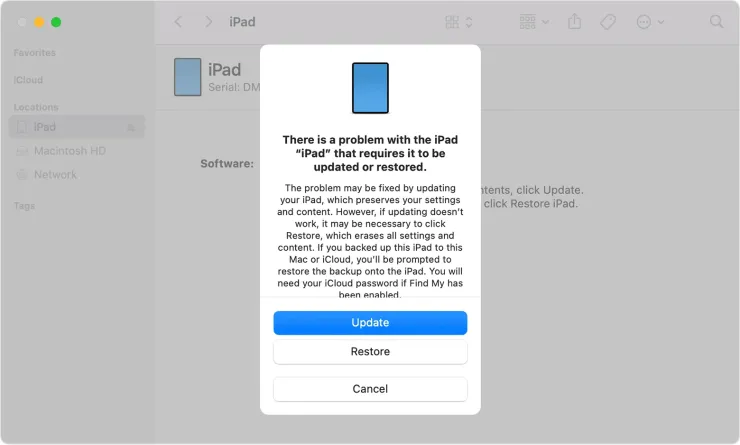
When an iOS update freezes your iPad, it can feel alarming—especially when the device becomes stuck on the Apple logo, a loading bar, a black screen, or an unresponsive home screen. Although iOS updates are intended to improve performance and boost security, they may sometimes create conflicts that lead to freezing issues. This happens because the new software interacts with system files, apps, and hardware components in ways that may not always align perfectly.
Fortunately, you can fix many of these issues at home. And even when professional help becomes necessary, knowing what to do before seeking repair can save time, prevent data loss, and reduce your overall repair cost. In this guide, you’ll learn why iOS updates freeze your iPad, how to troubleshoot the problem effectively, and when to turn to expert technicians for a complete solution.
Why iOS Update Freezes Your iPad
Before applying fixes, it’s important to understand why an iOS update freezes your iPad in the first place. Several factors—both hardware and software—can cause update failures. Understanding these underlying problems helps you choose the right repair method.
Software Conflicts That Cause iOS Update Freezes
Sometimes, older system files conflict with newly installed iOS components. As a result, the device struggles to load properly, which eventually makes the iPad freeze.
Insufficient Storage Leading to iPad Freezing After Update
If your iPad does not have enough free storage, the update may not install correctly. Consequently, your device may enter a frozen state during setup.
Battery Problems During iOS Installation
When the battery drains or becomes unstable during an update, the iPad may freeze mid-installation.
Internet or Wi-Fi Interruptions During Update
Because iOS updates rely heavily on stable network connections, even a small interruption may cause your iPad to freeze before completing the update.
Hardware Limitations Affecting iOS Update Performance
Older iPads often struggle to handle larger updates, which may cause freezing, boot delays, or system loading failures.
Symptoms of an iPad Frozen After iOS Update
Recognizing the early signs helps you take action before the device becomes completely unresponsive.
Stuck on Apple Logo Screen
A very common symptom where the iPad won’t progress past startup.
Frozen Loading Bar for iOS update freezes your iPad
The progress bar stops moving, even after several minutes.
Touchscreen Not Responding
Your iPad turns on but doesn’t react to any taps or gestures.
Endless Restart Loop for iOS update freezes your iPad
The device keeps restarting repeatedly without loading the home screen.
What to Do When an iOS Update Freezes Your iPad
Below are effective solutions you can try before visiting a repair shop.
Force Restart Your Frozen iPad
A force restart clears system glitches without deleting data. Moreover, it works for nearly all frozen-screen issues.
- For iPads without Home Button: Press volume up → press volume down → hold power button.
- For iPads with Home Button: Hold the Home + Power buttons together.
Charge the iPad for 30 Minutes
Low battery voltage may cause freezing. Therefore, plug in your iPad and let it charge before attempting any fix.
Connect to iTunes/Finder for Recovery
When an iOS update freezes your iPad, using Recovery Mode can restore system files safely.
Steps:
- Connect iPad to a computer.
- Open Finder/iTunes.
- Put the device in Recovery Mode.
- Choose Update (not Restore) to keep data intact.
Free Up Storage Using iTunes/Finder
If your device freezes due to low storage, iTunes can help remove extra files.
Reinstall iOS in DFU Mode
DFU mode (Device Firmware Update) is the deepest reset available. Although it keeps firmware intact, it can fix:
- Frozen update problems
- Boot-loop faults
- Firmware corruption
However, use this only if a normal update fails.
Professional Repair Options for iPad Frozen After Update
When all DIY methods fail, professional assistance becomes essential. Advanced diagnostic tools can identify deep firmware or hardware-level problems.
Why Choose Milaaj?
If an iOS update freezes your iPad, choosing a trusted repair center ensures safe and long-lasting results. Milaaj offers:
Low Price Options
They provide affordable repair packages without reducing quality.
Fast and Efficient Repairs
Most frozen-iPad repairs are completed within the same day.
High-Quality Replacement Parts
They use only premium-grade components for lasting performance.
Convenience and Quick Diagnosis
Walk-in and pickup services make the process smooth and hassle-free.
Expert-Level Firmware Repair
Advanced tools like micro-soldering stations and iPad diagnostic software help restore frozen devices safely.
Secure Data Protection
They follow strict protocols to ensure your data remains safe during repairs.
Preventing iOS Update Freezes on Your iPad
Preventive steps help avoid freezing during future updates.
Keep Sufficient Storage Available
Aim for 5–10 GB of free space.
Maintain Battery Charge Above 50%
Or keep the iPad connected to power during updates.
Update Apps Before Updating iOS
This reduces software conflicts.
Ensure You Have a Strong Wi-Fi Connection
Weak connections may cause update failures.
Avoid Interrupting the Update Process
Do not force restart unless absolutely necessary.
Conclusion: iOS update freezes your iPad
In conclusion, when an iOS update freezes your iPad, it can feel frustrating—but most issues have simple solutions. From force restarting the device to reinstalling iOS via Recovery or DFU Mode, many fixes require no technical skills at all. However, if your iPad still freezes, restarts repeatedly, or won’t load past the Apple logo, professional repair is the safest and fastest option. With expert technicians, quick service, and reliable diagnostics, Milaaj Mobiles and Laptop Repair Al Barsha ensures your iPad is restored smoothly and securely after any frozen-update issue.
Other Services:
- Need other iPad repairs? Check out Milaaj’s iPad repair services in Dubai.
- Looking to upgrade? Learn about selling your used iPad in Dubai.
- Data loss concerns? Visit Milaaj’s data recovery services.
- For Apple users, check Apple trade-in options in Dubai.
📍 Visit Any Milaaj Branch in Dubai
🔹 Bur Dubai
Milaaj Mobile and Laptop Repair Dubai
📞 055 258 8477
🔗 Google Maps
🔹 Al Barsha
Milaaj Mobiles and Laptop Repair Al Barsha
📞 052 596 2846
🔗 Google Maps
🔹 Al Barsha 3
Milaaj Mobiles and Gaming Store
📞 052 3405 814
🔗 Google Maps
🔹 Al Nuaimiya
Milaaj Mobiles and Laptops Ajman
📞 055 788 9654
🔗 Google Maps
Shop Locations: Al Barsha | Bur Dubai | Reef Mall, Salah Al Din | Al Nuaimiya, Ajman
Email: support@milaaj.com
Operating Hours: Monday – Sunday
Leave a Reply