

In an era where digital privacy feels increasingly fragile, Apple has introduced a powerful “shield” for its users. Specifically, if you feel your personal data is at risk from sophisticated cyber threats, knowing how to enable Lockdown Mode on iOS is your first line of defense. This isn’t just your standard passcode protection; rather, it is an extreme security measure designed for those who might be targeted by state-sponsored spyware or professional hackers.
While most of us aren’t secret agents, we all value our digital security. Consequently, understanding this feature allows you to turn your iPhone or iPad into a digital fortress. In this guide, we will walk you through the steps to activate this mode, explain what happens once it’s on, and help you decide if it’s the right choice for your daily use.
What is Lockdown Mode and Why Should You Care?
First and foremost, Lockdown Mode is an optional, high-level protection feature introduced to harden your device’s defenses. When you activate it, your iPhone strictly limits certain apps, websites, and features to reduce the “attack surface” that hackers use to gain entry.
As a result, many common functionalities are restricted. For instance, most message attachments are blocked, and certain web technologies like “Just-in-Time” (JIT) JavaScript are disabled to prevent malicious code execution. Moreover, incoming FaceTime calls from people you haven’t previously contacted are automatically blocked. Indeed, it is a radical shift in how your device operates, trading convenience for absolute security.
How to Enable Lockdown Mode on iOS: Step-by-Step
Actually, enabling this feature is quite straightforward, though it does require a device restart. Follow these steps to secure your data:
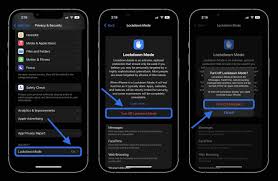
- Open Settings: Navigate to your iPhone or iPad’s home screen and tap the gear icon.
- Go to Privacy & Security: Scroll down until you find the “Privacy & Security” menu.
- Find Lockdown Mode: Scroll all the way to the bottom under the “Security” section and tap on Lockdown Mode.
- Turn On: Tap the blue text that says “Turn On Lockdown Mode.”
- Review the Impact: A screen will appear explaining what will be restricted. Read through this carefully. Once you are ready, tap “Turn On Lockdown Mode” at the bottom.
- Confirm and Restart: Tap “Turn On & Restart” and enter your device passcode. Your device will now reboot with maximum protection active.
Furthermore, if you have an Apple Watch paired with your iPhone, turning on Lockdown Mode on your phone will automatically enable it on your watch as well, provided it is running the latest software.
What Happens to Your Apps in Lockdown Mode?
When Lockdown Mode is active, your user experience changes significantly. For example, you might notice that some websites load more slowly or that certain web fonts look different. This is because the device is blocking complex web technologies that could potentially be exploited.
- Messages: Most attachments (other than images, video, and audio) are blocked. Links and link previews are also disabled to prevent “one-click” spyware infections.
- Web Browsing: Safari blocks specific complex scripts. However, you can manually exclude trusted websites if you need them to function normally.
- FaceTime: Incoming calls are blocked unless you have called that person within the past 30 days.
- Device Connections: Your iPhone must be unlocked to connect to any wired accessory or computer. Therefore, “juice jacking” at public charging stations becomes nearly impossible.
Milaaj Mobile and Laptop Repair Al Barsha: Keeping Your Hardware Secure
Even though software protection is vital, hardware integrity is just as important. If your iPhone has a cracked screen or a malfunctioning charging port, your data could be physically vulnerable or your device could fail when you need it most. This is where Milaaj mobile and laptop repair Al Barsha comes in.
Located in the heart of Dubai, we specialize in high-end repairs for all Apple and Android devices. We understand that security-conscious users need their devices back fast.
- Speed Repairing: Most repairs are completed within the same day, so you aren’t without your digital lifeline.
- Low Price: We offer the most competitive rates in Al Barsha without compromising on service.
- Convenience: We provide a hassle-free experience with easy parking and a comfortable waiting area.
- Part Quality: We only use premium, certified parts. Indeed, using low-quality components can compromise the physical security and longevity of your device.
Whether you need a security diagnostic or a quick screen fix, Milaaj is your trusted local partner for keeping your tech in peak condition.
Is Lockdown Mode Right for You? How to enable Lockdown Mode on iOS
In contrast to standard security, Lockdown Mode is not meant for everyone. If you are a journalist, a human rights activist, or someone handling sensitive corporate data, it is a must-have. On the other hand, if you primarily use your phone for social media, gaming, and casual browsing, the restrictions might feel too intrusive.
Nevertheless, it is a fantastic “emergency” tool. If you suspect your device has been compromised or if you are traveling to a high-risk area, enabling Lockdown Mode temporarily provides peace of mind.
FAQs: How to enable Lockdown Mode on iOS
1. Can I still make and receive phone calls in Lockdown Mode?
Yes, standard phone calls and cellular text messages continue to work normally. However, FaceTime calls and invitations for Apple services (like Home sharing) from strangers will be blocked.
2. Does Lockdown Mode slow down my internet?
Specifically, it may cause certain complex websites to load more slowly because it disables high-speed web rendering scripts. In addition, some web fonts and images may not display correctly.
3. Will Lockdown Mode protect me from all hackers?
While it is an “extreme” protection measure, no security is 100% foolproof. But, it significantly raises the cost and difficulty for an attacker to get into your device.
4. Can I exclude certain apps from Lockdown Mode?
Actually, you can exclude specific trusted websites in Safari settings, but you cannot selectively turn off Lockdown Mode for individual apps like Messages or FaceTime.
5. What if my screen breaks while in Lockdown Mode?
If your screen is unresponsive, you won’t be able to enter your passcode to unlock the device for a repair connection. In that case, visit Milaaj immediately for a professional screen replacement to regain access to your secured data.
Final Thoughts on Digital Safety: How to enable Lockdown Mode on iOS
In conclusion, learning how to enable Lockdown Mode on iOS is a vital skill for anyone concerned about the modern digital threat landscape. Apple has provided a powerful tool; therefore, it is up to us to use it wisely. By combining this extreme software protection with high-quality hardware maintenance from experts, you ensure your personal information stays exactly where it belongs with you.
Other Services:
- Need other Mac Book repairs? Check out Milaaj’s MacBook repair services in Dubai.
- Overheating issues? Explore MacBook repair in Dubai for similar cooling solutions.
- Looking to upgrade? Learn about selling your used laptop in Dubai.
- Data loss concerns? Visit Milaaj’s data recovery services.
- For Apple users, check Apple trade-in options in Dubai.
📍 Visit Any Milaaj Branch in Dubai
🔹 Bur Dubai
Milaaj Mobile and Laptop Repair Dubai
📞 055 258 8477
🔗 Google Maps
🔹 Al Barsha
Milaaj Mobiles and Laptop Repair Al Barsha
📞 052 596 2846
🔗 Google Maps
🔹 Al Barsha 3
Milaaj Mobiles and Gaming Store
📞 052 3405 814
🔗 Google Maps
🔹 Al Nuaimiya
Milaaj Mobiles and Laptops Ajman
📞 055 788 9654
🔗 Google Maps
Shop Locations: Al Barsha | Bur Dubai | Al Barsha 3 | Al Nuaimiya, Ajman
Email: support@milaaj.com
Operating Hours: Monday – Sunday

Leave a Reply