

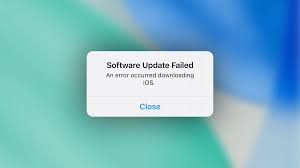
iOS updates are designed to enhance performance, improve security, and introduce new features. However, many users encounter serious problems during or after installation. When an iOS update failure occurs, the device may freeze, restart endlessly, refuse to turn on, or become completely unresponsive. As a result, users often fear permanent data loss.
Fortunately, an iOS update failure does not always mean your data is gone forever. In fact, with the right troubleshooting steps and professional repair solutions, most devices can be restored safely. Moreover, even in severe cases, advanced data recovery techniques can retrieve valuable photos, contacts, and files.
In this detailed guide, we explain why iOS update failure happens, how it affects your data, what recovery options are available, and how expert repair centers fix complex update-related issues efficiently.
What Is an iOS Update Failure?
An iOS update failure happens when the update process does not complete successfully or causes the device to malfunction afterward. Instead of functioning normally, the iPhone or iPad may get stuck on the Apple logo, show error messages, enter a boot loop, or fail to power on.
Typically, iOS update failure occurs during:
- Major iOS releases
- Interrupted downloads
- Insufficient storage situations
- Unstable internet connections
Therefore, understanding the failure type helps determine the correct recovery solution.
Common Causes of iOS Update Failure
Although Apple optimizes iOS updates carefully, real-world conditions can still trigger failures. Most importantly, knowing the cause helps prevent further damage.
1. Insufficient Storage Space
If your device lacks enough free storage, essential system files cannot install properly. Consequently, the update fails or corrupts the operating system.
2. Interrupted Update Process
Power loss, forced restarts, or network drops during installation can corrupt firmware files. As a result, the device may become stuck or unresponsive.
3. Software Conflicts
Outdated apps, beta profiles, or incompatible system settings may conflict with the new iOS version. Therefore, the update cannot finalize correctly.
4. Corrupted iOS Firmware
Downloaded firmware files may become corrupted due to server issues or unstable connections, leading directly to iOS update failure.
5. Hardware Weakness Exposed by Updates
In some cases, failing batteries, damaged storage chips, or logic board issues surface during updates, causing system instability.
How iOS Update Failure Leads to Data Loss
When an iOS update failure occurs, the operating system may not load. As a result, users cannot access their data. Although the data often remains on the device, it becomes inaccessible due to software corruption.
Common data risks include:
- Encrypted storage lockout
- Corrupted file systems
- Boot loop preventing access
- Recovery mode overwriting user data
Therefore, acting quickly is essential to protect stored information.
Immediate Steps to Take After iOS Update Failure
Before attempting repairs, follow these safe steps to avoid worsening the situation.
1. Avoid Repeated Forced Restarts
Although restarting seems helpful, excessive forced restarts can worsen corruption. Instead, pause and assess the situation.
2. Charge the Device Fully
Low battery can interrupt recovery attempts. Therefore, ensure adequate power before troubleshooting.
3. Check for Backup Availability
If you have iCloud or iTunes backups, data recovery becomes much easier. However, even without backups, recovery may still be possible.
Basic Fixes for iOS Update Failure
Fortunately, many iOS update failure issues resolve with simple solutions.
Restart the Device
Sometimes, a temporary glitch causes update failure. Therefore, a clean restart may restore normal functionality.
Free Up Storage Space
If the device partially boots, delete unused apps, videos, or files to free storage.
Update via iTunes or Finder
Connecting the device to a computer and updating through iTunes or Finder often resolves installation problems more reliably.
Advanced Repair Solutions for iOS Update Failure
When basic fixes fail, advanced methods become necessary.
Recovery Mode Restore
Recovery Mode reinstalls iOS while attempting to preserve data:
- Connect the device to a computer
- Enter Recovery Mode
- Select Update instead of Restore
This method often fixes system corruption without data loss.
DFU Mode Repair
DFU Mode bypasses the operating system and reinstalls firmware completely. However, it carries a higher risk of data loss and should be used carefully.
Professional Data Recovery After iOS Update Failure
If the device remains unresponsive, professional repair becomes essential. This is where expert-level solutions make a difference.
1. Advanced System Diagnostics
Technicians analyze firmware logs, storage integrity, and boot processes to identify the exact failure.
2. iOS System Reconstruction
Instead of wiping data, experts rebuild corrupted system partitions while preserving user files.
3. NAND-Level Data Extraction
In severe cases, technicians extract data directly from the NAND chip using micro-soldering and specialized readers.
4. Logic Board Repair
If power or data lines are damaged, micro-soldering restores connectivity, enabling data access.
Why DIY Data Recovery Is Risky
Although online tutorials suggest DIY fixes, they often worsen the problem. Most importantly, repeated restores may permanently erase data. In contrast, professional recovery prioritizes data preservation first.
Risks of DIY attempts include:
- Permanent encryption lock
- Overwritten storage sectors
- Physical chip damage
- Irreversible data loss
Therefore, expert repair is always the safer option.
Trusted Repair & Recovery in Al Barsha
Milaaj specializes in resolving iOS update failure issues using advanced diagnostics and professional-grade tools. Their technicians focus on safe data recovery, accurate repairs, and long-term device stability.
Moreover, they handle:
- Boot loop recovery
- iOS corruption repair
- NAND chip data extraction
- Logic board micro-soldering
With expert handling, even severely affected devices can often be restored.
How to Prevent iOS Update Failure in the Future
Prevention significantly reduces the risk of update-related problems. Therefore, follow these steps before future updates:
- Back up data using iCloud or iTunes
- Ensure at least 20% free storage
- Use stable Wi-Fi connections
- Keep the device fully charged
- Avoid interrupting updates
By preparing properly, you minimize the chances of iOS update failure.
FAQs About iOS update failure
1. What is an iOS update failure?
An iOS update failure occurs when an iPhone or iPad cannot complete an update or malfunctions afterward. As a result, the device may freeze, enter a boot loop, get stuck on the Apple logo, or fail to turn on properly.
2. Can data be recovered after an iOS update failure?
Yes, in most cases data can be recovered after an iOS update flop. Although the operating system may be corrupted, the data usually remains stored on the device and can be retrieved using professional recovery methods.
3. What causes iOS update failures?
Common causes include insufficient storage space, interrupted updates, unstable internet connections, corrupted firmware files, outdated apps, or underlying hardware issues exposed during the update.
4. Should I use DFU mode if my iOS update fails?
DFU mode can fix severe iOS update failures; however, it may erase data. Therefore, it should only be used after other methods fail or when advised by a professional technician.
5. Will restoring my iPhone delete my data?
Yes, a full restore can erase data if no backup exists. Therefore, choosing recovery or update options before restoring is always safer when dealing with iOS update flop.
Conclusion: iOS update failure
An iOS update failure can be alarming, especially when data becomes inaccessible. However, most failures result from software conflicts, interrupted installations, or storage issues—not permanent damage. Fortunately, with proper troubleshooting and professional repair, both system functionality and data can often be restored.
With expert diagnostics, advanced recovery tools, and reliable service, Milaaj mobiles and laptop repair Al Barsha provides safe and effective solutions for iOS update failure. Ultimately, acting quickly and choosing professional help makes the difference between successful recovery and permanent data loss.
Other Services:
- Need other iPhone repairs? Check out Milaaj’s iPhone repair services in Dubai.
- Looking to upgrade? Learn about selling your used iPhone in Dubai.
- Data loss concerns? Visit Milaaj’s data recovery services.
- For Apple users, check Apple trade-in options in Dubai.
📍 Visit Any Milaaj Branch in Dubai
🔹 Bur Dubai
Milaaj Mobile and Laptop Repair Dubai
📞 055 258 8477
🔗 Google Maps
🔹 Al Barsha
Milaaj Mobiles and Laptop Repair Al Barsha
📞 052 596 2846
🔗 Google Maps
🔹 Al Barsha 3
Milaaj Mobiles and Gaming Store
📞 052 3405 814
🔗 Google Maps
🔹 Al Nuaimiya
Milaaj Mobiles and Laptops Ajman
📞 055 788 9654
🔗 Google Maps
Shop Locations: Al Barsha | Bur Dubai | Reef Mall, Salah Al Din | Al Nuaimiya, Ajman
Email: support@milaaj.com
Operating Hours: Monday – Sunday

Leave a Reply