

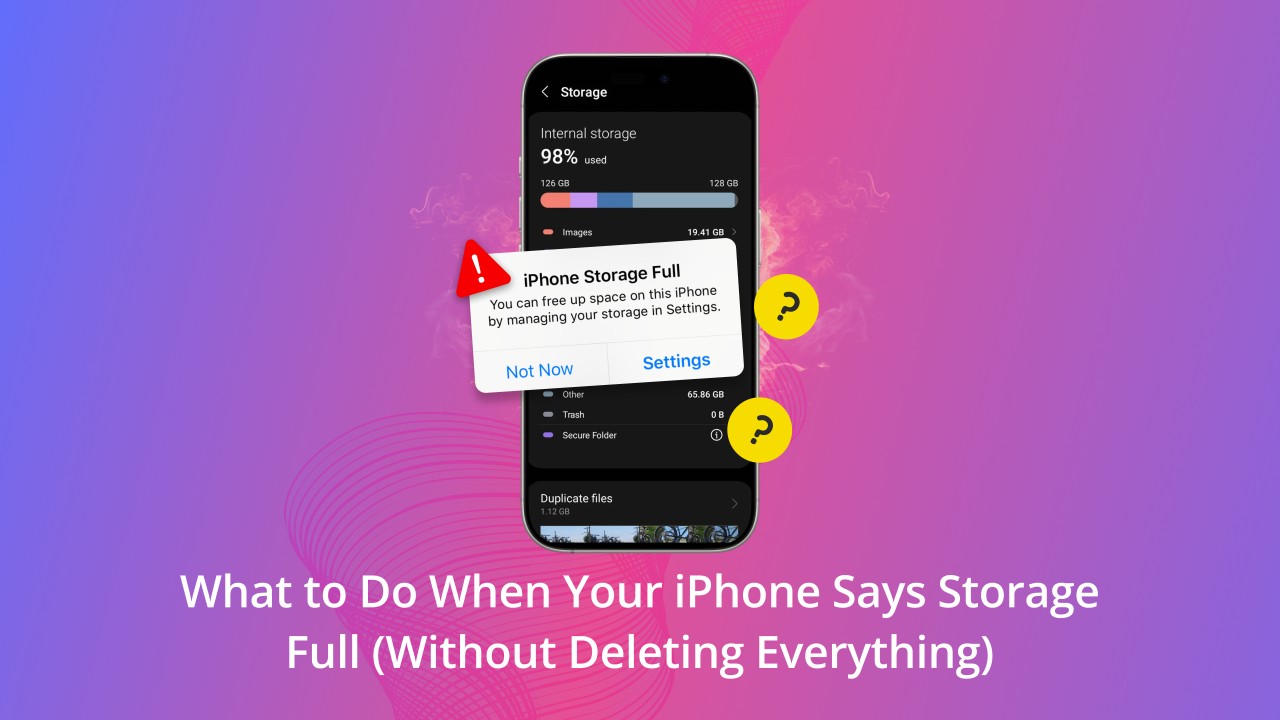
Apple devices are known for their smooth performance and reliability. However, many users eventually face a common and frustrating problem: Apple storage full issues. Whether you’re using an iPhone, iPad, or MacBook, storage warnings can suddenly appear, slowing your device, blocking updates, and limiting everyday use. As a result, users often feel confused about why storage fills up so quickly even after deleting files.
Fortunately, Apple storage full issues are not permanent. In most cases, they are caused by hidden system data, poor storage management, or software-related problems. Therefore, understanding the real causes and applying proven solutions can help you regain space and restore peak performance. In this comprehensive guide, we explain why Apple storage fills up, what mistakes to avoid, and which solutions truly work long term.
Understanding Apple Storage Full Issues
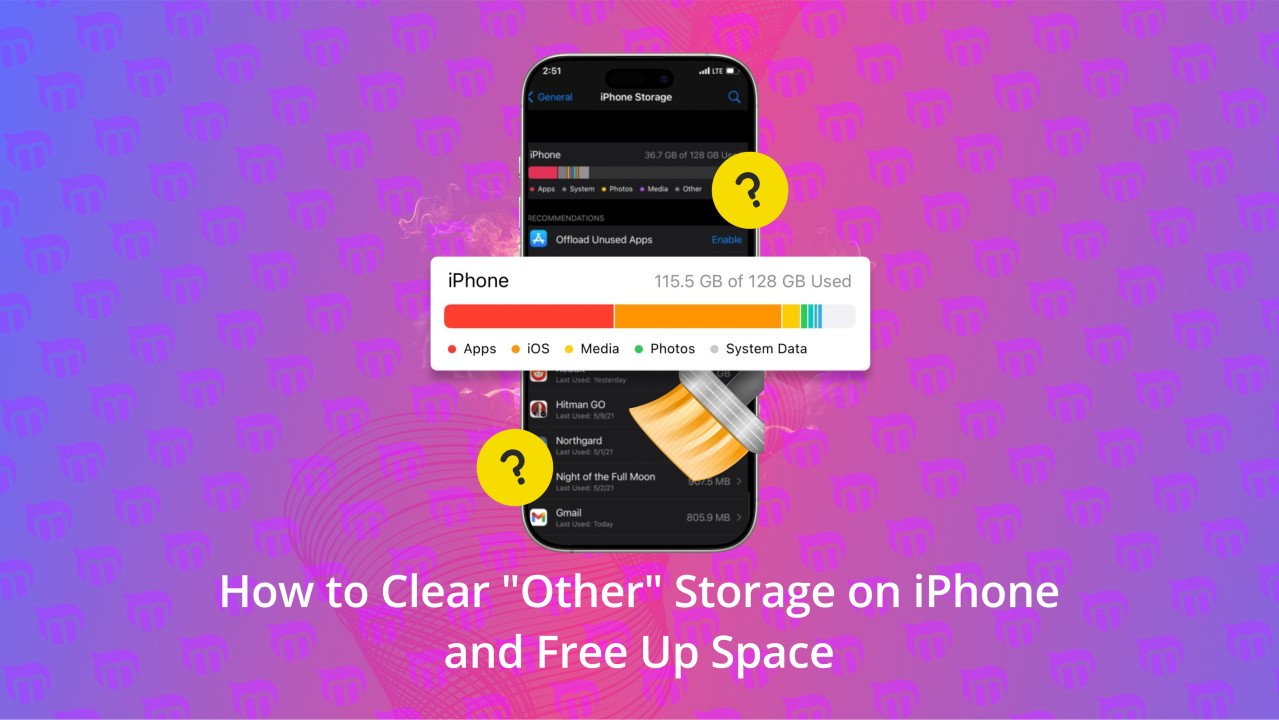
Before fixing the problem, it’s important to understand how Apple storage works. Apple devices divide storage into categories such as apps, photos, media, system data, and caches. Over time, these categories grow unevenly. Consequently, users may see storage full warnings even when they believe enough space should be available.
Moreover, Apple storage full issues often develop gradually. Temporary files, failed updates, backups, and app data silently consume space in the background. As a result, storage fills up faster than expected.
Common Causes of Apple Storage Full Problems
Hidden System Data and Cache Files
One of the biggest reasons behind Apple storage full issues is system data. This includes logs, caches, temporary files, and app support files. Although these files help apps run faster, excessive buildup eventually consumes valuable space.
iOS and macOS Update Leftovers
After system updates, Apple devices store installation files and backups. Therefore, storage may remain full even after a successful update.
Apps Storing Excessive Data
Social media, streaming, and messaging apps store large cache files. Over time, this app data becomes a major contributor to Apple storage full issues.
Photos and Videos Accumulation
High-resolution photos and videos take significant space. Even if iCloud is enabled, local copies may remain stored on your device.
Duplicate Files and Downloads
Repeated downloads, email attachments, and duplicate media files silently increase storage usage.
Signs Your Apple Device Has Storage Issues
Recognizing storage problems early can prevent serious performance issues. Common signs include:
- Frequent Apple storage full warnings
- Slow device performance
- Apps crashing unexpectedly
- Unable to install updates
- Camera or apps failing to save files
Therefore, once these symptoms appear, immediate action is necessary.
Apple Storage Full Issues on iPhone: What’s Different?
On iPhones, storage management is more limited. As a result, users cannot manually clear all system files. Additionally, apps tend to store more cached data on iPhones than expected. Therefore, iPhone users experience Apple storage full issues more frequently, especially after iOS updates.
Apple Storage Full Issues on iPad: Why They Happen Faster
iPads are often used for media consumption, learning, and creative work. Consequently, large files, videos, and documents accumulate quickly. Combined with system data growth, Apple storage full issues on iPads become unavoidable without proper maintenance.
Apple Storage Full Issues on MacBook: A Different Challenge
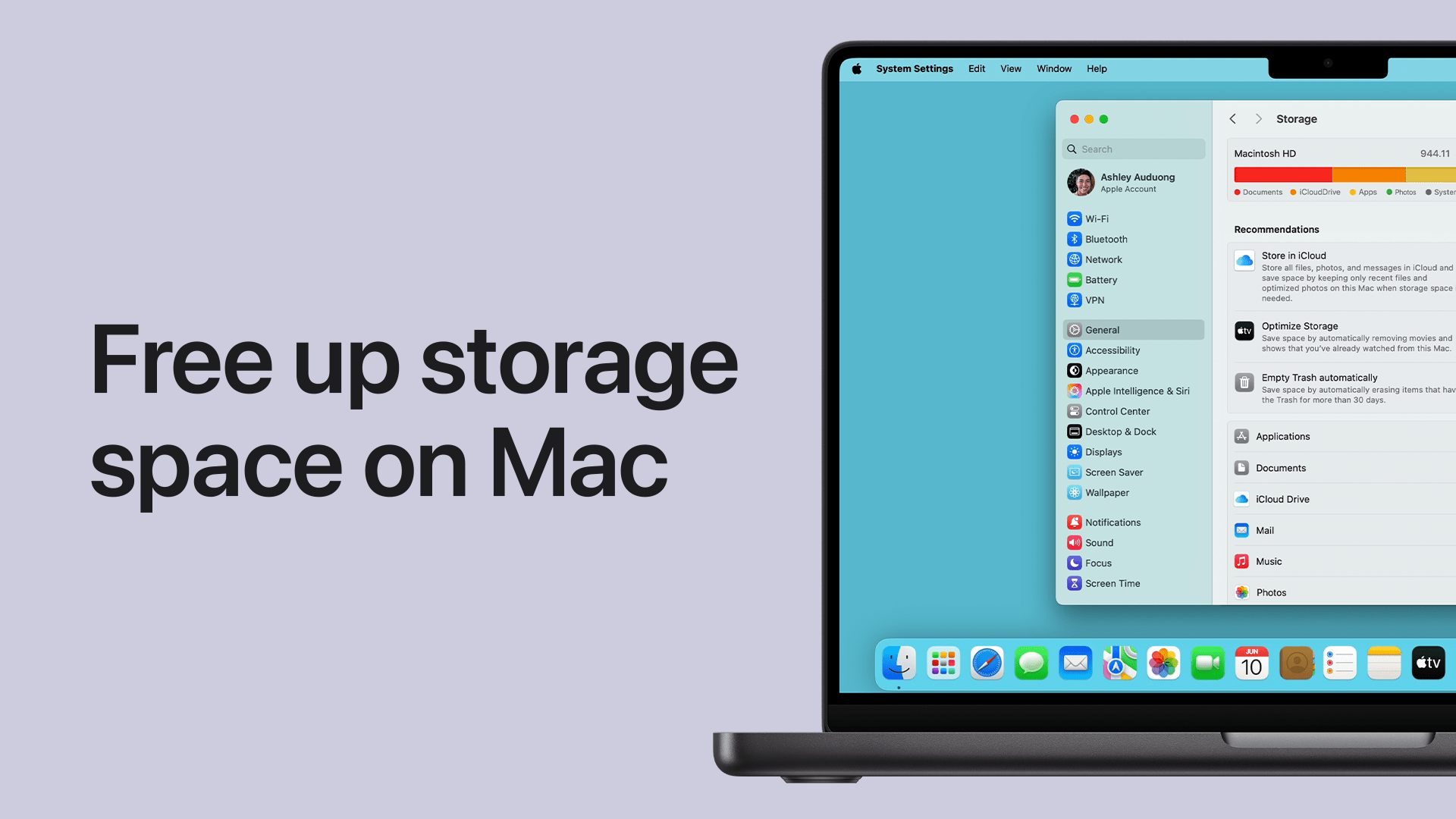
MacBooks face storage issues due to system backups, Time Machine snapshots, and macOS cache files. Moreover, professional software and large documents consume space rapidly. Therefore, MacBook storage requires more advanced management strategies.
Real Solutions That Work for Apple Storage Full Issues
1. Review Storage Breakdown Regularly
Go to Settings > General > Storage on iPhone or About This Mac > Storage on MacBook. This helps identify what’s consuming the most space.
2. Clear App Cache and Data
Although Apple limits cache clearing, deleting and reinstalling heavy apps can significantly reduce storage usage. As a result, Apple storage full issues become manageable.
3. Optimize Photos and Media Storage
Enable Optimize Storage for Photos and Videos. This stores full-resolution files in iCloud while keeping smaller versions locally.
4. Remove Old Backups and Update Files
Deleting outdated backups and incomplete update files frees hidden space and reduces system data size.
5. Offload Unused Apps
Apple’s Offload Apps feature removes unused apps while keeping their data. Therefore, you save space without losing important information.
6. Manage iCloud Storage Properly
While iCloud helps, it must be configured correctly. Otherwise, local storage may still remain full.
Mistakes to Avoid When Fixing Apple Storage Full Issues
- Relying only on deleting photos
- Ignoring system data growth
- Installing third-party cleaning apps without verification
- Repeatedly restarting without proper cleanup
Therefore, avoiding these mistakes ensures long-term storage health.
When DIY Solutions Are Not Enough
In some cases, Apple storage issues persist despite multiple cleanup attempts. This usually indicates deeper software conflicts, corrupted system files, or hardware-level storage inefficiencies. Consequently, professional diagnosis becomes necessary.
Professional Apple Storage Repair & Optimization Solutions
Milaaj Mobile Repair:Trusted Storage Solutions in Al Barsha
When Apple storage full issues become overwhelming, Milaaj mobiles and laptop repair Al Barsha provides expert-level storage optimization and repair services. Their trained technicians use safe, Apple-compatible tools to diagnose and resolve storage problems permanently.
Why Choose Milaaj?
- Low price solutions without hidden charges
- Fast repair speed, often same-day service
- Convenient location in Al Barsha
- High-quality parts and tools
- Secure data handling and professional care
As a result, users experience improved performance, optimized storage, and long-lasting results.
Preventing Apple Storage Full Issues in the Future
Prevention is always better than repair. Therefore, follow these best practices:
- Regularly review storage usage
- Clear unused apps monthly
- Backup and delete old files
- Enable storage optimization features
- Schedule professional maintenance annually
By doing so, Apple storage issues can be avoided entirely.
Why Professional Maintenance Matters
Apple devices are tightly integrated systems. Consequently, incorrect storage handling can lead to software instability or data loss. Professional maintenance ensures that storage is optimized safely, updates run smoothly, and device lifespan is extended.
FAQs
Q1: Why does my Apple device show storage full even after deleting files?
Because system data, cache files, and update leftovers continue to occupy hidden storage space.
Q2: Can iCloud fix Apple storage full issues permanently?
iCloud helps, but improper settings can still leave local storage full.
Q3: Are Apple storage full issues harmful to device performance?
Yes, they can cause slow speed, app crashes, and failed updates.
Q4: Is professional repair safe for Apple storage problems?
Yes, professional storage optimization is safe and prevents data loss.
Q5: How often should Apple storage be cleaned?
Ideally once every 1–2 months for best performance.
Final Thoughts on Apple Storage Full Issues
In conclusion, Apple storage full issues are common but completely fixable. Whether caused by system data, app cache, or update leftovers, real solutions exist. While basic cleanup works for minor problems, persistent issues require expert attention.
By understanding the causes, applying proven fixes, and choosing trusted professionals when needed, you can restore your Apple device’s performance and enjoy seamless usage once again.
If you’re facing recurring Apple storage full issues, expert support ensures peace of mind and long-term reliability.
Other Services:
- Need other iPhone repairs? Check out Milaaj’s iPhone repair services in Dubai.
- Looking to upgrade? Learn about selling your used iPhone in Dubai.
- Data loss concerns? Visit Milaaj’s data recovery services.
- For Apple users, check Apple trade-in options in Dubai.
📍 Visit Any Milaaj Branch in Dubai
🔹 Bur Dubai
Milaaj Mobile and Laptop Repair Dubai
📞 055 258 8477
🔗 Google Maps
🔹 Al Barsha
Milaaj Mobiles and Laptop Repair Al Barsha
📞 052 596 2846
🔗 Google Maps
🔹 Al Barsha 3
Milaaj Mobiles and Gaming Store
📞 052 3405 814
🔗 Google Maps
🔹 Al Nuaimiya
Milaaj Mobiles and Laptops Ajman
📞 055 788 9654
🔗 Google Maps
Shop Locations: Al Barsha | Bur Dubai | Reef Mall, Salah Al Din | Al Nuaimiya, Ajman
Email: support@milaaj.com
Operating Hours: Monday – Sunday
Leave a Reply