

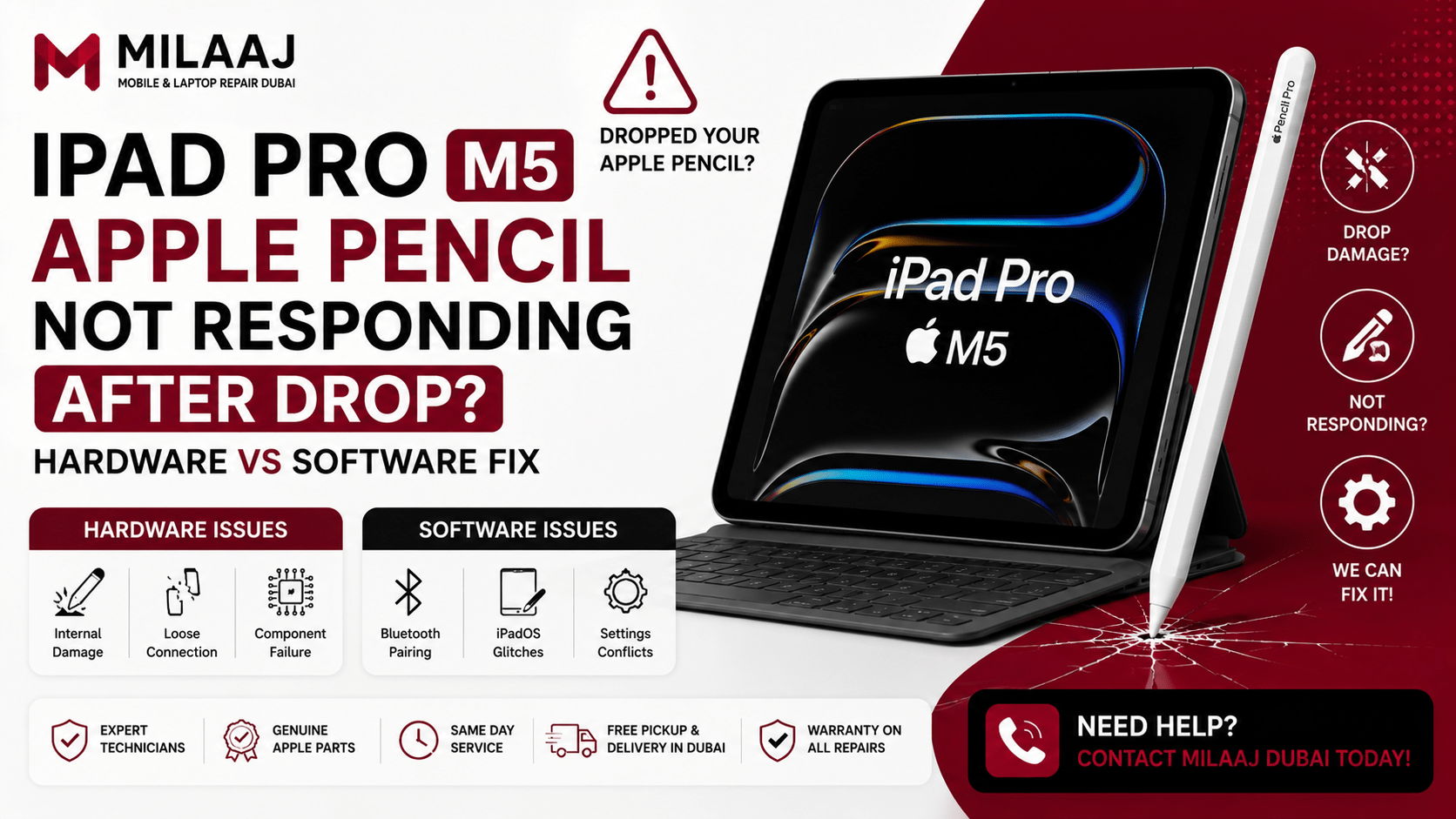
Dropping your favorite stylus onto a hardwood floor or tile is easily one of the most stomach-dropping feelings for any digital artist, student, or professional note-taker. You pick up your stylus, snap it back onto your tablet, open Procreate or Goodnotes, and suddenly nothing happens. If you are currently dealing with an iPad Pro M5 Apple Pencil not responding after drop hardware vs software fix, you are definitely not alone.
When a drop occurs, it can trigger two completely different categories of issues. On one hand, the force of the impact might have simply jarred the Bluetooth connection or created a temporary software glitch within iPadOS. On the other hand, the physical drop could have damaged the delicate internal transducer, cracked the internal flex cable, or misaligned the magnetic charging coil on your tablet. In this deep dive, we will walk you step-by-step through determining whether you are facing a quick software adjustment or a physical hardware issue that needs professional attention.
Quick Diagnostic Steps: What to Do Immediately After a Drop
Before diving deep into technical diagnostics, you should perform a series of rapid checks to isolate the immediate cause of the non-responsive stylus.
1.Check the Nib Tightness:30 seconds.
Gently twist the tip of your Apple Pencil clockwise. Drops often loosen the screw-on nib, breaking the electrical contact with the internal pressure transducer.
2.Toggle Bluetooth Off and On:1 minute.
Head into Settings > Bluetooth on your iPad Pro M5. Toggle Bluetooth off, wait about 10 seconds, and turn it back on to force a connection refresh.
3.Re-Snap to the Magnetic Charging Strip:1 minute.
Remove any protective case from your iPad. Dock the stylus directly onto the magnetic strip on the side of the iPad Pro M5 and look for the charging pop-up banner.
4.Perform a Hard Restart:2 minutes.
Press and quickly release the Volume Up button, press and quickly release Volume Down, then hold the Top Button until the Apple logo appears.
Software Fixes: Troubleshooting Connectivity and iPadOS Glitches
When investigating an iPad Pro M5 Apple Pencil not responding after drop hardware vs software fix, it is always best to start with the easiest and least expensive solutions first. Software glitches happen all the time, and surprisingly, physical shock can sometimes cause iPadOS to drop active Bluetooth handshakes.
1. Unpairing and Force Re-Pairing
If your stylus appears in your list of connected devices but refuses to draw on the screen, a corrupted Bluetooth profile is frequently the culprit.
- Open Settings on your iPad Pro M5.
- Select Bluetooth.
- Tap the “i” info icon next to your Apple Pencil.
- Select Forget This Device.
- Restart your iPad Pro M5.
- Once rebooted, attach your Apple Pencil firmly to the magnetic side connector to initiate a fresh pairing request.
2. Charging the Internal Battery
When your stylus drops, it might detach from the magnetic connector inside your bag or on the floor. If it stays disconnected for an extended period, the battery can drain down to 0%. When an Apple Pencil battery completely discharges, it may take 10 to 15 minutes of uninterrupted magnetic contact before it wakes up and registers on your screen again. Give it time to charge without touching it.
3. Updating iPadOS and Resetting Network Settings
Sometimes, system-level software bugs prevent drawing input from registering properly on high-refresh-rate ProMotion displays. Check if an iPadOS update is pending under Settings > General > Software Update. If updating does not work, try resetting network and peripheral connections by going to Settings > General > Transfer or Reset iPad > Reset > Reset Network Settings.
Pro Tip: Always remove thick protective cases during software troubleshooting. Certain third-party cases block the magnetic alignment just enough to stop charging and pairing, mimicking a dead stylus.
Physical Inspection: Examining the Tip, Transducer, and Body
If basic software resets do not solve your iPad Pro M5 Apple Pencil not responding after drop hardware vs software fix situation, it is time to inspect the physical hardware of the stylus itself.
       [ Apple Pencil Internal Structure ]

  +--------------------------------------------+===|\  <-- Replaceable Nib
  | Battery | Logic | Transducer / Pressure    |   |/
  +--------------------------------------------+===|\
                           ^
             Impact point often damages this
             delicate internal transducer pin!
Inspecting the Replaceable Nib
Unscrew the plastic tip by turning it counterclockwise. Examine the small metal pin beneath the plastic shell. This gold or silver-colored pin is the pressure transducer element that detects tilt and force.
- Is the plastic tip cracked or flattened? A microscopic crack in the nib’s internal threading stops force from transmitting to the sensor.
- Is the inner metal pin bent or loose? If the stylus landed tip-first on a hard surface, the impact can push the delicate transducer pin backward into the housing, permanently damaging the pressure assembly.
- Is there a visible gap? When properly screwed on, there should be a paper-thin gap between the plastic nib and the main pencil body. If it sits flush or crooked, the internal structure may be fractured.
Swapping in a brand-new official replacement nib is one of the easiest ways to confirm whether you have a simple external nib fracture or severe internal hardware damage.
Hardware vs. Software Fix: Comparing Your Diagnostic Options
To help you decide on the right course of action for your iPad Pro M5 Apple Pencil not responding after drop hardware vs software fix, here is a clear breakdown comparing symptoms, causes, and recommended solutions.
| Symptom / Observation | Likely Root Cause | Fix Category | Recommended Action |
| Shows in Bluetooth, charges, but won’t draw | Worn nib, loose tip, or minor Bluetooth pairing freeze | Software / Light Hardware | Replace tip, unpair/re-pair Bluetooth, restart iPad |
| No charging prompt when attached to iPad | Battery completely drained or Bluetooth bug | Software / Settings | Clean magnetic strip, leave to charge 15 mins, hard reboot |
| Pencil connects to another iPad, but not yours | iPad Pro M5 side coil or digitizer issue | iPad Hardware | Test with another stylus; inspect iPad screen & logic board |
| Bent body, rattle sound inside, tip pin pushed in | Broken internal flex, fractured transducer, dead logic board | Pencil Hardware | Physical repair or complete stylus replacement |
| Glitchy lines, palm rejection failing, skipping | Screen protector interference or corrupted iPadOS touch layer | Software / Accessory | Remove thick screen protector, update iPadOS, reset settings |
Could the Drop Have Damaged Your iPad Pro M5 Screen or Digitizer?
When exploring an iPad Pro M5 Apple Pencil not responding after drop hardware vs software fix, we often focus exclusively on the stylus. However, remember that two devices are involved in this equation! If the iPad itself took part of the fall, the issue could stem from the tablet’s display assembly.
The ProMotion Digitizer Layer
The Ultra Retina XDR screen on the iPad Pro M5 uses a specialized digitizer layer embedded inside the display stack to read active stylus signals.
- If finger touch works perfectly but stylus touch fails everywhere, the signal controller inside the display assembly or logic board may be damaged.
- If the stylus draws on one half of the screen but drops out on specific dead zones, the display digitizer matrix suffered localized micro-cracks from the drop impact.
The Side Magnetic Charging Coil
The wireless charging coil along the frame of the iPad Pro M5 is delicate. A drop on the side frame can bend the aluminum chassis slightly, pushing the internal wireless charging coil out of alignment. If the coil cannot pass power, your stylus will never charge or pair, even if the stylus itself is in perfect working condition.
The easiest way to verify this is to test your Apple Pencil on a friend’s compatible iPad, or test another working Apple Pencil on your iPad Pro M5.
Professional Repairs at Milaaj Mobile and Laptop Repair Al Barsha
If you have tried all software resets, swapped the tip, and still find yourself stuck with an iPad Pro M5 Apple Pencil not responding after drop hardware vs software fix problem, it is time to let experienced technicians handle it.
For residents and visitors in Dubai, Milaaj mobile and laptop repair Al Barsha provides comprehensive diagnostic and hardware repair services for Apple devices. Whether your drop resulted in a cracked iPad screen, damaged digitizer layer, or internal hardware fault, expert care ensures your tech gets back to 100% functionality quickly.
Why Choose Professional Repair Services?
- Speed Repairing: Most tablet diagnostics and hardware repairs are completed with fast turnarounds so your workflow remains uninterrupted.
- Low Price Guarantee: Clear upfront quotes without hidden diagnostic fees, saving you money compared to full device replacements.
- Unmatched Convenience: Conveniently located in Al Barsha with quick walk-in service and pickup options.
- Top Part Quality: High-grade replacement screens, digitizers, and internal components engineered to meet original equipment manufacturer standards.
When dealing with high-end tech like the iPad Pro M5, having skilled professionals inspect both the tablet’s internal logic board and the display connectors saves time and prevents unnecessary replacement expenses.
Frequently Asked Questions (FAQs)
How can I tell if my Apple Pencil internal transducer is broken?
If you replace the plastic tip with a new one, tighten it properly, and force re-pair the Bluetooth connection, but the pencil still connects without registering touch, the internal transducer pin is likely broken. Visible bending or rattling inside the casing confirms hardware failure.
Will a hard reset erase my data on the iPad Pro M5?
No, a hard reset (force restart) simply reboots your iPadOS system software and clears temporary memory cache. It does not erase your personal photos, files, or app settings.
Can a cracked screen protector cause Apple Pencil responsiveness issues after a drop?
Yes! A drop can create hairline cracks or air pockets underneath glass screen protectors. These micro-gaps disrupt the electromagnetic signals sent between the iPad Pro M5 digitizer and the Apple Pencil, causing skipped lines or complete unresponsiveness.
Is it worth repairing an Apple Pencil or should I replace it?
If the issue is related to a damaged nib, dirty contact point, or an iPad display digitizer issue, fixing it is straightforward and cost-effective. However, if the internal logic board inside the stylus itself is snapped, replacement is often the most practical route.
How do I fix an iPad Pro M5 magnetic charging strip that stopped charging the pencil after a fall?
First, perform a network reset and remove any protective cover. If the tablet frame is dented or the internal induction coil came loose during the drop, a technician must open the iPad to realign or repair the charging receiver coil.
Final Thoughts
Navigating an iPad Pro M5 Apple Pencil not responding after drop hardware vs software fix boils down to systematically ruling out simple causes first. Start by checking the nib tightness, cycling Bluetooth settings, and giving the device a full hard restart. If those software tweaks fail, test the stylus on another iPad to determine whether the pencil or the tablet hardware took the brunt of the fall.
Other Services:
- Need other iPad repairs? Check out Milaaj’s iPad repair services in Dubai.
- Looking to upgrade? Learn about selling your used iPad in Dubai.
- Data loss concerns? Visit Milaaj’s data recovery services.
- For Apple users, check Apple trade-in options in Dubai.
📍 Visit Any Milaaj Branch in Dubai
🔹 Bur Dubai
Milaaj Mobile and Laptop Repair Dubai
📞 055 258 8477
🔗 Google Maps
🔹 Al Barsha
Milaaj Mobiles and Laptop Repair Al Barsha
📞 052 596 2846
🔗 Google Maps
🔹 Al Barsha 3
Milaaj Mobiles and Gaming Store
📞 052 3405 814
🔗 Google Maps
🔹 Al Nuaimiya
Milaaj Mobiles and Laptops Ajman
📞 055 788 9654
🔗 Google Maps
Shop Locations: Al Barsha | Bur Dubai | Reef Mall, Salah Al Din | Al Nuaimiya, Ajman
Email: support@milaaj.com
Operating Hours: Monday – Sunday

Leave a Reply