

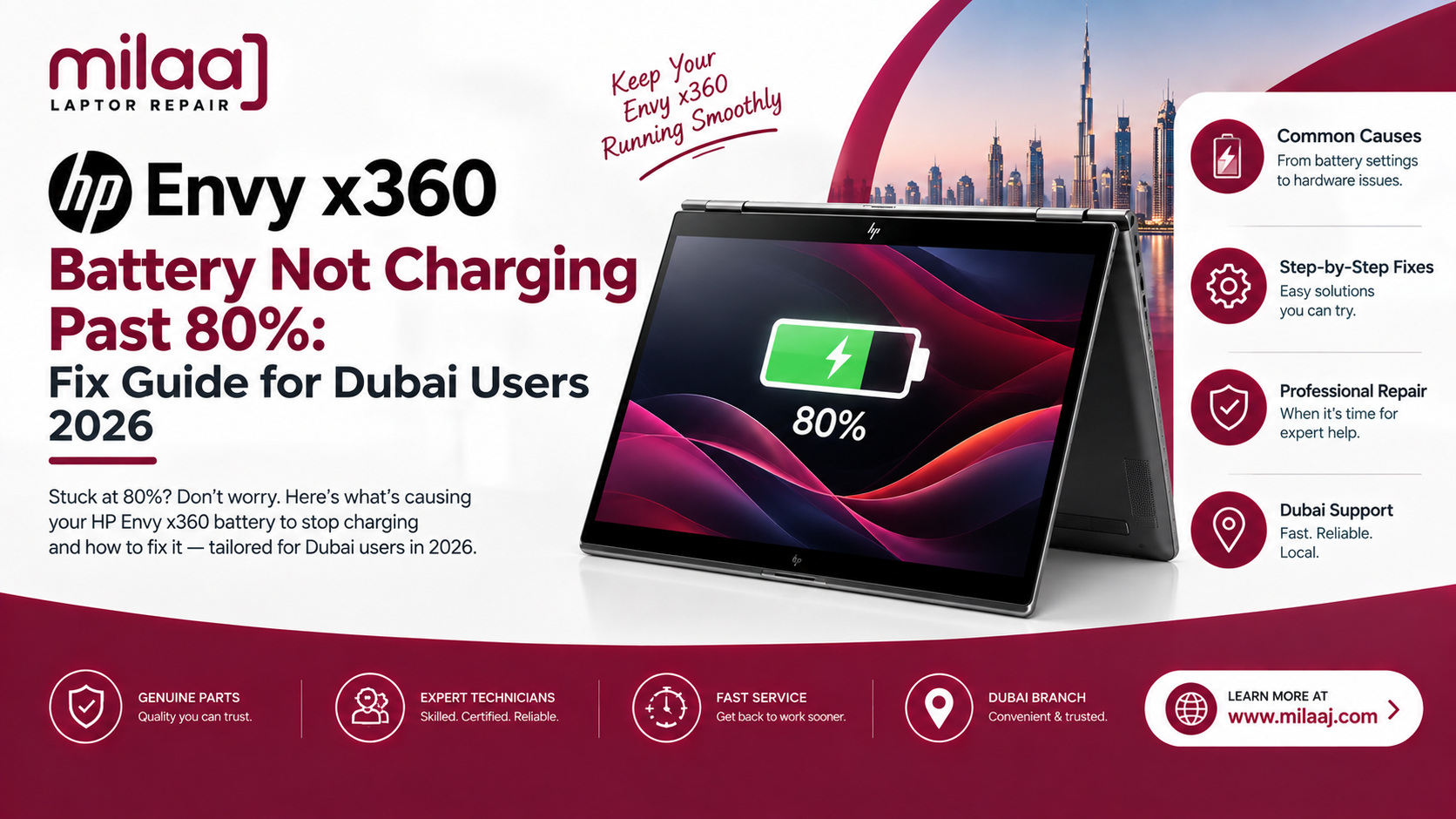
You plug your HP Envy x360 into the charger at your home office or a local cafe in Dubai, expecting the battery indicator to climb steadily to a full 100%. Instead, the charge counter gets stuck at exactly 80%. The system status reads “Plugged in,” but no matter how many hours you leave the AC adapter connected, the percentage refuses to budge.
When searching for an HP Envy x360 battery not charging past 80%: fix guide for Dubai users 2026 solution, understanding whether this behavior stems from an intentional software protection feature or an underlying hardware malfunction saves you time and unnecessary expenses.
The HP Envy x360 2-in-1 convertible is a popular choice across the UAE for professionals, students, and creators who need sleek portability and responsive performance. However, modern laptops use smart battery management protocols to preserve lithium-ion battery health. While capping the charge level protects internal cell chemistry from high-voltage stress, it can catch users off guard when they need full battery capacity for traveling across Dubai.
This guide explores why your laptop caps out at 80%, provides step-by-step troubleshooting methods to adjust or disable the limit, and breaks down local battery repair and calibration options in Dubai.
Why Is Your HP Envy x360 Stuck at 80% Charge?
Before replacing hardware, it helps to understand why your battery stops charging at 80%.
1. HP Battery Health Manager / Adaptive Battery Optimizer
HP integrates smart software algorithms into modern BIOS firmware. If your laptop remains plugged into AC power continuously, HP Adaptive Battery Optimizer automatically limits charge capacity to 80%. This reduces thermal load and chemical degradation, extending overall battery lifespan.
2. Windows 11 Smart Charging Limits
Windows 11 features built-in power management features that communicate with HP firmware. When Windows detects prolonged AC connection, it activates smart charging limits to hold the battery state at 80%.
3. Outdated BIOS or Embedded Controller Firmware
Sometimes, a bug in the system firmware locks the battery management chip into a restricted state, preventing it from switching back to full 100% mode even when you adjust settings in Windows.
4. Battery Fuel Gauge Calibration Drift
Over months of use in warm climates like Dubai, the battery controller’s internal power gauge can fall out of sync with actual cell voltage. The battery may physically hold more charge, but the controller reports a false 80% ceiling.
How to Fix the 80% Charging Cap: Step-by-Step
Follow these steps to restore 100% full charging capacity on your HP Envy x360.
Option 1: Adjust Settings in the HP BIOS (F10 Setup)
- Turn off your HP Envy x360 completely.
- Press the Power Button, then immediately tap F10 repeatedly until the BIOS setup screen appears.
- Navigate to the Advanced or Configuration tab using arrow keys.
- Select Power Management Options or Battery Health Manager.
- Change the setting from Maximize My Battery Health (which locks charging at 80%) to Maximize Battery Runtime or Let HP Manage My Battery Health.
- Press F10 to save changes and restart into Windows.
Option 2: Run HP Command Center / HP Diagnostic Tools
- Open the HP Command Center or HP Support Assistant app in Windows 11.
- Click on Power Manager or Battery Check.
- Select Max Runtime Mode to allow full 100% charging cycles when traveling or working away from a power outlet.
Software Settings vs. Physical Battery Failure
Use this comparison table to identify whether your 80% charge cap is a software setting or a hardware issue:
| Diagnostic Indicator | Software Limiter Active (Normal) | Hardware / Cell Degradation (Fault) |
| Windows Battery Status | Displays “Fully Charged (80%)” or plug icon | Displays “Plugged in, not charging” erratic jumps |
| HP Diagnostics Report | Battery health shows “PASSED” or “NORMAL” | Battery health shows “REPLACE” or “WEAK” |
| Laptop Behavior on Unplugging | Discharges smoothly over several hours | Shuts down instantly or drops from 80% to 10% |
| Physical Battery Condition | Laptop casing remains completely flat | Bottom chassis bulges or trackpad feels stiff |
Step-by-Step Professional Battery Replacement Workflow
If diagnostic tests indicate swelling, permanent capacity loss, or failing internal cells, installing a fresh genuine HP battery restores full mobile runtime.
Step 1: Safe Opening and ESD Protection
Technicians back up critical data, place the 2-in-1 convertible on an anti-static mat, remove the bottom rubber feet strips, and unscrew the lower aluminum chassis.
Step 2: Battery Isolation and Disposal
The old battery connector is detached from the motherboard to isolate system power rails. Technicians carefully unfasten mounting screws and lift out degraded or swollen cells.
Step 3: Grade-A Replacement and Reassembly
A fresh, original-specification HP battery pack is mounted securely. Internal ribbon cables, speakers, and cooling fans are checked for dust build-up before the aluminum casing is reassembled.
Step 4: System Diagnostic and Full Charge Test
The laptop is connected to an official HP Smart AC adapter. Technicians run full battery diagnostic passes to verify that the system completes a full 0% to 100% charging cycle smoothly.
Milaaj Mobile Repair Section
When managing an HP Envy x360 battery not charging past 80%: fix guide for Dubai users 2026 issue, getting expert assistance ensures your laptop operates reliably. Milaaj mobile and laptop repair Al Barsha provides specialized hardware diagnostics, BIOS updates, and laptop battery replacements across Dubai.
Low Price Guarantee on Hardware Services
We offer affordable pricing on all HP Envy battery replacements and power circuit repairs. Our technicians evaluate your laptop’s battery health for free, giving you an accurate quote before starting any work.
Rapid Speed Repairing
We understand how important your laptop is for daily productivity, business tasks, and creative projects. Our Al Barsha workshop keeps fresh genuine HP Envy x360 batteries in stock, allowing us to complete battery replacements in just 30 to 60 minutes.
Maximum Convenience Across Dubai
Located conveniently in Al Barsha, our repair center is easy to reach. If you have a busy schedule, take advantage of our free pickup and delivery service across Dubai Marina, JLT, Business Bay, Downtown, and Palm Jumeirah. We collect your device, service the battery system, and return it directly to your doorstep.
Premium OEM-Grade Part Quality
We install genuine replacement batteries built to original performance specifications. Every battery installation includes full software calibration and written warranty coverage for peace of mind.
Care Tips to Preserve HP Envy x360 Battery Lifespan
Following a few power management practices helps maximize your battery’s operational lifespan in Dubai’s warm environment:
- Keep 80% Cap Enabled for Stationary Use: If you work primarily at a desk with your laptop plugged into AC power, leave the BIOS Battery Health Manager set to 80% to slow cell degradation.
- Avoid Extreme Heat: Never leave your laptop inside a parked car in Dubai during summer months, as excessive ambient heat damages lithium-ion chemistry.
- Clean Internal Cooling Vents: Dust build-up increases internal operating temperatures, which accelerates battery wear. Keep vents clean using compressed air.
- Use Original Chargers: Always power your HP Envy x360 using original HP Smart AC power adapters or certified Type-C USB-PD chargers.
Frequently Asked Questions (FAQs)
Is it harmful to leave my HP Envy x360 plugged in all day?
No, modern HP laptops feature smart charging protection that prevents overcharging. However, leaving the laptop connected to AC power continuously at 100% charge increases thermal wear. Enabling HP Battery Health Manager to cap the charge at 80% mitigates this issue.
How can I check my HP laptop’s true battery health in Windows 11?
Press Windows Key + X, open Terminal or PowerShell, type powercfg /batteryreport, and press Enter. Open the generated HTML file in your browser to view your battery’s original Design Capacity versus its current Full Charge Capacity.
Why is my battery icon showing a plug symbol at 80%?
The plug symbol over the battery icon indicates that HP Intelligent Charging or Windows Smart Charging is active, holding the battery at 80% to protect cell health while running on AC power.
How long does a new HP Envy x360 battery last after replacement?
A genuine replacement battery typically delivers 6 to 10 hours of active usage per full charge, depending on your screen brightness, background applications, and power configuration.
Final Thoughts: Restoring Full Battery Performance
Understanding an HP Envy x360 battery not charging past 80%: fix guide for Dubai users 2026 helps you determine whether your laptop is simply protecting its battery cells or requires physical hardware service. Adjusting BIOS settings, updating system drivers, or booking a fast battery replacement restores full mobile runtime for your daily routine.
If your HP Envy x360 needs a new battery or professional power diagnostic, contact a trusted technician today to book an express service checkup!
Other Services:
- Need other laptop repairs? Check out Milaaj’s laptop repair services in Dubai.
- Overheating issues? Explore MacBook repair in Dubai for similar cooling solutions.
- Looking to upgrade? Learn about selling your used laptop in Dubai.
- Data loss concerns? Visit Milaaj’s data recovery services.
- For Apple users, check Apple trade-in options in Dubai.
📍 Visit Any Milaaj Branch in Dubai
🔹 Bur Dubai
Milaaj Mobile and Laptop Repair Dubai
📞 055 258 8477
🔗 Google Maps
🔹 Al Barsha
Milaaj Mobiles and Laptop Repair Al Barsha
📞 052 596 2846
🔗 Google Maps
🔹 Reef Mall (Salah Al Din)
Milaaj Service Center Reef Mall
📞 052 3405 814
📍 1st Floor, Shop 16, Deira
🔗 Google Maps
🔹 Al Nuaimiya
Milaaj Mobiles and Laptops Ajman
📞 055 788 9654
🔗 Google Maps
Shop Locations: Al Barsha | Bur Dubai | Reef Mall, Salah Al Din | Al Nuaimiya, Ajman
Email: support@milaaj.com
Operating Hours: Monday – Sunday


Leave a Reply