

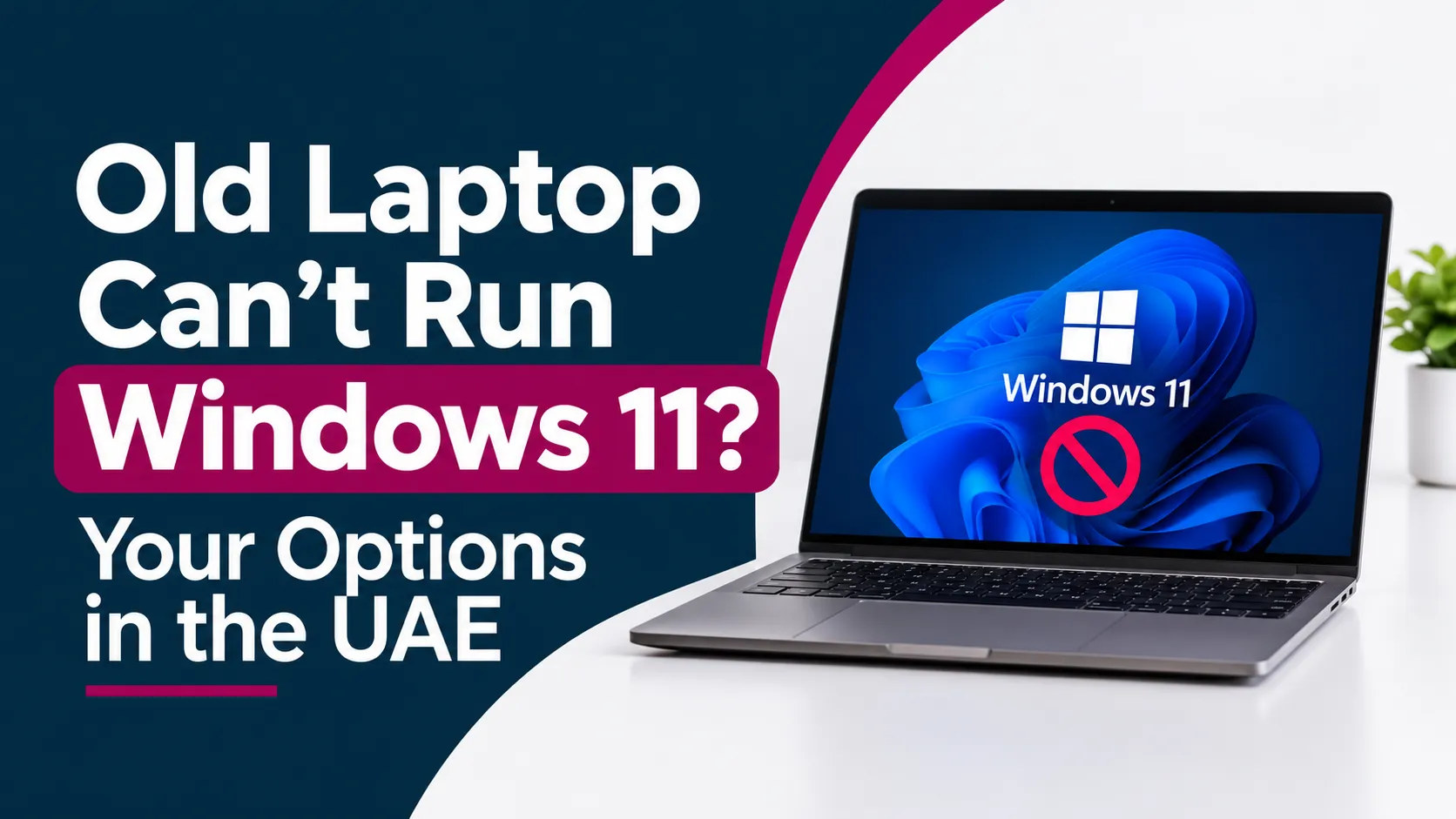
You open Settings, click Check for updates, and there it is: “This PC can’t run Windows 11.” Your laptop starts fine, runs your emails, your Zoom calls, and half your life, so the message feels like an insult. If your laptop can’t run Windows 11, it doesn’t mean it’s finished, and it doesn’t mean you need to rush out and buy a new one.
You have more options than Microsoft’s warning suggests. Some laptops are blocked by a single BIOS setting. Others need a cheap upgrade. And some are better off kept on Windows 10 for a little while, or sold. This guide walks through each route so you can choose with confidence.
Quick Answer
If your laptop can’t run Windows 11, you can check whether a BIOS setting or a RAM and storage upgrade solves it, keep using Windows 10 with Microsoft’s Extended Security Updates until 12 October 2027, or sell the laptop and replace it. A processor that is too old cannot be upgraded on most laptops.
Key Takeaways
- Windows 10 support ended on 14 October 2025, so staying put long term is not safe.
- Many “incompatible” laptops are only blocked by TPM or Secure Boot being switched off.
- RAM and storage can be upgraded, but a laptop processor usually cannot.
- Microsoft’s consumer security updates for Windows 10 now run until 12 October 2027, which gives you time but not forever.
- Back up your files before you change any setting, install anything, or sell the laptop.
Why does my laptop say it can’t run Windows 11?
Your laptop says it can’t run Windows 11 because it fails at least one hardware requirement. The usual causes are a processor that is too old, TPM 2.0 or Secure Boot switched off, or too little RAM or storage. Some of these can be fixed, and others cannot.
The Windows 11 requirements in plain English
Windows 11 asks for more than Windows 10 did. In simple terms, your laptop needs:
- A 64-bit processor on Microsoft’s supported list
- At least 4 GB of RAM
- At least 64 GB of storage
- A security chip called TPM 2.0
- A boot mode called UEFI with Secure Boot available
- A graphics chip that supports DirectX 12
You can see the full list on Microsoft’s Windows 11 specifications page.
The most common blockers
- Older processor: As a rough guide, laptops from before about 2017 (Intel 7th generation and older, or early AMD Ryzen chips) are usually not supported.
- TPM switched off: The chip may be in your laptop but disabled in the BIOS.
- Secure Boot or UEFI off: Common on laptops set up years ago or reinstalled with an older method.
- Low RAM or storage: Typical on budget laptops with 4 GB of RAM or a small drive that is already full.
How do you check if your laptop can run Windows 11?
You don’t have to guess. Follow these steps:
- Run the PC Health Check app. Microsoft’s free tool tells you pass or fail, and gives a reason.
- Check Windows Update. Open Settings, then Windows Update. If your laptop qualifies, you’ll see an upgrade offer.
- Check TPM. Press the Windows key and R, type
tpm.msc, and press Enter. It shows whether a TPM is present and its version. - Check Secure Boot. Press the Windows key and R, type
msinfo32, and press Enter. Look for “BIOS Mode” (it should say UEFI) and “Secure Boot State” (it should say On).
Write down which test failed. That single detail decides which option below makes sense.
Can you fix a laptop that can’t run Windows 11?
Sometimes, yes. Two fixes are worth trying before you give up.
Turn on TPM and Secure Boot in the BIOS
Many laptops have a TPM, but it ships switched off. On Intel laptops it’s often called PTT, and on AMD laptops it’s called fTPM. Turning it on, along with Secure Boot, can change a “fail” into a “pass” in minutes.
One warning: if your laptop is running in the older Legacy mode, switching to UEFI can require converting the drive. That can wipe data if done wrong, so back up first.
Upgrade RAM or storage
If the only failure is 4 GB of RAM or a full small drive, a RAM or SSD upgrade can fix it and make the laptop faster at the same time. That is often the cheapest route for a laptop under about six or seven years old.
A processor is different. On nearly every laptop it’s soldered to the board, so if the chip is too old, no upgrade will rescue it. If you’d like a proper diagnosis before spending anything, our laptop repair team in Dubai can check the BIOS settings and tell you honestly whether your laptop is fixable.
Can you keep using Windows 10 safely?
For now, yes, if you do it the right way. Windows 10 reached end of support on 14 October 2025, which means no more regular security updates, feature updates, or technical help from Microsoft. Your laptop doesn’t stop working, but it slowly becomes a bigger target.
Microsoft’s consumer Extended Security Updates (ESU) program is the safety net. It delivers critical and important security patches to eligible Windows 10 laptops, and it now runs until 12 October 2027. That’s an extra year compared with the original plan.
A few things to know:
- You usually need to be on Windows 10 version 22H2 and enrol through Windows Update.
- Some managed devices, such as work laptops controlled by an employer, are excluded.
- ESU covers security fixes only. You get no new features.
- Terms have changed once already, so check Microsoft’s Extended Security Updates page for the current enrolment steps.
Think of ESU as a bridge. With less than a year left, it gives you time to plan, not a reason to stop.
If you stay on Windows 10 for now:
- Keep your browser and apps fully updated.
- Use a trusted antivirus and a strong password.
- Avoid downloading cracked software, which is a common way old laptops get infected.
- Keep a current backup.
What about installing Windows 11 on unsupported hardware?
You’ll find guides online that show how to force Windows 11 onto a laptop that fails the checks. It’s tempting, because it costs nothing. We don’t recommend it for a laptop you rely on.
- Microsoft does not guarantee updates for unsupported hardware, so security patches may stop.
- Drivers for old chips and Wi-Fi cards may not behave well.
- A failed or half-finished install can leave the laptop unable to start.
- If something goes wrong, you may be on your own with no official support.
For a spare laptop you can afford to lose, it’s a personal call. For a work laptop or one holding your photos, it’s not worth the risk.
Should you repair, upgrade, or replace your old laptop?
Your laptop’s age, processor, and how you use it decide the answer. This table shows the general direction.
| Your situation | Best option |
|---|---|
| Newer laptop, only TPM or Secure Boot is off | Change the BIOS setting and upgrade to Windows 11 |
| Processor is supported, but RAM or storage is too low | Upgrade RAM or SSD, then upgrade Windows |
| Processor is too old, but the laptop still runs well | Stay on Windows 10 with ESU, and plan a replacement within the year |
| Old, slow, with a weak battery or failing parts | Sell or recycle it and replace it |
| Business-critical laptop you can’t risk | Replace it on your own schedule, not in a rush |
If you’re leaning toward an upgrade, the guide on upgrading laptop RAM for better performance explains what’s involved. A useful rule of thumb: if the upgrade costs more than about a third of a decent replacement laptop, put that money toward the new one instead.
Dubai’s heat adds one more factor. Laptops that have spent years in hot rooms, cars, and offices often have tired batteries and fans, which makes them weaker candidates for a long second life.
Does this apply to desktop PCs too?
Yes, the same requirements apply to desktop computers, and the same checks work. Desktops are usually easier to rescue. Many motherboards have a header for a TPM module, and you can often replace the processor and motherboard without buying a whole new machine.
If you’re not sure what your desktop needs, our PC repair specialists in Dubai can inspect it and suggest the most affordable route.
Can you sell a laptop that can’t run Windows 11?
Yes. A laptop that fails the Windows 11 check still has value, especially if it works well, the screen is clear, and it comes with its charger. Many buyers care more about condition than about the Windows version.
If you decide the timing is right, you can sell your old laptop in Dubai and put the money toward a laptop that supports Windows 11 for years to come.
Before you hand it over, make sure your files are backed up and your accounts are signed out.
What should you do before changing anything?
Whatever route you pick, back up first. BIOS changes, upgrades, reinstalls, and sales all carry a small risk of data loss, and a backup turns that risk into a minor inconvenience.
Copy your documents, photos, and browser bookmarks to an external drive or cloud storage. Our guide on how to back up your computer data shows how, step by step.
Once your files are safe, you can try each option without worrying about losing anything.
Frequently Asked Questions
Why does my laptop say it can’t run Windows 11?
Your laptop fails at least one Windows 11 requirement. The most common reasons are an older processor, TPM 2.0 or Secure Boot turned off, or too little RAM or storage. The PC Health Check app tells you which one is the problem so you know what to try next.
Is it safe to keep using Windows 10 now?
It’s reasonably safe if you enrol in Microsoft’s Extended Security Updates, which run until 12 October 2027, and follow good habits. Without ESU, your laptop gets no security updates and becomes riskier over time. Treat it as a temporary bridge and plan your next step.
Can I fix an “incompatible” laptop by changing a BIOS setting?
Often yes. Many laptops have TPM and Secure Boot available but switched off. Turning them on in the BIOS can make the laptop pass the Windows 11 check. Back up your files first, because switching boot modes can sometimes require converting the drive.
Can upgrading RAM or storage make my laptop Windows 11 compatible?
It can, if low RAM or storage is the only problem. Windows 11 needs at least 4 GB of RAM and 64 GB of storage. It cannot fix a processor that is too old, because laptop processors are usually soldered to the motherboard.
Should I replace or sell a laptop that can’t run Windows 11?
If the processor is too old and the laptop is slow or failing, selling it and replacing it usually makes sense. If it still runs well, you can stay on Windows 10 with ESU for now and plan to replace it before October 2027.
Your laptop still has options
When your laptop can’t run Windows 11, it’s not a dead end. You now know how to check what’s blocking it, which fixes are worth trying, how long Windows 10 can safely carry you, and when it makes sense to sell and move on. That puts you in control, not Microsoft’s warning message.
If you’d like a second opinion on your laptop, Milaaj can check it, tell you honestly whether it’s worth saving, and help you decide your next step.


Leave a Reply