

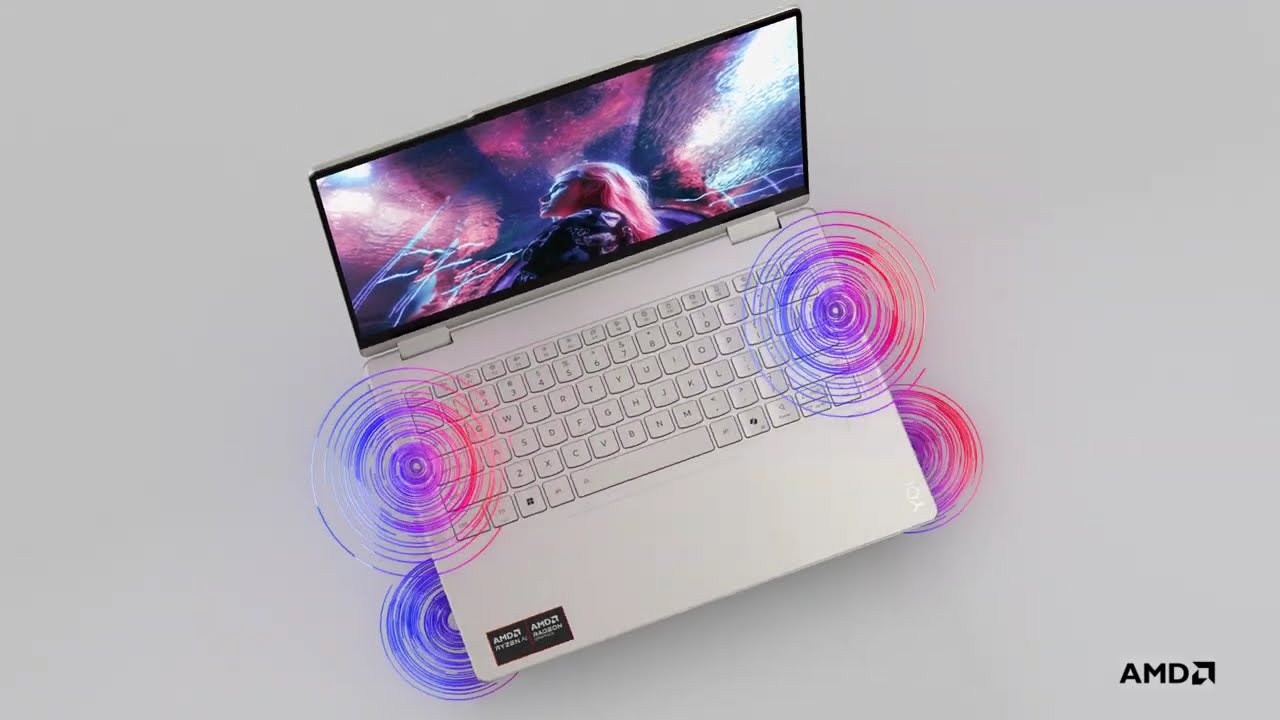
Overheating and loud fan noise on your Lenovo Yoga 7 can be frustrating, especially when you are working, streaming, or attending an online meeting. Whether trying to fix Lenovo Yoga 7 fan noise or another model’s issues, addressing these problems effectively with the right troubleshooting steps is key. In this guide, we’ll explore the main causes of this issue, practical DIY solutions, and when to seek professional repair. We will also explain why Milaaj Mobiles and Laptop Repair Al Barsha is trusted by Dubai users for Lenovo laptop servicing.
Understanding Lenovo Yoga 7 Overheating Issues
Overheating in laptops is a common problem, but it’s especially noticeable in thin-and-light models like the Lenovo Yoga 7. The combination of a slim design, powerful processors, and compact cooling systems often leads to heat buildup.
Main causes include:
- Dust accumulation blocking the cooling vents
- High CPU/GPU usage from background applications
- Old thermal paste reducing heat transfer efficiency
- Poor airflow if used on beds, couches, or soft surfaces
- Software glitches causing fans to run at full speed
As a result, your laptop may throttle performance, freeze during multitasking, or even shut down unexpectedly.
Step-by-Step Fixes for Lenovo Yoga 7 Overheating
Before rushing for professional service, try these steps:
1. Clean Vents and Improve Airflow
First, ensure your laptop’s cooling system is dust-free. Use a can of compressed air to gently blow out debris from the vents. Place the Yoga 7 on a hard, flat surface to improve air circulation. Additionally, consider investing in a laptop cooling pad.
2. Monitor System Performance
Moreover, check which applications are consuming CPU and memory. Press Ctrl + Shift + Esc to open Task Manager and close unnecessary processes. This reduces heat generated by the processor.
3. Update BIOS and Drivers
Outdated drivers can cause fans to behave erratically. Visit Lenovo’s official support page and update BIOS, chipset, and graphics drivers. In addition, install the latest Windows updates to optimize thermal management.
4. Adjust Power Settings
Switch to “Balanced” or “Battery Saver” mode in Windows Power Options. This reduces CPU clock speeds and helps control temperature without sacrificing too much performance.
5. Reapply Thermal Paste (Advanced)
If the overheating persists, the thermal paste on the CPU/GPU may have dried out. This requires professional servicing. Milaaj offers expert thermal paste replacement and deep cleaning, restoring optimal cooling performance.
Fixing Fan Noise on Lenovo Yoga 7
Excessive fan noise often accompanies overheating. Here’s how to make your Yoga 7 quieter:
- Enable Intelligent Cooling in Lenovo Vantage: This software automatically adjusts fan speed.
- Limit Background Processes: Fewer processes mean the fans don’t have to work as hard.
- Perform a System Scan: Malware can push CPU usage higher, causing constant fan activity.
If the noise persists, it might be due to worn-out fans. In that case, Milaaj can replace faulty fans with genuine Lenovo parts.
Preventive Tips to Keep Your Yoga 7 Cool
To avoid frequent overheating and fan noise, follow these tips:
- Clean air vents every 2–3 months
- Avoid using the laptop on soft surfaces
- Keep software and drivers updated
- Use power-saving modes when possible
- Shut down your laptop at least once a week to give it a break
These practices improve long-term performance and battery health.
When to Seek Professional Help
If you’ve tried all the DIY methods and still face overheating or loud fan noise, it’s time to get expert help. Professional technicians can:
- Deep clean the cooling system
- Replace worn-out fans
- Reapply thermal paste
- Run diagnostics to check for hardware issues
Seeking expert service ensures your warranty stays intact and prevents further damage to internal components.
FAQs About Lenovo Yoga 7 Fan Noise & Overheating
1. Why does my Lenovo Yoga 7 overheat so quickly?
Overheating usually happens because of dust buildup in the cooling vents, high CPU/GPU usage, or poor airflow around the laptop. Moreover, using the laptop on soft surfaces like beds or sofas can block ventilation, which makes it heat up faster. If you want to fix Lenovo Yoga 7 overheating and fan noise, start with a good cleaning and always use your laptop on a hard surface.
2. Why is the fan on my Lenovo Yoga 7 so loud?
Fan noise occurs when the system is working hard to cool the laptop. This may happen during intense multitasking, gaming, or running heavy software. However, if the fan is always noisy, there might be clogged vents or a failing cooling fan. To fix Lenovo Yoga 7 overheating and fan noise properly, Milaaj Mobiles and Laptop Repair Al Barsha can clean the fans and reapply thermal paste to restore normal performance.
3. Can overheating damage my Lenovo Yoga 7 hardware?
Yes. Prolonged overheating can cause thermal throttling, which slows down performance, and may even damage components like the motherboard or battery. Therefore, it’s important to fix Lenovo Yoga 7 overheating and fan noise early before it leads to costly repairs
4. How can I fix Lenovo Yoga 7 fan noise at home?
Here are a few steps you can try:
- Restart your laptop and close background apps
- Use Lenovo Vantage to switch to Quiet or Balanced mode
- Clean the air vents with compressed air
- Use a laptop cooling pad for better airflow
5. When should I replace the fan in my Lenovo Yoga 7?
If you hear grinding, rattling, or clicking noises, or if the fan does not spin, it’s time for a replacement. A faulty fan cannot keep your laptop cool, which can worsen overheating.
6. Can outdated software cause overheating?
Absolutely. Outdated BIOS or drivers can make the cooling system run inefficiently. Updating your drivers and running regular Windows updates is one of the simplest ways to help fix Lenovo Yoga 7 overheating and fan noise without opening the laptop.
7. How do I prevent overheating in the future?
You can:
- Clean vents every 2–3 months
- Avoid using the laptop on soft surfaces
- Enable power-saving settings when not gaming
- Schedule regular maintenance with Milaaj Mobiles and Laptop Repair Al Barsha for long-term reliability
Final Thoughts on Fixing lenovo yoga 7 overheating and Fan Noise
Lenovo Yoga 7 overheating and fan noise is simple with the right approach. Start with cleaning, driver updates, and power management tweaks. If the issue persists, visit Milaaj Mobiles and Laptop Repair Al Barsha for expert servicing, genuine parts replacement, and fast turnaround. This way, you can enjoy a cool, quiet, and smooth computing experience again.
Other Services:
- Need other laptop repairs? Check out Milaaj’s laptop repair services in Dubai.
- Overheating issues? Explore MacBook repair in Dubai for similar cooling solutions.
- Looking to upgrade? Learn about selling your used laptop in Dubai.
- Data loss concerns? Visit Milaaj’s data recovery services.
- For Apple users, check Apple trade-in options in Dubai.
📍 Visit Any Milaaj Branch in Dubai
🔹 Bur Dubai
Milaaj Mobile and Laptop Repair Dubai
📞 055 258 8477
🔗 Google Maps
🔹 Al Barsha
Milaaj Mobiles and Laptop Repair Al Barsha
📞 052 596 2846
🔗 Google Maps
🔹 Reef Mall (Salah Al Din)
Milaaj Service Center Reef Mall
📞 052 3405 814
📍 1st Floor, Shop 16, Deira
🔗 Google Maps
🔹 Al Nuaimiya
Milaaj Mobiles and Laptops Ajman
📞 055 788 9654
🔗 Google Maps
Shop Locations: Al Barsha | Bur Dubai | Reef Mall, Salah Al Din | Al Nuaimiya, Ajman
Email: support@milaaj.com
Operating Hours: Monday – Sunday




Leave a Reply