

The Apple Watch has become a daily essential for fitness tracking, notifications, and health monitoring. However, many users still face issues when trying to update it, from failed installations to frozen screens or endless loading loops.
If you want to update Apple Watch safely without errors, the process needs to be done correctly from the start. Even small mistakes like low battery or weak Wi-Fi can cause major problems.
This guide explains the safest way to update your Apple Watch, how to avoid common errors, and what to do if something goes wrong. You’ll also know when it’s better to get expert help instead of risking data loss or system failure.
Why Updating Your Apple Watch Is Important
Regular updates are not just about new features. They directly affect how your Apple Watch performs every day.
Updates usually include:
- Performance improvements and speed optimization
- Security patches to protect your personal data
- Bug fixes for crashes, freezing, or syncing issues
- New health tracking and system features
Skipping updates can lead to compatibility issues with your iPhone, slower performance, and higher chances of system errors. Keeping your Apple Watch updated ensures it stays stable, secure, and responsive.
Preparing to Update Apple Watch Safely Without Errors
Before starting, preparation is what makes the biggest difference between a smooth update and a failed one.
Here’s what you should always check:
- Battery level: Keep both iPhone and Apple Watch above 50%
- Charging: Place the watch on its charger during the update
- Stable Wi-Fi: Avoid mobile data or weak networks
- Storage space: Free up space if your watch is nearly full
- Backup: Ensure your iPhone backup is up to date
Taking a few minutes to prepare reduces the risk of update failures, stuck progress bars, or corrupted installations.
Step-by-Step: How to Update Apple Watch Safely
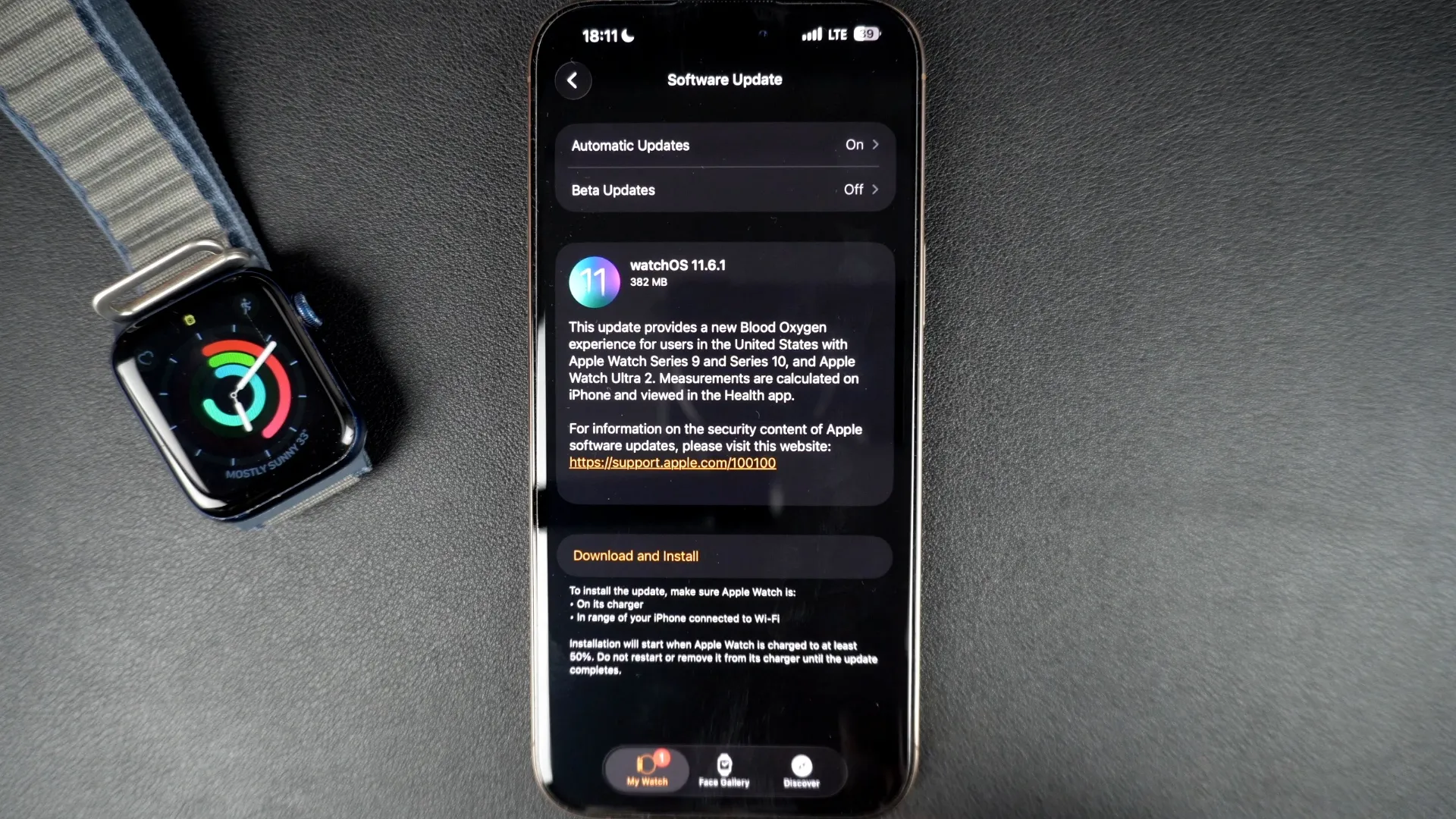
1. Update Using iPhone (Recommended Method)
This is the most reliable way to update your Apple Watch safely.
Steps:
- Open the Watch app on your iPhone
- Tap General → Software Update
- Tap Download and Install
- Keep both devices close together
Make sure your iPhone stays connected to Wi-Fi and power. Interruptions during installation are one of the main causes of update errors.
2. Update Directly from Apple Watch
If your watch runs newer watchOS versions, you can update directly.
Steps:
- Connect to Wi-Fi
- Go to Settings → General → Software Update
- Tap Install
This method works, but it’s usually slower and slightly more prone to errors compared to using an iPhone.
3. Keep Devices Connected
During the update:
- Keep your iPhone and Apple Watch close
- Avoid using Bluetooth-heavy apps
- Do not restart devices mid-update
Even a brief disconnection can interrupt the process and lead to installation failure.
Common Apple Watch Update Problems (And Fixes)
Even with the correct steps, issues can still happen. Here’s how to handle them.
Stuck on “Preparing”
- Restart both devices
- Delete the update file and retry
Not Enough Storage
- Remove unused apps or music
- Restart and try again
Update Taking Too Long
- Wait at least 1–2 hours depending on internet speed
- Restart only if it completely freezes
Unable to Verify Update
- Switch to a stronger Wi-Fi network
- Reset network settings if needed
Knowing these fixes helps you recover quickly without making the issue worse.
Tips to Update Apple Watch Without Errors
If you want consistent success with updates, follow these habits:
- Update overnight when the device is not in use
- Avoid public or unstable Wi-Fi networks
- Restart devices before starting the update
- Keep your iPhone updated to the latest iOS
- Disable low power mode before updating
These small steps significantly reduce the chances of update failure.
Advanced Fixes for Apple Watch Update Errors
If basic fixes don’t work, try these:
- Unpair and re-pair your Apple Watch
- Reset network settings on your iPhone
- Check Apple server status before retrying
In some cases, update errors are caused by deeper software issues that require professional tools to resolve.
When You Should Get Professional Help
Sometimes it’s better not to force an update repeatedly. You should seek expert help if:
- The Apple Watch is stuck on the Apple logo
- The progress bar doesn’t move for hours
- The watch keeps restarting during update
- The screen goes black after updating
- You suspect firmware corruption
At this stage, attempting more fixes can increase the risk of data loss or permanent damage.
How to Prevent Future Update Issues
Once your Apple Watch is updated successfully, maintaining it properly helps avoid future problems.
- Keep the device clean and dust-free
- Avoid installing unstable beta updates
- Always update with strong Wi-Fi
- Maintain enough free storage
- Charge properly before major updates
Consistent maintenance ensures smoother updates every time.
Final Thoughts: Update Apple Watch Safely Every Time
Learning how to update Apple Watch safely without errors helps you avoid unnecessary frustration and keeps your device running smoothly. Most update issues come from simple things like unstable Wi-Fi, low battery, or lack of storage. When you prepare properly and follow the right steps, updates are usually smooth and reliable.
However, if your Apple Watch gets stuck, fails to update repeatedly, or starts behaving abnormally after an update, it’s better not to keep retrying without a proper check. In such cases, getting expert help can prevent bigger problems.
At Milaaj, you can get professional Apple Watch repair support for update failures, software glitches, or system errors. If the device is no longer worth fixing, you also have the option to sell your used Apple Watch and upgrade to a newer model without hassle.
Taking the right approach to updates not only improves performance but also extends the life of your device, helping you get the most out of your Apple Watch every day.
FAQs: Update Apple Watch Safely
How long does an Apple Watch update take?
Usually between 30 minutes to 1 hour. Larger updates may take longer depending on Wi-Fi speed.
Can I use my Apple Watch during an update?
No, the watch will be unavailable until the update is complete.
Why does my Apple Watch fail to update repeatedly?
This is often caused by poor internet, low storage, or outdated iPhone software.
Will updating erase my data?
No, but it’s always safer to have a backup in case something goes wrong.
What should I do if my Apple Watch is stuck after an update?
Restart both devices first. If the issue continues, professional repair may be required.
📍 Visit Any Milaaj Branch in Dubai
🔹 Bur Dubai
Milaaj Mobile and Laptop Repair Dubai
📞 055 258 8477
🔗 Google Maps
🔹 Al Barsha
Milaaj Mobiles and Laptop Repair Al Barsha
📞 052 596 2846
🔗 Google Maps
🔹 Al Barsha 3
Milaaj Mobiles , Laptops and Watches Repair Service
📞 052 3405 814
🔗 Google Maps
🔹 Al Nuaimiya
Milaaj Mobiles and Laptops Ajman
📞 055 788 9654
🔗 Google Maps
Email: support@milaaj.com
Operating Hours: Monday Sunday




Leave a Reply