

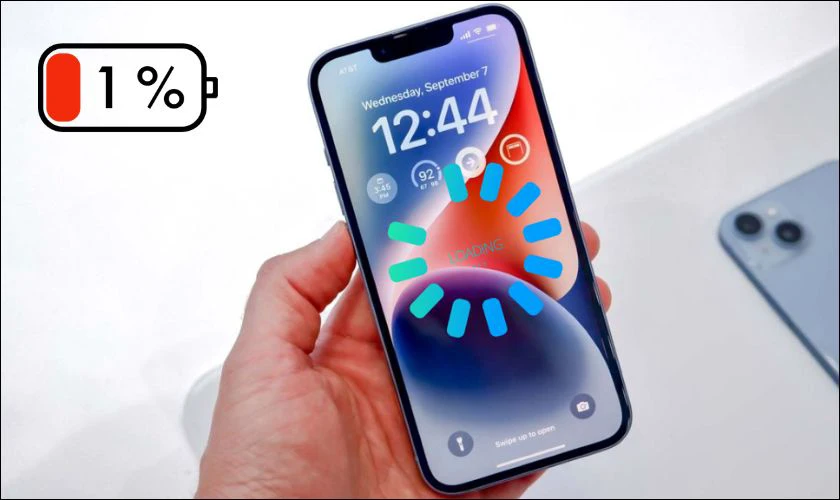
Your iPhone is designed to be fast, smooth, and reliable. However, as time passes, you might start noticing performance issues such as slow response, apps crashing, or the screen freezing. If you’re wondering why your iPhone is lagging or freezing, this comprehensive guide will walk you through the reasons and practical solutions to restore its speed.
Even though newer iPhone models come with advanced processors and optimized iOS systems, software glitches, storage issues, or background processes can cause lags. Let’s explore how to fix iPhone lagging or freezing effectively.
Why Is My iPhone Lagging or Freezing?
Before diving into solutions, it’s important to understand the root causes. Your iPhone lagging or freezing can happen due to:
- Low storage space: When your device is nearly full, performance slows down.
- Outdated iOS version: Older software may have bugs affecting performance.
- Too many background apps: Running multiple apps simultaneously consumes memory.
- Faulty apps or malware: Poorly optimized apps can crash or freeze your device.
- Battery health issues: A weak battery can impact processing power.
- Hardware damage: In rare cases, internal components like logic boards cause lags.
Understanding these reasons helps you take targeted steps to solve your iPhone lagging or freezing issue.
Restart Your iPhone
The simplest fix often works best. Restarting your iPhone clears temporary cache files and refreshes the system. Press and hold the Power and Volume Down buttons, then slide to power off. Wait a few seconds and turn it back on.
This quick action often resolves temporary glitches that cause iPhone lagging or freezing, especially after system updates or app crashes.
Update iOS and Apps
Apple regularly releases iOS updates to improve stability and fix bugs. Outdated software may conflict with new apps or system functions, causing lag.
To update:
- Go to Settings > General > Software Update.
- If an update is available, tap Download and Install.
Also, open the App Store and update all apps. Keeping everything current reduces the chances of your iPhone lagging or freezing due to compatibility issues.
Free Up Storage Space
One of the leading reasons behind iPhone lagging or freezing is low storage. When your device has less than 1GB free, iOS struggles to operate smoothly.
How to free up space:
- Delete unused apps.
- Move photos and videos to iCloud or Google Drive.
- Clear Safari cache from Settings > Safari > Clear History and Website Data.
- Delete old text messages and downloads.
By doing so, you’ll notice smoother scrolling, faster app loading, and fewer freezing incidents.
Check Battery Health
Your iPhone’s battery health plays a major role in performance. When battery efficiency drops below 80%, iOS may throttle performance to prevent shutdowns.
To check:
- Go to Settings > Battery > Battery Health & Charging.
- Review Maximum Capacity.
If it’s significantly reduced, your iPhone lagging or freezing could be linked to poor power supply. In that case, replacing the battery will restore performance.
Close Background Apps
Although iPhones manage background apps well, keeping too many open can slow your device. Swipe up from the bottom (or double-click the Home button on older models) to view recent apps, then swipe them away.
This simple step reduces RAM usage and often stops iPhone lagging or freezing instantly.
Reset All Settings
If the above steps don’t help, some corrupted settings might be causing the problem.
To fix:
- Go to Settings > General > Transfer or Reset iPhone > Reset > Reset All Settings.
This won’t delete your data but will reset system preferences, helping eliminate hidden conflicts behind iPhone lagging or freezing.
Manage Background App Refresh
Too many apps refreshing content in the background can slow down performance.
Turn off unnecessary background refresh:
- Go to Settings > General > Background App Refresh.
- Disable it for apps that don’t need constant updates.
This reduces processor load and network activity, preventing your iPhone lagging or freezing during multitasking.
Clear App Cache and Temporary Data
Some apps, especially social media and streaming ones, store large caches. Go to Settings > iPhone Storage to view which apps take up the most space. Tap on them to Offload App or Clear Cache if available.
Cleaning up these files regularly keeps your system light and responsive, reducing chances of iPhone lagging or freezing.
Turn Off Unnecessary Visual Effects
Although Apple’s animations make iOS look smooth, they also consume processing power.
To disable:
- Go to Settings > Accessibility > Motion > Reduce Motion, and toggle it ON.
This will reduce graphical strain, making your phone more responsive and resolving iPhone lagging or freezing during navigation.
Check for Malware or Corrupted Apps
Sometimes, malware or a poorly designed app can cause system instability. Delete any recently installed apps before the lagging began. If the issue stops, you’ve found the culprit.
Additionally, always download apps from the official App Store to avoid software that might cause iPhone lagging or freezing.
Factory Reset (Last Resort)
If nothing else works, a factory reset might be necessary. It removes all data and restores your iPhone to its original condition.
Before proceeding, back up your data to iCloud or iTunes.
Then go to Settings > General > Transfer or Reset iPhone > Erase All Content and Settings.
Once restarted, your phone should perform like new, free from iPhone lagging or freezing problems.
Hardware Issues – When to Seek Professional Help
If your iPhone continues to lag even after all these fixes, it might be a hardware issue such as a damaged motherboard or faulty storage chip. In such cases, it’s best to consult professionals.
For reliable service, Milaaj provides expert diagnostics and repairs for all iPhone models, ensuring your device runs smoothly again.
FAQs About iPhone Lagging or Freezing
1. Why does my iPhone keep freezing or lagging?
This happens due to software bugs, low storage, or battery issues. Regular maintenance and updates can prevent iPhone lagging or freezing.
2. How can I make my iPhone faster?
Free up storage, close unused apps, and disable unnecessary animations. These steps reduce background load and improve speed.
3. Does low battery health cause lagging?
Yes, degraded battery health limits power output, making iOS reduce performance to prevent crashes.
4. Will a software update fix lagging issues?
Often, yes. Apple releases updates to fix bugs and optimize performance, which can solve iPhone lagging or freezing problems.
5. Can overheating cause my iPhone to freeze?
Absolutely. When your iPhone overheats, it throttles performance to prevent damage, which can feel like lag.
6. How often should I restart my iPhone?
Restarting once every few days helps clear temporary files and prevents performance degradation.
7. When should I visit a repair shop?
If your device keeps lagging even after a factory reset, it’s likely hardware-related. In that case, professional help is needed.
In conclusion, iPhone lagging or freezing is a common issue but can be fixed with the right steps. Start with simple solutions like updating iOS, freeing up storage, and managing background tasks. If these don’t help, consider a full reset or professional diagnosis.
By maintaining your iPhone properly and avoiding unnecessary apps, you can enjoy smooth, fast performance for years. And if your device still struggles, trust Milaaj Mobiles and Laptop Repair Al Barsha for expert repair and reliable service.
Other Services:
- Need other laptop repairs? Check out Milaaj’s laptop repair services in Dubai.
- Overheating issues? Explore MacBook repair in Dubai for similar cooling solutions.
- Looking to upgrade? Learn about selling your used laptop in Dubai.
- Data loss concerns? Visit Milaaj’s data recovery services.
- For Apple users, check Apple trade-in options in Dubai.
📍 Visit Any Milaaj Branch in Dubai
🔹 Bur Dubai
Milaaj Mobile and Laptop Repair Dubai
📞 055 258 8477
🔗 Google Maps
🔹 Al Barsha
Milaaj Mobiles and Laptop Repair Al Barsha
📞 052 596 2846
🔗 Google Maps
🔹 Reef Mall (Salah Al Din)
Milaaj Service Center Reef Mall
📞 052 3405 814
📍 1st Floor, Shop 16, Deira
🔗 Google Maps
🔹 Al Nuaimiya
Milaaj Mobiles and Laptops Ajman
📞 055 788 9654
🔗 Google Maps
Shop Locations: Al Barsha | Bur Dubai | Reef Mall, Salah Al Din | Al Nuaimiya, Ajman
Email: support@milaaj.com
Operating Hours: Monday – Sunday




Leave a Reply