

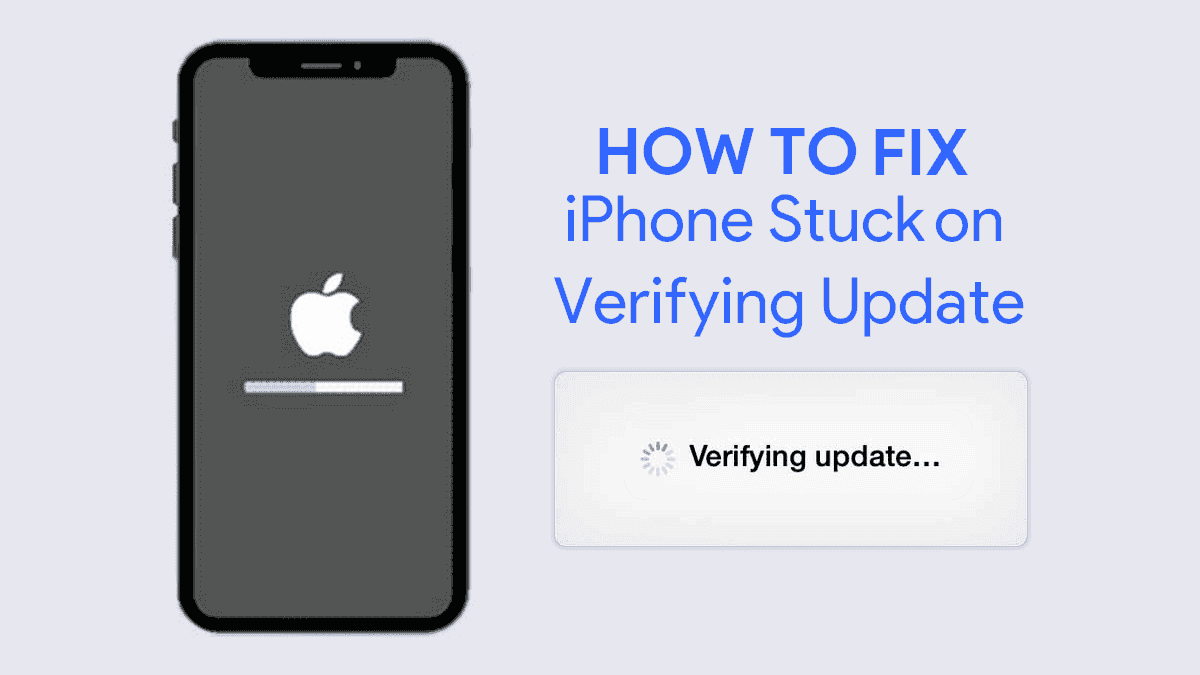
Keeping your iPhone updated is important for security, performance, and access to new features. However, sometimes the update process doesn’t go as planned. If your iPhone is stuck during an iOS update, frozen on the Apple logo, showing a progress bar that won’t move, or endlessly displaying “Verifying Update,” you’re not alone.
Many users experience update installation issues after major software releases, including iOS 26. Fortunately, most update-related problems can be fixed without replacing the device or losing important data.
This guide explains why an iPhone gets stuck during an iOS update, how to fix the issue safely, and what to do if standard troubleshooting methods don’t work.
Quick Answer
If your iPhone is stuck during an iOS update, wait at least 30–60 minutes to ensure the update hasn’t simply slowed down. If the screen remains frozen, perform a force restart, verify your internet connection, free up storage space, and try updating through Finder or iTunes. If the problem continues, Recovery Mode can often repair the update without deleting your data.
Why Does an iPhone Get Stuck During an iOS Update?
Several factors can interrupt the update process and prevent iOS from installing correctly.
Common causes include:
- Insufficient storage space
- Weak or unstable Wi-Fi connection
- Corrupted update files
- Battery interruption during installation
- Software conflicts
- Apple server issues
- Hardware-related storage or motherboard faults
Understanding the cause helps determine the most effective solution.
Signs Your iPhone Is Stuck During an Update
Not every slow update is actually frozen. Major updates can take longer than expected.
Common signs of a genuine update problem include:
- Apple logo remains on screen for over an hour
- Progress bar stops moving
- “Verifying Update” remains unchanged
- iPhone continuously restarts
- Black screen after update installation
- Update requested screen never progresses
- iPhone enters a boot loop
If you notice any of these symptoms, troubleshooting may be necessary.
iPhone Stuck During iOS 26 Update
iOS 26 introduced major interface improvements, system enhancements, and deeper AI-powered features. Because of these significant changes, installation files are larger and updates may require more free storage than previous versions.
Users upgrading to iOS 26 have reported:
- iPhone stuck on Apple logo
- Progress bar frozen
- Update verification errors
- Installation failures
- Boot loops after updating
In most cases, the issue is caused by insufficient storage, interrupted downloads, or unstable internet connections during installation.
Before assuming the update has failed, allow at least one hour for the installation process to complete.
iPhone Stuck During iOS 18 and Later Updates
Although smaller updates generally install faster than major releases, iOS 18.x versions can still encounter problems.
Common issues include:
- Preparing update stuck
- Update requested not progressing
- Software verification failure
- Download interruption
- Restart loops after installation
Deleting the update file and downloading it again often resolves these problems.
How to Fix an iPhone Stuck During an iOS Update
Force Restart Your iPhone
A force restart is usually the first and safest troubleshooting step.
For iPhone 8 and Later
- Press Volume Up
- Press Volume Down
- Press and hold the Side Button
- Release when the Apple logo appears
For iPhone 7 and 7 Plus
Hold the Volume Down and Power buttons together until the Apple logo appears.
For iPhone 6s and Earlier
Hold the Home and Power buttons simultaneously until the Apple logo appears.
Many update freezes are resolved through a force restart.
Check Your Internet Connection
Poor connectivity frequently causes update failures.
To improve update reliability:
- Restart your router
- Move closer to the Wi-Fi source
- Disable VPN services
- Switch to another trusted Wi-Fi network
A stable internet connection is essential for downloading and verifying update files.
Free Up Storage Space
One of the most overlooked causes of update failures is insufficient storage.
For major updates like iOS 26, Apple recommends maintaining several gigabytes of available space.
Delete:
- Unused apps
- Large videos
- Duplicate photos
- Offline downloads
- Temporary files
Freeing storage can help the update install successfully.
Delete and Reinstall the Update
Sometimes the update file itself becomes corrupted.
To remove it:
Settings → General → iPhone Storage → iOS Update → Delete Update
After deleting the file:
- Restart your iPhone
- Connect to Wi-Fi
- Download the update again
This often resolves installation failures.
Keep the Device Connected to Power
Major updates consume significant battery power.
Ensure your iPhone:
- Has at least 50% battery
- Remains connected to a charger
- Uses a reliable charging cable
Unexpected shutdowns during installation can corrupt the update process.
Update Through Finder or iTunes
If the over-the-air update fails, updating through a computer can bypass many software issues.
On Mac
Use Finder.
On Windows
Use iTunes.
Connect the iPhone and select “Update” rather than “Restore.”
This allows iOS to reinstall without erasing personal data.
Use Recovery Mode
Recovery Mode can repair many update-related failures.
Recovery Mode is particularly useful when:
- Apple logo remains stuck
- Update repeatedly fails
- Device enters a boot loop
After entering Recovery Mode, choose:
Update
This reinstalls iOS while preserving your files whenever possible.
Use DFU Mode for Severe Software Problems
DFU (Device Firmware Update) mode is the deepest software restoration option available.
It can resolve:
- Corrupted firmware
- Persistent boot loops
- Failed iOS installations
- Advanced software corruption
DFU mode should only be used if Recovery Mode does not solve the problem.
What About Future iOS 27 Updates?
Although Apple has not officially released iOS 27, future major updates are likely to introduce larger installation packages and more advanced features.
To prepare for future iOS updates:
- Keep at least 10GB of free storage
- Back up your iPhone regularly
- Avoid installing beta versions on primary devices
- Maintain good battery health
- Update over reliable Wi-Fi
Following these practices significantly reduces update-related risks.
Can Hardware Problems Cause Update Failures?
Yes.
While software issues account for most update failures, hardware faults can also interfere with iOS installations.
Potential hardware causes include:
- Storage chip failure
- Logic board damage
- Weak battery health
- Charging circuit faults
- Power management issues
If your iPhone repeatedly gets stuck during updates despite multiple software repairs, professional diagnostics may be necessary.
Key Takeaways
- Most iPhone update problems are software-related and can be fixed at home.
- Force restarting is often the fastest solution.
- Storage shortages commonly cause installation failures.
- Recovery Mode can repair many update-related issues without data loss.
- iOS 26 updates may take longer than previous versions due to larger system changes.
- Future updates like iOS 27 will likely require additional storage and stable internet connections.
- Persistent update failures may indicate underlying hardware issues.
Repair, Upgrade, or Sell Your iPhone
If your iPhone repeatedly encounters software issues, update failures, battery problems, or storage-related performance issues, it may be time to evaluate whether repair or replacement is the better option.
At Milaaj Mobiles and Laptop Repair Al Barsha, our technicians can diagnose complex iOS update issues and recommend the most cost-effective solution. If you’re planning to upgrade, you can also sell your used iPhone in Dubai and receive a competitive quote for your device.
When Should You Seek Professional Help?
You should consider professional repair if:
- The iPhone remains stuck after multiple force restarts
- Recovery Mode fails repeatedly
- Finder or iTunes cannot detect the device
- The device continuously enters a boot loop
- Hardware issues are suspected
Professional diagnostics can identify whether the issue involves software corruption, battery health, storage components, or motherboard-related faults.
For advanced troubleshooting, you can also explore professional iPhone repair services in Dubai or iPhone data recovery services if important files become inaccessible during the update process.
FAQs About iPhone Stuck During iOS Update
How long should an iPhone update take?
Most updates finish within 15 to 45 minutes. Major releases such as iOS 26 may take longer depending on device model, storage, and internet speed.
Why is my iPhone stuck on the Apple logo after updating?
This usually indicates the installation process was interrupted, the update file became corrupted, or system files failed to install properly.
Can low storage cause update failures?
Yes. Insufficient storage is one of the most common reasons an iPhone becomes stuck during an update.
Will Recovery Mode erase my data?
Choosing “Update” generally preserves your files. Choosing “Restore” will erase all data.
Is it safe to install beta versions of iOS?
Beta software often contains bugs and update issues. It is best installed only on secondary devices.
Can a weak battery cause update problems?
Yes. Unexpected shutdowns during installation can interrupt the update process and lead to software corruption.
Should I update to iOS 26 immediately after release?
Waiting a few days allows Apple to address early bugs and server congestion, reducing the risk of update-related issues.
Final Thoughts
An iPhone stuck during an iOS update can be frustrating, but most cases are fixable without replacing the device. Whether the problem is caused by insufficient storage, corrupted update files, network interruptions, or software conflicts, following the troubleshooting steps above can usually restore normal operation.
If the issue persists after force restarts, Recovery Mode, and computer-based updates, professional diagnostics can help identify deeper software or hardware faults and get your iPhone running normally again.
📍 Visit Any Milaaj Branch in Dubai
🔹 Bur Dubai
Milaaj Mobile and Laptop Repair Dubai
📞 055 258 8477
🔗 Google Maps
🔹 Al Barsha
Milaaj Mobiles and Laptop Repair Al Barsha
📞 052 596 2846
🔗 Google Maps
🔹 Al Barsha 3
Milaaj Mobiles , Laptops and Watches Repair Service
📞 052 3405 814
🔗 Google Maps
🔹 Al Nuaimiya
Milaaj Mobiles and Laptops Ajman
📞 055 788 9654
🔗 Google Maps
Email: support@milaaj.com
Operating Hours: Monday Sunday




Leave a Reply