

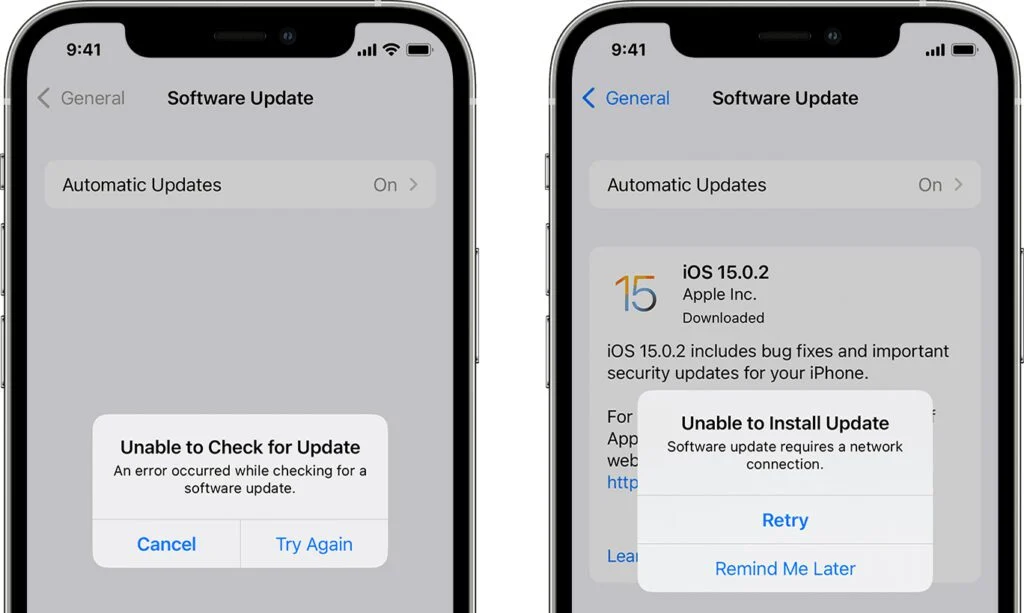
Updating your iPhone to the newest iOS version should be a simple process. However, thousands of users experience the frustrating issue of Why your iPhone won’t update to the latest iOS every time Apple releases a major upgrade. Although most updates install smoothly, some devices fail to download, verify, or complete the installation. Fortunately, these problems are usually easy to fix once you understand the reasons behind them.
In this complete troubleshooting guide, you’ll learn exactly why your iPhone won’t update to the latest iOS, what causes the update failure, and how expert technicians solve these update errors quickly and safely. Additionally, you’ll discover professional tips that help you avoid update issues in the future.
Understanding Why Your iPhone Won’t Update to the Latest iOS
Before applying any fix, it’s important to understand the real reasons why your iPhone won’t update to the latest iOS. Update issues occur for multiple reasons some simple, some more technical.
Storage Problems Causing iPhone Not Updating to Latest iOS
One of the most common reasons why your iPhone won’t update to the latest iOS is insufficient storage. Major updates often require several gigabytes of free space. Even when your device seems to have enough space, hidden system files or app data might block the installation.
Poor Internet Connection Leading to Update Failure
Another frequent cause of why your iPhone won’t update to the latest iOS is a weak or unstable Wi-Fi connection. Because Apple does not allow major updates over mobile data on most devices, a stable Wi-Fi network is essential.
Battery Issues Preventing the iPhone from Updating
If your iPhone has low battery or declining battery health, the device may refuse to update. This ensures the update doesn’t fail halfway through, which could corrupt the system.
Software Glitches and Settings Causing iPhone Update Issues
Sometimes your device settings or temporary cache files can interfere with the installation process, contributing to the issue of why your iPhone won’t update to the latest iOS.
Device Not Eligible for the Latest iOS Version
Older iPhones are often not compatible with the newest updates. If your device is unsupported, this instantly explains why your iPhone won’t update to the latest iOS.
Apple Server Issues Interrupting the Update Process
Even though rare, Apple’s update servers sometimes become overloaded on launch day. When this occurs, users repeatedly face the problem of why their iPhone won’t update to the latest iOS.
VPN, Profiles, or Restrictions Blocking iOS Updates
If you have installed a VPN, beta profile, or mobile device management (MDM) profile, these can block updates and cause the error Why your iPhone won’t update to the latest iOS.
Hardware Reasons Why Your iPhone Won’t Update to the Latest iOS
Although less common, hardware problems can also prevent updates.
Failing Storage Chip (NAND) Affecting iOS Installation
A damaged storage chip often results in repeated update failures. When NAND memory sectors malfunction, the device struggles to write the new system files, causing the recurring issue of why your iPhone won’t renew to the latest iOS.
Charging Port or Battery IC Problems Interrupting Updates
If your iPhone suddenly shuts down during an update, it may be related to battery IC or power management issues another hidden cause behind why your iPhone won’t renew to the latest iOS.
Quick Fixes for Why Your iPhone Won’t Update to the Latest iOS
Now that you know what causes the issue, let’s look at fast and effective troubleshooting steps.
Free Up Storage Space for the Latest iOS Update
Start by deleting unused apps, photos, videos, and files. Alternatively, offload apps instead of deleting them.
This simple step often resolves why your iPhone won’t renew to the latest iOS instantly.
Restart Your iPhone to Clear Temporary Glitches
A quick restart removes temporary system bugs interfering with the update process.
Reset Network Settings to Fix Wi-Fi Issues
If connectivity issues are the reason your iPhone won’t renew to the latest iOS, resetting network settings helps:
Settings → General → Transfer or Reset iPhone → Reset Network Settings
Charge Your iPhone to At Least 50%
A device with low battery automatically stops updates for safety reasons.
Advanced Fixes for Why Your iPhone Won’t Update to the Latest iOS
If basic steps do not work, try these more advanced solutions.
Update Your iPhone Using iTunes or Finder
Updating via computer bypasses many internal errors and often solves why your iPhone won’t renew to the latest iOS.
Steps:
- Connect your iPhone to a PC or Mac
- Open iTunes or Finder
- Select Update
Remove Beta Profiles or MDM Profiles
Removing these profiles often eliminates update blocks.
Reset All Settings to Fix Deeper Configuration Issues
Sometimes corrupted settings prevent updates. This reset keeps your data safe while fixing internal conflicts.
Expert-Level Solutions for Why Your iPhone Won’t Update to the Latest iOS
When all else fails, professional technicians use more advanced methods to diagnose and repair update problems.
Reinstalling iOS Firmware Manually
Technicians download and install the correct IPSW firmware file to fix update-related corruption.
Hardware Diagnostics for Persistent Update Failures
If hardware issues are suspected, experts check the battery, storage chip, motherboard components, and charging port any of which can cause why your iPhone won’t renew to the latest iOS.
When to Seek Professional Help for iPhone Update Issues
If your iPhone is still refusing to update after trying all these fixes, it’s time to seek professional support.
Professional repair centers, such as Milaaj mobiles and laptop repair Al Barsha, offer precise diagnostics and advanced repair tools to resolve even the most stubborn update errors. Their technicians handle firmware failures, storage chip problems, connectivity faults, and deep system issues safely and efficiently.
How to Prevent iPhone won’t update to the latest iOS Problems in the Future
- Ensure Sufficient Free Storage Before Every Update
- Always Update Over a Stable Wi-Fi Network
- Restart Your Device Before Installing Updates
- Avoid Updating With Low Battery
- Remove Old Profiles or VPNs Regularly
These habits significantly reduce the chances of facing why your iPhone won’t update to the latest iOS again.
FAQs about iPhone won’t update to the latest iOS
1. Why won’t my iPhone download the latest iOS update?
Because of low storage, poor Wi-Fi, server issues, corrupted software, or blocked update profiles.
2. Why is my iPhone stuck on “Preparing Update”?
This may happen due to slow internet, insufficient space, or temporary software glitches.
3. Can hardware issues prevent my iPhone from updating?
Yes. A failing battery, bad storage chip, or faulty motherboard can interrupt updates.
4. Can I update my iPhone without Wi-Fi?
Major updates require Wi-Fi unless you update through a computer.
5. Will I lose data if I fix the update issue?
Most solutions do not erase data, but severe firmware problems may require backups.
Conclusion: iPhone won’t update to the latest iOS
Dealing with the problem of why your iPhone won’t update to the latest iOS can be stressful, but the solution is often simpler than it seems. From storage limitations and battery issues to hardware faults and software corruption, several factors can block updates. However, with the right troubleshooting methods and professional help when needed you can get your iPhone updated smoothly and safely.
Other Services:
- Need other iPhone repairs? Check out Milaaj’s iPhone repair services in Dubai.
- Looking to upgrade? Learn about selling your used iPhone in Dubai.
- Data loss concerns? Visit Milaaj’s data recovery services.
- For Apple users, check Apple trade-in options in Dubai.
📍 Visit Any Milaaj Branch in Dubai
🔹 Bur Dubai
Milaaj Mobile and Laptop Repair Dubai
📞 055 258 8477
🔗 Google Maps
🔹 Al Barsha
Milaaj Mobiles and Laptop Repair Al Barsha
📞 052 596 2846
🔗 Google Maps
🔹 Al Barsha 3
Milaaj Mobiles and Gaming Store
📞 052 3405 814
🔗 Google Maps
🔹 Al Nuaimiya
Milaaj Mobiles and Laptops Ajman
📞 055 788 9654
🔗 Google Maps
Shop Locations: Al Barsha | Bur Dubai | Reef Mall, Salah Al Din | Al Nuaimiya, Ajman
Email: support@milaaj.com
Operating Hours: Monday – Sunday




Leave a Reply