

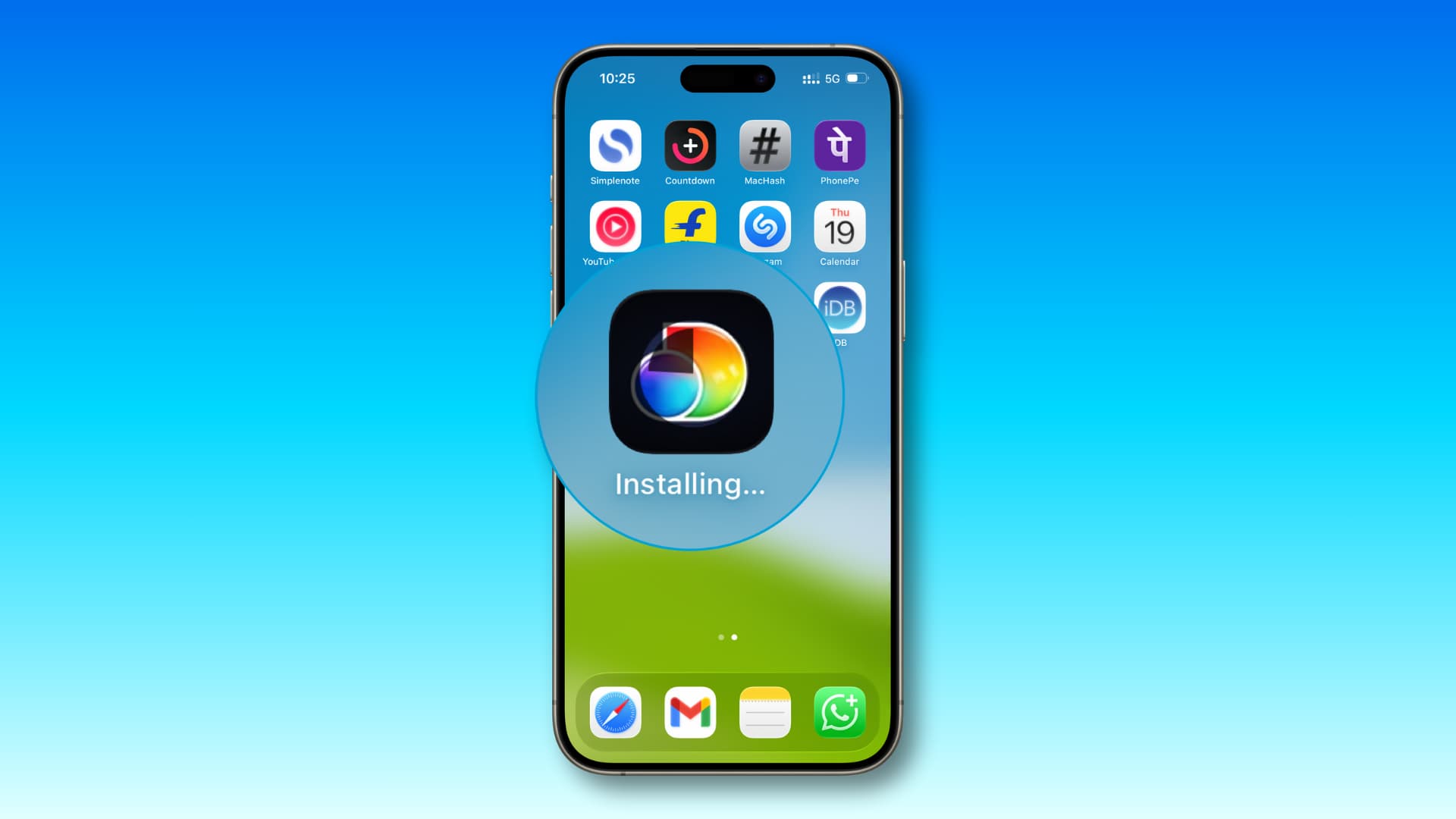
When you install a new iOS update, you expect improved performance, better security, and exciting new features. However, many users experience the opposite unexpected glitches right after updating. Indeed, iOS update problems after installation can include issues such as freezing screens, fast battery drain, lagging apps, overheating, Wi-Fi dropouts, or even the device getting stuck on the Apple logo. Although these iOS update problems can be frustrating, the good news is that most of them can be solved with the right troubleshooting steps.
In this comprehensive guide, you will learn why iOS update problems happen after installation, how to fix them successfully, and when to seek professional repair. Additionally, you’ll discover the advanced solutions used by expert technicians to restore your device when basic fixes fail.
Milaaj is one trusted name that can diagnose and fix complex iOS update issue after installation quickly and safely.
What Causes iOS Update Problems After Installation?
Ultimately, understanding the root cause is the first step in fixing iOS update problems after installation. Even though updates aim to improve the device, several factors can still create conflicts.
Software Bugs Introduced in the Update
Sometimes, the new update contains bugs that affect performance, battery life, or connectivity.
Insufficient Storage During Installation
Even after the update is installed, leftover temporary files may cause instability.
Incomplete or Interrupted Update
If the update was disrupted due to low battery or weak Wi-Fi, your iPhone may face glitches afterward.
App Incompatibility
Many apps require their own updates to work smoothly with the new iOS version.
Battery Recalibration Issues
After an update, the battery may behave unpredictably until the system recalibrates.
Hardware Stress
Older devices sometimes struggle after big software updates, leading to performance drops.
Common iOS Update Problems Users Face
Below are the most reported iOS update issue after installation:
iPhone Running Slow or Laggy
Menus, apps, and animations may feel sluggish immediately after updating.
Faster Battery Drain
Background processes and indexing cause excessive battery usage.
Overheating
The device may heat up as the new system settles in.
Apps Crashing or Freezing
Outdated apps may not handle the new firmware properly.
Wi-Fi or Bluetooth Not Working
Connectivity issues are common after system updates.
Touchscreen Not Responsive
Firmware conflicts can affect touch sensitivity.
Stuck on Apple Logo or Boot Loop
This is one of the most serious iOS update issue after installation.
Real Fixes That Work for iOS Update Problems After Installation
Fortunately, most issues can be resolved without professional help. To guide you further, here are the most effective solutions.
Restart Your iPhone for iOS update problems after installation
Firstly, a simple restart clears out temporary conflicts and refreshes system files.
Force Restart for Severe Glitches
If the screen is frozen or unresponsive, a force reboot may help.
Check for App Updates
Furthermore, outdated apps can cause conflicts after installation. Update all apps through the App Store.
Reset Network Settings
This resolves Wi-Fi dropouts, Bluetooth glitches, and cellular issues.
Toggle Airplane Mode
Surprisingly, this can fix minor connectivity problems instantly.
Re-enable System Services
Sometimes, system services get disabled after the update. Review and enable required settings.
Free Up Storage for iOS update problems after installation
Clearing unnecessary files helps the new iOS version run smoother.
Turn Off Background Activities
Disable background app refresh, analytics, and unnecessary widgets.
Recalibrate the Battery
Charge to 100% → let it drop to 0% → recharge fully.
This helps restore accurate battery readings.
Update to the Latest iOS Patch
Often, Apple releases follow-up patches to fix the initial bugs.
Advanced Solutions for Persistent iOS update problems after installation Issues
If basic fixes don’t work, try these deeper methods.
Restore iPhone Using Recovery Mode
This reinstalls the firmware and removes corruption.
DFU Mode Reset For iOS update problems after installation
Additionally, this is the most advanced reset and fixes serious iOS update problems after installation that are affecting the firmware.
Reset All Settings for iOS update problems after installation
This preserves data while restoring system configurations.
Clean Install Using iTunes/Finder
A fresh installation removes glitches caused by older system files.
Remove Problematic Apps for iOS update problems after installation
Certain third-party apps cause conflicts with new iOS versions.
How Professionals Diagnose and Repair iOS update problems after installation Problems
If your iPhone remains unstable, professional help becomes essential.
Technicians use advanced tools to solve issues such as:
- Firmware corruption
- Boot loop diagnosis
- Baseband or Wi-Fi IC failure
- Battery calibration faults
- Logic board problems caused by update stress
Professional Repair Methods Include:
- Micro-soldering for hardware faults
- Advanced firmware flashing
- System-level diagnostics
- Restoring damaged partitions
- Reinstalling corrupted iOS files
Fortunately, most issues can be resolved without professional help. Therefore, here are the most effective solutions.
How to Prevent iOS update problems after installation in the Future
To prevent future issues, and to avoid similar problems after your next update, follow these preventive steps.
Ensure Enough Storage
Always have at least 5–10 GB free space.
Charge Your Device
Keep battery above 50% or plug in during update.
Use Strong Wi-Fi For iOS update problems after installation
Interruptions during download cause installation failures.
Update in a Clean Environment
Heat, low battery, or background processes may interfere.
Backup Before Updating
Always create a backup to avoid data loss.
Avoid Updating Immediately After Release
Waiting a few days helps avoid bug-related problems.
FAQs About iOS update problems after installation
1. Why do iOS update problems occur after installation?
These can happen due to software bugs, incomplete installation, storage issues, or app incompatibility.
2. How long does the battery take to stabilize after an update?
It may take 24–48 hours as background processes complete.
3. Is factory reset necessary for iOS update issues?
Not always. Try basic troubleshooting first.
4. Can iOS updates damage hardware?
Updates don’t directly damage hardware but may reveal existing issues.
5. When should I visit a repair center?
If your phone is stuck on Apple logo, overheating, or failing to boot, professional repair is required.
Conclusion: iOS update problems after installation
In conclusion, iOS update problems after installation are common but often easy to fix when you follow the right steps. Moreover, solutions like restarting the device, recalibrating the battery, or performing a system restore usually require no technical experience. However, if your iPhone remains stuck, unstable, or unusable, professional repair becomes necessary.
Thankfully, with expert help from Milaaj Mobiles and Laptop Repair Al Barsha, you can restore your device quickly and safely therefore ensuring smooth and reliable performance after every iOS update.
Other Services:
- Need other iPhone repairs? Check out Milaaj’s iPhone repair services in Dubai.
- Looking to upgrade? Learn about selling your used iPhone in Dubai.
- Data loss concerns? Visit Milaaj’s data recovery services.
- For Apple users, check Apple trade-in options in Dubai.
📍 Visit Any Milaaj Branch in Dubai
🔹 Bur Dubai
Milaaj Mobile and Laptop Repair Dubai
📞 055 258 8477
🔗 Google Maps
🔹 Al Barsha
Milaaj Mobiles and Laptop Repair Al Barsha
📞 052 596 2846
🔗 Google Maps
🔹 Al Barsha 3
Milaaj Mobiles and Gaming Store
📞 052 3405 814
🔗 Google Maps
🔹 Al Nuaimiya
Milaaj Mobiles and Laptops Ajman
📞 055 788 9654
🔗 Google Maps
Shop Locations: Al Barsha | Bur Dubai | Reef Mall, Salah Al Din | Al Nuaimiya, Ajman
Email: support@milaaj.com
Operating Hours: Monday – Sunday




Leave a Reply