

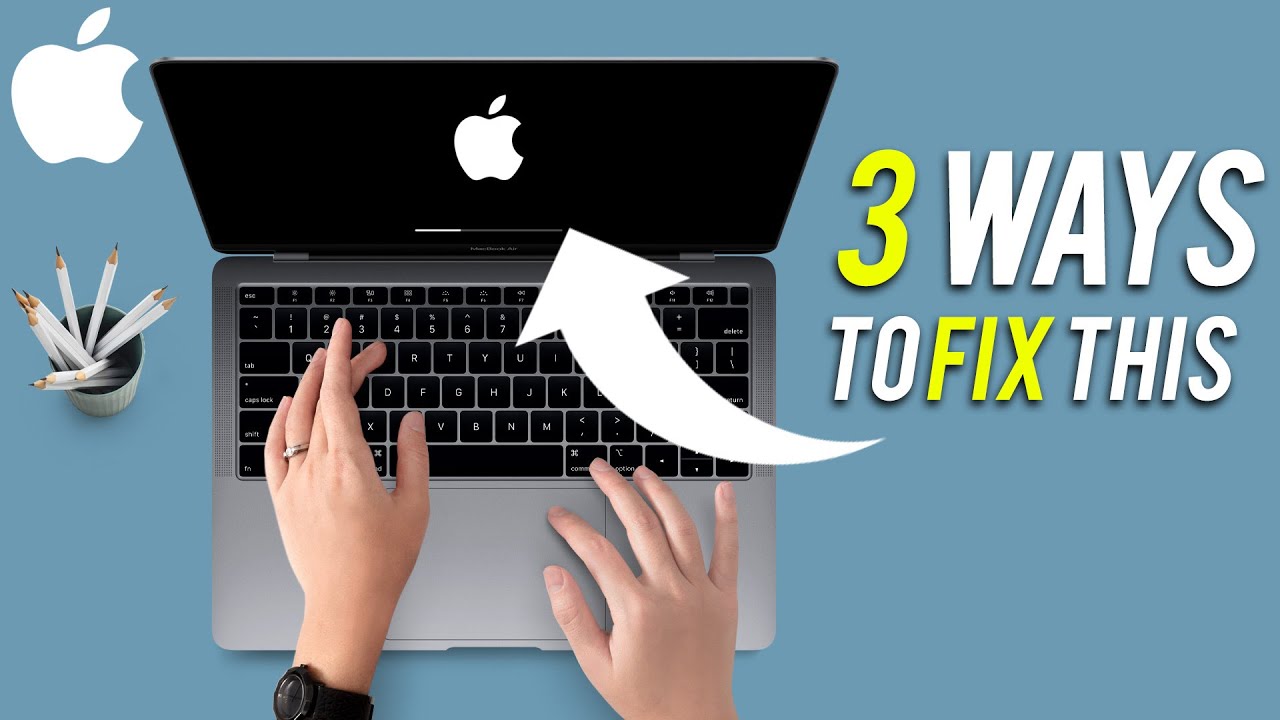
When your MacBook gets stuck after an Apple update installation, the situation can feel incredibly frustrating especially when you depend on your device for work, studies, or everyday tasks. Although macOS updates aim to improve performance and security, they often trigger unexpected glitches such as frozen screens, endless loading wheels, boot loops, or apps refusing to open. Your MacBook stuck after Apple update usually happens because new system files clash with existing apps, corrupted data, or outdated firmware.
Fortunately, you can fix most of these issues when you follow the right steps, and expert repair shops can restore your MacBook quickly and safely when the problem demands advanced solutions. In this guide, we explain why a MacBook gets stuck after an Apple update, highlight the warning signs you should never ignore, describe the repair techniques technicians use to deliver reliable results, and show you how to prevent similar update failures in the future.
Understanding Why Your MacBook Gets Stuck After Apple Update
Transitioning to a new macOS version can sometimes overload the system. Even though Apple updates are thoroughly tested, certain technical conflicts still occur. Therefore, understanding the root causes is the first step toward fixing your MacBook stuck after Apple update issues.
1. Insufficient Storage After Update Installation
A major reason behind a MacBook getting stuck after an Apple update is lack of storage space. macOS needs enough free memory for installation files, caching, and firmware activation. Consequently, when your device runs out of space mid-process, it can freeze or reboot endlessly.
2. macOS File Corruption During Update
Although rare, system files may become corrupted when the update is interrupted. For instance, a sudden power loss, low battery, or unstable internet connection can prevent macOS files from installing properly, which leaves your MacBook stuck after Apple update.
3. Incompatible or Outdated Applications
Sometimes apps that are not optimized for the new macOS version cause conflicts. As a result, the MacBook may hang during startup or load slowly after completing the update.
4. Firmware or SMC Conflicts
Updates sometimes modify the system firmware, and if the process isn’t smooth, the SMC (System Management Controller) may malfunction. This leads to overheating, fan issues, or power problems.
5. Hardware Weaknesses Finally Showing
If your MacBook has a weak battery, failing SSD, or overheating issue, the update stresses the hardware and exposes hidden problems. This often results in your MacBook getting stuck after Apple update completion.
Common Symptoms When Your MacBook Is Stuck After Apple Update
Although the issue may appear suddenly, your MacBook usually shows warning signs. Identifying them early helps you take action sooner.
1. Endless Apple Logo Loop for MacBook stuck after Apple update
Your device keeps rebooting but never completes startup. This is among the most common symptoms of MacBook stuck after Apple update failures.
2. Spinning Loading Wheel That Never Stops
If your Mac freezes at a grey or black screen with a spinning wheel, the update may not have installed correctly.
3. MacBook Freezes on Login Screen
Even after entering your password, the system stops responding. This indicates corrupted system files.
4. Apps Crashing After Update
When upgraded apps fail to load, it signals compatibility issues or missing system patches.
5. Battery Draining or Overheating After Update
These symptoms arise when new system processes run excessively.
Fixing Your MacBook Stuck After Apple Update: Step-by-Step Guide
Below are the most effective methods to fix the issue before considering professional repair.
1. Restart Your MacBook
Restarting is the simplest yet most effective step. Often, temporary glitches get cleared automatically, allowing macOS to stabilize.
2. Boot into Safe Mode to Fix Startup Conflicts
Safe Mode loads only essential system files. As a result, it helps bypass problematic drivers or extensions.
Steps:
- Turn off MacBook
- Hold Shift while restarting
- Login and allow system cleanup
If Safe Mode works, you can install pending updates or remove faulty apps.
3. Reset SMC to Fix Power and Performance Issues
Resetting SMC resolves issues like:
- Fans running constantly
- Slow performance
- Power-related glitches
Once reset, your MacBook often boots normally.
4. Reset NVRAM/PRAM
Corrupted NVRAM settings can cause startup failure.
Steps:
- Shut down
- Hold Option + Command + P + R
- Restart and release after 20 seconds
This frequently resolves “MacBook stuck after Apple update” boot conflicts.
5. Run Disk Utility via Recovery Mode
Disk Utility repairs corrupted disk permissions that affect the macOS update.
Steps:
- Press Command + R during startup
- Select Disk Utility > First Aid
- Repair internal drive
6. Reinstall macOS (No Data Loss)
If system files are damaged, reinstalling macOS fixes them without erasing personal data. This is one of the most effective solutions when your MacBook is stuck after Apple update.
How Repair Shops Fix Your MacBook Stuck After Apple Update
When DIY solutions fail, professional repair becomes the safest option. Expert technicians use advanced tools to diagnose deeper system-level or hardware issues.
1. Full System Diagnostics
Repair shops run complete diagnostics to identify:
- SSD health
- Battery cycles
- Firmware conflicts
- macOS corruption
This is crucial for detecting hidden problems.
2. Professional macOS Reinstallation
Unlike basic recovery mode, experts use:
- macOS firmware tools
- Internet recovery imaging
- Clean OS partitioning
This ensures thorough installation and stable performance.
3. Fixing Firmware & SMC-Level Errors
Technicians use micro-tools to reset or reprogram corrupted firmware blocks something regular users cannot do.
4. Repairing SSD and Logic Board Issues
If your MacBook stuck after Apple update is caused by a failing SSD or logic board, repair shops can replace defective components and restore your data safely.
Why Milaaj Is the Best Place to Fix MacBook stuck after Apple update Issues
Although many shops offer MacBook repair, Milaaj Mobiles and Laptop Repair Al Barsha stands out due to several advantages:
Fast Diagnosis & Speedy Repair
Technicians work efficiently to get your MacBook back the same day or next day.
Affordable Pricing for MacBook stuck after Apple update
Repair costs are transparent and lower than official service centers.
High-Quality Parts for MacBook stuck after Apple update
Only premium-grade components are used for replacements.
Expertise in Apple Logic Board & Firmware Repairs
This makes them highly reliable for fixing complex MacBook update failures.
Convenient Location & Quick Support
You can get instant technical help without long waiting times.
Preventive Tips: Avoid Getting Your MacBook stuck after Apple update Future Updates
To ensure smooth updates, follow these steps:
1. Keep at least 20–30GB free storage
macOS needs space for optimized installation.
2. Avoid updating when battery is low
Low power during the update can corrupt files.
3. Update apps before updating macOS
This prevents compatibility conflicts.
4. Back up regularly with Time Machine
This ensures your data stays safe.
5. Avoid interrupting the update for MacBook stuck after Apple update
Never force shutdown unless absolutely necessary.
FAQs About MacBook stuck after Apple update
1. Why is my MacBook stuck after Apple update installation?
Your MacBook may freeze because corrupted macOS files interfere with the system, storage runs too low for the update, outdated apps create conflicts, firmware glitches disrupt the boot process, or the SSD begins to fail. Some of these problems need professional repair to restore smooth performance.
2. How do I fix a MacBook stuck on Apple logo after update?
You can restart in Safe Mode, reset SMC/NVRAM, run Disk Utility, or reinstall macOS. If none of these work, a technician must diagnose deeper system or hardware issues.
3. Will I lose my data if I reinstall macOS?
No, reinstalling macOS in Recovery Mode does not delete your data. However, severe corruption may require expert data recovery.
4. Can a repair shop fix macOS firmware problems?
Yes. Professional technicians use advanced tools to repair firmware, reprogram logic board components, and restore system stability.
5. Why does my Mac become slow or unresponsive after updates?
Background indexing, incompatible applications, and low storage often cause post-update slowdowns. Optimization or repair may be needed.
6. Where can I repair a MacBook stuck after Apple update?
You can visit Milaaj for fast diagnostics, affordable repair, and expert macOS restoration.
Conclusion: MacBook stuck after Apple update
If your MacBook is stuck after Apple update, the issue usually comes from software conflicts, corrupted system files, or hardware limitations. Fortunately, you can solve many of these problems through simple steps such as entering Safe Mode, performing an SMC reset, or reinstalling macOS. However, when the issue continues despite these fixes, seeking professional support becomes essential. With expert technicians, fast diagnostics, high-quality repairs, and reliable service, Milaaj Mobiles and Laptop Repair Al Barsha ensures your MacBook gets restored safely, efficiently, and with long-lasting results.
Other Services:
- Need other Mac Book repairs? Check out Milaaj’s MacBook repair services in Dubai.
- Overheating issues? Explore MacBook repair in Dubai for similar cooling solutions.
- Looking to upgrade? Learn about selling your used laptop in Dubai.
- Data loss concerns? Visit Milaaj’s data recovery services.
- For Apple users, check Apple trade-in options in Dubai.
📍 Visit Any Milaaj Branch in Dubai
🔹 Bur Dubai
Milaaj Mobile and Laptop Repair Dubai
📞 055 258 8477
🔗 Google Maps
🔹 Al Barsha
Milaaj Mobiles and Laptop Repair Al Barsha
📞 052 596 2846
🔗 Google Maps
🔹 Al Barsha 3
Milaaj Mobiles and Gaming Store
📞 052 3405 814
🔗 Google Maps
🔹 Al Nuaimiya
Milaaj Mobiles and Laptops Ajman
📞 055 788 9654
🔗 Google Maps
Shop Locations: Al Barsha | Bur Dubai | Reef Mall, Salah Al Din | Al Nuaimiya, Ajman
Email: support@milaaj.com
Operating Hours: Monday – Sunday




Leave a Reply