

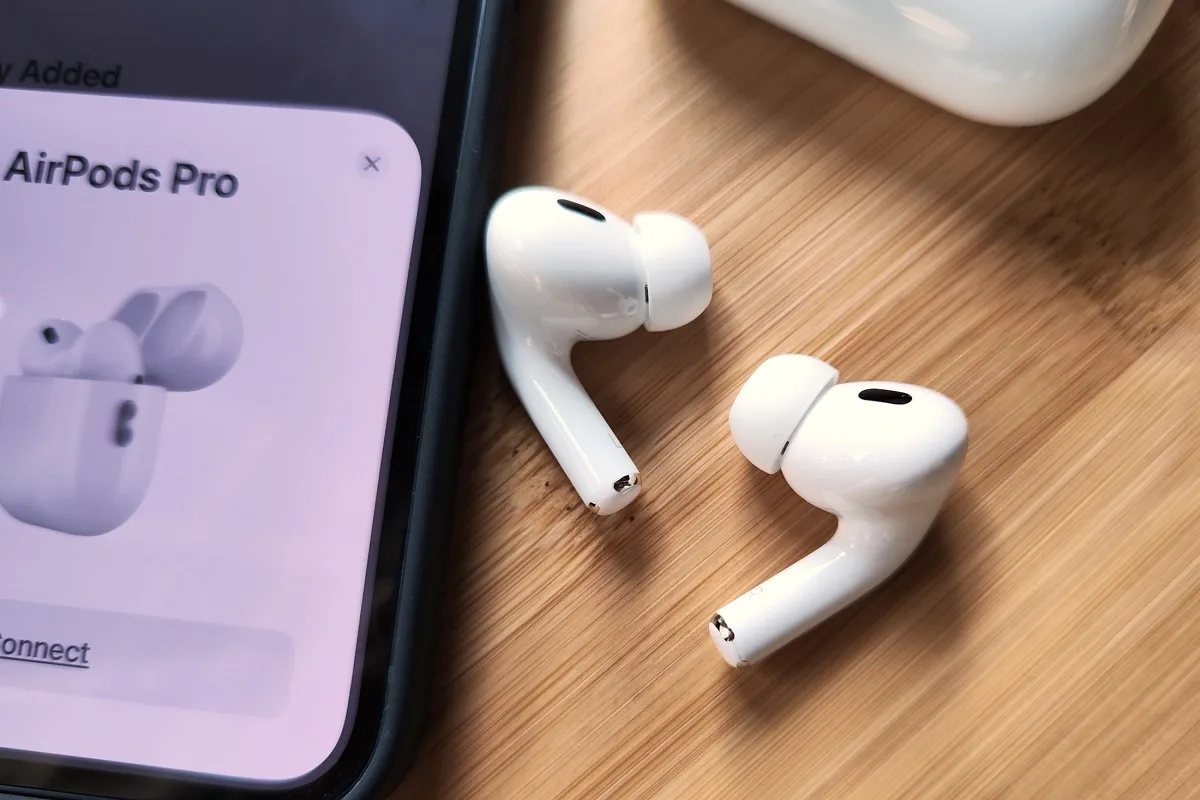
If you’ve ever been in the middle of a call or vibing to your favorite playlist when your AirPods suddenly disconnect you’re not alone. This is a common issue among Apple users, and it can be incredibly frustrating. Whether you own the first-gen AirPods or the latest AirPods Pro, connectivity issues can crop up for several reasons. The good news? Most of these problems have simple solutions.
At Milaaj Mobiles and Laptop Repair Al Barsha, we often see customers walk in with this exact issue. That’s why we’ve created this guide to help you troubleshoot and solve the problem yourself. And if that doesn’t work we’re just a call away.
📶 Why Do AirPods Keep Disconnecting?
Let’s start by identifying the most common causes. Understanding the “why” is the first step toward finding the right fix.
1. Bluetooth Interference
Your AirPods rely on Bluetooth, and interference from other wireless devices nearby (such as Wi-Fi routers, other Bluetooth headphones, or even microwaves) can cause dropouts.
2. Low Battery
Not surprisingly, low battery levels are a major culprit. When either the AirPods or the case is running low on power, unexpected disconnections can occur frequently.
3. Outdated Software
Another common reason is outdated iOS, macOS, or firmware. If your AirPods or the paired device is not up to date, the connection can become unreliable.
4. Dirty Sensors
Although often overlooked, dirt or earwax can block the sensors. This interferes with features like automatic ear detection, which can unintentionally disconnect your AirPods.
5. Device Conflicts or Settings
Sometimes, incorrect settings or connecting your AirPods to multiple devices at once leads to unstable pairing.
🔧 Easy Fixes for AirPods keep Disconnecting
Here are the best ways to resolve AirPods connectivity issues and prevent them from happening again.
1. Charge Your AirPods and Case Fully
Start with the basics. Place your AirPods in their case and ensure both the earbuds and case are charged. Try connecting again after they’ve had enough juice.
2. Toggle Bluetooth
Turning Bluetooth off and on again can reset the connection:
- On iPhone: Settings > Bluetooth > Toggle OFF and then ON.
- On Mac: Use the Bluetooth icon in the menu bar.
3. Forget and Reconnect AirPods
This often solves recurring disconnections:
- Go to Settings > Bluetooth.
- Tap the “i” icon next to your AirPods.
- Select Forget This Device.
- Re-pair them by opening the lid near your phone and following the setup prompt.
4. Update Your Devices
Keeping your iPhone, iPad, or Mac updated ensures compatibility:
- iOS: Settings > General > Software Update
- macOS: System Preferences > Software Update
Your AirPods firmware updates automatically, but having updated host devices ensures a smooth experience.
5. Clean Your AirPods Properly
Use a dry, soft cloth and gently clean:
- The mesh speaker and microphone
- Charging contacts
- The sensors on both earbuds
Never use sharp objects or liquids!
6. Disable Automatic Ear Detection
Sometimes, the sensors misread and pause or disconnect audio:
- Settings > Bluetooth > AirPods > Automatic Ear Detection > Toggle it OFF.
This keeps them playing even if the fit is slightly loose.
7. Reset Your AirPods
Resetting can clear minor bugs:
- Put AirPods in the case and close the lid for 30 seconds.
- Open the lid.
- Hold the setup button on the back until the light flashes amber, then white.
- Reconnect your AirPods as new.
📲 Device-Specific Tips
iPhone Users
- Ensure AirPods are selected in the Control Center for output.
- Disable Wi-Fi Assist under Settings > Mobile Data to reduce interference.
Mac Users
- Go to System Preferences > Sound > Output and choose your AirPods manually.
- Delete any duplicate Bluetooth profiles to avoid conflicts.
🧼 Prevent Future Disconnections
Taking care of your AirPods can save you future trouble. Here’s how:
- Store them in their charging case when not in use.
- Clean them weekly to prevent debris buildup.
- Avoid exposing them to extreme heat or cold.
- Use only certified Apple charging accessories.
🆘 When to Seek Professional Help for Airpods Disconnecting
If you’ve tried all of the above and your AirPods still won’t stay connected, it might be time to bring them in for inspection.
Why Choose Milaaj Mobiles and Laptop Repair Al Barsha?
- ✅ Certified Apple repair technicians
- ✅ Use of original Apple parts
- ✅ Quick and affordable repairs
- ✅ Free diagnostics and honest quotes
- ✅ Thousands of happy customers across Dubai
We also serve Bur Dubai, making it easier than ever to get expert help close to home.
📞 Contact Milaaj for Reliable Repairs in Dubai
Whether it’s your AirPods, iPhone, or any other Apple device, we’ve got you covered.
Location: Al Barsha | Bur Dubai.
Email: support@milaaj.com
Phone: +971 52 524 4884
Operating Hours: Monday – Sunday
Final Thoughts
AirPods keep disconnecting is annoying, but they’re usually easy to fix. Start with simple steps like charging, cleaning, and updating your devices. If the problem persists, Milaaj Mobiles and Laptop Repair Al Barsha is here to help with quick and professional repair solutions.
Don’t let poor connectivity ruin your day reach out to Milaaj today and stay connected!
Leave a Reply