

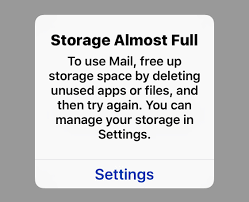
Apple devices are known for smooth performance and reliability. However, many users eventually encounter a frustrating alert: Apple storage full warning. When this message appears, apps stop updating, photos won’t save, and overall performance slows down. As a result, even simple daily tasks become difficult.
Although the warning feels alarming, it does not mean your device is failing. In fact, with the right approach, Apple storage issues can be resolved quickly and safely. Therefore, understanding why storage fills up and following the correct steps is essential to restore performance.
In this detailed guide, we explain what causes the Apple storage full warning, step-by-step solutions that actually work, and when professional repair becomes the smartest option.
What Does the Apple Storage Full Warning Mean?
Before fixing the problem, it is important to understand what the warning actually indicates.
Why Apple Devices Show Storage Full Alerts
Apple devices monitor available internal storage constantly. When storage drops below a safe limit, the system displays a warning to prevent crashes, data corruption, or failed updates. Consequently, ignoring this alert can lead to more serious problems.
Apple Storage Full vs Storage Running Low
Although similar, these warnings are different. “Storage running low” is an early alert, while Apple storage full warning means the device has almost no free space left. Therefore, immediate action is required.
Common Causes of Apple Storage Filling Up
Storage issues rarely come from a single source.
Photos and Videos Consuming Storage Fast
Firstly, high-resolution photos and 4K videos take up significant space. Over time, even casual use fills storage faster than expected.
Apps, Cache, and Temporary Files
Secondly, apps continuously generate cache and temporary data. Although each app uses a small amount, collectively they occupy large storage space.
System Data and iOS Updates for Apple Storage Full Warning
Moreover, iOS system data expands after updates, failed installations, or backups. As a result, users often notice storage filling up without adding new files.
Apple Storage Full Warning? Step-by-Step Solutions Explained
Following the right steps in order ensures safe and effective cleanup.
Step 1: Check What’s Using Your Storage
Firstly, go to Settings > General > Storage. This section shows which apps and files consume the most space. Therefore, you can prioritize cleanup effectively.
Step 2: Delete Unused Apps and Games
Next, remove apps you no longer use. Although each app seems small, deleting unused apps quickly frees up space. Additionally, enabling Offload Unused Apps helps prevent future issues.
Clear Cache and Hidden Files Safely for Apple Storage Full Warning
Hidden files are often the main reason storage stays full.
Clear Browser and App Cache
Safari and other browsers store website data over time. Therefore, clearing browser cache can free noticeable space. Similarly, reinstalling large apps clears accumulated cache safely.
Restart to Refresh Storage Calculation
Sometimes, deleted files do not immediately reflect in storage. Restarting the device refreshes storage calculations and resolves false warnings.
Optimize Photos, Videos, and Media Storage
Media files usually consume the largest portion of storage.
Enable iCloud Storage Optimization
Apple allows storing full-resolution photos in iCloud while keeping smaller versions locally. As a result, local storage usage drops significantly.
Delete Duplicate and Unnecessary Media
Screenshots, duplicate photos, and old videos often remain unnoticed. Therefore, reviewing and deleting them regularly helps avoid storage overload.
Manage Messages, Attachments, and Downloads
Messages silently consume storage over time.
Remove Old Message Attachments
Photos and videos shared in chats remain stored unless removed. Consequently, clearing old attachments can free hidden storage instantly.
Delete Old Files and Offline Content
Downloaded PDFs, videos, and offline media stored in apps also take up space. Therefore, reviewing stored files is essential.
Advanced Apple Storage Management Settings
Apple provides built-in tools that many users overlook.
Follow Storage Recommendations
Apple suggests actions like deleting large files or reviewing unused apps. Therefore, following these recommendations simplifies storage management.
Use Cloud Storage Strategically for Apple Storage Full Warning
Besides iCloud, services like Google Drive or OneDrive help distribute data. As a result, internal storage remains available for system performance.
What If the Apple Storage Full Warning Persists?
Sometimes, basic cleanup does not solve the problem.
Why Storage Still Shows Full After Deleting Files
This often happens due to cached system data, recently deleted files, or iOS glitches. Consequently, storage appears full even after cleanup.
When Software Issues Cause Storage Errors
Failed updates or corrupted system files can cause storage misreporting. In such cases, professional diagnostics are the safest solution.
Professional Apple Storage Optimization Solutions
When DIY methods fail, expert assistance prevents further issues.
Safe System-Level Cleanup Without Data Loss
Professionals use specialized tools to remove hidden system junk and cache. As a result, storage frees up without risking personal data.
Performance Optimization and Error Prevention
Beyond cleanup, experts optimize system settings to prevent recurring Apple storage full warnings. Therefore, long-term performance improves.
Why Choose Milaaj Mobile Repair for Apple Storage Full Warning Issues
For users seeking reliable service, Milaaj mobiles and laptop repair Al Barsha offers professional Apple storage optimization with customer-focused benefits:
- Low-price storage solutions
- Fast service with minimal downtime
- Convenient repair process
- High-quality tools and safe methods
- Skilled technicians experienced with Apple devices
Therefore, professional repair ensures storage issues are fixed correctly the first time.
How to Prevent Apple Storage Full Warnings in the Future
Prevention reduces stress and repeated cleanup.
Monitor Storage Usage Regularly
Checking storage monthly helps detect problems early. Consequently, small cleanups prevent major storage failures.
Adopt Smart Storage Habits for Apple Storage Full Warning
Using cloud storage, limiting unnecessary downloads, and managing apps wisely keeps Apple devices running smoothly.
Final Thoughts: Apple Storage Full Warning
In conclusion, the Apple storage full warning is common but completely manageable. By following step-by-step solutions, users can free up space, restore performance, and avoid future issues.
Although basic cleanup works for many, persistent warnings require expert care. Therefore, combining smart habits with professional support ensures your Apple device remains fast, reliable, and stress-free for years to come.
Other Services:
- Need other iPhone repairs? Check out Milaaj’s iPhone repair services in Dubai.
- Looking to upgrade? Learn about selling your used iPhone in Dubai.
- Data loss concerns? Visit Milaaj’s data recovery services.
- For Apple users, check Apple trade-in options in Dubai.
📍 Visit Any Milaaj Branch in Dubai
🔹 Bur Dubai
Milaaj Mobile and Laptop Repair Dubai
📞 055 258 8477
🔗 Google Maps
🔹 Al Barsha
Milaaj Mobiles and Laptop Repair Al Barsha
📞 052 596 2846
🔗 Google Maps
🔹 Al Barsha 3
Milaaj Mobiles and Gaming Store
📞 052 3405 814
🔗 Google Maps
🔹 Al Nuaimiya
Milaaj Mobiles and Laptops Ajman
📞 055 788 9654
🔗 Google Maps
Shop Locations: Al Barsha | Bur Dubai | Reef Mall, Salah Al Din | Al Nuaimiya, Ajman
Email: support@milaaj.com
Operating Hours: Monday – Sunday




Leave a Reply