

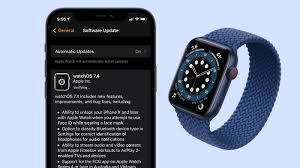
When your Apple Watch is stuck on update screen, it can be frustrating—especially when you’re excited to try the latest watchOS features. Although the update process is meant to be smooth, many users experience situations where the Apple Watch gets stuck during update, freezes, or keeps showing the Apple logo indefinitely. Fortunately, this issue is common, and with the right troubleshooting steps, you can get your device functioning again.
In this detailed guide, you’ll learn why an Apple Watch gets stuck on update, essential working fixes, effective restart tips, and when you may need help from professionals like Milaaj mobiles and laptop repair Al Barsha.
This guide uses step-by-step instructions and expert insights to help you confidently troubleshoot the issue from home.
Why Your Apple Watch Is Stuck on Update Screen
Before diving into the solutions, it’s important to understand why an Apple Watch gets stuck on update screen. Several factors contribute to this issue, and knowing them helps you prevent future update interruptions.
1. Weak or Unstable Internet Connection
A poor Wi-Fi signal can cause the Apple Watch update process to fail or freeze. Since updates are downloaded via the iPhone before transferring to the watch, both your iPhone and Apple Watch need stable connectivity during the entire process.
2. Low Battery on Apple Watch
If your Apple Watch does not have at least 50% battery, the update can pause or get stuck. Even while placed on the charger, power interruptions can still cause update failures.
3. Insufficient Storage on Apple Watch
Many users overlook storage limitations. Apple Watch updates require space for downloading and installing files. If your Apple Watch is stuck on update screen, it may simply not have enough room for the update.
4. Bluetooth or Pairing Issues
Because updates are transferred through Bluetooth, any disruption—like interference or device distance—may cause the update to freeze midway.
5. Software Corruption or System Error
In some cases, the Apple Watch system may experience an internal glitch that causes the update to hang indefinitely on the progress circle.
How to Fix Apple Watch Stuck on Update Screen (Working Fixes)
Now that we’ve covered the reasons, let’s move into proven solutions. These steps are widely recommended by technicians and should resolve the issue in most cases.
Best Fixes for Apple Watch Stuck on Update Screen
These practical steps are effective in resolving most update-related issues.
1. Restart Your Apple Watch (Primary Fix)
One of the fastest and most effective fixes is restarting your device.
How to Restart the Apple Watch
- Press and hold the side button until the power slider appears.
- Drag the slider to turn the watch off.
- Wait 10 seconds, then press the side button again to turn it on.
If your Apple Watch is stuck on update screen, a restart may refresh the system and allow the update to continue.
2. Force Restart Your Apple Watch
If the normal restart doesn’t work, a force restart is the next step.
How to Force Restart
- Hold down the Digital Crown and side button simultaneously.
- Continue holding for 10 seconds.
- Release when the Apple logo appears.
Note: Do not force restart if the update progress bar is actively moving.
3. Restart Your iPhone
Because the update flows through the paired iPhone, you must ensure the phone is functioning properly.
Restart Steps:
- For Face ID iPhones: Press and hold Volume Up + Side Button, then slide to power off.
- For Home Button iPhones: Hold the Power Button, then slide to power off.
Restarting the iPhone resolves many connectivity or software sync issues that may keep the Apple Watch stuck on update screen.
4. Reconnect to a Stable Wi-Fi Network
A stable connection is crucial.
Checklist:
Ensure the iPhone is connected to strong Wi-Fi
Disable VPN
Turn Airplane Mode ON → OFF
Stay close to the router
Sometimes all it takes is reconnecting to a more reliable network.
5. Check If Your Apple Watch Has Enough Storage
When your Apple Watch update is stuck, storage is often the culprit.
How to Check:
- Open Watch App on your iPhone
- Go to General → Storage
If the storage is nearly full:
- Remove unused apps
- Delete old music playlists
- Remove photos
- Clear cached data
This allows the update to install smoothly.
6. Delete the Update File and Download Again
If the initial download was corrupted, you may need to remove it and start fresh.
Steps:
- Open Watch App
- Go to General → Software Update
- Tap Delete Update
- Restart both devices
- Download the update again
This fix often resolves cases where the Apple Watch is stuck on update screen due to incomplete downloads.
7. Unpair and Re-Pair Your Apple Watch
This is one of the strongest solutions and often works when all else fails.
Steps to Unpair:
- Keep your Apple Watch and iPhone together
- Open the Watch App
- Tap your watch → Unpair Apple Watch
- Wait for backup creation
- Pair the watch again
- Try updating after pairing
Unpairing resets internal sync issues and clears failed update attempts.
8. Free Up Bluetooth & Reduce Interference
Updates sometimes freeze due to Bluetooth instability. Keep your Apple Watch and iPhone:
- Close to each other
- Away from speakers, microwaves, or metal surfaces
- Disconnected from unnecessary Bluetooth devices
This helps maintain a stable connection for update transfer.
9. Charge Your Apple Watch Continuously During Update
Ensure the device remains on the charger the entire time.
Avoid:
Removing the watch from charger
Using magnetic chargers with loose cables
Wiggling the charger during update
Since updates are power-intensive, a stable charge prevents freezing.
10. Reset Your Apple Watch (Last Resort)
If the Apple Watch is still stuck on update screen, a full reset may be necessary.
Steps:
- Go to Settings
- Tap General → Reset
- Select Erase All Content and Settings
- Re-pair and update again
Warning: Only use this option after backing up the watch.
Restart Tips for Fixing Apple Watch Stuck on Update
Since restart techniques are essential, here are additional restart-focused tips.
Use Long-Press Method for Unresponsive Screens
If the Apple Watch is frozen:
- Hold both buttons for 20 seconds (longer than the usual force restart)
This forces a deeper system refresh.
Cool Down Overheating Apple Watches Before Restarting
If updates cause overheating:
- Remove the watch from the charger
- Let it cool for 10–15 minutes
- Attempt restart again
Overheating can cause the Apple Watch update process to freeze as a safety measure.
Restart the Update in Low-Traffic Hours
Apple servers get busy during major updates.
Early morning or late night updates usually process faster.
Advanced Fixes for Apple Watch Stuck on Update Screen
If basic fixes weren’t enough, try advanced troubleshooting.
1. Update iPhone to Latest iOS
If the iPhone is outdated, Apple Watch updates can fail.
Steps:
- Go to Settings → General → Software Update
- Install the latest iOS
- Restart both devices
- Try updating the watch again
2. Check Apple’s System Status
Sometimes, the problem is on Apple’s side.
Search online for “Apple System Status” and check:
- watchOS Software Update
- Apple ID Login
- App Store Services
If any are down, the update may remain stuck.
3. Use the Watch App Instead of Updating Directly From the Watch
Updating directly from the Apple Watch often leads to freezing.
Instead:
- Open Watch App → Software Update
- Install from the iPhone
This method is more stable and preferred by technicians.
When to Seek Professional Help for Apple Watch stuck on update screen
If you’ve tried all solutions and your Apple Watch is still stuck on update screen, it may be a deeper hardware or firmware issue like:
- Logic board malfunction
- Failed storage module
- Firmware corruption
- Charger-related faults
In such cases, professional repair centers can diagnose and fix issues efficiently.
Local experts such as Milaaj can assist with software recovery, watchOS flashing, and hardware-level repairs.
How Repair Centers Fix Apple Watch stuck on update screen During Update
Repair technicians use advanced methods that aren’t available to regular users.
1. Firmware Reinstallation Using Apple Configurator
Technicians can connect your watch to a Mac and reinstall watchOS completely.
2. Component-Level Diagnosis
They check for:
- faulty Taptic engine
- damaged flex cables
- faulty battery connectors
- internal corrosion
3. Data Backup & Safe Recovery
Professionals ensure your data remains secure while fixing update-related issues.
FAQ About Apple Watch stuck on update screen
1. Why is my Apple Watch stuck on update screen?
Because of weak Wi-Fi, low battery, Bluetooth interruptions, storage issues, or corrupted update files.
2. How long should an Apple Watch update take?
Typically 30–90 minutes. Anything longer may indicate a problem.
3. Can I cancel a stuck update?
You may delete the update file from the Watch App and restart the process.
4. Will force restarting damage my Apple Watch?
No. It’s safe as long as the update progress bar isn’t actively moving.
5. Can a repair center fix watchOS update issues?
Yes—professionals can reinstall firmware and resolve deeper internal issues.
Conclusion: Apple Watch stuck on update screen
If your Apple Watch is stuck on update screen, don’t panic—most issues can be fixed with simple steps like restarting, reconnecting Wi-Fi, or freeing storage. However, if the problem continues even after troubleshooting, it may require expert attention. In that case, visiting Milaaj mobiles and laptop repair Al Barsha ensures safe diagnostics and professional repair, helping your Apple Watch return to smooth and reliable performance quickly.
Other Services:
- Need other iPhone repairs? Check out Milaaj’s apple watch repair services in Dubai.
- Looking to upgrade? Learn about selling your used device in Dubai.
- For Apple users, check Apple trade-in options in Dubai.
📍 Visit Any Milaaj Branch in Dubai
🔹 Bur Dubai
Milaaj Mobile and Laptop Repair Dubai
📞 055 258 8477
🔗 Google Maps
🔹 Al Barsha
Milaaj Mobiles and Laptop Repair Al Barsha
📞 052 596 2846
🔗 Google Maps
🔹 Al Barsha 3
Milaaj Mobiles and Gaming Store
📞 052 3405 814
🔗 Google Maps
🔹 Al Nuaimiya
Milaaj Mobiles and Laptops Ajman
📞 055 788 9654
🔗 Google Maps
Shop Locations: Al Barsha | Bur Dubai | Reef Mall, Salah Al Din | Al Nuaimiya, Ajman
Email: support@milaaj.com
Operating Hours: Monday – Sunday
Leave a Reply