

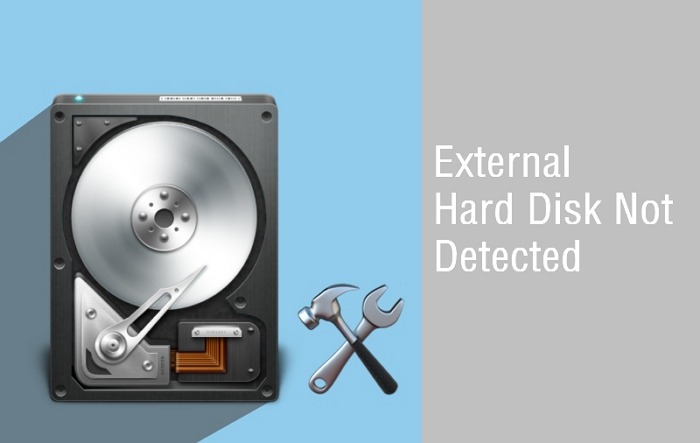
If your external hard drive is not detecting or isn’t showing up, it could be anything from a faulty cable to a deep-rooted software glitch. Indeed, jumping straight into “DIY repair” can sometimes do more harm than good if the drive is physically failing. As a result, the goal of this guide is to provide you with a safe, non-destructive sequence of checks to perform at home or in your office.
1. The Physical Inspection: Checking the “Basics”
Before diving into complex settings, we must rule out the simplest hardware failures. Specifically, physical connection issues are responsible for nearly 40% of “unrecognized” drive cases.
Listen and Feel for “Signs of Life”
Hold the drive in your hand or place your ear near it after plugging it in. Do you feel a slight vibration or hear a steady spinning sound? Furthermore, are there any LED lights blinking? If the drive is completely silent and cold, it is likely not receiving power. Instead of a steady hum, do you hear a repetitive clicking or beeping sound? If you hear the “Click of Death,” unplug it immediately. That sound indicates a mechanical failure where the read/write heads are hitting the platters.
Swap Your Cables and Ports for External Hard Drive Not Detecting
USB cables are surprisingly fragile. Consequently, always try a different cable if you have one. Ideally, you should also try plugging the drive into a USB port on the back of your computer (if it’s a desktop) rather than the front panel, as the rear ports are soldered directly to the motherboard and provide more stable power.
2. Windows Troubleshooting: Using Disk Management
If your drive is spinning but not appearing in “This PC,” the problem is likely logical rather than physical. Actually, Windows may have detected the drive but doesn’t know how to “address” it.
Assigning a Drive Letter for External Hard Drive Not Detecting
Specifically, follow these steps to see if the drive is visible to the system:
- Right-click the Start button and select Disk Management.
- Look for a disk labeled “Removable” or “Unknown” that matches your drive’s storage size.
- If it shows “Unallocated” or has no letter, right-click the block and select Change Drive Letter and Paths.
- Click Add and assign a new letter (like X or Z).
Updating Outdated Drivers for External Hard Drive Not Detecting
Furthermore, if Disk Management doesn’t see the drive at all, your USB drivers might be corrupted.
- Open Device Manager.
- Expand the Disk Drives and Universal Serial Bus controllers sections.
- Look for any yellow exclamation marks. Right-click and select Update Driver or Uninstall Device, then restart your computer. Windows will automatically reinstall the clean drivers upon reboot.
3. Mac Troubleshooting: Using Disk Utility
For the creative professionals in Dubai using MacBooks, the process is slightly different but equally straightforward.
Checking Finder Preferences for External Hard Drive Not Detecting
Actually, sometimes the drive is detected, but your Mac is told to hide it. Go to Finder > Preferences > General and ensure “External disks” is checked. Indeed, many users find their drive was there all along, just invisible.
Running First Aid for External Hard Drive Not Detecting
If the drive is visible in Disk Utility but won’t “mount,” use the First Aid tool.
- Open Disk Utility (Cmd + Space, then type it).
- Select your external drive from the sidebar.
- Click First Aid at the top and then click Run. As a result, macOS will attempt to repair the file system directory without touching your data.
Milaaj Mobile and Laptop Repair Al Barsha: Your Data Recovery Partner
If you’ve tried these steps and the drive remains silent or clicking, it’s time to stop. Further DIY attempts on a physically failing drive can lead to permanent data loss. At Milaaj mobile and laptop repair Al Barsha, we handle the most complex data recovery cases in Dubai with precision.
We are proud to serve the Al Barsha community with:
- Low Price & Transparent Quotes: We provide an honest assessment before we begin any work.
- Speed Repairing: We understand that your data is urgent. Our Al Barsha lab is equipped for rapid diagnostics and recovery.
- Convenience: Located near the Mall of the Emirates, we offer a “No Data, No Fee” policy, meaning you don’t pay unless we recover your files.
- Part Quality: We maintain a massive library of donor parts (heads, PCBs, and motors) to ensure we can perform hardware surgery on almost any drive model.
FAQ: External Hard Drive Not Detecting
1. Is it safe to use data recovery software?
Specifically, only use software if the drive is physically healthy (no clicking) and is visible in Disk Management. If the drive is failing mechanically, recovery software will force the drive to work harder, potentially scratching the platters and making data unrecoverable.
2. Why does my drive work on my friend’s PC but not mine?
Actually, this points to a “File System Incompatibility.” If the drive was formatted as HFS+ for a Mac, a Windows PC won’t recognize it without special software. Therefore, check the format of the drive before assuming it’s broken.
3. Can I fix a clicking hard drive by freezing it?
Indeed, this is a dangerous myth! Putting a drive in the freezer causes moisture to condense on the platters. When you plug it back in, the heads will “crash” into the ice/water, causing instant data destruction. Instead, always keep your drive at room temperature.
4. What is a “RAW” drive?
Currently, if Disk Management shows your drive as “RAW,” it means the partition table is corrupted. The data is still there, but the “index” is gone. As a result, you will need professional tools to reconstruct the file tree.
5. Does my drive need a separate power supply?
Technically, larger 3.5-inch desktop drives require a wall adapter. Smaller 2.5-inch portable drives are powered via USB. If your large drive isn’t detecting, check the power brick first!
Final Thoughts: External Hard Drive Not Detecting
In conclusion, troubleshooting your external hard drive can save you a trip to the repair shop, but knowing when to stop is the most important skill. If you hear mechanical noises or if the drive doesn’t show up in BIOS/Disk Management after a cable swap, the issue is likely internal. Therefore, protect your data by powering it down and seeking professional help. As a result of your quick thinking and safe troubleshooting, you’ve given your data the best chance of survival.
Other Services:
- Need other iPhone repairs? Check out Milaaj’s iPhone repair services in Dubai.
- Looking to upgrade? Learn about selling your used iPhone in Dubai.
- Data loss concerns? Visit Milaaj’s data recovery services.
- For Apple users, check Apple trade-in options in Dubai.
📍 Visit Any Milaaj Branch in Dubai
🔹 Bur Dubai
Milaaj Mobile and Laptop Repair Dubai
📞 055 258 8477
🔗 Google Maps
🔹 Al Barsha
Milaaj Mobiles and Laptop Repair Al Barsha
📞 052 596 2846
🔗 Google Maps
🔹 Al Barsha 3
Milaaj Mobiles and Gaming Store
📞 052 3405 814
🔗 Google Maps
🔹 Al Nuaimiya
Milaaj Mobiles and Laptops Ajman
📞 055 788 9654
🔗 Google Maps
Shop Locations: Al Barsha | Bur Dubai | Reef Mall, Salah Al Din | Al Nuaimiya, Ajman
Email: support@milaaj.com
Operating Hours: Monday – Sunday
Leave a Reply