

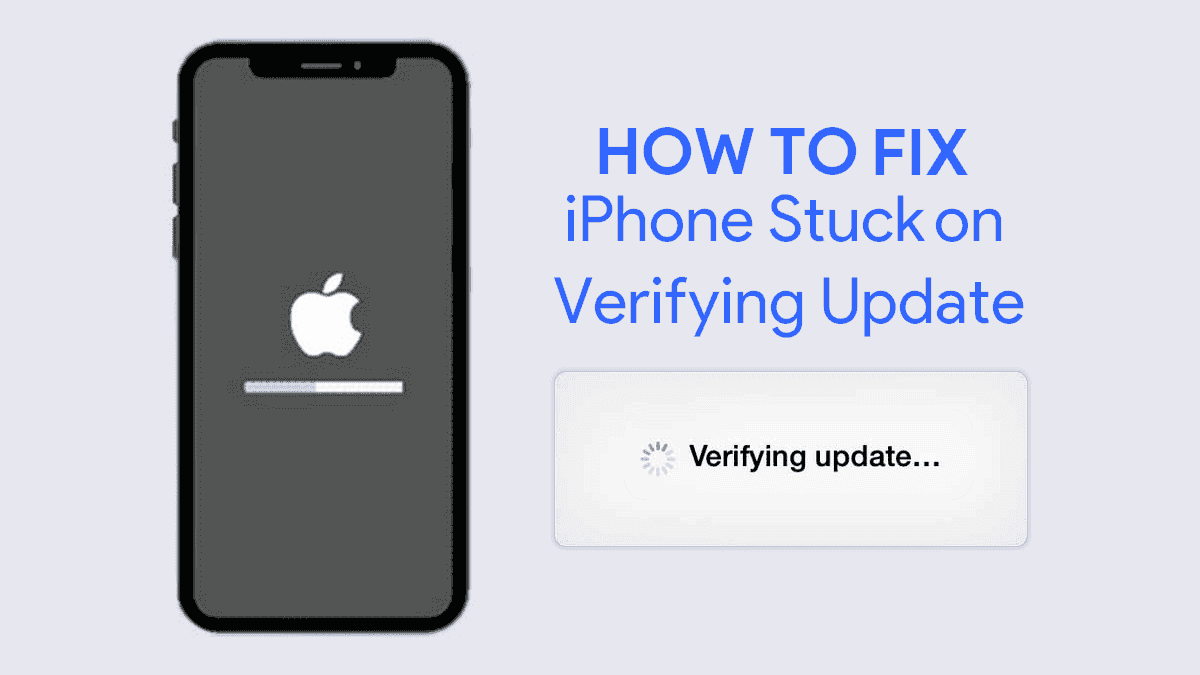
When your iPhone is stuck during an iOS update, it can be extremely frustrating especially when you rely on your device for work, communication, and daily tasks. Although iOS updates are intended to improve system security, performance, and features, things do not always go smoothly. Sometimes the screen freezes on the Apple logo, progress bar stops moving, or the update verification fails. Fortunately, there are clear, practical solutions you can follow to fix the issue easily.
In this detailed guide, we will walk through why your iPhone is stuck during an iOS update, what warning signs to look for, and step-by-step methods to resolve the problem. We will also explain when it’s time to visit a professional repair shop such as Milaaj Mobiles and Laptop Repair Al Barsha for faster and more advanced troubleshooting.
What Does “iPhone Stuck During iOS Update” Really Mean?
When your iPhone gets stuck during an iOS update, it typically means the software installation process has been interrupted or frozen. This can happen during any stage downloading, verifying, installing, or restarting. Even though the phone may appear frozen, in many cases, the issue is fixable without data loss.
Why Is Your iPhone Stuck During iOS Update? Common Causes
Understanding what leads to an iPhone stuck during iOS update helps you prevent future problems.
1. Low Storage Causing the iOS Update to Freeze
Insufficient space is one of the most common reasons your iPhone stops responding mid-update.
2. Weak or Unstable Internet Connection Interrupting the Update
A poor Wi-Fi connection often prevents the update package from verifying or downloading correctly.
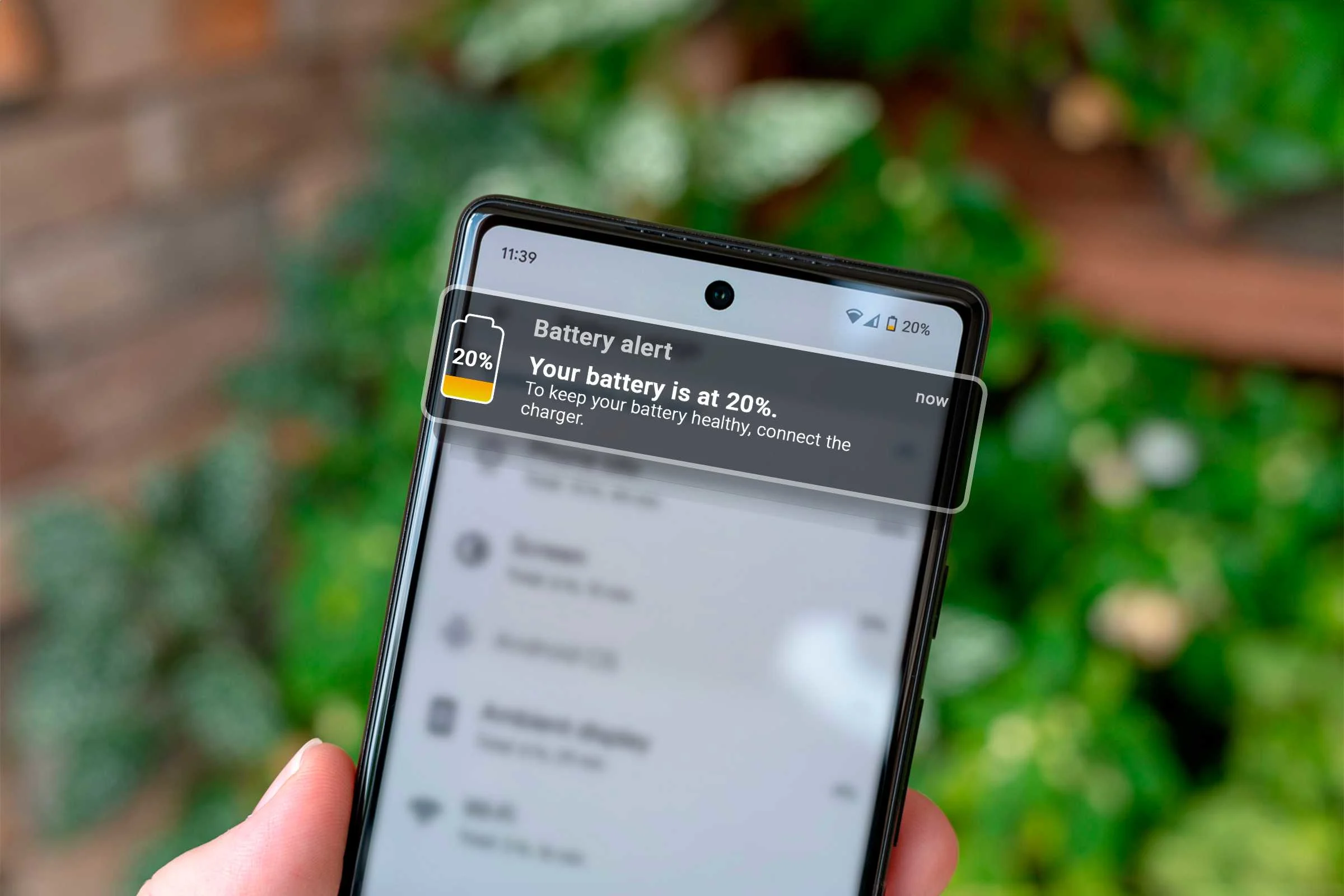
3. Low Battery or Sudden Shutdown During Installation
If your battery drains mid-update, the device may freeze on the Apple logo or boot loop.
4. Server Overload Resulting in Update Errors
Apple servers can sometimes get overloaded, especially on major release days.
5. Corrupt iOS Update File Leading to Installation Failure
If the downloaded firmware file becomes corrupted, the installation will not complete.
6. Internal Software Glitches Causing iPhone Update Stuck Problems
Old cache files or incomplete updates may cause the verification stage to hang.
7. Hardware Issues (Rare but Possible)
Faulty storage chips, damaged motherboards, and defective power IC can make the iPhone stuck during iOS update repeatedly.
Signs Your iPhone Is Stuck During the iOS Update
Not sure if the phone is frozen or just slow? Here are the most common signs:
- Progress bar not moving for more than 20–30 minutes
- “Verifying Update” screen stuck for hours
- Apple logo screen frozen
- iPhone keeps restarting during update
- Update looping repeatedly
If you see any of these, your device is experiencing the iPhone stuck during iOS update problem.
Fixes for iPhone Stuck During iOS Update: Step-by-Step Solutions
1. Force Restart to Unfreeze an iPhone Stuck During Update
A force restart is the fastest method to fix a frozen update.
How to Force Restart:
- iPhone 8 and Later
Press Volume Up → Volume Down → Hold Side Button until the Apple logo appears - iPhone 7 / 7 Plus
Hold Volume Down + Power Button - iPhone 6s and Earlier
Hold Power + Home Button
This often resolves iPhone stuck on Apple logo during update issues.
2. Check Internet Connection Before Retrying the Update
A slow or unstable Wi-Fi connection is a top reason behind the iPhone stuck during iOS update issue.
Improve Network Stability:
- Restart router
- Connect to a different Wi-Fi network
- Turn off VPN or proxy connections
3. Free Up Storage to Fix Update Freezing Problems
Your iPhone needs at least 5–6 GB free space to install the latest iOS properly.
Remove:
- Unused apps
- Old photos/videos
- Old system files
- Offline downloads
4. Delete and Re-download the iOS Update File
If the update file is corrupted, delete it.
Go to:
Settings → General → iPhone Storage → iOS Update → Delete Update
Re-download the update again to fix the iPhone stuck on preparing update issue.
5. Plug the iPhone Into Power Source
Low battery can pause or freeze the installation.
Ensure the battery is at least 50% or keep it plugged in during the entire update.
6. Update Using a Computer (Finder or iTunes)
This is the best fix if your iPhone is stuck during iOS update repeatedly.
Steps:
- Connect iPhone to Mac/PC
- Open Finder or iTunes
- Select your iPhone
- Click Update
Computer-based updates bypass many mobile glitches.
7. Put Your iPhone in Recovery Mode
Recovery Mode forces the system to repair itself.
When to Use It:
- iPhone stuck on Apple logo
- Progress bar frozen
- Update failed multiple times
You can choose Update (keeps data) or Restore (erases data).
8. Use DFU Mode for Severe iOS Update Freezing Issues
DFU mode is the deepest restoration option.
It resolves complex software errors that standard recovery mode cannot fix.
Use DFU only when other solutions fail.
9. Reset All Settings to Fix Conflicting Configurations
Some network or profile settings can interrupt the update.
Go to:
Settings → General → Transfer or Reset → Reset All Settings
This does not erase photos or files.
10. Check for Hardware Problems
If the iPhone update freezing problem occurs frequently, hardware may be the cause.
Possible issues:
- Faulty storage chip
- Damaged motherboard
- Weak battery health
- Power IC issues
In such cases, you will need a technician to diagnose the device.
Prevent Your iPhone from Getting Stuck During Future iOS Updates
Follow these tips:
- Always back up your device
- Ensure 50–60% battery
- Maintain 10 GB free space
- Use stable Wi-Fi
- Avoid updating on release day
- Do not interrupt the installation
When to Visit a Professional Repair Shop
If your iPhone:
- stays frozen after force restart
- cannot boot past Apple logo
- keeps looping during update
- fails to update even via computer
- shows hardware-related symptoms
…it’s time to seek expert help.
For reliable iPhone software repair, motherboard repair, and update-related fixes, you can visit Milaaj Mobiles and Laptop Repair Al Barsha, where specialized technicians can diagnose and repair even the most complex iOS update problems.
Conclusion: iPhone stuck during iOS update
Dealing with an iPhone stuck during iOS update can be stressful, but the issue is usually fixable with the right troubleshooting steps. Whether it’s a corrupted update file, storage limitations, weak internet, or deeper system issues, the solutions above can help restore your device back to normal. And if all else fails, professional help is always available.
Other Services:
- Need other iPhone repairs? Check out Milaaj’s iPhone repair services in Dubai.
- Looking to upgrade? Learn about selling your used iPhone in Dubai.
- Data loss concerns? Visit Milaaj’s data recovery services.
- For Apple users, check Apple trade-in options in Dubai.
📍 Visit Any Milaaj Branch in Dubai
🔹 Bur Dubai
Milaaj Mobile and Laptop Repair Dubai
📞 055 258 8477
🔗 Google Maps
🔹 Al Barsha
Milaaj Mobiles and Laptop Repair Al Barsha
📞 052 596 2846
🔗 Google Maps
🔹 Al Barsha 3
Milaaj Mobiles and Gaming Store
📞 052 3405 814
🔗 Google Maps
🔹 Al Nuaimiya
Milaaj Mobiles and Laptops Ajman
📞 055 788 9654
🔗 Google Maps
Shop Locations: Al Barsha | Bur Dubai | Reef Mall, Salah Al Din | Al Nuaimiya, Ajman
Email: support@milaaj.com
Operating Hours: Monday – Sunday

Leave a Reply