

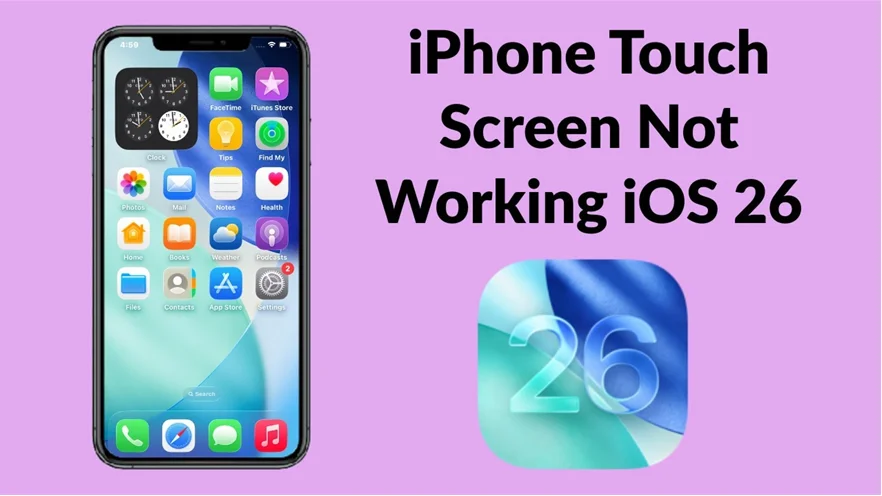
If your iPhone touchscreen not working after update is suddenly making your device impossible to use, you’re definitely not alone. Every time Apple releases a new iOS version, countless users report touch-related issues from sluggish response to random freezes and complete touch failure. While updates are meant to improve performance, security, and stability, they can unexpectedly introduce software conflicts that affect how the touchscreen communicates with the system. As a result, even a perfectly working iPhone may begin showing glitches right after the update installs. These issues often appear when system drivers are modified, touch settings are recalibrated, or background processes are still stabilizing after the update.
Moreover, touchscreen issues after an update don’t always come from software alone. In many cases, the update simply exposes underlying hardware problems such as loose display connectors, aging touch IC components, or non-genuine screens installed during previous repairs. Consequently, users may notice touch delays, ghost touches, or total unresponsiveness that seem to appear out of nowhere. Fortunately, most of these problems can be fixed with the right troubleshooting steps, and even the more complicated issues can be resolved by professional technicians. With that in mind, this guide explains the causes, symptoms, and effective repair solutions to help you restore smooth touchscreen performance after any iOS update.
Why Your iPhone Touchscreen Not Working After Update Happens
When an iPhone touchscreen not working after update occurs, it’s usually caused by software conflicts or corrupted system data. However, hardware-related issues can also surface right after updating, making diagnosis more challenging. Understanding the root cause is the first step to fixing the problem.
1. Software Conflicts After iOS Installation
Major updates replace essential system files. Sometimes, leftover cached files or incomplete installations cause touchscreen delays, sensitivity problems, or total unresponsiveness.
2. Firmware Corruption During Update
If the update is interrupted due to low battery, network issues, or lack of storage, the firmware controlling the touch sensor may fail to load properly.
3. App Incompatibility for iPhone touchscreen not working after update
Old or outdated apps may conflict with the new iOS version, causing the touchscreen to freeze or lag.
4. Hardware Issues That Appear After Updating
Although the update doesn’t directly cause hardware faults, it can reveal underlying issues such as:
- Weak touch IC chip
- Loosened display connectors
- Damage from previous drops
- Screen replacement with poor-quality parts
When these issues resurface after updating, the touchscreen becomes unstable or stops working entirely.
Common Signs Your iPhone Touchscreen Not Working After Update
When the iPhone touchscreen not working after update problem appears, you may notice:
- Touch not responding at all
- Lagging touch response
- Ghost touches (screen acts on its own)
- Incorrect touches (tap triggers another area)
- Partial screen unresponsiveness
- Frozen home screen
- Apps opening automatically
Recognizing these symptoms early helps you choose the right fix faster.
Fixes You Can Try When iPhone Touchscreen Not Working After Update
Fortunately, there are several solutions you can try at home before contacting a repair shop. Each step is simple and safe when performed correctly.
1. Force Restart Your iPhone (Quickest Fix)
A force restart clears temporary bugs caused by the update.
It does not erase data and often restores full touch functionality instantly.
How to Force Restart iPhone Models:
- iPhone 8 and later: Press Volume Up → Volume Down → Hold Side button
- iPhone 7/7 Plus: Hold Power + Volume Down
- iPhone 6s or older: Hold Home + Power button
After rebooting, check if the touchscreen responds normally.
2. Clean the Screen and Remove Accessories
Sometimes, the iPhone touchscreen not working after update issue isn’t caused by software it’s due to screen protectors or dust.
Therefore, remove the case, peel off the protector, and wipe the screen.
3. Charge Your iPhone for 20 Minutes
If your battery level is critically low, the iPhone may limit touch responsiveness to preserve system stability. Charging for a few minutes often restores normal function.
4. Boot iPhone in Safe Mode Equivalent (for Apps Conflicts)
Although iPhones don’t have a “safe mode,” you can disable background processes by restarting without opening any apps.
If the touchscreen works fine afterward, an app is causing the conflict.
Update or delete recently installed apps.
5. Update All Apps to Their Latest Versions
Outdated applications may become incompatible after updating.
Thus, go to App Store → Your Profile → Update All.
This can instantly fix lag, freezes, and unresponsive touch areas.
6. Reset All Settings (Non-Destructive Reset)
This resets system settings without affecting data.
Often, touch glitches especially sensitivity problems get fixed using this method.
Go to:
Settings → General → Transfer or Reset iPhone → Reset → Reset All Settings
7. Remove Newly Installed Beta Profiles
If you tested a beta version before updating, leftover beta files may cause touchscreen conflicts.
Remove them under:
Settings → VPN & Device Management
Then restart the device.
8. Update to the Latest iOS Patch for iPhone touchscreen not working after update
Frequently, Apple releases quick patches after major updates to fix touchscreen issues.
Install the newest version to resolve known bugs.
9. Restore iPhone Using Recovery Mode
When your iPhone touchscreen not working after update persists, a recovery mode restore reloads essential system files without erasing data (if using “Update” option).
Connect iPhone → Open iTunes/Finder → Enter Recovery Mode → Select Update
10. Perform a DFU Restore (Deepest Fix)
When firmware corruption is severe, DFU mode resets the iPhone on a deeper level.
Warning: DFU restore erases all data.
Perform this only if you have a backup.
DFU restores eliminate:
- Touch firmware corruption
- Glitches affecting sensitivity
- Bugs disabling touch entirely
Advanced Fixes for Severe iPhone touchscreen not working after update Failure
If none of the above solutions work, the issue might be hardware-related.
1. Loose Display Connector
Updating doesn’t cause loosened connectors, but reboot cycles during updates can make existing weak points more noticeable.
2. Faulty Touch IC Chip for iPhone touchscreen not working after update
This requires professional microsoldering, especially in older devices with known touch disease issues.
3. Poor Quality Screen Replacement
If you previously replaced the screen with a low-grade copy, updates can create compatibility issues.
4. Physical or Liquid Damage
Even tiny internal damage can cause massive touchscreen problems after an update reboot.
Professional Repair Options for iPhone Touchscreen Not Working After Update
Why Expert Repair May Be Necessary
If your touch is:
- completely dead
- partially working
- showing ghost touches
- frozen on boot
- responding only in some apps
…then internal repair is required.
Repairs may include:
- Replacing the display
- Fixing touch IC chip
- Reseating connectors
- Cleaning liquid damage
- Calibrating screen firmware
Why Choose Milaaj for iPhone touchscreen not working after update Repair
When your iPhone touchscreen not working after update becomes too complex to fix at home, professional help becomes essential. This is where Milaaj excels.
Here’s why customers trust them:
Low Price Yet High-Quality Repairs
Their transparent pricing ensures you get premium service at affordable rates.
Speed Repairing for Busy Customers
Most touchscreen repairs like display replacement, connector adjustments, or diagnostics are completed within 30–60 minutes.
Genuine & High-Quality Parts
They use top-grade screens and components that maintain original touch sensitivity and brightness.
Excellent Convenience For iPhone touchscreen not working after update
Located in Al Barsha with quick service, doorstep options, and flexible timings, the repair process becomes effortless.
Skilled Technicians with Years of Experience
Experts diagnose whether your issue is firmware-related or hardware-related before performing any repair.
Guaranteed Workmanship
Their repairs come with service warranties, ensuring long-term reliability.
Choosing Milaaj means restoring your device with confidence, speed, and affordability.
How to Prevent iPhone Touchscreen Not Working After Update
To avoid facing the same issue again, follow these preventive steps:
1. Always Update with 40%+ Battery
This prevents firmware corruption.
2. Avoid Installing Unverified Apps
Poorly coded apps can cause touch conflicts after updates.
3. Keep Storage Space Free For iPhone touchscreen not working after update
Low storage triggers installation errors that affect touchscreen drivers.
4. Use High-Quality Screen Replacements Only
Cheap displays usually cause touch delays, ghost touches, or incompatibility after iOS updates.
5. Restart Your iPhone Weekly
This clears cached files and maintains touch smoothness.
Final Thoughts: iPhone touchscreen not working after update
Experiencing an iPhone touchscreen not working after update can feel frustrating but the good news is that most problems can be resolved with simple fixes. From force restarts and settings resets to full recovery-mode restores, there are many steps you can try before seeking help.
However, if your touchscreen still refuses to respond or becomes unstable after every update professional repair is the safest solution. With expert service from Milaaj Mobiles and Laptop Repair Al Barsha, you can restore your iPhone quickly, affordably, and with long-lasting results.
Other Services:
- Need other iPhone repairs? Check out Milaaj’s iPhone repair services in Dubai.
- Looking to upgrade? Learn about selling your used iPhone in Dubai.
- Data loss concerns? Visit Milaaj’s data recovery services.
- For Apple users, check Apple trade-in options in Dubai.
📍 Visit Any Milaaj Branch in Dubai
🔹 Bur Dubai
Milaaj Mobile and Laptop Repair Dubai
📞 055 258 8477
🔗 Google Maps
🔹 Al Barsha
Milaaj Mobiles and Laptop Repair Al Barsha
📞 052 596 2846
🔗 Google Maps
🔹 Al Barsha 3
Milaaj Mobiles and Gaming Store
📞 052 3405 814
🔗 Google Maps
🔹 Al Nuaimiya
Milaaj Mobiles and Laptops Ajman
📞 055 788 9654
🔗 Google Maps
Shop Locations: Al Barsha | Bur Dubai | Reef Mall, Salah Al Din | Al Nuaimiya, Ajman
Email: support@milaaj.com
Operating Hours: Monday – Sunday
Leave a Reply