

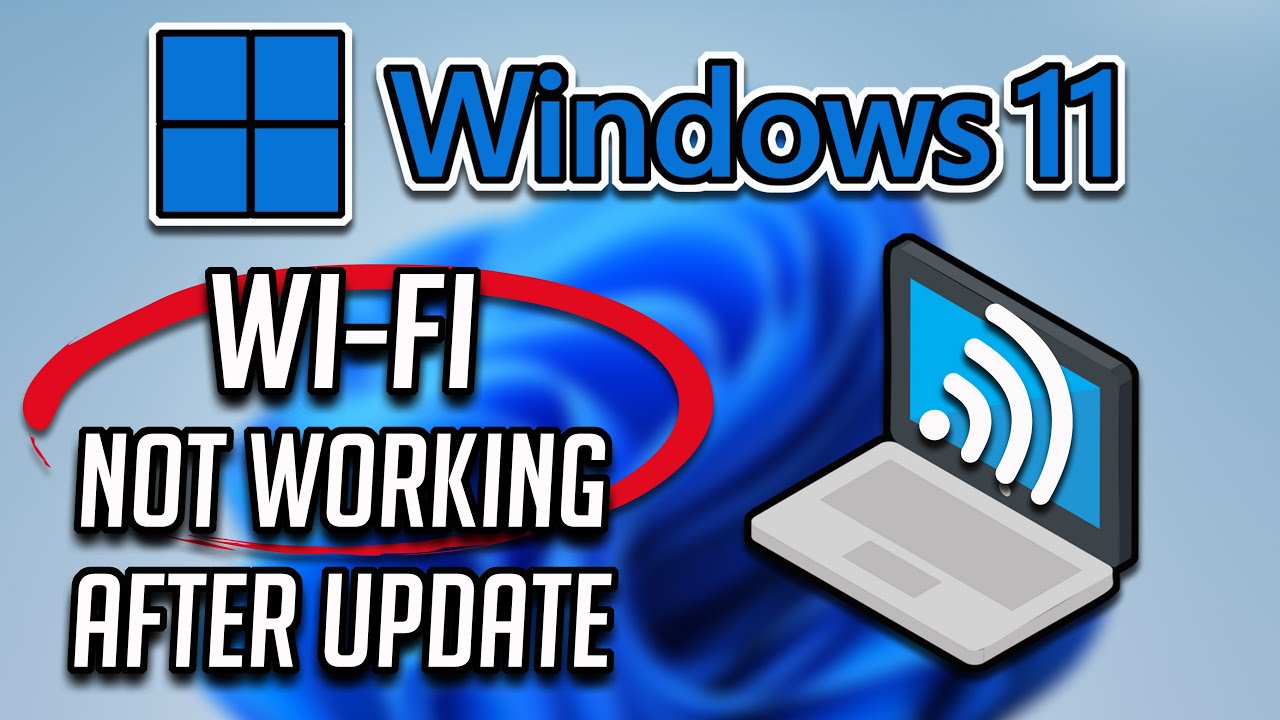
Software updates are designed to improve performance, security, and compatibility. However, many users face a frustrating problem after installing updates laptop Wi-Fi not working after update. Suddenly, the laptop fails to detect networks, disconnects frequently, or shows limited connectivity. As a result, work, online meetings, and daily tasks come to a halt.
Although this issue feels alarming, laptop Wi-Fi not working after update is a common and often fixable problem. In most cases, the cause relates to driver conflicts, corrupted settings, or hidden hardware issues triggered by the update. Therefore, understanding the root cause is the first step toward restoring a stable internet connection. In this guide, we explain why Wi-Fi fails after updates, what mistakes to avoid, and how professional repair solutions fix the issue safely and effectively.
Why Laptop Wi-Fi Not Working After Update Is So Common
Modern laptops rely heavily on software drivers to communicate with hardware components. When an update installs incorrectly, Wi-Fi functionality may break.
Common Reasons Wi-Fi Fails After Updates
- Incompatible or outdated Wi-Fi drivers
- Corrupted network settings
- Disabled network adapters
- BIOS or firmware conflicts
- Hidden hardware issues exposed by updates
Consequently, the laptop may show “No networks found” or connect briefly before dropping the signal. Therefore, identifying the cause early prevents unnecessary frustration.
Laptop Wi-Fi Not Working After Update Due to Driver Issues
Driver conflicts are the most common cause of post-update Wi-Fi failure.
Outdated or Corrupted Wi-Fi Drivers
After an update, older drivers may stop working correctly. As a result, the Wi-Fi adapter becomes unstable or invisible.
What you can try first:
- Restart the laptop
- Roll back the Wi-Fi driver
- Update drivers manually
- Reinstall the network adapter
In many cases, these steps resolve laptop Wi-Fi not working after update without further repair.
Automatic Driver Installation Problems
Sometimes, updates install generic drivers instead of manufacturer-specific ones. Consequently, Wi-Fi performance drops or fails completely.
Therefore, downloading official drivers from the laptop manufacturer often restores full functionality.
Network Settings That Break Wi-Fi After Updates
Updates sometimes reset or change network configurations unexpectedly.
Reset Network Settings
Network profiles, DNS settings, and power management options may conflict with new updates.
Quick fixes include:
- Resetting network settings
- Disabling airplane mode
- Forgetting and reconnecting Wi-Fi networks
- Turning off power-saving mode for Wi-Fi adapters
As a result, connection stability improves significantly.
Laptop Wi-Fi Not Working After Update Due to Software Glitches
Software bugs are unavoidable, especially with major operating system updates.
Operating System Bugs
Windows and macOS updates occasionally introduce temporary Wi-Fi bugs. Consequently, users experience dropped signals or slow speeds.
Temporary solutions include:
- Installing follow-up patches
- Restarting network services
- Updating system firmware
Therefore, keeping the system fully updated reduces recurring issues.
Hardware Issues Triggered After Laptop Updates
Although updates do not damage hardware directly, they often expose existing weaknesses.
Loose or Failing Wi-Fi Card
If a Wi-Fi card is already failing, updates place additional strain on it. As a result, connectivity issues appear suddenly.
Antenna or Connector Problems
Internal antenna cables may loosen over time. After updates, Wi-Fi performance drops noticeably.
In such cases, professional inspection is required to prevent permanent failure.
Laptop Wi-Fi Not Working After Update on Specific Brands
Different laptop brands handle updates differently.
Windows Laptop Wi-Fi Problems
Windows updates frequently affect:
- Intel Wi-Fi drivers
- Power management settings
- Network security protocols
MacBook Wi-Fi Issues After macOS Updates
MacBooks may face:
- Network preference corruption
- Firmware conflicts
- Bluetooth interference
Therefore, brand-specific diagnostics help resolve issues faster.
Mistakes to Avoid When Wi-Fi Stops Working After Update
Many users worsen the problem unintentionally.
Avoid These Common Errors
- Reinstalling the OS repeatedly
- Using unofficial driver tools
- Ignoring firmware updates
- Opening the laptop without tools
Instead, proper troubleshooting or professional repair ensures safe recovery.
When Laptop Wi-Fi Not Working After Update Needs Professional Repair
If basic fixes fail, professional diagnosis becomes essential.
Signs You Need Expert Help
- Wi-Fi adapter not detected at all
- Frequent disconnections despite strong signal
- Wi-Fi works only near router
- Other devices connect normally
At this stage, internal repairs or component replacement may be required.
How Professional Technicians Fix Laptop Wi-Fi Issues
Experts use specialized tools to identify the real cause.
Professional Repair Methods Include
- Advanced driver and firmware diagnostics
- Internal Wi-Fi card testing
- Antenna cable inspection
- Wi-Fi module replacement if required
As a result, Wi-Fi stability is restored without risking data loss.
Why Choose Milaaj Mobile Repair for Laptop Wi-Fi Problems
When facing laptop Wi-Fi not working after update, choosing the right repair center makes all the difference. Milaaj mobiles and laptop repair Al Barsha offers expert laptop Wi-Fi repair solutions for all major brands.
Key Benefits
- Low price: Cost-effective repair solutions
- Speed repairing: Fast turnaround for Wi-Fi issues
- Convenience: Clear diagnostics and easy service process
- Part quality: High-quality replacement Wi-Fi cards and components
Therefore, professional repair ensures long-lasting connectivity and peace of mind.
Preventing Laptop Wi-Fi Issues After Future Updates
Prevention reduces downtime and frustration.
Best Practices
- Create restore points before updates
- Keep drivers backed up
- Avoid interrupting updates
- Install manufacturer-recommended updates
By following these habits, users minimize the risk of future Wi-Fi failures.
Frequently Asked Questions
Why did my laptop Wi-Fi stop working after an update?
Most commonly due to driver conflicts or network setting changes.
Can Wi-Fi issues fix themselves after updates?
Sometimes, follow-up patches resolve the problem automatically.
Is Wi-Fi card replacement always necessary?
No. Many cases only require software fixes or antenna repair.
How long does Wi-Fi repair take?
Most Wi-Fi issues are fixed within a few hours.
Conclusion: Restore Laptop Wi-Fi the Right Way
In conclusion, laptop Wi-Fi not working after update is a common but manageable problem. While it may seem sudden and serious, most cases result from driver conflicts, settings changes, or minor hardware issues. Fortunately, with proper troubleshooting and timely professional repair, Wi-Fi connectivity can be restored quickly and safely.
Ultimately, understanding the causes, avoiding common mistakes, and choosing expert repair solutions ensures your laptop remains reliable, productive, and fully connected no matter how often updates occur.
Other Services:
- Need other laptop repairs? Check out Milaaj’s laptop repair services in Dubai.
- Looking to upgrade? Learn about selling your used laptop in Dubai.
- Data loss concerns? Visit Milaaj’s data recovery services.
📍 Visit Any Milaaj Branch in Dubai
🔹 Bur Dubai
Milaaj Mobile and Laptop Repair Dubai
📞 055 258 8477
🔗 Google Maps
🔹 Al Barsha
Milaaj Mobiles and Laptop Repair Al Barsha
📞 052 596 2846
🔗 Google Maps
🔹 Al Barsha 3
Milaaj Mobiles and Gaming Store
📞 052 3405 814
🔗 Google Maps
🔹 Al Nuaimiya
Milaaj Mobiles and Laptops Ajman
📞 055 788 9654
🔗 Google Maps
Shop Locations: Al Barsha | Bur Dubai | Reef Mall, Salah Al Din | Al Nuaimiya, Ajman
Email: support@milaaj.com
Operating Hours: Monday – Sunday
Leave a Reply