


Is your LG Gram Pro 17 (2025) overheating while editing documents or browsing in Dubai? You’re not alone. Overheating can cause performance issues like thermal throttling or unexpected shutdowns. The good news? Simple fixes like dust cleaning and thermal paste refresh can help. At Milaaj Mobiles and Laptop Repair Al Barsha, our expert technicians in Dubai specialize in resolving LG Gram Pro 17 (2025) overheating issues. This guide explains why your laptop overheats, how to fix it, and when to seek professional laptop repair in Dubai.
Why Does the LG Gram Pro 17 (2025) Overheat?
Overheating is common in ultra-thin laptops like the LG Gram Pro 17 (2025). For instance, its sleek design and powerful Intel Core Ultra 155H processor can strain the cooling system. As a result, here are the main reasons for LG Gram Pro 17 (2025) overheating:
- Dust Buildup: Dubai’s dusty environment clogs vents and fans, reducing airflow.
- Degraded Thermal Paste: Old or poorly applied thermal paste reduces heat transfer.
- High Workload: Multitasking or background apps like LG Glance increase CPU usage.
- Poor Ventilation: Soft surfaces or Dubai’s hot climate block airflow.
- Thermal Design Limits: The single-fan and small heatsink struggle under load.
Signs of Overheating: Hot laptop surface, loud fan noise, or slow performance during document editing.
How to Fix LG Gram Pro 17 (2025) Overheating
Let’s dive into practical solutions to cool your laptop and prevent LG Gram Pro 17 (2025) overheating.
Step 1: Clean Dust from Your Laptop
Dust, especially in Dubai’s sandy climate, clogs cooling systems, causing heat buildup. Regular cleaning keeps your laptop cool.
Tools Needed:
- Small Phillips screwdriver
- Can of compressed air
- Soft brush (e.g., clean paintbrush)
- Microfiber cloth
Dust Cleaning Steps:
- Power Off: First, turn off and unplug your laptop. If possible, remove the battery.
- Open the Laptop: Next, unscrew the bottom panel (4–6 screws). Store screws safely.
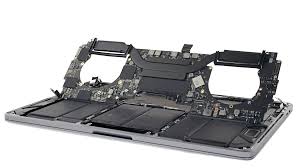
- Expose Cooling System: Then, gently lift the panel to access the fan and heatsink.
- Clean Fan and Vents:
- Use short bursts of compressed air to blow out dust. Meanwhile, keep the can upright.
- Brush fan blades and heatsink fins to remove stubborn dust.
- Wipe vents with a microfiber cloth.
- Reassemble and Test: Finally, secure the panel, power on, and check temperatures with HWMonitor.
Pro Tip: For best results, clean every 6–12 months in Dubai. Alternatively, visit our Bur Dubai branch for expert service with a warranty.
Step 2: Refresh Thermal Paste
Thermal paste transfers heat from the CPU/GPU to the heatsink. Over time, it dries out, causing LG Gram Pro 17 (2025) overheating. Thus, refreshing it can significantly lower temperatures.
Tools Needed:
- Isopropyl alcohol (90%+)
- Lint-free cloth or cotton swabs
- High-quality thermal paste (e.g., Arctic MX-4)
- Anti-static wrist strap
Thermal Paste Refresh Steps:
- Set Up: First, work in a static-free area with an anti-static wrist strap.
- Access CPU/GPU: Next, remove the bottom panel and unscrew the heatsink. Disconnect the fan cable.
- Clean Old Paste: Then, use isopropyl alcohol to wipe old paste from CPU, GPU, and heatsink.
- Apply New Paste: Afterward, place a pea-sized amount of thermal paste on the CPU/GPU center.
- Reassemble: Subsequently, reattach the heatsink, reconnect the fan, and secure the panel.
- Test: Finally, monitor temperatures during light tasks. Expect a 5–15°C drop.
Caution: This requires precision. Contact Milaaj for professional laptop repair in Dubai with a warranty.
Step 3: Optimize Software Settings
Software issues can contribute to LG Gram Pro 17 (2025) overheating. Therefore, optimizing your system reduces heat.
Optimization Tips:
- Disable Apps: In Task Manager, stop background apps like LG Glance.
- Adjust Power Settings: For example, in Control Panel, limit processor state to 80–90%.
- Update Drivers/BIOS: Moreover, download the latest updates from LG’s website.
- Monitor Temperatures: Lastly, use HWMonitor to track CPU/GPU heat levels.
Step 4: Improve Usage Habits in Dubai
Dubai’s climate worsens LG Gram Pro 17 (2025) overheating. As a result, adopt these habits:
- Hard Surfaces: Use a desk to ensure ventilation.
- Cooling Pad: For instance, elevate your laptop with a cooling pad.
- Avoid Sunlight: Additionally, keep your laptop out of direct heat.
- Regular Maintenance: Finally, clean every 6 months to combat dust.
When to Seek Professional LG Laptop Repair
If cleaning and thermal paste refresh don’t help, you may have a faulty fan or hardware issue. Milaaj offers:
- Diagnostics: We identify the cause of overheating.
- Expert Repairs: Professional cleaning and thermal paste replacement with a warranty.
- Convenient Locations: Visit our Al Barsha or Reef Mall branches.
Preventing Future LG Gram Pro 17 Overheating
Keep your LG Gram Pro 17 (2025) cool with these tips:
- Clean dust every 6–12 months.
- Refresh thermal paste every 2–3 years.
- Monitor temperatures with HWMonitor.
- Optimize software settings.
- Trust Milaaj for reliable laptop repair in Dubai.
Why Choose Milaaj for LG Gram Pro 17 (2025) Repairs?
Milaaj is your trusted partner for fixing LG Gram Pro 17 (2025) overheating in Dubai. Here’s why:
- Expert Technicians: Our team specializes in LG Gram repairs, ensuring precise solutions.
- Quality Repairs: We use high-quality thermal paste and tools, backed by a warranty.
- Fast Service: Get same-day repairs at our Bur Dubai, Al Barsha, or Reef Mall branches.
- Dubai-Focused: We understand the impact of Dubai’s dusty climate on laptops.
- Customer Trust: Thousands rely on Milaaj for laptop repair in Dubai.
Explore our MacBook repair services for similar expertise.
Final Thoughts on LG Gram Pro 17 Overheating
LG Gram Pro 17 (2025) overheating can disrupt your work, especially in Dubai’s dusty climate. Dust cleaning, thermal paste refresh, and smart habits can keep your laptop cool. For persistent issues, Milaaj Mobiles and Laptop Repair Al Barsha provides expert laptop repair in Dubai. Contact us for reliable service and get back to seamless performance.
📍 Visit Any Milaaj Branch in Dubai
🔹 Bur Dubai
Milaaj Mobile and Laptop Repair Dubai
📞 055 258 8477
🔗 Google Maps
🔹 Al Barsha
Milaaj Mobiles and Laptop Repair Al Barsha
📞 052 596 2846
🔗 Google Maps
🔹 Reef Mall (Salah Al Din)
Milaaj Service Center Reef Mall
📍 Reef Mall – 1st Floor, Shop 16, Deira
📞 052 3405 814
🔗 Google Maps
Shop Location: Al Barsha | Bur Dubai | Reef Mall, Salah Al Din
Email: support@milaaj.com
Operating Hours: Monday – Sunday
Leave a Reply