

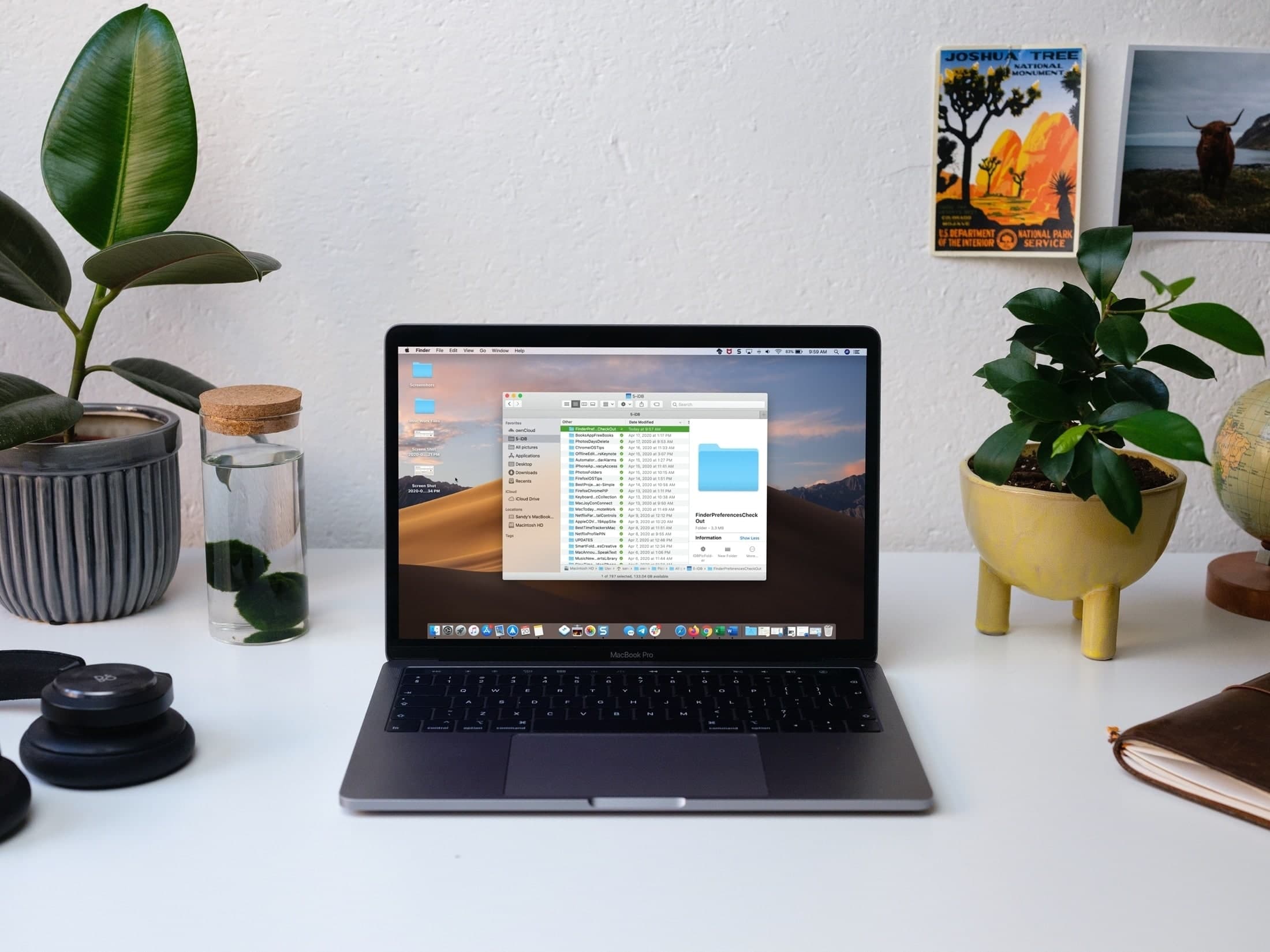
When your MacBook freezing issue happens repeatedly, it becomes frustrating especially if you are working on something important or attending an online meeting. Although MacBooks are known for their stability and performance, they can still slow down, lag, freeze, or randomly stop responding. Fortunately, most of these problems have simple explanations and easy solutions. In this detailed MacBook freezing performance troubleshooting guide, you will learn why your device becomes unresponsive and what you can do to fix it step-by-step.
Additionally, you will discover when basic DIY steps are enough and when you may need help from a professional technician such as the experts at Milaaj Mobiles and Laptop Repair Al Barsha.
Why Is Your MacBook Freezing? Understanding Common Performance Issues
Before attempting any fix, it’s essential to understand why your MacBook freezing problem occurs. Although several factors can cause MacBooks to slow down or get stuck, the most common triggers include software overload, storage issues, outdated system files, or hardware malfunctions.
MacBook Lagging Due to Insufficient RAM
One of the most frequent reasons for a MacBook freezing situation is limited memory (RAM). When too many apps run simultaneously, macOS struggles to allocate enough resources, resulting in:
- Slow response time
- Cursor spinning
- Apps not opening
- System-wide lag
Older MacBook models with 4GB or 8GB RAM are especially vulnerable. As a result, even simple tasks like browsing the web may slow down the system.
MacBook Keeps Freezing Because of Overheating
Another major cause behind MacBook freezing issues is overheating. Over time, dust, blocked ventilation, or heavy processing loads cause the CPU to throttle its performance. Consequently, the system slows down or freezes completely.
Signs of overheating include:
- Fan running very loud
- Bottom surface feeling extremely hot
- Display flickering or freezing
- Random shutdowns
Proper cooling is essential to prevent MacBook freezing and long-term damage to internal components.
MacBook Freezing After macOS Update
Sometimes a new macOS update can cause unexpected performance issues. This can happen because:
- Apps are not yet optimized for the new system
- Temporary bugs exist in the update
- System conflicts occur
- Cache becomes corrupted
Although updates are designed to improve performance, they may temporarily trigger MacBook freezing problems until patches are released.
Software Fixes for MacBook Freezing Problems
Now that you understand the basic causes, let’s walk through software solutions that can fix or improve your MacBook freezing condition.
Fixing MacBook Freezing by Reducing CPU Usage
Excessive CPU usage is one of the leading reasons behind a MacBook freezing issue. To check CPU load:
- Open Activity Monitor
- Click on CPU
- Look for high-usage apps
If something consumes more than 70–90% of CPU consistently, it may be causing your MacBook to lag or freeze. Quitting or uninstalling such apps often resolves the problem.
Stopping Background Apps to Solve MacBook Lagging Issues
Although you may not realize it, background apps or startup programs can silently overload your system. As a result, the MacBook freezing issue becomes more frequent.
To disable unnecessary login items:
- Go to System Settings
- Choose General
- Click Login Items
- Remove unwanted apps
Reducing background activity can dramatically improve response time.
Clearing Cache to Fix a Slow or Freezing MacBook
Over time, cache files accumulate and become corrupted, leading to MacBook performance issues. Clearing cache can often restore smooth functioning.
Delete:
- System cache
- Application cache
- Browser cache
After cleaning, restart your MacBook and test if the freezing problem improves.
Hardware Causes Behind MacBook Freezing
If software optimization doesn’t solve the MacBook freezing problem, hardware might be the culprit. Let’s explore how physical components can trigger performance issues.
Old or Degraded Battery Causing MacBook Performance Issues
A worn-out battery can significantly affect performance. When a MacBook detects battery instability, it switches to low-power mode, which may cause:
- Random freezing
- System slowdowns
- Sudden shutdowns
Check your battery health under:
System Settings → Battery → Battery Health
If it shows “Service Recommended,” the battery might be responsible for your MacBook freezing problem.
SSD Issues Leading to MacBook Freezing Problems
Your SSD (solid-state drive) plays a major role in system speed. When SSD sectors become corrupted or the drive is nearly full, the MacBook may:
- Freeze randomly
- Fail to boot
- Display spinning beach ball errors
- Lag during app loading
A failing SSD should be replaced quickly to avoid data loss.
Thermal Throttling Causing MacBook Stuttering and Lag
Thermal throttling happens when your CPU slows down to prevent overheating. While this safety feature protects your system, it also leads to:
- Stuttering
- Freezing
- Frame drops during video or animation
- Apps becoming unresponsive
Cleaning internal fans and replacing thermal paste can help.
Advanced Troubleshooting for MacBook Freezing Issues
If basic methods don’t solve your MacBook freezing problem, try these advanced techniques.
Run Apple Diagnostics to Identify Freezing Causes
Apple Diagnostics is a built-in tool that scans hardware components. It can detect:
- RAM issues
- Logic board faults
- Battery problems
- Display issues
To run it:
- Turn off your MacBook
- Press and hold D while turning it on
- Let the test run
This step can help you pinpoint the root cause of your MacBook freezing issue.
Resetting SMC to Fix MacBook Performance Issues
The System Management Controller (SMC) controls essential hardware functions like:
- Power
- Charging
- Fan speed
- Thermal management
If these functions malfunction, they may trigger MacBook freezing. Resetting the SMC often restores normal behavior.
Resetting NVRAM/PRAM for Improved Stability
NVRAM stores settings such as sound volume, resolution, startup disk selection, and time zone. When it becomes corrupted, your MacBook may behave erratically.
Symptoms include:
- Freezing
- Black screen
- Unresponsive trackpad
- Performance drops
Resetting NVRAM/PRAM often helps fix these issues.
When Your MacBook Freezing Requires Professional Repair
Although many MacBook freezing issues can be fixed at home, some problems require expert inspection.
Logic Board Problems Leading to Freezing
A faulty logic board can cause:
- Sudden freezing
- Intermittent boot issues
- Display glitches
- Kernel panics
Only professionals can diagnose these issues properly.
MacBook Screen Freezing Because of GPU or Display Issues
A damaged GPU or failing display connector can also cause freezing or screen flickering. Repairing these components requires precision tools and experience.
Expert MacBook Repairs at Milaaj Mobiles and Laptop Repair Al Barsha
If none of the above steps fix your MacBook freezing problem, it’s time to seek expert assistance. The specialists at Milaaj Mobiles and Laptop Repair Al Barsha offer advanced diagnostics, component-level repairs, SSD replacements, battery services, and logic board repair solutions.
Conclusion
Dealing with a MacBook freezing issue can be stressful, but understanding the root cause makes it much easier to resolve. Whether the problem is related to software overload, overheating, low storage, a failing SSD, or deeper hardware complications, following this troubleshooting guide will help you restore smooth performance. And if the issue persists, professional repair services are always available to ensure your MacBook runs like new.
Other Services:
- Need other Mac Book repairs? Check out Milaaj’s MacBook repair services in Dubai.
- Overheating issues? Explore MacBook repair in Dubai for similar cooling solutions.
- Looking to upgrade? Learn about selling your used laptop in Dubai.
- Data loss concerns? Visit Milaaj’s data recovery services.
- For Apple users, check Apple trade-in options in Dubai.
📍 Visit Any Milaaj Branch in Dubai
🔹 Bur Dubai
Milaaj Mobile and Laptop Repair Dubai
📞 055 258 8477
🔗 Google Maps
🔹 Al Barsha
Milaaj Mobiles and Laptop Repair Al Barsha
📞 052 596 2846
🔗 Google Maps
🔹 Al Barsha 3
Milaaj Mobiles and Gaming Store
📞 052 3405 814
🔗 Google Maps
🔹 Al Nuaimiya
Milaaj Mobiles and Laptops Ajman
📞 055 788 9654
🔗 Google Maps
Shop Locations: Al Barsha | Bur Dubai | Reef Mall, Salah Al Din | Al Nuaimiya, Ajman
Email: support@milaaj.com
Operating Hours: Monday – Sunday

Leave a Reply