


Accidental spills are some of the most common causes of MacBook malfunction. Even a few drops of water, coffee, juice, or soft drink can trigger unexpected issues, especially with input devices like the trackpad or mouse. MacBook mouse not working after liquid damage situations can be stressful because the trackpad is essential for navigation, productivity, and daily use. However, before you panic or assume the worst, it’s important to understand that not all liquid-related failures mean permanent damage. In many cases, the device can be repaired safely.
In this detailed guide, you will learn exactly why the MacBook mouse stops working after liquid damage, what components are typically affected, which parts are repairable, and what you should do immediately. Additionally, you will discover preventive measures and signs that indicate whether repair or replacement is the right choice.
Understanding the Core Issue For MacBook mouse not working after liquid damage
When the MacBook mouse not working after liquid damage happens, the root cause is almost always moisture reaching sensitive internal components. Interestingly, even a tiny amount of liquid can compromise the trackpad’s sensors because the MacBook trackpad operates on pressure, touch, electrical signals, and internal circuitry. Therefore, when liquid creates short circuits or corrosion, the mouse stops responding.
How Liquid Affects the Trackpad and Mouse System
Liquid can damage several parts of the pointer system, including:
- Trackpad touch sensors
- Trackpad pressure sensors
- Trackpad flex cable
- Logic board area connected to the trackpad
- Internal connectors
- Battery (swelling can affect trackpad movement)
- Shorted circuits underneath the top case
Consequently, understanding which part failed helps determine what is repairable and what may require replacement.
Early Symptoms to Watch For MacBook mouse not working after liquid damage
Even before the mouse completely stops working, your MacBook might show warning signs. Recognizing them early can help prevent further damage.
Common Warning Indicators
- Cursor freezing intermittently
- The pointer moves slowly or jumps randomly
- Trackpad not clicking at all
- Left or right click not responding
- Ghost touches or sudden cursor movements
- “Trackpad Not Found” message
- Unresponsive trackpad after waking from sleep
These symptoms almost always indicate moisture affecting sensors or internal connections. Furthermore, early action can significantly improve your chances of successful repair.
Is the MacBook Trackpad Repairable After Liquid Damage?
Yes many components involved in MacBook mouse not working after liquid damage are repairable. Although liquid damage is often unpredictable, technicians can restore functionality depending on which part is affected.
Trackpad Damage – Repairable or Replaceable?
The trackpad itself is usually repairable unless corrosion is severe.
Repair options include:
- Cleaning internal corrosion
- Replacing the trackpad cable
- Reflowing trackpad connector pins
- Full trackpad replacement (if sensors are burned)
Moreover, replacement is often affordable compared to logic board repair.
What Parts Are Repairable in MacBook Mouse Not Working After Liquid Damage?
1. Trackpad Flex Cable
This is one of the most common failure points. The cable becomes oxidized or shorted, leading to mouse malfunction. Replacing this cable often restores full functionality.
2. Trackpad Sensor Circuit
If the sensor grid is affected, technicians can clean or repair corroded areas. However, if the sensor is burnt, replacement becomes necessary.
3. Logic Board Trackpad Connector
Liquid often reaches the logic board connector section. But the good news is that this area is frequently repairable using micro-soldering.
4. Battery Swelling Due to Liquid
Sometimes liquid doesn’t destroy the trackpad directly but damages the battery. A swollen battery pushes against the trackpad, causing click issues.
Replacing the battery usually solves the problem.
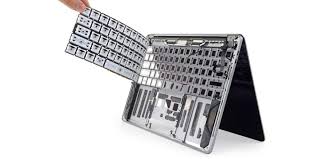
5. Keyboard/Top Case Assembly
In severe liquid cases, the area under the keyboard may corrode, interfering with trackpad communication channels.
Although expensive, this is still repairable with the right parts.
Therefore, most hardware failures related to MacBook mouse issues after liquid accidents can be repaired safely by a skilled technician.
Immediate Steps to Take for MacBook mouse not working after liquid damage
Whenever your MacBook mouse not working after liquid damage occurs, your first actions determine how much of the device can be saved.
1. Turn Off the MacBook Immediately
This prevents short circuits caused by moisture bridging circuits.
2. Unplug the Charger for MacBook mouse not working after liquid damage
Plugged-in MacBooks conduct active electricity, increasing the risk of severe board damage.
3. Do NOT Shake the MacBook
Shaking spreads liquid to unaffected components.
4. Do NOT Use a Hairdryer
Heat can warp internal components or melt adhesive, worsening the damage.
5. Keep the Device Upright
This helps prevent liquid from entering deeper layers of the logic board.
6. Take It for Professional Cleaning Quickly
Corrosion starts forming within hours. Furthermore, delaying the repair reduces the chance of saving the trackpad.
What Technicians Do During Repair for MacBook mouse not working after liquid damage
If the MacBook mouse not working after liquid damage, technicians follow a structured repair process.
Step 1: Diagnosis
They inspect for:
- Corrosion
- Damaged circuits
- Burnt components
- Swollen battery
- Trackpad connector issues
step 2: Cleaning and Neutralizing Corrosion
Special cleaning agents remove oxidation and restore electrical contacts.
Step 3: Testing the Trackpad Sensor
If sensors respond, then the issue is likely cable- or connector-related.
Step 4: Micro-Soldering Repair
Used to fix:
- Broken trackpad connector pins
- Burnt circuits
- Liquid-affected logic board pathways
Step 5: Replacement (If Needed)
If repairs are insufficient, the technician replaces:
- Trackpad
- Trackpad cable
- Battery
- Keyboard/top case assembly
Consequently, you receive a fully restored and functional mouse/trackpad system.
When Full Replacement Is Necessary for MacBook mouse not working after liquid damage
Certain severe conditions require replacement instead of repair:
When Replacement Is the Only Option
- Deep corrosion covering the entire trackpad
- Liquid reaching the trackpad sensors
- Burnt circuits without repairable lines
- Damaged top case
- Liquid-induced battery swelling causing pressure damage
Although replacement costs more, it ensures long-term stability.
Additionally, replacement parts usually work like new when installed correctly.
Preventing the MacBook Mouse from Failing After Liquid Damage
Prevention is always better than repair.
1. Use a Spill-Resistant Desk Setup
Keeping drinks away reduces the risk of future accidents.
2. Avoid Using the MacBook on Soft Surfaces
Liquids spread faster on beds or sofas, reaching internal components easily.
3. Check Battery Health Regularly for MacBook mouse not working after liquid damage
A swollen battery causes trackpad issues even without liquid damage.
4. Keep the Keyboard and Trackpad Clean
Dust and moisture buildup can affect sensors over time.
5. Use a Protective Keyboard/Trackpad Cover
This helps protect the trackpad from moisture and accidental spills.
Ultimately, good habits help maintain the longevity of your MacBook’s input system.
When to Seek Professional Help for MacBook mouse not working after liquid damage
If your MacBook mouse not working after liquid damage, professional repair becomes essential when:
- The cursor does not move at all
- Clicking is fully unresponsive
- Wetness entered the trackpad area
- There is visible corrosion
- The MacBook stops turning on
- The keyboard also starts malfunctioning
For reliable and expert repair, Milaaj Mobiles and Laptop Repair Al Barsha provides professional liquid-damage restoration, micro-soldering repairs, and trackpad replacement services. Therefore, trusting trained technicians ensures a safe and successful restoration with zero guesswork.
FAQs About MacBook mouse not working after liquid damage
1. Can a MacBook trackpad be fixed after liquid damage?
Yes, most trackpads can be repaired or replaced. Additionally, cleaning and circuit repair often restore full function.
2. How much liquid is enough to damage the MacBook mouse?
Even a few drops near the trackpad area can cause corrosion or short circuits over time.
3. Can I keep using the MacBook if the trackpad behaves normally after a spill?
No. Moisture may still be inside. Therefore, immediate cleaning is essential to prevent future failure.
4. Is the logic board always damaged when the mouse stops working?
Not always. Usually, only the trackpad cable or sensors are affected.
5. Will drying my MacBook naturally fix trackpad issues?
Rarely. Drying does not remove corrosion, and the device needs professional treatment.
Final Thoughts: MacBook mouse not working after liquid damage
Experiencing a MacBook mouse not working after liquid damage can be stressful, especially when the device becomes difficult to use or completely unresponsive. However, the good news is that most issues are repairable with the right approach. By acting quickly, avoiding harmful DIY methods, and seeking professional help early, you can save your MacBook from long-term damage. Moreover, understanding which components are repairable allows you to make informed decisions and prevent similar issues in the future.
Other Services:
- Need other Mac Book repairs? Check out Milaaj’s MacBook repair services in Dubai.
- Overheating issues? Explore MacBook repair in Dubai for similar cooling solutions.
- Looking to upgrade? Learn about selling your used laptop in Dubai.
- Data loss concerns? Visit Milaaj’s data recovery services.
- For Apple users, check Apple trade-in options in Dubai.
📍 Visit Any Milaaj Branch in Dubai
🔹 Bur Dubai
Milaaj Mobile and Laptop Repair Dubai
📞 055 258 8477
🔗 Google Maps
🔹 Al Barsha
Milaaj Mobiles and Laptop Repair Al Barsha
📞 052 596 2846
🔗 Google Maps
🔹 Al Barsha 3
Milaaj Mobiles and Gaming Store
📞 052 3405 814
🔗 Google Maps
🔹 Al Nuaimiya
Milaaj Mobiles and Laptops Ajman
📞 055 788 9654
🔗 Google Maps
Shop Locations: Al Barsha | Bur Dubai | Reef Mall, Salah Al Din | Al Nuaimiya, Ajman
Email: support@milaaj.com
Operating Hours: Monday – Sunday
Leave a Reply