

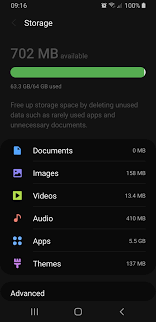
Samsung smartphones are known for their powerful performance, advanced cameras, and feature-rich Android experience. However, many users eventually face a frustrating issue Samsung internal storage full warnings that disrupt daily usage. When storage fills up, phones slow down, apps crash, updates fail, and essential functions become unreliable.
Fortunately, Samsung internal storage full issues are not permanent. With the right understanding, proper storage management, and professional repair support, these problems can be resolved effectively. Therefore, in this comprehensive guide, we explain why Samsung internal storage fills up, common mistakes users make, and real solutions that work long-term.
What Does “Samsung Internal Storage Full” Mean?
When your device displays a Samsung internal storage full warning, it means the phone’s built-in memory is nearly exhausted. As a result, the system struggles to store new data, cache files, and app updates.
Moreover, Android relies heavily on free internal space for smooth operation. Consequently, once storage is full, performance drops sharply.
Common Symptoms of Samsung Internal Storage Full
- Apps crashing or refusing to open
- Slow system performance
- Failed software updates
- Camera unable to save photos or videos
- Repeated storage warning notifications
Therefore, ignoring this issue can lead to long-term software instability.
Why Samsung Internal Storage Gets Full So Fast
1. App Cache and Residual Files
Apps continuously store cache data. Over time, this data builds up and contributes heavily to Samsung internal storage full problems.
2. System Data Growth
Android system files, logs, and update packages silently increase storage usage. Consequently, even users who delete apps may still see storage full warnings.
3. Media Files and WhatsApp Data
Photos, videos, voice notes, and backups especially from messaging apps consume large amounts of space quickly.
4. Failed or Partial Software Updates
Interrupted updates leave temporary files behind, further worsening Samsung internal storage full issues.
5. Pre-Installed Apps (Bloatware)
Samsung devices often include preloaded apps that cannot be fully removed, reducing available internal storage permanently.
Mistakes That Make Samsung Storage Issues Worse
Although users try to free space, certain actions worsen the problem.
- Deleting only apps while ignoring cache data
- Using untrusted “cleaner” apps that create more junk
- Moving files incorrectly between internal storage and SD card
- Ignoring repeated storage warnings
Therefore, using the right methods is essential for lasting results.
Samsung Internal Storage Full: Step-by-Step Real Solutions
Clear App Cache Regularly
First and foremost, clearing app cache significantly reduces internal storage usage. Social media, browsers, and streaming apps store large cache files.
Delete Hidden Media Files
Next, check folders for duplicate images, downloaded videos, and old screenshots that silently consume space.
Manage WhatsApp and Messaging Storage
WhatsApp media alone can fill gigabytes of internal storage. Therefore, reviewing and deleting unnecessary media is critical.
Remove Unused Apps and Games
Apps that haven’t been used for months still occupy valuable storage. Removing them immediately frees space.
Restart the Device
Restarting forces Android to recalculate storage and clear temporary system files.
Advanced Fixes for Persistent Samsung Internal Storage Full Issues
System Cache Partition Cleanup
Clearing the system cache removes temporary Android files without deleting personal data. This method often resolves stubborn storage warnings.
Software Optimization
In some cases, outdated firmware causes storage miscalculations. Updating or reinstalling system software fixes these errors.
Data Backup and Reset (Last Resort)
When storage corruption occurs, backing up data and resetting the device restores proper storage allocation. However, this should only be done with expert guidance.
Why Samsung SD Cards Don’t Fully Solve Internal Storage Problems
Although SD cards help store photos and videos, apps and system files still rely on internal storage. As a result, Samsung internal storage full warnings may continue even with a large SD card installed.
Therefore, proper internal storage management remains essential.
When Hardware Issues Cause Storage Problems
In rare cases, failing internal memory chips cause inaccurate storage readings. Consequently, phones may show full storage even when data is minimal.
Professional technicians can diagnose and repair these hardware-related storage faults safely.
Milaaj Mobile Repair: Expert Samsung Storage Solutions
At Milaaj mobiles and laptop repair Al Barsha, Samsung storage issues are handled using professional diagnostic tools and expert techniques.
Why Choose Milaaj Mobile Repair?
- Low-cost solutions without compromising quality
- Fast repair turnaround, minimizing downtime
- Convenient service for all Samsung models
- High-quality parts and tools for reliable repairs
- Safe data handling, ensuring no data loss
Moreover, technicians focus on permanent fixes rather than temporary cleanups, ensuring your Samsung device performs smoothly long-term.
Benefits of Professional Samsung Storage Repair
- Accurate diagnosis of software or hardware faults
- Safe system cleanup without data loss
- Long-lasting storage optimization
- Improved phone speed and performance
- Prevention of recurring storage full warnings
Therefore, professional repair ensures peace of mind and device longevity.
How to Prevent Samsung Internal Storage Full Issues in the Future
Use Cloud Storage Wisely
Store photos and videos in secure cloud services to reduce internal storage load.
Clean Cache Monthly
Regular maintenance prevents cache buildup.
Monitor Storage Usage
Samsung’s built-in storage manager helps identify large files early.
Avoid Unnecessary Apps
Install only essential apps to maintain healthy storage levels.
FAQs
1. Why does my Samsung phone say internal storage is full?
Samsung internal storage full issues usually occur due to large app data, cached files, system updates, photos, videos, and hidden files. Over time, these files accumulate and fill the internal memory.
2. Why is my Samsung internal storage full even after deleting files?
Even after deleting files, cached data, system logs, and app residual files may remain. As a result, Samsung internal storage full warnings can persist unless cache and system data are cleared properly.
3. Does a software update cause Samsung internal storage full issues?
Yes, Samsung software updates often create temporary system files and increase system data size. Therefore, many users notice Samsung internal storage full issues after an update.
4. How can I fix Samsung internal storage full issues quickly?
To fix Samsung internal storage full issues quickly, clear app caches, uninstall unused apps, delete duplicate media, move files to cloud storage, and restart the device to refresh storage data.
5. What apps use the most internal storage on Samsung phones?
Social media apps, video streaming apps, messaging apps, and games consume the most internal storage due to cached media, downloads, and background data.
6. Is it safe to clear cache on a Samsung phone?
Yes, clearing cache is safe and recommended. It removes temporary files without deleting personal data and helps resolve Samsung internal storage full issues effectively.
Final Thoughts: Real Solutions for Samsung Internal Storage Full Issues
Experiencing Samsung internal storage full issues can be frustrating, but they are rarely permanent. With proper troubleshooting, smart storage habits, and professional repair support, these problems can be resolved quickly and safely.
Instead of relying on risky apps or temporary fixes, choosing expert repair ensures speed, affordability, convenience, and long-term reliability. Ultimately, proactive care and professional handling keep your Samsung device running smoothly without constant storage warnings.
Other Services:
- Need other mobile phone repairs? Check out Milaaj’s mobile repair services in Dubai.
- Looking to upgrade? Learn about selling your used mobile in Dubai.
- Data loss concerns? Visit Milaaj’s data recovery services.
📍 Visit Any Milaaj Branch in Dubai
🔹 Bur Dubai
Milaaj Mobile and Laptop Repair Dubai
📞 055 258 8477
🔗 Google Maps
🔹 Al Barsha
Milaaj Mobiles and Laptop Repair Al Barsha
📞 052 596 2846
🔗 Google Maps
🔹 Al Barsha 3
Milaaj Mobiles and Gaming Store
📞 052 3405 814
🔗 Google Maps
🔹 Al Nuaimiya
Milaaj Mobiles and Laptops Ajman
📞 055 788 9654
🔗 Google Maps
Shop Locations: Al Barsha | Bur Dubai | Reef Mall, Salah Al Din | Al Nuaimiya, Ajman
Email: support@milaaj.com
Operating Hours: Monday – Sunday
Leave a Reply