


Apple updates are designed to improve performance, patch security holes, and introduce new features. However, many users panic when a software update damaged your Apple device, causing it to freeze, glitch, fail to boot, or display unknown errors. Although Apple updates are usually reliable, issues can still occur due to installation conflicts, low storage, hardware weaknesses, or interruptions during the update process. Fortunately, trained technicians know exactly how to diagnose and restore devices affected after a software update goes wrong.
In this detailed guide, we will explain why a software update damaged your Apple device, what symptoms to look for, and the professional repair methods technicians use to bring your iPhone, iPad, or MacBook back to life. We will also show how expert repair shops, including trusted service providers like Milaaj mobiles and laptop repair Al Barsha, approach these difficult cases and safely recover your device.
What Happens When a Software Update Damaged Your Apple Device?
When an Apple update fails or installs incorrectly, your device may experience multiple performance issues. Since the update directly modifies system-level files, even a small disruption can trigger major problems. A software update damaged your Apple device most commonly in these ways:
1. Device Stuck on Apple Logo or Boot Loop
One of the most common signs that a software update damaged your Apple device is a frozen Apple logo screen. Your device may also continuously restart, preventing access to the home screen.
2. Black Screen or White Screen Errors
After a failed update, some iPhones and iPads only show a black screen or white screen, even though the device is technically powered on.
3. iTunes or Finder Restore Errors
When attempting a restore, users may see codes like Error 4013, 9, 4014, or 1110, which clearly indicate that a software update damaged your Apple device.
4. Random Freezing and App Crashes
Incomplete system installations can cause apps to malfunction or the entire phone to freeze unexpectedly.
5. Touchscreen Not Working After Update
Some updates interfere with the screen firmware, leading to unresponsive touches or ghost touches.
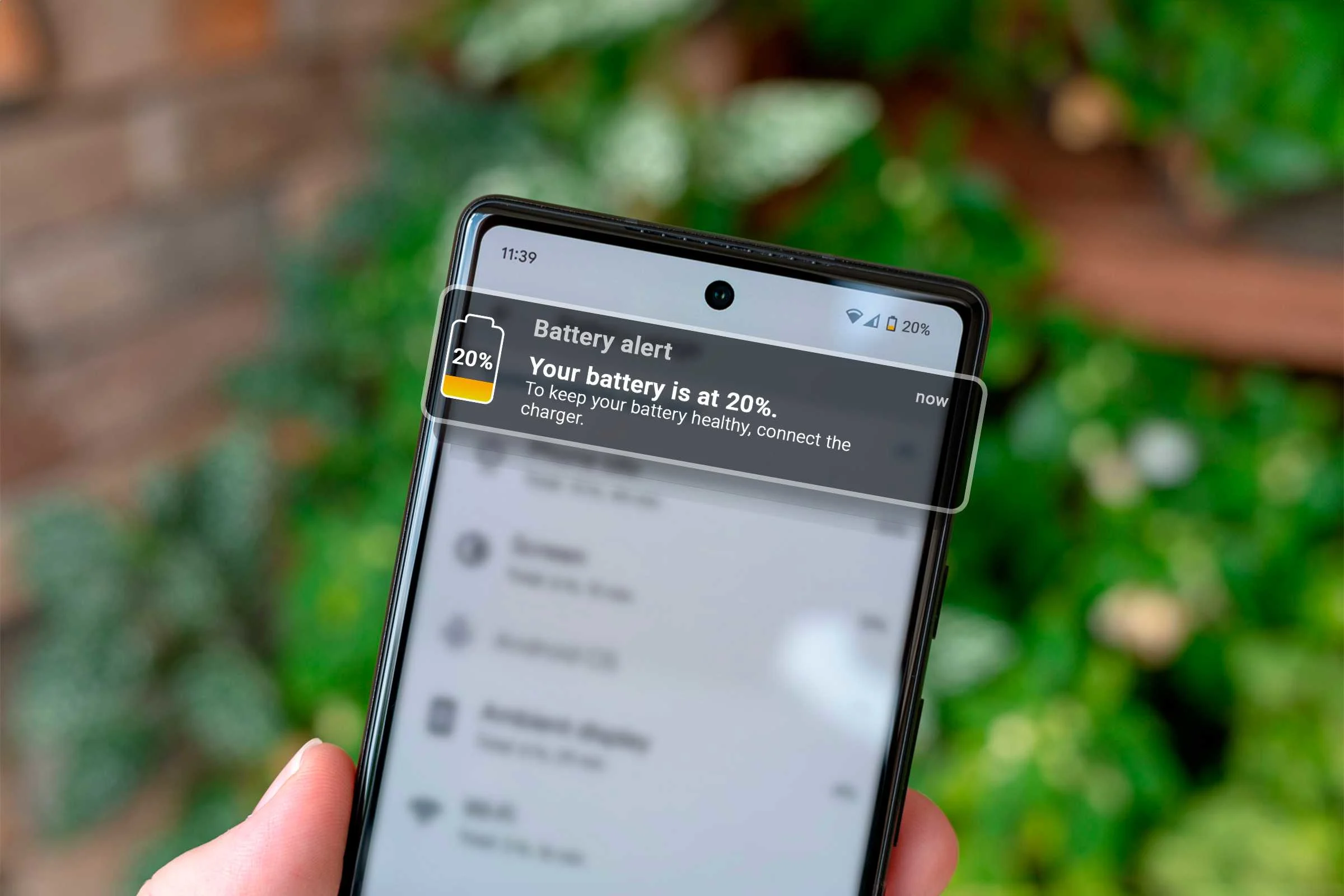
6. Battery Draining Extremely Fast
If a software update damaged your Apple device at the firmware level, it may cause irregular battery behavior or even overheating.
These issues appear suddenly and often without warning, but experienced technicians know how to reverse them.
Why a Software Update Damaged Your Apple Device: Common Causes
Understanding why a software update damaged your Apple device helps in choosing the correct repair strategy. Below are the most common triggers:
1. Insufficient Storage Space
If your device lacks enough space during installation, the update may corrupt essential system files.
2. Interrupted Wi-Fi Connection
A sudden Wi-Fi drop can lead to incomplete downloads or damaged firmware packets.
3. Low Battery During Update
If battery power drops mid-update, the installation becomes unstable.
4. Hardware Weakness
A failing NAND storage chip, weak motherboard component, or damaged battery may cause update failure.
5. Using Beta Software Incorrectly
Beta versions, while exciting, carry bugs and may easily harm the software framework.
6. Third-Party Repairs or Fake Parts
Non-genuine screens or batteries can lead to update compatibility issues.
Regardless of the cause, technicians follow proven repair techniques to revive your device.
How Technicians Fix a Device When a Software Update Damaged Your Apple Device
Professionals use a systematic diagnostic process to determine what exactly went wrong. Below are the most effective repair methods technicians rely on.
Step 1 Comprehensive Diagnostics for a Device Damaged by Software Update
When a software update damaged your Apple device, the first step is full diagnostics. Technicians check:
- System logs
- Motherboard functions
- NAND health and storage access
- Battery temperature
- Boot sequence
- Firmware activity
This helps them determine whether the damage is purely software-based or involves hardware.
Step 2 Force Restart Methods to Recover a Damaged Apple Device
A simple force restart often resolves temporary crashes caused by a system glitch.
Hard Reset Techniques for iPhones and iPads
- Press Volume Up
- Press Volume Down
- Hold Power button until the Apple logo appears
If the device boots successfully, the damage was minor.
Hard Reset for MacBooks
- Hold Control + Command + Power for 10 seconds
This clears any temporary CPU freezes triggered after an unstable update.
Step 3 Using Recovery Mode to Repair a Device Damaged After Apple Update
If the force restart fails, technicians enter Recovery Mode to reinstall the operating system without deleting data. This method works when:
- iOS installation files are incomplete
- Device won’t finish updating
- Device stuck on the Apple logo
- System corruption occurred
iTunes/Finder then downloads the correct firmware and repairs system files.
Step 4 Restoring Using DFU Mode for Severe Apple Update Damage
When a software update damaged your Apple device beyond normal repair, technicians use DFU Mode, the deepest restore possible.
Why DFU Mode Works
DFU wipes the entire firmware and rebuilds it from scratch. This is the strongest solution for:
- Boot loop issues
- Corrupted firmware
- Frozen black or white screens
- Update-stuck errors
Because DFU Mode bypasses the bootloader, it fixes even severe software corruption.
Step 5 Fixing Hardware Damage Caused or Revealed by Updates
Sometimes the software update damaged your Apple device because a hidden hardware issue worsened. Technicians inspect:
Logic Board Damage
Faulty motherboard components can make updates fail. Microsoldering experts repair:
- PMIC power chips
- Charging IC
- Tristar
- Display connectors
- Storage NAND
Battery or Power IC Problems
If the battery is unstable, the update process becomes risky. Technicians replace:
- Weak batteries
- Faulty power IC modules
Storage Chip Errors
If the NAND is failing, the device may struggle to complete system writes. Repair shops reball or replace NAND chips.
Why You Should Not Try DIY Fixes When a Software Update Damaged Your Apple Device
While online tutorials may tempt users to perform DIY repairs, this can worsen the issue. Here’s why:
1. Incorrect Restore Attempts Can Lock the Device Further
Mistakes during DFU or Recovery Mode can cause more corruption.
2. Logic Board Repairs Require Specialized Tools
Motherboard-level repairs cannot be done at home.
3. Tiny Errors Can Lead to Data Loss
Professionals ensure safe recovery procedures.
Therefore, trusting a technician is always the safer choice.
How Repair Experts Ensure Data Safety After an Update Damage
When a software update damaged your Apple device, data loss becomes a major concern. Technicians use:
- NAND-level extraction
- Advanced firmware tools
- Encrypted backup reconstruction
- Safe system restore methods
These prevent further data corruption and preserve personal files.
When Should You Visit a Repair Shop?
You should seek professional help immediately if:
- Your device is stuck for more than 30 minutes
- It keeps restarting
- You see iTunes/Finder error codes
- Black or white screen persists
- Touchscreen stops responding
- Battery overheats after update
The sooner you act, the higher the chances of restoring your device.
Why Professional Repair Shops Are the Best Solution
Expert technicians have:
- Genuine firmware reinstall tools
- Microsoldering equipment
- Advanced diagnostic software
- Original-quality replacement parts
- Safe, data-preserving methods
They can repair damage that ordinary users cannot handle.
This is why so many customers rely on trusted service centers such as Milaaj mobiles and laptop repair Al Barsha for restoring damaged Apple devices safely.
FAQs
1. Why did a software update damage my Apple device?
A software update may damage your Apple device due to low storage, unstable battery power, incomplete downloads, hardware issues, or interrupted installation.
2. Can technicians fix a device damaged by a failed Apple update?
Yes, technicians can repair devices damaged by failed updates using diagnostics, Recovery Mode, DFU Mode, firmware restoration, or logic board repair when needed.
3. What are the signs that a software update damaged my Apple device?
Common symptoms include boot loops, black/white screen, freezing, error codes like 4013 or 9, overheating, and unresponsive touch.
4. Will I lose data if my Apple device is damaged after an update?
Not always. Professional technicians use safe restore methods and data-preservation tools to recover your files whenever possible.
5. What should I do first if my iPhone or iPad gets stuck after an update?
First, try a force restart. If that fails, use Recovery Mode. If the problem continues, visit a repair shop to prevent data loss or deeper system corruption.
Final Thoughts: A Software Update Damaged Your Apple Device But It Can Be Fixed
Although it is stressful when a software update damaged your Apple device, the problem is almost always solvable. With correct diagnostics, firmware restoration, and professional repair techniques, technicians can revive even severely affected devices. Whether the issue is software corruption, power instability, or hardware failure, professional repair shops have the tools and expertise to restore your device smoothly.
Other Services:
- Need other iPhone repairs? Check out Milaaj’s apple airpods repair services in Dubai.
- Looking to upgrade? Learn about selling your used device in Dubai.
- For Apple users, check Apple trade-in options in Dubai.
📍 Visit Any Milaaj Branch in Dubai
🔹 Bur Dubai
Milaaj Mobile and Laptop Repair Dubai
📞 055 258 8477
🔗 Google Maps
🔹 Al Barsha
Milaaj Mobiles and Laptop Repair Al Barsha
📞 052 596 2846
🔗 Google Maps
🔹 Al Barsha 3
Milaaj Mobiles and Gaming Store
📞 052 3405 814
🔗 Google Maps
🔹 Al Nuaimiya
Milaaj Mobiles and Laptops Ajman
📞 055 788 9654
🔗 Google Maps
Shop Locations: Al Barsha | Bur Dubai | Reef Mall, Salah Al Din | Al Nuaimiya, Ajman
Email: support@milaaj.com
Operating Hours: Monday – Sunday
Leave a Reply