

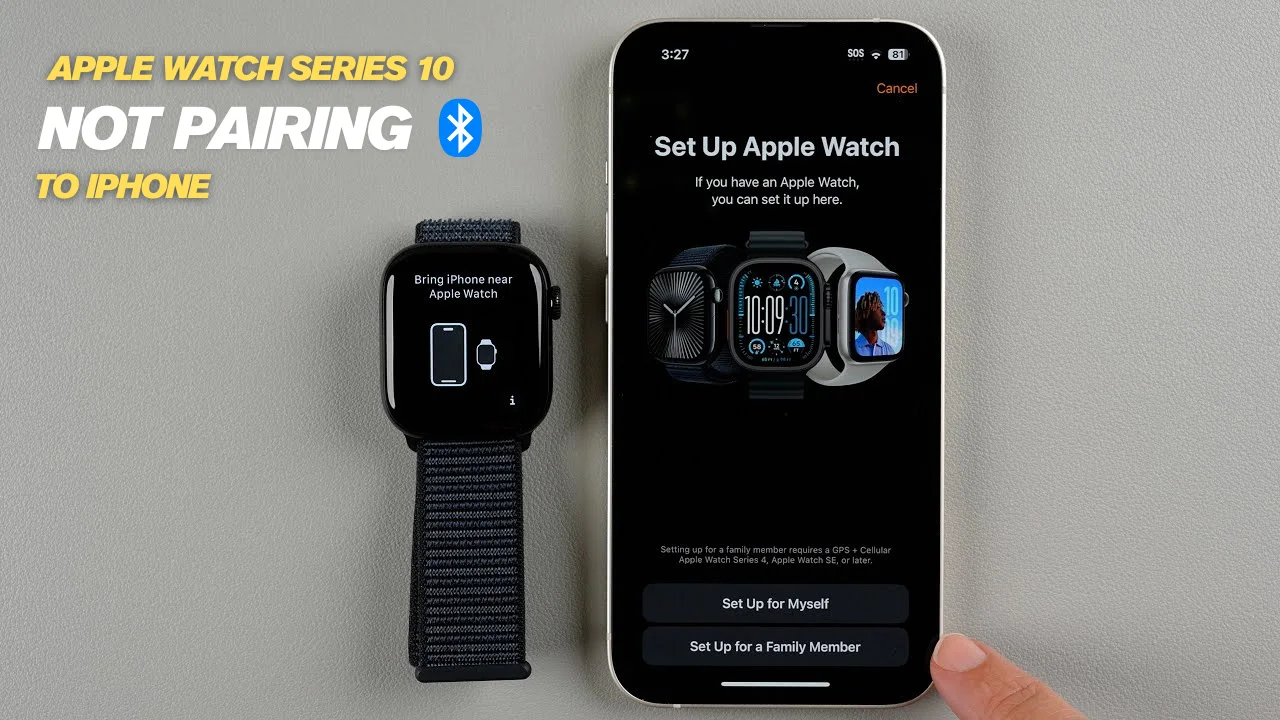
The Apple Watch Series 10 is designed to stay seamlessly connected to your iPhone for notifications, calls, health tracking, Apple Pay, and more. However, some users experience frustrating Bluetooth connection drops, random disconnections, syncing issues, or pairing failures.
If your Apple Watch Series 10 keeps disconnecting from your iPhone, don’t panic. In most cases, the issue is related to software settings, Bluetooth interference, outdated updates, or network configuration problems rather than a hardware failure.
This guide explains the most common causes and proven solutions to restore a stable Apple Watch and iPhone connection.
Quick Answer
If your Apple Watch Series 10 keeps disconnecting from your iPhone, first ensure both devices have Bluetooth enabled, install the latest iOS and watchOS updates, restart both devices, and unpair then re-pair the watch. Most connectivity issues are caused by software glitches, interference, or outdated settings.
Key Takeaways
- Bluetooth disconnections are usually software-related.
- Updating iOS and watchOS often fixes pairing and syncing issues.
- Wi-Fi networks and nearby Bluetooth devices can cause interference.
- Resetting network settings can resolve persistent connection problems.
- Unpairing and re-pairing the Apple Watch solves many recurring issues.
- Hardware faults are uncommon but possible after drops, liquid exposure, or impact damage.
Signs Your Apple Watch Is Losing Connection
You may notice:
- Apple Watch disconnecting randomly
- Missing notifications
- Workout data not syncing
- Calls dropping unexpectedly
- Delayed message delivery
- Apple Watch showing a red iPhone icon
- Health data failing to update
- Music controls not responding
These symptoms typically indicate a Bluetooth communication problem between the watch and iPhone.
Why Does Apple Watch Series 10 Keep Disconnecting?
Several factors can interrupt the Bluetooth connection.
Outdated watchOS or iOS
Apple frequently releases updates to improve Bluetooth stability and device compatibility. Running older software versions can create connection issues.
Bluetooth Interference
Bluetooth operates on the 2.4GHz frequency band, which is also used by:
- Wi-Fi networks
- Wireless headphones
- Smart home devices
- Gaming controllers
- Vehicle infotainment systems
Heavy wireless traffic can weaken the connection.
Network Configuration Errors
Corrupted network settings on the iPhone can interfere with Bluetooth communication and device pairing.
Low Battery Levels
When either device enters aggressive power-saving mode, background connectivity may become unstable.
Pairing Corruption
Occasionally, the connection profile between the watch and iPhone becomes corrupted, causing repeated disconnects.
Hardware Problems
Although less common, damaged Bluetooth antennas, internal component failures, or liquid damage can affect wireless performance.
How to Fix Apple Watch Series 10 Bluetooth Dropping with iPhone
1. Check Bluetooth Settings
Start with the basics.
On your iPhone:
- Open Settings
- Tap Bluetooth
- Ensure Bluetooth is enabled
On Apple Watch:
- Open Settings
- Tap Bluetooth
- Confirm Bluetooth is active
Also verify that Airplane Mode is disabled on both devices.
2. Keep Devices Within Range
Bluetooth works best when devices are nearby.
For the strongest connection:
- Keep your iPhone within 10–30 feet
- Avoid thick walls and metal obstacles
- Keep the watch and phone on the same side of your body during workouts
3. Restart Both Devices
A simple restart often resolves temporary software glitches.
Restart iPhone
- Press and hold the side button and volume button
- Slide to power off
- Wait 30 seconds
- Turn the device back on
Restart Apple Watch
- Hold the side button
- Slide Power Off
- Wait 30 seconds
- Turn it back on
4. Update iOS and watchOS
Software updates frequently include Bluetooth performance improvements.
Update iPhone
Settings → General → Software Update
Update Apple Watch
Watch App → General → Software Update
Install all available updates before continuing troubleshooting.
5. Disconnect Nearby Bluetooth Devices
Too many connected devices can create wireless conflicts.
Temporarily disconnect:
- AirPods
- Bluetooth speakers
- Wireless keyboards
- Smart TVs
- Vehicle Bluetooth systems
Then test the watch connection again.
6. Reset Network Settings on iPhone
If Bluetooth issues continue, reset network settings.
Settings → General → Transfer or Reset iPhone → Reset → Reset Network Settings
This will:
- Reset Bluetooth settings
- Reset Wi-Fi settings
- Remove saved network configurations
Afterward, reconnect your devices.
7. Unpair and Re-Pair Your Apple Watch
This is one of the most effective fixes.
Unpair Apple Watch
- Open the Watch app.
- Tap All Watches.
- Select your Apple Watch Series 10.
- Tap Unpair Apple Watch.
Pair Again
Bring the watch near your iPhone and follow the setup instructions.
Your backup data can be restored during setup.
8. Factory Reset Apple Watch
If the issue remains unresolved:
Settings → General → Reset → Erase All Content and Settings
This completely refreshes the device and removes potentially corrupted settings.
Be sure your watch is backed up before proceeding.
How to Prevent Future Bluetooth Connection Problems
To maintain a stable connection:
- Keep iOS and watchOS updated
- Avoid exposing devices to excessive heat
- Charge devices regularly
- Limit unnecessary Bluetooth connections
- Restart devices periodically
- Remove unused paired accessories
- Avoid installing unreliable third-party apps
These practices help improve long-term Bluetooth performance.
When the Problem May Be Hardware Related
If your Apple Watch Series 10 continues disconnecting after trying all software fixes, there may be an underlying hardware issue.
Possible causes include:
- Bluetooth antenna damage
- Water damage
- Internal board faults
- Impact damage from drops
- Battery-related hardware issues
Professional diagnostics can determine whether a repair is required.
Need Professional Apple Watch Repair?
If your Apple Watch Series 10 still loses connection after troubleshooting, a hardware inspection may be necessary. Milaaj Repairs provides Apple Watch diagnostics, Bluetooth troubleshooting, battery replacement, and component-level repair services to help restore reliable connectivity and performance.
Having Apple Watch connectivity, battery, screen, or charging issues? Apple Watch Repair in Dubai can help diagnose and fix the problem quickly.
Planning to upgrade your smartwatch instead? Sell your Apple Watch in Dubai and get a competitive quote for your old device.
Frequently Asked Questions
Why does my Apple Watch Series 10 keep disconnecting from my iPhone?
The most common causes include outdated software, Bluetooth interference, network setting conflicts, or pairing issues.
Does updating watchOS fix Bluetooth issues?
Yes. Many Bluetooth and syncing problems are resolved through software updates released by Apple.
How far can my Apple Watch be from my iPhone?
Bluetooth typically works reliably within approximately 30 feet (10 meters), depending on obstacles and interference.
Will unpairing my Apple Watch delete my data?
No. A backup is automatically created during the unpairing process, allowing you to restore your data when pairing again.
Can a damaged Apple Watch cause Bluetooth problems?
Yes. Water damage, drops, or internal hardware faults can affect Bluetooth performance and require professional repair.
Conclusion
Bluetooth connection issues between the Apple Watch Series 10 and iPhone are usually caused by software glitches, wireless interference, outdated firmware, or corrupted pairing data. Fortunately, most users can resolve the problem through updates, network resets, and re-pairing the watch. If disconnections continue despite troubleshooting, a professional diagnosis can help identify any underlying hardware issues and restore reliable connectivity.
📍 Visit Any Milaaj Branch in Dubai
🔹 Bur Dubai
Milaaj Mobile and Laptop Repair Dubai
📞 055 258 8477
🔗 Google Maps
🔹 Al Barsha
Milaaj Mobiles and Laptop Repair Al Barsha
📞 052 596 2846
🔗 Google Maps
🔹 Al Barsha 3
Milaaj Mobiles , Laptops and Watches Repair Service
📞 052 3405 814
🔗 Google Maps
🔹 Al Nuaimiya
Milaaj Mobiles and Laptops Ajman
📞 055 788 9654
🔗 Google Maps
Email: support@milaaj.com
Operating Hours: Monday Sunday




Leave a Reply