

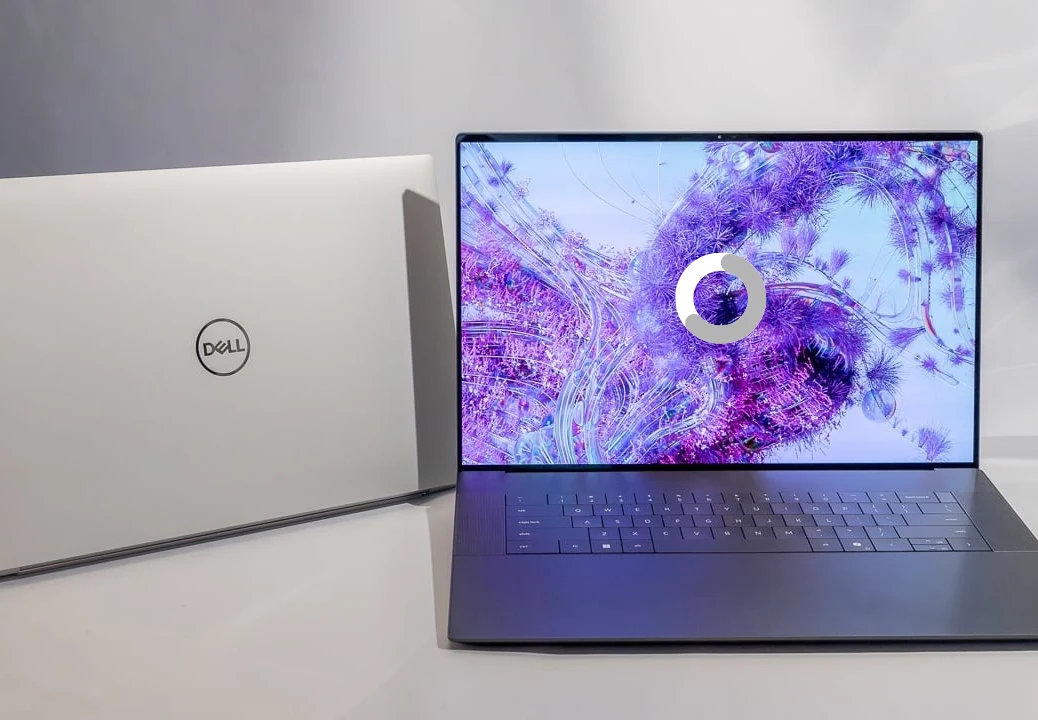
The Dell XPS 16 (2025–2026) is built for power combining Intel Core Ultra processors, RTX graphics, and a premium OLED display. On paper, it’s one of the best laptops for professionals and creators. But when it starts freezing randomly, even simple tasks can become frustrating.
If you’re dealing with Dell XPS 16 freezing issues, you’re not alone. Many users report system hangs during multitasking, gaming, or even basic browsing. The good news is most of these problems can be fixed without replacing your laptop.
This guide breaks down the real causes, step-by-step fixes, and practical tips to keep your XPS 16 running smoothly.
Why Your Dell XPS 16 Freezes
Freezing usually isn’t caused by just one issue it’s often a mix of software, heat, and hardware limitations.
Here are the most common reasons:
Overheating and Thermal Throttling
The XPS 16 has a slim design, which means heat builds up quickly during heavy tasks like editing or gaming. When temperatures rise, the system slows down or freezes to protect internal components.
Software Conflicts and Bugs
Outdated Windows versions, driver mismatches, or background apps can cause system instability and freezing.
Insufficient RAM or Storage Issues
If you’re running heavy apps with limited RAM (16GB baseline), your system may struggle. A slow or failing SSD can also cause random freezes.
Dust and Airflow Problems
Dust buildup blocks vents and reduces cooling efficiency, leading to overheating and performance drops.
BIOS or Firmware Bugs
Some early XPS 16 models reported freezing due to BIOS instability or firmware-related issues.
Dell XPS 16 Freezing During Gaming
If your Dell XPS 16 freezes while gaming, the issue is usually performance-related.
Common triggers include:
- GPU overheating under high load
- Background apps like Discord or overlays interfering
- High graphics settings pushing hardware limits
- Poor airflow during long gaming sessions
Quick Fix
Lower graphics settings, close background apps, and use a cooling pad. This alone can reduce freezing significantly.
Dell XPS 16 Freezing During Work or Multitasking
For professionals, freezes often happen during productivity tasks.
Typical causes:
- Too many browser tabs open
- Heavy apps like Adobe Premiere Pro or AutoCAD
- Cloud syncing tools running in the background
- Power-saving mode limiting performance
Quick Fix
Switch to balanced/high performance mode and close unnecessary apps.
How to Fix Dell XPS 16 Freezing Issues (Step-by-Step)
Let’s go through practical solutions you can apply right away.
1. Restart and Update Your System
Start simple:
- Restart your laptop
- Update Windows (Settings → Windows Update)
- Update GPU drivers (NVIDIA/Intel)
- Install latest BIOS update from Dell
Why this works: Many freezing issues are caused by outdated software or temporary glitches.
2. Reduce Startup and Background Apps
Too many background processes can overload your system.
- Open Task Manager (Ctrl + Shift + Esc)
- Disable unnecessary startup apps
- Close apps consuming high CPU or RAM
Result: Faster performance and fewer system hangs.
3. Check for Overheating
Heat is one of the biggest causes of freezing.
- Use tools like HWMonitor or Core Temp
- Keep temps below 85°C under load
- Use your laptop on a flat surface
- Clean vents regularly
Simple tip: Even lifting the laptop slightly improves airflow.
4. Clean Dust and Improve Airflow
Dust buildup can quietly reduce performance over time.
- Use compressed air to clean vents
- Avoid using laptops on beds or couches
- Consider a cooling pad for heavy usage
If your laptop hasn’t been cleaned in a year, internal cleaning can make a noticeable difference.
5. Scan for Malware
Malware can cause lag, freezing, and unusual behavior.
- Run Windows Defender full scan
- Use Malwarebytes for deeper scanning
- Remove suspicious apps or extensions
6. Upgrade RAM or SSD
If your system still freezes, hardware might be the bottleneck.
- Upgrade RAM to 32GB for heavy workloads
- Replace or upgrade SSD for faster performance
This is one of the most effective long-term fixes.
7. Reset Windows (If Needed)
If nothing works, a system reset can clear deep software issues.
- Go to Settings → Recovery → Reset this PC
- Choose “Keep my files”
This removes software conflicts without deleting personal data.
How to Prevent Dell XPS 16 Freezing Issues
Once your system is stable, these habits will help keep it that way:
- Keep software and drivers updated
- Avoid running too many heavy apps at once
- Clean vents every few months
- Monitor temperatures during gaming or editing
- Use a cooling pad if needed
Small maintenance steps can prevent major issues later.
When to Get Professional Help
If your Dell XPS 16 still freezes after trying these fixes, it may be a deeper hardware issue like:
- Faulty RAM
- SSD failure
- Cooling system problems
- Motherboard issues
In that case, it’s better to get a proper diagnosis instead of guessing.
A professional laptop repair in Dubai service like Milaaj can quickly identify the root cause and fix it without unnecessary replacements.
FAQs: Dell XPS 16 Freezing Issues
Why does my Dell XPS 16 keep freezing randomly?
Usually due to overheating, outdated drivers, or too many background processes running at once.
Can overheating cause laptop freezing?
Yes. When temperatures get too high, the system slows down or freezes to prevent damage.
How do I fix Dell XPS 16 freezing while gaming?
Lower graphics settings, update drivers, close background apps, and improve cooling.
Is 16GB RAM enough for XPS 16 in 2026?
For basic use yes, but for heavy multitasking or creative work, 32GB is recommended.
When should I repair instead of troubleshoot?
If freezing continues after updates, cleaning, and resets, it likely needs professional repair.
Final Thoughts
Dell XPS 16 freezing issues can be frustrating, especially when you rely on your laptop daily. But in most cases, the problem comes down to heat, software conflicts, or hardware limits and all of these are fixable.
Start with simple steps like updates and cleaning, then move to deeper fixes if needed. And if your laptop still isn’t performing the way it should, getting expert help can save time and prevent further damage.
If you need a quick check or upgrade, you can explore laptop repair in Dubai services to get your XPS 16 running smoothly again. And if repairs don’t feel worth it, you can also sell your laptop in Dubai and upgrade to a newer, better-performing device without the hassle.
📍 Visit Any Milaaj Branch in Dubai
🔹 Bur Dubai
Milaaj Mobile and Laptop Repair Dubai
📞 055 258 8477
🔗 Google Maps
🔹 Al Barsha
Milaaj Mobiles and Laptop Repair Al Barsha
📞 052 596 2846
🔗 Google Maps
🔹 Al Barsha 3
Milaaj Mobiles , Laptops and Watches Repair Service
📞 052 3405 814
🔗 Google Maps
🔹 Al Nuaimiya
Milaaj Mobiles and Laptops Ajman
📞 055 788 9654
🔗 Google Maps
Email: support@milaaj.com
Operating Hours: Monday Sunday




Leave a Reply