

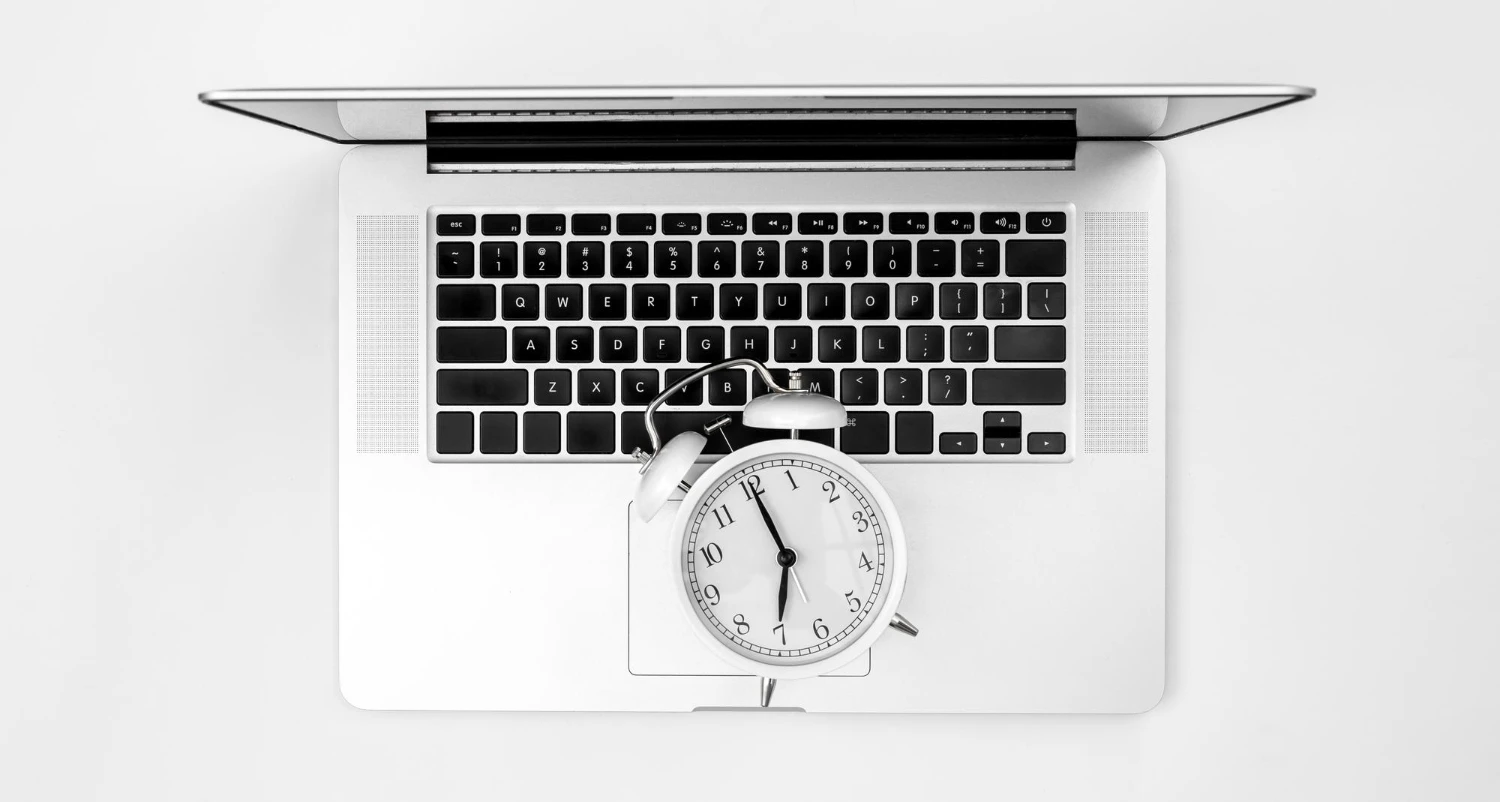
Is your laptop taking forever to load, freezing during simple tasks, or struggling with basic browsing? You’re not alone. A slow laptop can quickly become frustrating, especially when you rely on it for work, study, or daily use.
The good news is you don’t always need a new device. In most cases, you can fix a slow laptop with a few practical steps. Whether you’re using an HP, Dell, Lenovo, or MacBook, this guide walks you through simple, effective ways to improve laptop performance and speed it up.
If your laptop still feels sluggish after trying these, professional laptop repair in Dubai services like Milaaj can help diagnose deeper issues.
Why Is My Laptop Running Slow?
Before jumping into fixes, it helps to understand what’s actually slowing things down. Most laptops don’t become slow overnight it’s usually a combination of small issues building up over time.
Common causes include:
- Low storage space affecting system performance
- Too many background apps running at once
- Outdated operating system or drivers
- Malware or unwanted software
- Insufficient RAM for modern apps
- Overheating, especially in warmer environments
If your laptop is slow to start, freezes often, or lags while multitasking, one or more of these is likely the reason.
1. Free Up Disk Space for Faster Performance
One of the easiest ways to fix a slow laptop is clearing storage. When your drive is almost full, your system struggles to run smoothly.
Start with:
- Deleting unused files, downloads, and duplicate media
- Emptying Recycle Bin or Trash
- Uninstalling apps you no longer use
- Moving large files to cloud storage like Google Drive or iCloud
Why this matters: Keeping at least 20–25% free space helps your laptop run faster and handle multitasking better.
2. Update Software and Operating System
Outdated software is a common reason laptops feel slow or unresponsive. Updates don’t just add features they fix bugs and improve performance.
Here’s what to do:
- Update your OS (Windows Update / macOS Software Update)
- Update apps through Microsoft Store or App Store
- Install latest drivers for graphics, chipset, and network
Result: Better speed, improved security, and smoother overall performance.
3. Reduce Startup and Background Programs
If your laptop takes too long to start, too many apps are launching in the background.
You can fix this quickly:
Windows:
- Open Task Manager → Startup tab
- Disable unnecessary apps
Mac:
- System Settings → Login Items
- Remove unwanted startup apps
Also, close apps running in the background that you’re not using.
Quick win: This alone can make your laptop feel noticeably faster within minutes.
4. Scan for Malware and Viruses
Viruses and hidden malware can quietly slow down your system while consuming resources.
To fix this:
- Run a full scan using Windows Defender or antivirus software
- Remove suspicious apps or extensions
- Enable real-time protection
Why it matters: A clean system not only runs faster but also protects your data and privacy.
5. Upgrade Hardware for Long-Term Speed
If your laptop is still slow after all software fixes, it’s likely a hardware limitation.
The most effective upgrades:
- Upgrade RAM (8GB → 16GB) for smoother multitasking
- Switch from HDD to SSD for faster boot and loading times
- Internal cleaning & thermal servicing to prevent overheating
Even an older laptop can feel like new after an SSD upgrade.
If you’re unsure what upgrade is right, a quick check at a laptop repair center can help.
How Environment Affects Laptop Performance
Many people ignore this, but your surroundings play a big role in laptop speed.
- Heat can cause thermal throttling, slowing performance
- Dust buildup blocks airflow and increases temperature
- Using laptops on beds or couches traps heat
Simple habits like using a flat surface, cleaning vents, and avoiding heat can prevent slowdowns.
When You Should Consider Professional Help
If your laptop is still slow after trying everything above, it could be:
- Failing hard drive or SSD
- Faulty RAM
- Overheating hardware issues
- Software corruption
That’s where professional diagnostics help.
A service like Milaaj can quickly identify the root cause and suggest the right fix, whether it’s a repair, upgrade, or replacement.
FAQs About Fixing a Slow Laptop
How do I fix a slow laptop quickly?
Start by clearing storage, closing background apps, and restarting your system. These steps often give an instant speed boost.
Why is my laptop slow even after deleting files?
It could be due to low RAM, outdated software, or background processes still consuming resources.
Does upgrading to SSD really improve speed?
Yes, switching to an SSD is one of the biggest performance upgrades. It significantly reduces boot and loading times.
How much RAM do I need for smooth performance in 2026?
At least 8GB is recommended, but 16GB is ideal for multitasking and modern applications.
Can overheating make my laptop slow?
Yes. When a laptop overheats, it reduces performance to protect internal components.
Conclusion: Speed Up Your Laptop Without Replacing It
A slow laptop doesn’t mean you need to buy a new one. In most cases, a few simple changes like cleaning storage, updating software, and managing background apps can make a big difference.
And if your device still struggles, it might just need a small upgrade or professional repair to get back to full speed.
If you’re looking for expert help, you can explore laptop repair in Dubai for diagnostics, upgrades, or performance fixes. And if upgrading makes more sense, you can also consider options to sell your old laptop and switch to something faster.
📍 Visit Any Milaaj Branch in Dubai
🔹 Bur Dubai
Milaaj Mobile and Laptop Repair Dubai
📞 055 258 8477
🔗 Google Maps
🔹 Al Barsha
Milaaj Mobiles and Laptop Repair Al Barsha
📞 052 596 2846
🔗 Google Maps
🔹 Al Barsha 3
Milaaj Mobiles , Laptops and Watches Repair Service
📞 052 3405 814
🔗 Google Maps
🔹 Al Nuaimiya
Milaaj Mobiles and Laptops Ajman
📞 055 788 9654
🔗 Google Maps
Email: support@milaaj.com
Operating Hours: Monday Sunday


Leave a Reply