

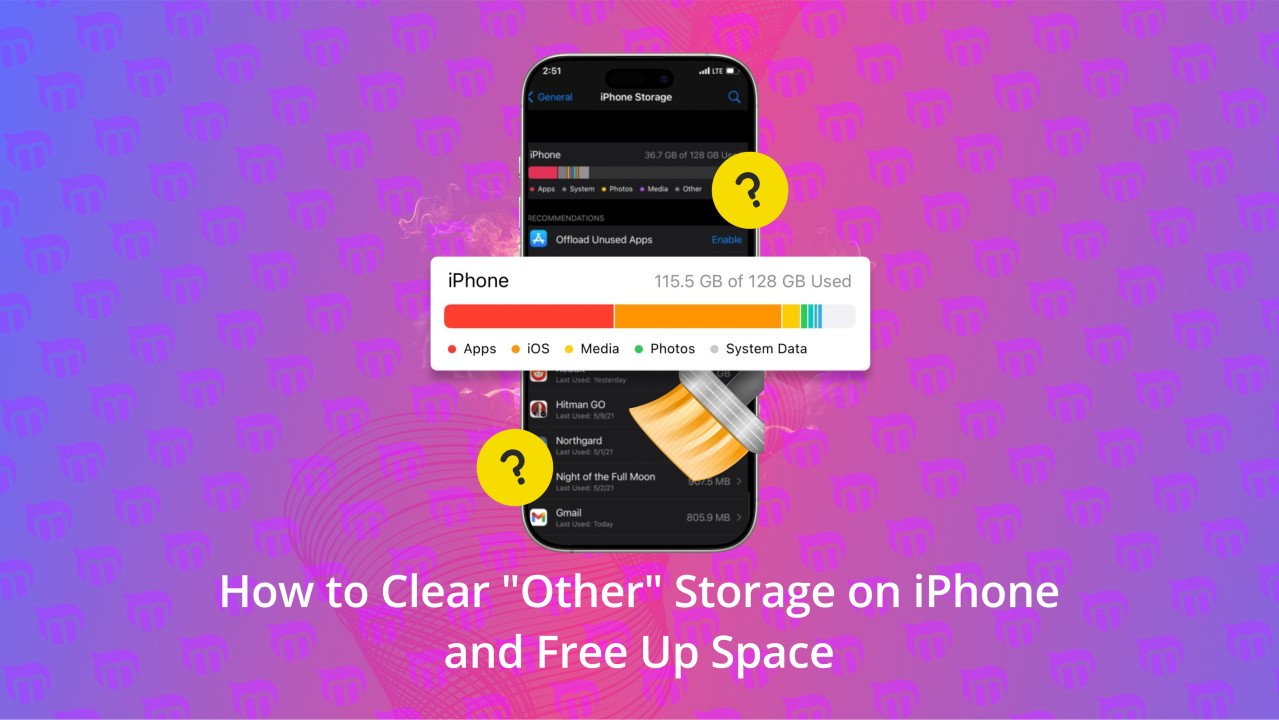
Apple devices are known for their smooth performance and reliability. However, many users eventually face a frustrating issue of storage being full something that slow down devices, block updates, and interrupt daily tasks. Fixing Apple storage full problems is essential. Whether you use an iPhone, iPad, or MacBook, running out of storage can quickly turn a powerful device into a sluggish one, as a result affecting overall usability.
Fortunately, fixing Apple storage full problems without data loss is absolutely possible. With the right approach, along with expert guidance and professional support, you can safely free up space while protecting your valuable photos, files, and apps. Therefore, this detailed guide explains why Apple storage fills up, more importantly what mistakes to avoid, and finally which proven solutions actually work.
Why Apple Storage Full Problems Occur So Often
Although Apple devices are optimized for efficiency, storage issues still happen. Over time, several hidden factors contribute to Apple storage filling up faster than expected.
Common Causes of Apple Storage Full Issues
- Accumulation of system data and cache files
- iOS or macOS update leftovers
- Duplicate photos and videos
- App data growing silently in the background
- iCloud sync errors storing files locally
- Large message attachments and backups
As a result, users suddenly see warnings even when they believe they have enough space.
Warning Signs You Shouldn’t Ignore
Before storage completely fills up, Apple devices usually show subtle signs. Therefore, recognizing these early warnings can prevent data loss.
Symptoms of Apple Storage Full Problems
- Frequent “Storage Almost Full” alerts
- Apps crashing or failing to open
- iOS or macOS updates not installing
- Camera unable to save photos or videos
- Slower device performance and lag
- iCloud sync interruptions
If ignored, these issues may worsen and risk data corruption.
Mistakes to Avoid When Apple Storage Is Full
Many users panic and delete files randomly. However, this approach often causes more harm than good.
What NOT to Do
- Avoid factory resets without backup
- Do not delete system files manually
- Don’t rely on unverified cleaning apps
- Avoid interrupting storage cleanup processes
- Never ignore repeated storage warnings
Instead, safe and structured solutions protect both storage and data.
Step-by-Step Ways to Fix Apple Storage Full Problems Without Data Loss
Now, as we move forward, let’s clearly explore practical and proven methods that effectively resolve Apple storage issues safely and efficiently, ensuring long-term performance and data protection.
1. Analyze Storage Usage Properly
First and foremost, understanding what occupies your storage is absolutely essential, because it helps you identify issues early; as a result, you can take the right corrective steps more efficiently and effectively.
- Go to Settings > General > iPhone Storage (or macOS Storage Management)
- Identify apps consuming excessive space
- Look for unusually large “System Data”
This step ensures targeted cleanup rather than risky guesswork.
2. Clear App Cache and Temporary Files Safely
Although Apple limits cache access, some apps allow internal cleanup.
- Clear browser cache from Safari or Chrome
- Reinstall heavy apps to remove accumulated data
- Delete offline downloads from streaming apps
As a result, you can free space without deleting personal files.
3. Optimize Photos and Videos Without Losing Memories
Photos and videos are often the biggest storage consumers.
- Enable Optimize iPhone Storage
- Move media to iCloud or external storage
- Remove duplicate or blurry images
- Export large videos safely before deletion
Thus, you preserve memories while freeing valuable space.
4. Manage Messages and Attachments
Messages silently store images, videos, and documents.
- Delete old conversations with large attachments
- Set messages to auto-delete after 30 days
- Remove unnecessary voice notes and media
This simple step often recovers several gigabytes instantly.
5. Remove iOS or macOS Update Residual Files
Incomplete updates leave hidden storage debris.
- Check for failed updates
- Remove old update files safely
- Restart device to refresh storage indexing
Therefore, system storage becomes cleaner and more accurate.
6. Fix iCloud Sync Errors That Consume Local Storage
Sometimes, iCloud fails to upload files properly.
- Re-enable iCloud syncing
- Ensure stable Wi-Fi connection
- Manually upload pending files
- Sign out and back into iCloud (with backup)
This prevents unnecessary local duplication.
When DIY Storage Fixes Are Not Enough
Although basic cleanup helps, some Apple storage full problems persist due to deeper issues.
Advanced Storage Problems Include:
- Corrupted system data
- Software bugs after updates
- Storage misreporting errors
- Logical file system damage
At this stage, professional repair becomes the safest solution.
Professional Apple Storage Solutions That Protect Data
As a result, expert technicians use specialized tools to clean storage safely, thereby ensuring user data remains completely unaffected.
What Professionals Do Differently
- Diagnose system-level storage issues
- Remove hidden junk files safely
- Repair software glitches without resets
- Optimize storage structure
- Preserve apps, photos, and documents
Therefore, professional service prevents accidental data loss.
Why Choose Milaaj Mobile Repair for Apple Storage Issues
When Apple storage problems become overwhelming, Milaaj mobiles and laptop repair Al Barsha offers trusted, professional solutions.
Benefits of Choosing Milaaj
- Low-cost Apple storage repair
- Fast turnaround time
- Convenient walk-in service
- High-quality tools and software
- No data loss guarantee
- Experienced Apple technicians
Moreover, customers receive transparent diagnostics and honest recommendations.
How Milaaj Fixes Apple Storage Full Problems Safely
Milaaj follows a structured, data-safe repair process:
- Complete storage diagnostics
- Secure data integrity check
- Removal of corrupted or hidden files
- System optimization
- Final performance testing
As a result, devices regain space, speed, and stability.
Prevent Apple Storage Full Problems in the Future
Once storage is fixed, prevention is key.
Smart Storage Maintenance Tips
- Monitor storage monthly
- Enable optimized storage settings
- Keep iOS/macOS updated
- Clean app data regularly
- Use cloud storage wisely
- Avoid unnecessary apps
Therefore, long-term storage health remains stable.
FAQs about Fixing Apple storage full problems
Can Apple storage be fixed without deleting data?
Yes. With professional and guided methods, you can safely fix Apple storage full problems without data loss, ensuring your files remain protected while storage issues are resolved effectively.
Why does system data take so much space?
System data includes cache, logs, and update files that accumulate over time.
Is factory reset the only solution?
No. Factory reset should be the last option and is often unnecessary.
Do storage cleaning apps really work?
Many third-party apps are unsafe. Expert repair offers better results.
How long does professional storage repair take?
In most cases, storage optimization services are completed within a few hours, therefore minimizing downtime and restoring device performance quickly.
Final Thoughts: Fixing Apple storage full problems
In conclusion, fixing Apple storage full problems without data loss is entirely achievable when you apply the right knowledge and seek expert support. Instead of risking personal files through random deletions or unsafe apps, choosing structured and proven solutions ensures both data safety and optimal performance.
Moreover, professional repair services deliver not only speed and convenience but also affordability and long-lasting results. With timely action, along with proper storage maintenance, your Apple device can once again regain its full potential smoothly, safely, and without losing what matters most.
Other Services:
- Need other iPhone repairs? Check out Milaaj’s iPhone repair services in Dubai.
- Looking to upgrade? Learn about selling your used iPhone in Dubai.
- Data loss concerns? Visit Milaaj’s data recovery services.
- For Apple users, check Apple trade-in options in Dubai.
📍 Visit Any Milaaj Branch in Dubai
🔹 Bur Dubai
Milaaj Mobile and Laptop Repair Dubai
📞 055 258 8477
🔗 Google Maps
🔹 Al Barsha
Milaaj Mobiles and Laptop Repair Al Barsha
📞 052 596 2846
🔗 Google Maps
🔹 Al Barsha 3
Milaaj Mobiles and Gaming Store
📞 052 3405 814
🔗 Google Maps
🔹 Al Nuaimiya
Milaaj Mobiles and Laptops Ajman
📞 055 788 9654
🔗 Google Maps
Shop Locations: Al Barsha | Bur Dubai | Reef Mall, Salah Al Din | Al Nuaimiya, Ajman
Email: support@milaaj.com
Operating Hours: Monday – Sunday
Leave a Reply