

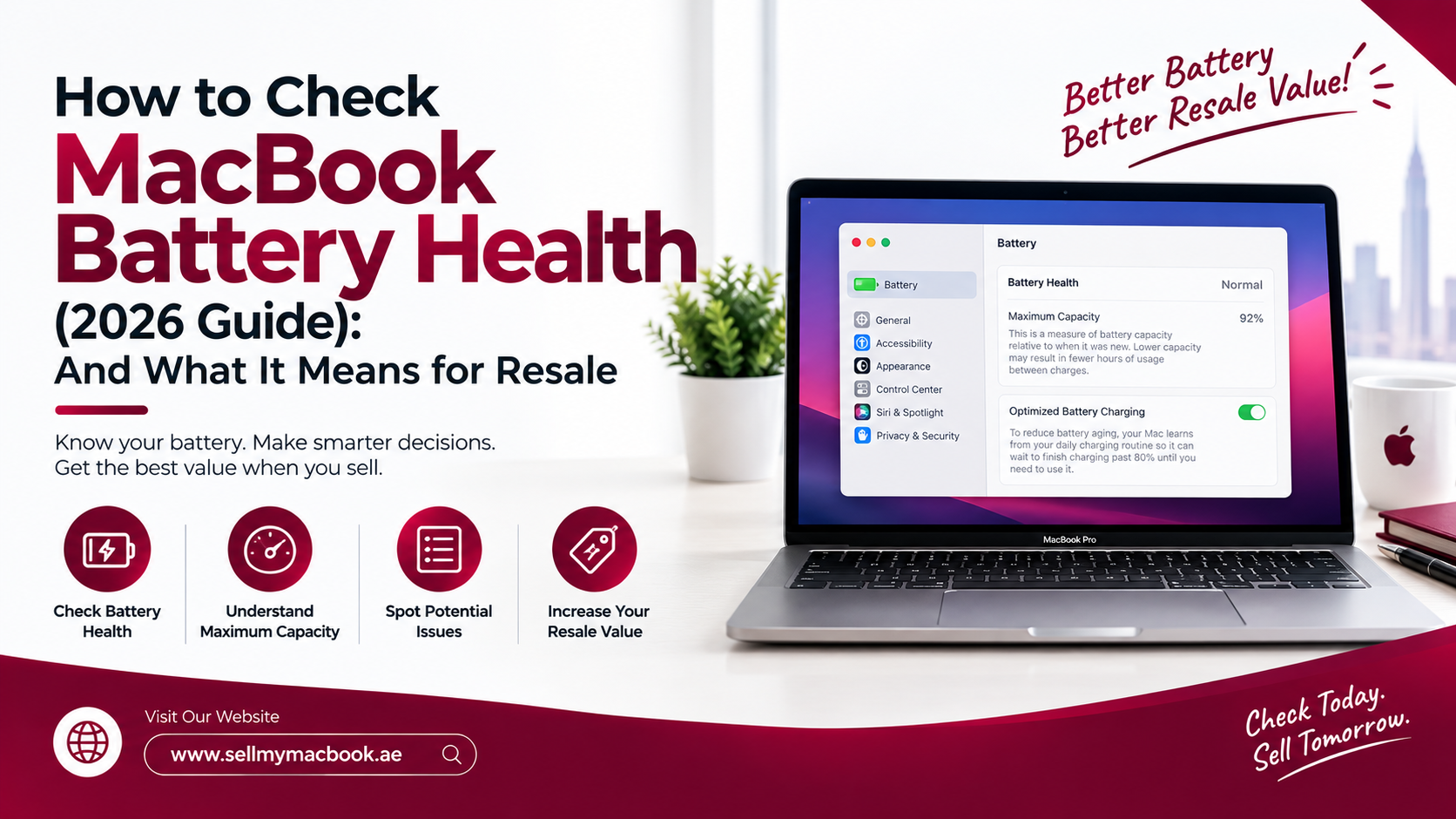
Check your used MacBook’s battery health under Apple menu → System Settings → Battery → Battery Health, where macOS shows a Normal, Service Recommended, or Replace Soon status and, on most current models, a percentage of original capacity. Anything above 80% is considered healthy; below that, expect shorter runtime and, if you’re planning to sell, a lower resale offer.
Key Takeaways
- Battery health lives in System Settings, not About This Mac — it takes under 30 seconds to check.
- 80% is the informal cutoff buyers, repair shops, and resale desks use to separate “healthy” from “needs attention.”
- Cycle count matters alongside percentage — a battery can show a decent percentage but already be near the end of its rated cycle life.
- You can’t improve battery health before selling (short of a paid replacement), so check it early to set realistic price expectations.
- A low battery health reading doesn’t mean your MacBook is worthless — it just moves it into a different resale tier.
How to Check Battery Health on a Mac, Step by Step
The process is the same across MacBook Air and MacBook Pro models running current macOS versions:
- Click the Apple menu in the top-left corner of your screen.
- Select System Settings.
- Scroll down and click Battery in the sidebar.
- Click Battery Health (sometimes shown as a small arrow or “i” icon next to the battery section).
- Read the status (Normal, Service Recommended, or Replace Soon) and, where shown, the Maximum Capacity percentage and cycle count.
On older macOS versions, the same information lives under System Preferences → Battery → Battery Health, or via holding Option while clicking the Apple menu → System Information → Power, which shows cycle count directly for models where the Battery Settings pane doesn’t display it.
If you’re checking a MacBook you’re about to sell, take a screenshot of this screen — most buyers, including resale desks, will ask for it alongside photos of the machine itself, since it’s the fastest way to confirm condition without a physical inspection first.
What the Battery Health Status and Percentage Mean
| Status / Reading | What It Means | Effect on Resale |
| Normal, 90%+ | Battery is performing close to original capacity | Full price tier |
| Normal, 80–89% | Slight capacity loss, normal for the age of the machine | Minor adjustment |
| Service Recommended | Battery has degraded enough that Apple flags it, typically well under 80% | Noticeable price drop |
| Replace Soon / Replace Now | Battery is significantly degraded and may affect performance or shutdown behavior | Largest price drop, may move to “for parts” pricing on some machines |
The percentage is the more precise number, but the status label is what most non-technical buyers actually look at first — worth mentioning both if you’re describing your MacBook to a buyer or in a listing.
What Is Cycle Count, and Why Does It Matter Too?
One charge cycle equals using 100% of your battery’s capacity, whether that’s one full charge from 0–100% or several partial charges that add up to 100%. Apple rates MacBook batteries for roughly 1,000 cycles before capacity is expected to drop meaningfully, though this varies by model.
Cycle count matters because it’s possible for a battery to show a reasonable percentage while already being close to its rated cycle limit — meaning the drop-off is coming soon, even if it hasn’t shown up in the percentage yet. A MacBook with 90% health but 950 cycles is a different proposition than one with 90% health and 300 cycles, even though the percentage reads the same.
Most buyers won’t ask for cycle count specifically, but including it alongside your battery health percentage — especially if it’s low relative to the machine’s age — is one more thing that builds trust and speeds up getting a firm, unrevised quote.
Should You Replace the Battery, or Just Sell As-Is?
A battery replacement through Apple typically costs a meaningful chunk of what an older MacBook is worth on resale, which means the math often doesn’t work in your favor — you’re spending money to move from “Service Recommended” to “Normal,” but a used MacBook rarely gains back the full cost of the repair in its resale price.
As a rough guide:
- If the MacBook is otherwise in great shape and you plan to keep using it, replacing a degraded battery is worth it for your own day-to-day use.
- If you’re selling, it’s almost always better to sell as-is at the appropriate lower tier than to pay for a replacement first — the resale market already prices in battery condition, so you’re not typically leaving money on the table by skipping the repair.
Either way, the fastest way to know where you stand is to check your actual reading and get a same-day quote based on your MacBook’s real condition, rather than guessing at what a lower battery health percentage is worth.
FAQ
Where exactly do I find battery health on a Mac? Apple menu → System Settings → Battery → Battery Health. It takes under 30 seconds and needs no extra software.
What’s a “good” battery health percentage? 90% or above is excellent, 80–89% is still healthy. Below 80% is when most buyers and repair shops start treating it as a real deduction.
Does Apple’s “Service Recommended” label mean my MacBook is broken? No. It means the battery has degraded past a threshold Apple flags — the MacBook still works normally, but battery life and, in some cases, peak performance may be reduced.
Can I reset or improve my battery health reading? No, not through software. The only way to change the reading is a physical battery replacement, which resets capacity but not the underlying wear pattern of the rest of the machine.
Does low battery health affect the screen, keyboard, or performance too? Not directly — they’re graded separately. A MacBook can have excellent battery health with a cracked screen, or poor battery health with a flawless screen and keyboard. Buyers assess each factor on its own.
The Bottom Line
Checking battery health takes under a minute and tells you more about your MacBook’s real condition, and its likely resale tier, than almost anything else you can check yourself. Normal and above 80% keeps you in the strongest price bracket; below that, you’re still sellable, just in a different tier. Either way, sell your old MacBook once you know your number, rather than guessing.
Other Services:
- Need other AirPods repairs? Check out Milaaj’s macbook repair services in Dubai.
- Looking to upgrade? Learn about selling your used device in Dubai.
- For Apple users, check Apple trade-in options in Dubai.
📍 Visit Any Milaaj Branch in Dubai
🔹 Bur Dubai
Milaaj Mobile and Laptop Repair Dubai
📞 055 258 8477
🔗 Google Maps
🔹 Al Barsha
Milaaj Mobiles and Laptop Repair Al Barsha
📞 052 596 2846
🔗 Google Maps
🔹 Al Barsha 3
Milaaj Mobiles and Gaming Store
📞 052 3405 814
🔗 Google Maps
🔹 Al Nuaimiya
Milaaj Mobiles and Laptops Ajman
📞 055 788 9654
🔗 Google Maps
Shop Locations: Al Barsha | Bur Dubai | Reef Mall, Salah Al Din | Al Nuaimiya, Ajman
Email: support@milaaj.com
Operating Hours: Monday – Sunday



Leave a Reply