

Quick Answer
First test with an external keyboard and the Keyboard Viewer to see whether the Mac registers your key presses. Then turn off Slow Keys and Mouse Keys, check your input source, restart and update macOS. If whole rows of keys stay dead, or problems continue at the login screen, the keyboard needs repair.
Key Takeaways
- Three quick tests tell you whether it’s software or hardware.
- Slow Keys, Mouse Keys and the wrong input source can make a healthy keyboard look dead.
- Rows or columns of dead keys usually mean hardware.
- On this Mac the keyboard is part of the top case, so repairs are more involved than a single key swap.
- SMC and NVRAM resets don’t apply to Apple silicon.
How Is the MacBook Air M2 Keyboard Built?
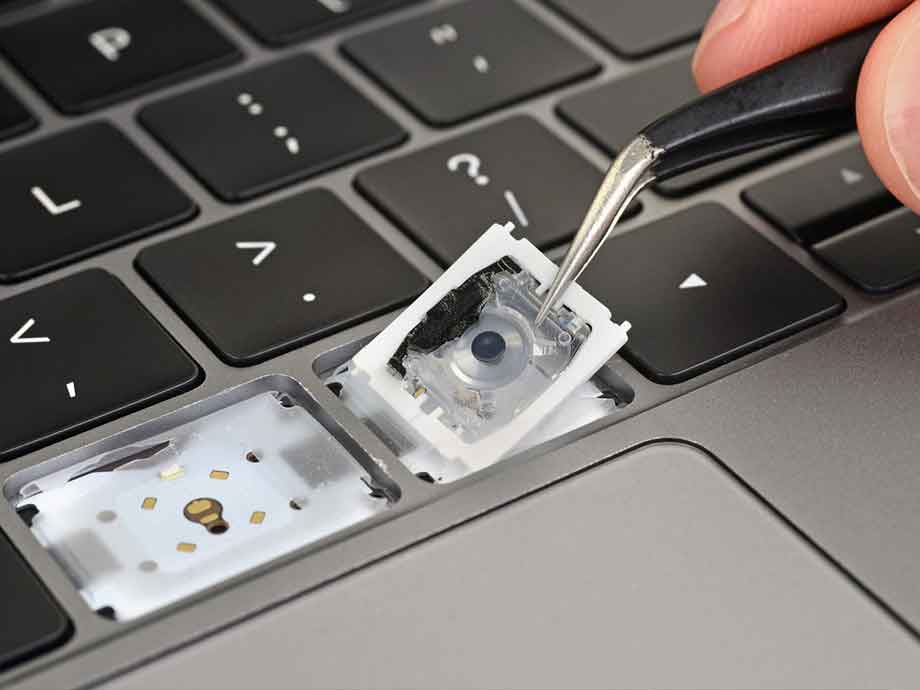
The M2 Air uses a Magic Keyboard with scissor-style key switches, and it isn’t a separate module you can pop out. Apple integrates the keyboard into the top case, the aluminium shell that also holds the trackpad, battery and speakers.
That matters for two reasons:
- Replacing “just the keyboard” is a bigger job than it sounds, often meaning work on the whole top case assembly.
- Other parts can be affected together. If your trackpad also acts up, see our guide to a MacBook Air trackpad that won’t click, as a swollen battery can affect both.
Why Is My MacBook Air M2 Keyboard Not Working?
Most MacBook Air M2 keyboard problems come from settings (Slow Keys, wrong input source), software glitches or debris. Entire rows or columns of dead keys, or problems that continue at the login screen and in Recovery, point to hardware. Test with an external keyboard and Keyboard Viewer to tell which one you have.
What Are You Seeing?
| Symptom | Likely cause |
|---|---|
| Keys respond slowly or need a long press | Slow Keys is on |
| Wrong characters appear | Input source or keyboard layout |
| Numbers on the right side move the pointer | Mouse Keys is on |
| One key stuck, double-typing or dead | Debris, worn switch or liquid residue |
| A row or column of keys dead | Hardware (cable or keyboard fault) |
| Keys work at login but not after | Software, account or settings |
| Everything dead, even at the login screen | Hardware or serious software fault |
| Started after a spill | Liquid damage |
3 Quick Tests Before Anything Else
1. The external keyboard test. Connect a USB-C or Bluetooth keyboard. If it works normally, the Mac is fine and the built-in keyboard is the issue. Apple Community experts note that dead keys following a row or column are usually hardware faults, and that an external keyboard is the practical workaround.
2. The Keyboard Viewer test. Search Spotlight for “Keyboard Viewer” and press keys while watching the on-screen diagram. If a key lights up on screen but doesn’t type, the Mac sees it and software is the problem. If it doesn’t light up, the key isn’t registering.
3. The login screen and Recovery test. Restart and try the keys at the login screen, then in Recovery (hold the power button, choose Options). In one Apple Community case, keys on an M2 Air failed after logging in but worked on the password screen, which pointed to a software cause rather than hardware. Keys that fail everywhere point to hardware.
10 Fixes for a MacBook Air M2 Keyboard That Isn’t Working
1. Restart your Mac
Do a full restart from the Apple menu, then test again. If the keyboard is too dead to log in, use an external keyboard or the on-screen keyboard.
2. Turn off Slow Keys, Sticky Keys and Mouse Keys
Go to System Settings > Accessibility > Keyboard and turn off Slow Keys and Sticky Keys. Slow Keys adds a delay that can stretch long enough to convince you the keyboard is dead when it’s simply lagging. Then open Accessibility > Pointer Control and make sure Mouse Keys is off.
3. Check your input source and function key settings
In System Settings > Keyboard > Text Input > Input Sources, make sure the correct layout is selected and remove any you don’t use. If only the top row misbehaves, go to Keyboard Shortcuts > Function Keys and check how the F-keys are set.
4. Disconnect other keyboards and Bluetooth devices
A paired Bluetooth keyboard can change how macOS treats key mapping. One M2 Air owner found that pairing a Bluetooth keyboard disrupted some built-in keys until the layout was reset. Turn Bluetooth off briefly and test.
5. Clean the keys carefully
Shut the Mac down. Use a soft brush or a short burst of compressed air, holding the can upright and the Mac tilted so debris falls out. Don’t shake the Mac, pry off keycaps, or use liquids on the keyboard. The scissor clips are fragile.
6. Update macOS
Go to System Settings > General > Software Update. If it won’t install, see our guide to a MacBook that won’t update macOS.
7. Test in Safe Mode
Shut down, hold the power button until startup options appear, select your disk, hold Shift and click Continue in Safe Mode. If the keys work there, a third-party app or extension is interfering.
8. Try a new user account
Create a test account in System Settings > Users & Groups. If the keyboard works there, the cause is something in your main account, such as a preference or login item.
9. Run Apple Diagnostics
Shut down, hold the power button until startup options appear, then press Command-D. Write down any reference code it displays.
10. Reinstall macOS from Recovery
As a last software step, reinstall macOS from Recovery, which keeps your files. Back up first. If keys still fail, software isn’t the cause.
How Can You Keep Working in the Meantime?
- Plug in an external keyboard, wired or Bluetooth
- Turn on the Accessibility Keyboard in System Settings > Accessibility > Keyboard
- Use dictation for text, and Keyboard Viewer to click individual keys
Which Fixes Don’t Apply to the M2 Air?
- SMC reset. Apple silicon Macs have no manual SMC reset. A full shutdown for about 30 seconds does the equivalent.
- NVRAM key combinations. That reset is for Intel Macs.
- Apple’s Keyboard Service Program. It covers 2015 to 2019 MacBook models with butterfly keyboards, not the M2 Air.
What If You Spilled Something?
Power the Mac off immediately and don’t turn it back on. Sticky drinks and salty liquids damage electronics quickly, and keys can fail days later as residue spreads. Read our page on MacBook water damage repair and get it inspected soon.
When Does the Keyboard Need Repair?
Repair is the answer if:
- Rows or columns of keys are dead
- Keys fail at the login screen and in Recovery
- The external keyboard works but the built-in one doesn’t
- Apple Diagnostics reports a fault
- Keys stay stuck or double-type after careful cleaning
- It started after a spill, drop or pressure on the lid
What Does MacBook Air M2 Keyboard Repair Involve?
- Diagnosis: confirming it’s the keyboard, not software or the board
- A clear finding: which keys or sections are affected, and why
- A fixed quote: before any work starts
- Repair: replacing the keyboard or top case assembly, or a keycap if only that is damaged
- Testing: every key, backlight, Touch ID and the trackpad
- Handover: with an invoice and warranty
Because the top case also holds the battery and trackpad, a proper technician checks those during the repair. Your files stay on the SSD and aren’t touched, but back up first if you can.
If you’d like a diagnosis, our MacBook keyboard repair in Dubai starts with identifying exactly what’s failing. To compare shops, read how to find reliable MacBook repair services in Dubai.
What Affects the Cost?
- Which parts fail: a single keycap or the whole keyboard assembly
- Part type and warranty
- Extra damage: liquid residue, a bent case or battery issues
- Turnaround time
Ask for a fixed quote after diagnosis, and ask whether the battery and trackpad are included in the check.
How Can You Protect Your Keyboard?
- Keep drinks away from the Mac
- Never close the lid on earbuds, pens or camera covers
- Wipe the keys with a lint-free cloth, slightly damp at most
- Avoid heavy pressure on the lid or palm rests
- Use a padded sleeve in your bag
- Keep a backup so a repair never feels risky
FAQ: MacBook Air M2 Keyboard Not Working
Why are some keys on my MacBook Air M2 not working?
It could be Slow Keys, the wrong input source, debris, or a hardware fault. Test with Keyboard Viewer and an external keyboard to find out.
Can I replace a single key on a MacBook Air M2?
Sometimes a damaged keycap can be replaced, but a faulty key switch usually means replacing the keyboard assembly.
Do I need to reset the SMC on an M2 MacBook Air?
No. Apple silicon Macs have no manual SMC reset.
Why does my keyboard work at the login screen but not afterwards?
That points to a software or settings cause, such as an accessibility feature, a login item or an account setting.
How much does MacBook Air M2 keyboard repair cost in Dubai?
It depends on whether it’s a keycap, keyboard or top case. Ask for a fixed quote after diagnosis.
Get Your Keyboard Working Again
Most MacBook Air M2 keyboard problems aren’t as serious as they feel. Settings and software cause many of them, and the three quick tests tell you which you have. If it’s hardware, you’ll know what to ask a technician and what a fair repair looks like.
Message us on WhatsApp with what the keyboard does and whether an external keyboard works, and we’ll tell you the next step.
Other Services:
- Need other AirPods repairs? Check out Milaaj’s macbook repair services in Dubai.
- Looking to upgrade? Learn about selling your used MacBook in Dubai.
- For Apple users, check Apple trade-in options in Dubai.
📍 Visit Any Milaaj Branch in Dubai
🔹 Bur Dubai
Milaaj Mobile and Laptop Repair Dubai
📞 055 258 8477
🔗 Google Maps
🔹 Al Barsha
Milaaj Mobiles and Laptop Repair Al Barsha
📞 052 596 2846
🔗 Google Maps
🔹 Al Barsha 3
Milaaj Mobiles and Gaming Store
📞 052 3405 814
🔗 Google Maps
🔹 Al Nuaimiya
Milaaj Mobiles and Laptops Ajman
📞 055 788 9654
🔗 Google Maps
Shop Locations: Al Barsha | Bur Dubai | Reef Mall, Salah Al Din | Al Nuaimiya, Ajman
Email: support@milaaj.com
Operating Hours: Monday – Sunday


Leave a Reply