

Apple updates are designed to enhance performance, security, and stability. However, many users suddenly face a frustrating issue after updating MacBook storage full after iOS update warnings appearing without warning. As a result, MacBooks slow down, apps stop responding, and even basic tasks become difficult.
Although this situation feels alarming, the good news is that MacBook storage full after update problems are common and, more importantly, fixable. Therefore, understanding why storage fills up and applying the right solutions can restore performance quickly and safely. In this detailed guide, we explain the real causes, effective fixes, mistakes to avoid, and professional repair options that actually work.
Why MacBook Storage Gets Full After an iOS Update
First and foremost, Apple updates temporarily require extra space. During installation, macOS creates backup files, system caches, and temporary data. Consequently, users often experience MacBook storage full after update warnings immediately after upgrading.
Moreover, system data expands after updates. Logs, diagnostic reports, and cached files accumulate in the background. Over time, these hidden files consume significant storage without users realizing it.
Additionally, older files may not be optimized automatically. As a result, photos, videos, and unused applications continue occupying valuable space, worsening the storage issue.
Common Causes of MacBook Storage Full After Update
Understanding the root causes helps apply the right solution. The most frequent reasons include:
Temporary Update Files
During updates, macOS stores large temporary files. Although they are meant to delete automatically, they often remain, leading to MacBook storage full after update errors.
System Data Overload
System Data (formerly “Other Storage”) grows significantly after updates. This includes caches, logs, and leftover installation files.
App Cache Accumulation
Apps like browsers, editing software, and cloud services store large cache files that expand after updates.
Duplicate Files and Downloads
Repeated downloads and duplicated files often go unnoticed but quickly consume storage.
Outdated macOS Indexing
Sometimes, the system miscalculates available space after an update, falsely showing storage as full.
MacBook Storage Full After iOS Update: What NOT to Do
Before fixing the issue, it’s equally important to know what to avoid.
- Do not randomly delete system folders
- Avoid using untrusted cleanup software
- Never force shutdowns repeatedly
- Don’t ignore repeated storage warnings
Instead, follow structured and safe methods to prevent permanent system damage or data loss.
Effective Fixes for MacBook Storage Full After iOS Update
Now let’s explore proven solutions that actually resolve MacBook storage full after iOS update issues.
Restart and Recalculate Storage
Firstly, restart your MacBook. This allows macOS to recalculate storage usage correctly and clear minor system caches.
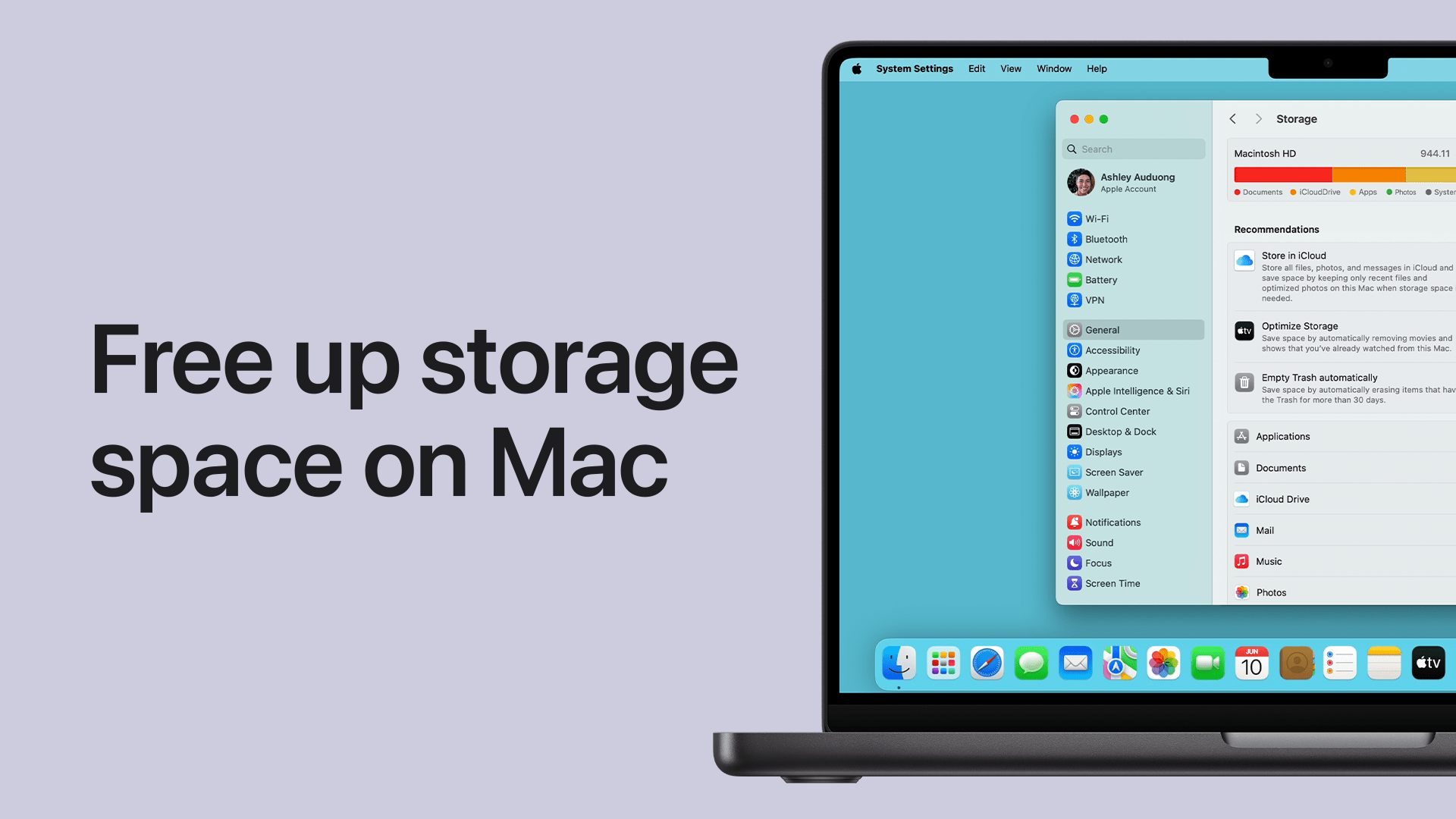
Use macOS Storage Management
Go to Apple Menu → System Settings → General → Storage. From here:
- Enable “Optimize Storage”
- Review large files
- Remove unused apps
- Empty the Trash
This step alone resolves many MacBook storage full after iOS update cases.
Clear System Cache Safely
Although macOS manages cache automatically, manual clearing helps:
- Finder → Go → Go to Folder
- Enter:
~/Library/Caches - Delete cache contents (not folders)
This reduces system data safely and effectively.
Advanced macOS Storage Optimization Techniques
When basic steps are not enough, advanced methods become necessary.
Remove Old iOS Backups
iPhone and iPad backups stored locally take massive space.
- Finder → iPhone → Manage Backups
- Delete old backups no longer needed
Delete Large Mail Attachments
Mail attachments often remain hidden in system folders. Removing them frees up significant space.
Optimize Photos and Videos
Enable iCloud optimization for Photos so full-resolution files stay in the cloud instead of local storage.
Remove Language Files and Logs
Unused language packs and diagnostic logs accumulate after updates and can be safely removed by professionals.
Why MacBook Storage Full After iOS Update Slows Performance
When storage fills up, macOS cannot create swap files needed for smooth operation. As a result:
- Apps freeze
- Boot times increase
- Fans run louder
- System crashes occur
Therefore, resolving MacBook storage full after update issues is not only about space it directly impacts overall performance and device health.
When DIY Fixes Are Not Enough
Sometimes, storage problems persist despite all efforts. This usually happens due to:
- Corrupted update files
- Faulty macOS indexing
- Hidden system errors
- Failing SSD sectors
In such cases, professional diagnostics become essential to prevent long-term damage.
Professional MacBook Storage Repair Solutions
This is where expert repair services make a difference. A professional technician can:
- Analyze hidden system data
- Safely remove corrupted files
- Rebuild macOS storage indexing
- Optimize SSD performance
- Preserve user data securely
Professional repair ensures that MacBook storage full after iOS update problems are fixed permanently, not temporarily.
Milaaj Mobile Repair – Trusted MacBook Storage Solutions
If you’re facing persistent MacBook storage full after iOS update issues, Milaaj mobiles and laptop repair Al Barsha provides reliable, affordable, and professional solutions.
Why Choose Milaaj?
- Low-price diagnostics with transparent costs
- Fast repairs without long waiting times
- Convenient service for all MacBook models
- High-quality tools and parts
- Safe data handling with expert technicians
Moreover, their specialists understand macOS deeply, ensuring your MacBook remains secure and optimized after repair.
How to Prevent MacBook Storage Full After Future Updates
Prevention is always better than repair. Follow these tips to avoid future issues:
- Maintain at least 20–25% free storage before updates
- Regularly clear cache and downloads
- Enable iCloud optimization
- Remove unused apps monthly
- Keep backups external or cloud-based
By doing so, you significantly reduce the chances of encountering MacBook storage full after iOS update warnings again.
FAQs About MacBook Storage Full After iOS Update
1. Why is my MacBook storage full after an iOS update?
A MacBook storage full after iOS update issue usually happens because update files, system caches, and temporary data remain on the device. Additionally, system data and backups often increase after an update.
2. Is it normal to lose storage space after a macOS update?
Yes, it is common. During updates, macOS creates temporary installation files and system logs. However, when these files are not cleared automatically, they cause MacBook storage full after iOS update warnings.
3. How can I quickly fix MacBook storage full after an iOS update?
To fix MacBook storage full after iOS update quickly, restart your MacBook, clear cache files, remove old backups, empty the Trash, and use macOS Storage Management to delete large unused files.
4. What is “System Data” and why does it take so much space?
System Data includes cached files, logs, backups, and temporary update files. After an update, this data expands and becomes a major reason for MacBook storage full after iOS update problems.
5. Can deleting cache files damage my MacBook?
No, deleting cache files is safe when done correctly. It removes temporary files only and helps resolve MacBook storage full after iOS update issues without affecting personal data.
6. Does iCloud help prevent MacBook storage full warnings?
Yes, iCloud helps by optimizing photo and file storage. However, it does not always clear system data, so additional storage management may still be required.
Final Thoughts: MacBook Storage Full After iOS Update
Facing a MacBook storage full after iOS update problem can be stressful, especially when it disrupts work and productivity. However, with the right approach, the issue is completely manageable. From clearing temporary files to advanced system optimization, effective solutions exist for every scenario.
Most importantly, when DIY methods fall short, professional repair ensures safety, speed, and long-term performance. Instead of risking data or damaging system files, choosing expert help guarantees reliable results.
With timely action, proper maintenance, and trusted repair support, your MacBook can stay fast, responsive, and storage-efficient no matter how many updates Apple releases.
Other Services:
- Need other Mac Book repairs? Check out Milaaj’s MacBook repair services in Dubai.
- Overheating issues? Explore MacBook repair in Dubai for similar cooling solutions.
- Looking to upgrade? Learn about selling your used laptop in Dubai.
- Data loss concerns? Visit Milaaj’s data recovery services.
- For Apple users, check Apple trade-in options in Dubai.
📍 Visit Any Milaaj Branch in Dubai
🔹 Bur Dubai
Milaaj Mobile and Laptop Repair Dubai
📞 055 258 8477
🔗 Google Maps
🔹 Al Barsha
Milaaj Mobiles and Laptop Repair Al Barsha
📞 052 596 2846
🔗 Google Maps
🔹 Al Barsha 3
Milaaj Mobiles and Gaming Store
📞 052 3405 814
🔗 Google Maps
🔹 Al Nuaimiya
Milaaj Mobiles and Laptops Ajman
📞 055 788 9654
🔗 Google Maps
Shop Locations: Al Barsha | Bur Dubai | Reef Mall, Salah Al Din | Al Nuaimiya, Ajman
Email: support@milaaj.com
Operating Hours: Monday – Sunday



Leave a Reply