

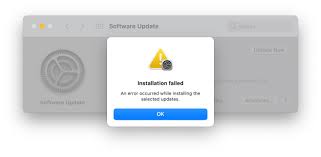
MacBook updates are designed to improve performance, strengthen security, and introduce useful new features. However, many users still experience unexpected problems during or after an update. If you’re dealing with MacBook update errors, you’re certainly not alone. In fact, issues such as installation failures, endless loading screens, slow performance, and frequent app crashes can quickly interrupt your daily workflow.
Although macOS updates usually install smoothly, several factors can interfere with the process. Therefore, understanding why MacBook update errors occur and knowing how to fix them can save both time and important data. Most importantly, by acting early, you can prevent minor glitches from escalating into serious system failures.
In this guide, we’ll explain the most common MacBook update errors, why installation fails, how updates affect performance, and the most effective fixes you can try before seeking professional repair.
What Are MacBook Update Errors?
MacBook update errors refer to any issue that occurs while downloading, installing, or running a macOS update. In many cases, the update may not complete, leaving the system unstable or partially installed.
Common Types of MacBook Update Errors Problems
- Update stuck on loading screen
- macOS installation failed message
- MacBook won’t boot after update
- Slow performance after update
- Apps crashing or freezing
- Battery draining faster than normal
As a result, the MacBook may become unreliable or unusable.
Why MacBook Update Errors Happen
Understanding the root cause is the first step toward fixing MacBook update errors.
1. Insufficient Storage Space for MacBook Update Errors
macOS updates require significant free storage. If your MacBook lacks space, the update may fail midway or not start at all.
2. Corrupted Update Files
Sometimes, the update file itself becomes corrupted during download, leading to installation errors.
3. Incompatible or Outdated Apps
Older apps can conflict with newer macOS versions. Consequently, system processes may slow down or crash.
4. Weak Internet Connection
A slow or unstable connection can interrupt downloads. Therefore, incomplete files often cause update failures.
5. Hardware Limitations for MacBook Update Errors
Older MacBooks may struggle with newer macOS versions. In such cases, performance issues are common after updates.
MacBook Update Errors During Installation
Installation-related problems are among the most common MacBook update errors.
MacBook Stuck on Apple Logo or Progress Bar
Often, the update appears frozen. However, the system may still be processing files in the background.
macOS Installation Failed Message
This error usually points to corrupted files, storage issues, or system conflicts.
MacBook Restart Loop After Update
In some cases, the MacBook repeatedly restarts due to incomplete firmware installation.
How to Fix MacBook Update Errors During Installation
Before panicking, try these proven solutions.
1. Restart Your MacBook
First, perform a simple restart. Sometimes, the system just needs a fresh start.
2. Check Available Storage
Go to About This Mac → Storage and free up space by deleting unused files.
3. Use Safe Mode
Safe Mode loads only essential system components. Therefore, it helps identify conflicts.
4. Reset NVRAM and SMC
These resets can fix boot and power-related update errors.
MacBook Performance Issues After Update
Even when installation succeeds, performance problems may appear.
Slow MacBook After macOS Update
Initially, Spotlight indexing and background tasks can slow down the system.
Apps Crashing or Not Opening
Often, outdated apps cause compatibility issues after updates.
Battery Draining Faster
New background services may increase power consumption temporarily.
How to Fix Performance Issues After macOS Update
1. Update All Apps
First, update third-party apps to ensure compatibility.
2. Monitor Activity Monitor
Check for apps consuming excessive CPU or memory.
3. Disable Unnecessary Startup Items
Reducing startup programs improves boot speed and responsiveness.
4. Reindex Spotlight
If needed, rebuild Spotlight indexing to restore performance.
Advanced Fixes for Persistent MacBook Update Errors
When basic troubleshooting fails, advanced steps are required.
Reinstall macOS Without Data Loss
Using macOS Recovery, you can reinstall the system while keeping files intact.
Use macOS Recovery Mode
Recovery Mode allows disk repairs, OS reinstallation, and system diagnostics.
Check Disk Utility for Errors
Corrupted disks often cause repeated update failures.
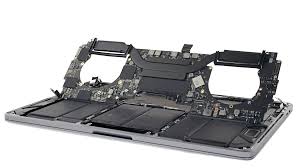
When MacBook Update Errors Indicate Hardware Problems
Sometimes, software fixes aren’t enough.
Failing SSD
A damaged SSD can cause slow installs, crashes, and boot failures.
Overheating Issues
Thermal problems may surface after updates that increase system load.
Battery Health Problems
Older batteries struggle with newer macOS power demands.
Why DIY MacBook update errors Fixes Can Make Things Worse
Many users try random online solutions. However, incorrect commands or forced shutdowns can corrupt the system further.
Common DIY Mistakes
- Interrupting updates
- Force powering off repeatedly
- Using unofficial macOS installers
As a result, data loss becomes more likely.
Professional Repair for MacBook Update Errors
When errors persist despite troubleshooting, professional repair is the safest option.
Milaaj mobiles and laptop repair Al Barsha specializes in diagnosing and fixing complex MacBook update errors using advanced diagnostic tools and expert repair techniques.
How Professionals Fix Installation & Performance Issues
System-Level Diagnostics
Technicians analyze logs to identify update conflicts.
Firmware and macOS Repair
Corrupted firmware and system files are safely restored.
Hardware Testing
SSD, RAM, battery, and thermal components are tested for hidden faults.
Preventing Future MacBook Update Errors
Fortunately, prevention is possible.
Best Practices Before Updating
- Back up your data
- Free up storage space
- Update apps first
- Use a stable Wi-Fi connection
After Updating
- Let indexing finish
- Restart the system
- Monitor performance
By following these steps, you reduce update-related risks significantly.
FAQs About MacBook update errors
1. Why do MacBook update errors occur?
MacBook update errors often happen due to insufficient storage, unstable internet connections, corrupted system files, incompatible apps, or outdated firmware. In some cases, hardware issues like a failing SSD can also cause update failures.
2. What should I do if my MacBook update gets stuck?
First, wait at least 30–60 minutes to ensure the update is not still processing. If it remains stuck, restart your MacBook, boot into Safe Mode, and try updating again. If the issue continues, reinstalling macOS may help.
3. Can I fix MacBook update errors without losing data?
Yes, in most cases. Solutions like Safe Mode, Disk Utility repair, or reinstalling macOS over the existing system usually preserve your data. However, creating a backup before troubleshooting is strongly recommended.
4. Why is my MacBook slow after a macOS update?
After an update, your MacBook may run background indexing and optimization tasks. Additionally, incompatible apps, low storage space, or outdated drivers can slow down performance temporarily.
5. How much storage is required for a macOS update?
Most macOS updates require at least 20–30 GB of free storage. Without enough space, the update may fail or cause installation errors.
Final Thoughts: MacBook update errors
In conclusion, MacBook update errors are common but usually manageable when addressed correctly. While some issues resolve with simple steps like restarting or updating apps, others require deeper system or hardware repairs. Therefore, recognizing the warning signs and acting promptly is essential.
Ultimately, with the right troubleshooting or professional support when needed you can restore smooth installation, stable performance, and long-term reliability after any macOS update.
Other Services:
- Need other Mac Book repairs? Check out Milaaj’s MacBook repair services in Dubai.
- Overheating issues? Explore MacBook repair in Dubai for similar cooling solutions.
- Looking to upgrade? Learn about selling your used laptop in Dubai.
- Data loss concerns? Visit Milaaj’s data recovery services.
- For Apple users, check Apple trade-in options in Dubai.
📍 Visit Any Milaaj Branch in Dubai
🔹 Bur Dubai
Milaaj Mobile and Laptop Repair Dubai
📞 055 258 8477
🔗 Google Maps
🔹 Al Barsha
Milaaj Mobiles and Laptop Repair Al Barsha
📞 052 596 2846
🔗 Google Maps
🔹 Al Barsha 3
Milaaj Mobiles and Gaming Store
📞 052 3405 814
🔗 Google Maps
🔹 Al Nuaimiya
Milaaj Mobiles and Laptops Ajman
📞 055 788 9654
🔗 Google Maps
Shop Locations: Al Barsha | Bur Dubai | Reef Mall, Salah Al Din | Al Nuaimiya, Ajman
Email: support@milaaj.com
Operating Hours: Monday – Sunday
Leave a Reply