

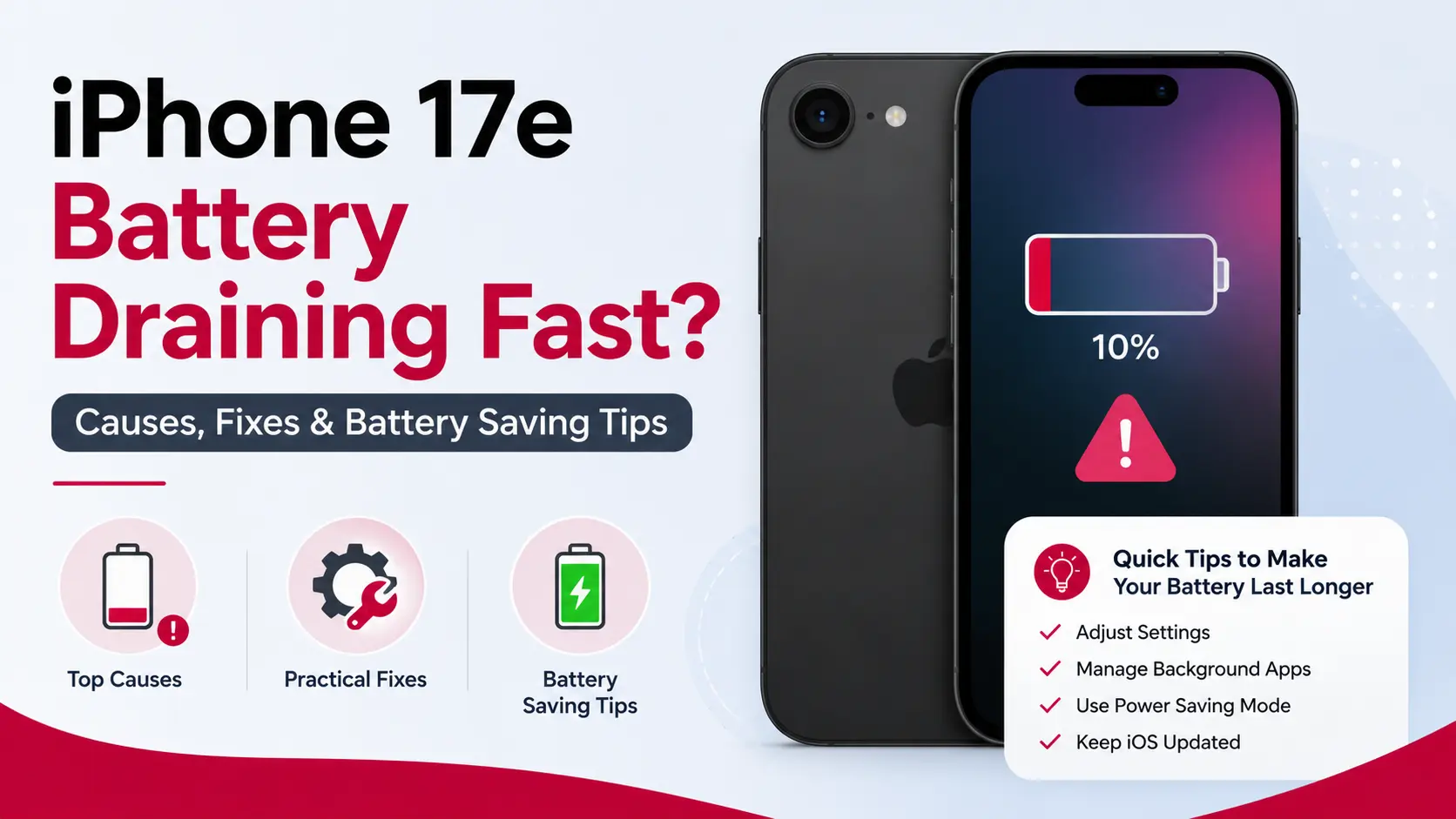
A new iPhone is expected to deliver excellent battery life, so it can be frustrating when your iPhone 17e battery is draining fast after only a few hours of use. Whether the battery started draining after an iOS 26 update, while using Apple Intelligence features, or even when the phone is idle, you’re not alone.
The good news is that rapid battery drain isn’t always caused by a faulty battery. In many cases, software optimization, background activity, charging habits, or specific settings are responsible. Understanding what’s happening can help you improve battery life without replacing your device.
In this guide, we’ll explain the most common reasons your iPhone 17e battery drains quickly, how to fix each issue, and when it’s time to consider a professional battery diagnosis.
Quick Answer
If your iPhone 17e battery is draining fast, start by updating to the latest iOS 26 version, checking Battery Health, reducing background activity, and reviewing apps with high battery usage. If the battery continues draining unusually fast after troubleshooting, the battery or another hardware component may require professional inspection.
Key Takeaways
- Battery drain is often caused by software, settings, or background activity rather than battery failure.
- Major iOS updates can temporarily increase battery usage while the system reindexes files.
- Apple Intelligence features, Always-On background processes, and poor signal strength can reduce battery life.
- The latest iOS 26 updates include battery optimization improvements and bug fixes.
- If Battery Health becomes significantly degraded or battery drain continues despite updates, professional diagnostics are recommended.
Why Is My iPhone 17e Battery Draining So Fast?
Several factors can affect battery performance. Some are temporary after software updates, while others develop gradually through everyday use.
The most common causes include:
- Background apps consuming excessive power
- iOS 26 indexing after software updates
- Poor cellular reception
- High screen brightness
- Heavy gaming or video recording
- Apple Intelligence processing
- Battery aging
- Charging habits
- Software bugs
- Hardware faults
Fortunately, most of these issues can be diagnosed without opening the device.
Common Signs of Excessive Battery Drain
Your iPhone may have an abnormal battery issue if you notice any of the following:
- Battery drops rapidly during normal use
- Battery percentage falls while the phone is idle
- Phone requires multiple charges each day
- Battery drains overnight
- Device becomes warm without heavy use
- Battery percentage jumps suddenly
- Unexpected shutdowns before reaching 0%
- Battery life became noticeably worse after an iOS update
If several of these symptoms occur together, it’s worth investigating further.
iOS 26 Battery Drain on iPhone 17e
Many users notice increased battery consumption immediately after installing a major iOS update.
This is completely normal during the first 24 to 72 hours.
After updating, iOS performs numerous background tasks, including:
- Reindexing photos
- Rebuilding Spotlight search
- Optimizing Apple Intelligence features
- Updating app databases
- Reprocessing Siri data
- Syncing iCloud content
During this period, battery life may temporarily decrease.
If battery drain continues for several days after updating, check whether another iOS update is available, as Apple frequently releases patches to improve battery efficiency.
Check Which Apps Are Draining Your Battery
One of the easiest ways to identify the problem is through Battery settings.
Go to:
Settings → Battery
Here you’ll see:
- Battery usage by app
- Screen On activity
- Background Activity
- Charging history
Apps that commonly consume significant battery include:
- Social media apps
- Navigation apps
- Video streaming platforms
- Games
- Camera-intensive applications
- AI-powered editing apps
If one app is using far more battery than expected, updating or reinstalling it may solve the issue.
Check iPhone 17e Battery Health
Apple includes Battery Health monitoring to help determine whether battery aging is responsible.
Navigate to:
Settings → Battery → Battery Health
Pay attention to:
Maximum Capacity
This indicates how much charge the battery can still hold compared to when it was new.
Peak Performance Capability
If iOS reports that performance management has been applied, the battery may no longer supply stable power during demanding tasks.
Most new iPhone 17e devices should maintain excellent battery health. However, defective batteries or unusually heavy charging habits can accelerate wear.
Reduce Background App Activity
Many apps continue working even when you’re not actively using them.
These background processes include:
- Location tracking
- Cloud synchronization
- Content refresh
- Notifications
- Automatic uploads
To reduce unnecessary battery drain:
Go to:
Settings → General → Background App Refresh
Disable refresh for apps that don’t require constant updates.
Doing this often provides noticeable battery improvements.
Optimize Display Settings
The display is one of the largest battery consumers on any smartphone.
Small adjustments can significantly extend battery life.
Consider:
- Lowering brightness manually
- Using Auto-Brightness
- Reducing screen timeout
- Using Dark Mode
- Disabling unnecessary widgets
OLED displays consume less power when displaying darker interfaces, making Dark Mode particularly beneficial.
Turn Off Features You Don’t Need
Several built-in features continuously use battery power even when you aren’t actively using them.
If you rarely use them, consider disabling:
- AirDrop
- Bluetooth
- Personal Hotspot
- Continuous Location Services
- Live Activities for unnecessary apps
- Background Siri suggestions
Turning off unused features can noticeably reduce standby battery drain.
Check Cellular Signal Strength
Poor mobile reception forces the modem to work harder while searching for a stronger signal.
If you’re in an area with weak coverage, your battery may drain faster than usual.
Common examples include:
- Underground parking
- Elevators
- Remote locations
- Large buildings with poor reception
When Wi-Fi is available, connecting to it often improves battery life.
Apple Intelligence Can Increase Battery Usage
Apple Intelligence introduces several AI-powered features that run both on-device and in the cloud.
These include:
- Writing Tools
- Smart Summaries
- Image generation
- Notification prioritization
- Enhanced Siri capabilities
Although optimized for efficiency, frequent AI processing naturally increases battery consumption.
If battery life is your priority, limiting unnecessary AI features may help extend usage time.
Keep Your Apps Updated
Older applications may not be fully optimized for the latest iOS versions.
Developers frequently release updates that improve:
- Battery efficiency
- Memory usage
- Background processing
- Compatibility with newer hardware
Regularly updating apps through the App Store can reduce unnecessary battery drain.
Avoid Overheating
Heat is one of the biggest factors affecting lithium-ion battery performance and long-term health.
Your iPhone 17e may become warm during:
- Extended gaming sessions
- 4K video recording
- Wireless charging
- Fast charging
- Navigation with GPS
- Using multiple demanding apps simultaneously
If your device frequently overheats, battery life may decrease temporarily while iOS limits performance to protect internal components.
Tips to Reduce Heat
- Avoid charging your iPhone in direct sunlight.
- Remove thick cases if the phone becomes excessively warm while charging.
- Close demanding apps when you’re not using them.
- Avoid gaming while charging.
- Keep your device updated with the latest iOS version.
Use Low Power Mode
Low Power Mode temporarily reduces background activity to extend battery life.
It automatically limits:
- Background App Refresh
- Automatic downloads
- Mail fetch frequency
- Visual effects
- Some system animations
Enable it from:
Settings → Battery → Low Power Mode
Or quickly access it through Control Center.
This feature is especially useful when you’re away from a charger for long periods.
Adaptive Power in iOS 26
One of the newer battery management features introduced with iOS 26 is Adaptive Power.
Unlike Low Power Mode, Adaptive Power works automatically by making small adjustments to improve battery efficiency without significantly affecting everyday performance.
Depending on your usage, Adaptive Power may:
- Slightly reduce display brightness when appropriate
- Optimize processor performance during lighter tasks
- Limit certain background activities
- Improve overall battery efficiency throughout the day
If available on your device, you can manage this feature under:
Settings → Battery → Power Mode
As Apple continues refining iOS 26, Adaptive Power may receive additional improvements through future updates.
Review Location Services
Many apps continue accessing your location even when you’re not actively using them.
To reduce battery drain:
Go to:
Settings → Privacy & Security → Location Services
Review each app individually.
Whenever possible, change permissions to:
- While Using the App
- Ask Next Time
- Never (if location isn’t required)
Limiting constant GPS access can significantly improve battery life.
Update to the Latest iOS 26 Version
Apple regularly releases updates that address:
- Battery drain bugs
- Performance improvements
- Thermal management
- App compatibility
- Security enhancements
If you’re experiencing unusual battery drain after installing iOS 26, check for newer updates by going to:
Settings → General → Software Update
Installing the latest version often resolves battery-related issues reported after major iOS releases.
Reset Battery-Related Settings
If battery drain continues despite trying the above solutions, resetting your settings may help eliminate configuration conflicts.
Navigate to:
Settings → General → Transfer or Reset iPhone → Reset → Reset All Settings
This resets:
- Wi-Fi settings
- Bluetooth settings
- Privacy preferences
- Keyboard dictionary
- Network settings
Your photos, apps, and personal data remain unaffected.
When Does the 17e Battery Need Replacement?
Although the iPhone 17e is still relatively new, batteries naturally degrade over time.
Professional battery replacement may be necessary if:
- Battery Health falls below 80%.
- The phone shuts down unexpectedly.
- Battery percentage fluctuates significantly.
- The device only works properly while charging.
- Charging becomes unusually slow despite using certified accessories.
- Battery life remains poor after software troubleshooting.
Replacing a worn battery restores both battery life and overall device performance.
When Should You Seek Professional iPhone Repair?
DIY fixes solve many battery-related issues, but professional diagnostics are recommended if:
- Battery drains extremely fast every day.
- The phone overheats during normal use.
- Battery Health appears normal, but performance is poor.
- The device randomly restarts or shuts down.
- Charging issues occur alongside battery drain.
- The battery drains even while the phone is idle.
Professional diagnostics can determine whether the issue involves the battery, charging system, power management IC, or another hardware component.
If you need expert assistance, Milaaj provides professional diagnostics and repairs for battery, charging, software, and hardware issues. You can also learn more about our iPhone repair services in Dubai for fast, reliable solutions using high-quality replacement parts.
Tips to Maintain Long-Term Battery Health
Good charging habits help maximize battery lifespan.
Follow these recommendations:
- Keep your battery between 20% and 80% whenever practical.
- Use certified charging accessories.
- Avoid exposing your iPhone to excessive heat.
- Keep iOS and apps updated.
- Reduce unnecessary background activity.
- Enable Optimized Battery Charging.
- Avoid leaving your phone plugged in for extended periods after reaching 100%.
These habits can help preserve battery health over the long term.
Frequently Asked Questions
Why is my iPhone 17e battery draining so quickly?
Common causes include background apps, high screen brightness, Apple Intelligence processing, poor cellular reception, software bugs, or battery degradation.
Does iOS 26 cause battery drain?
It’s normal to experience temporary battery drain for 24–72 hours after installing a major iOS update while the system completes indexing and optimization. Persistent battery drain beyond this period may require troubleshooting or a software update.
How do I check battery health on my iPhone 17e?
Go to Settings → Battery → Battery Health to view Maximum Capacity and Peak Performance Capability.
Can overheating reduce battery life?
Yes. High temperatures increase battery wear and may temporarily reduce performance. Avoid charging or using demanding apps in hot environments whenever possible.
Should I leave Low Power Mode enabled all the time?
You can, but it’s generally intended for extending battery life when needed. For everyday use, Adaptive Power and Optimized Battery Charging provide a better balance between performance and efficiency.
When should I replace my iPhone 17e battery?
If Battery Health drops below 80%, your iPhone shuts down unexpectedly, or battery life becomes significantly shorter despite software optimization, a battery replacement is recommended.
Final Thoughts
Experiencing iPhone 17e battery draining fast doesn’t always mean your battery is faulty. In many cases, software settings, background activity, Apple Intelligence features, or temporary post-update processes are responsible. By reviewing Battery Health, optimizing settings, keeping iOS up to date, and following healthy charging habits, you can significantly improve battery life.
If the problem continues after trying these solutions, professional diagnostics can identify whether the issue is related to the battery, charging system, or another internal component before it worsens.
Thinking about upgrading instead of repairing? You can also get a competitive quote through our Sell Your iPhone in Dubai service and turn your used iPhone 17e into instant cash.
📍 Visit Any Milaaj Branch in Dubai
🔹 Bur Dubai
Milaaj Mobile and Laptop Repair Dubai
📞 055 258 8477
🔗 Google Maps
🔹 Al Barsha
Milaaj Mobiles and Laptop Repair Al Barsha
📞 052 596 2846
🔗 Google Maps
🔹 Al Barsha 3
Milaaj Mobiles , Laptops and Watches Repair Service
📞 052 3405 814
🔗 Google Maps
🔹 Al Nuaimiya
Milaaj Mobiles and Laptops Ajman
📞 055 788 9654
🔗 Google Maps
Email: support@milaaj.com
Operating Hours: Monday Sunday



Leave a Reply