

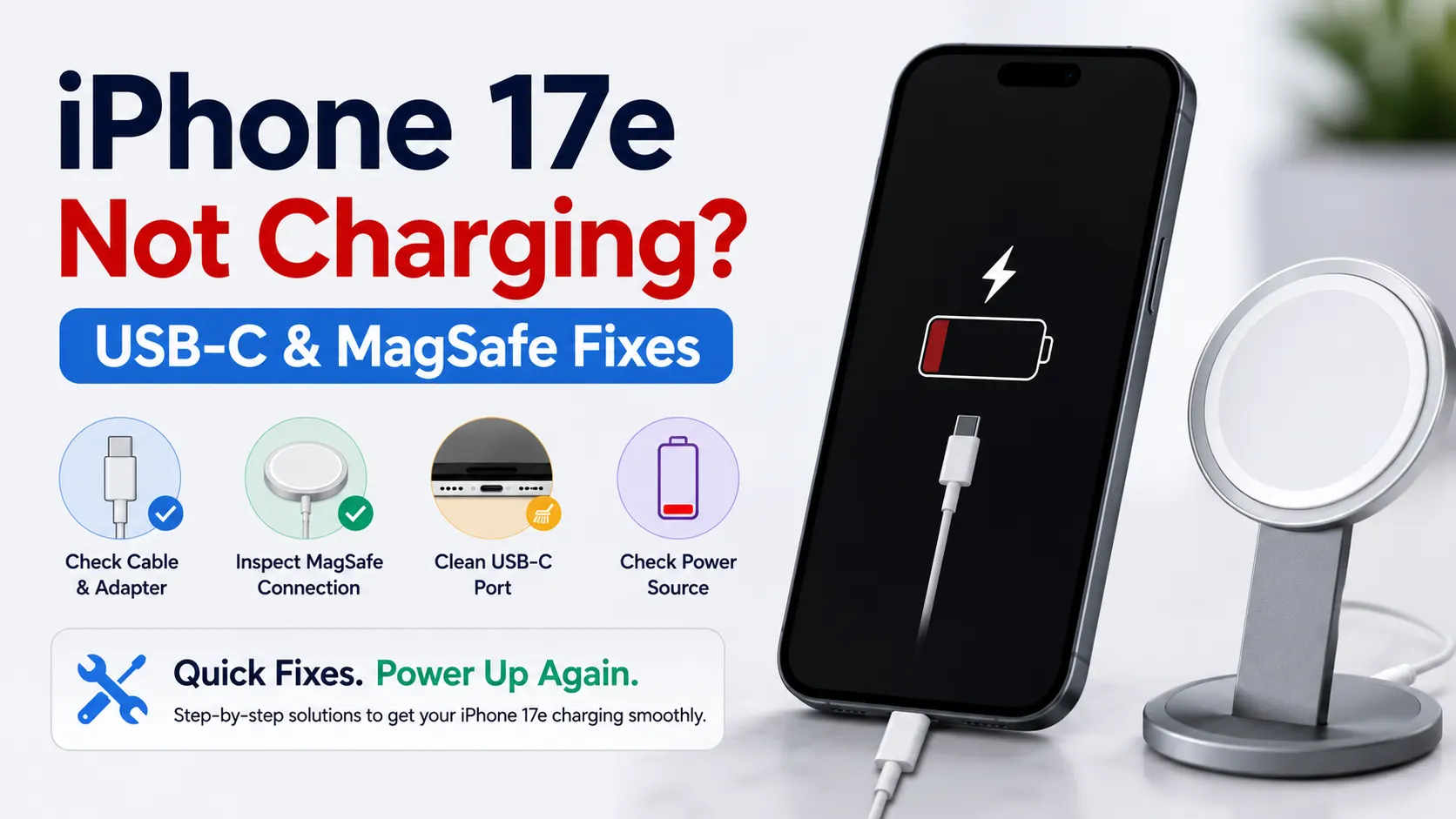
Your iPhone 17e should charge quickly and reliably, whether you’re using a USB-C cable or MagSafe charger. However, if your iPhone suddenly refuses to charge, charges intermittently, or stops charging after an iOS 26 update, you’re not alone. Charging issues can happen for several reasons, ranging from simple software glitches to hardware faults involving the battery, charging port, or wireless charging system.
The good news is that many charging problems can be resolved without replacing your device. In this guide, you’ll learn the most common causes of iPhone 17e charging issues, proven USB-C and MagSafe troubleshooting steps, and when professional repair is the better option.
Quick Answer
If your iPhone 17e is not charging, first inspect the USB-C port for dust or debris, try another certified charger and cable, restart the device, update to the latest iOS 26 version, and test both USB-C and MagSafe charging. If neither charging method works, the problem may involve the battery, charging port, charging IC, or logic board.
Key Takeaways
- Most iPhone 17e charging issues are caused by faulty accessories, dirty USB-C ports, software bugs, or battery wear.
- The iPhone 17e supports both USB-C fast charging and MagSafe wireless charging.
- Several charging issues reported after iOS 26 updates can often be fixed with software updates or system resets.
- Regular cleaning and using certified accessories help prevent charging problems.
- If both wired and wireless charging stop working, professional diagnostics are recommended.
Why Is My iPhone 17e Not Charging?
When your iPhone refuses to charge, the cause isn’t always obvious. In many cases, the charging cable isn’t the problem at all.
The most common causes include:
- Dust or lint blocking the USB-C port
- Damaged USB-C charging cable
- Faulty power adapter
- MagSafe charger alignment issues
- Battery health deterioration
- iOS 26 software bugs
- Moisture detected inside the charging port
- Charging IC failure
- Logic board damage
- Third-party accessories that don’t meet charging standards
Identifying the exact cause saves both time and unnecessary repair costs.
Signs Your iPhone 17e Has a Charging Problem
Charging issues don’t always mean your phone won’t charge completely. Sometimes the symptoms are more subtle.
Watch for these warning signs:
- Battery percentage doesn’t increase while charging.
- Charging repeatedly connects and disconnects.
- USB-C cable feels loose.
- MagSafe charger won’t attach or charge properly.
- Charging is much slower than usual.
- The device overheats while charging.
- “Liquid Detected” or “Accessory Not Supported” messages appear.
- Wireless charging stops after a few seconds.
- Charging only works at certain cable angles.
If several of these occur together, your iPhone may need more than basic troubleshooting.
iPhone 17e USB-C Not Charging? Try These Fixes
Since the iPhone 17e uses USB-C, most wired charging problems are related to either the charging accessories or the USB-C port itself.
1. Inspect the USB-C Port
The USB-C connector is small enough for dust, lint, and pocket debris to accumulate over time.
Even a tiny buildup can prevent the cable from making proper contact.
Carefully inspect the port using a flashlight.
Look for:
- Pocket lint
- Dust
- Dirt
- Bent connector pins
- Corrosion
- Moisture
Avoid inserting sharp metal tools into the charging port, as this can permanently damage the internal connectors.
2. Try Another USB-C Cable
Charging cables wear out much faster than most people realize.
Try using:
- Another USB-C cable
- An Apple USB-C cable
- A USB-IF certified cable
- A different charging adapter
If the iPhone starts charging normally, you’ve identified the faulty accessory.
3. Check the Power Adapter
Sometimes the charger—not the phone—is the problem.
Inspect the adapter for:
- Physical damage
- Burn marks
- Loose USB-C connection
- Excessive heat
Using a compatible 20W or higher USB-C Power Delivery charger helps ensure proper fast charging.
4. Restart Your iPhone
Software glitches occasionally interrupt the charging system.
Restarting the phone refreshes background processes that may interfere with charging recognition.
If your phone responds normally after restarting, monitor whether the charging issue returns.
5. Update to the Latest iOS 26 Release
Apple has continued releasing updates for iOS 26 that improve charging stability, battery optimization, and compatibility with accessories.
To check for updates:
Settings → General → Software Update
Install any available update before assuming the issue is hardware-related.
iPhone 17e MagSafe Not Working? Here’s How to Fix It
The iPhone 17e supports MagSafe wireless charging, making it easy to charge without plugging in a cable. If MagSafe isn’t working as expected, the issue is often related to alignment, accessories, or software rather than hardware failure.
Check MagSafe Alignment
Unlike wired charging, MagSafe depends on precise magnetic alignment.
Ensure that:
- The charger sits flat against the back of the iPhone.
- No objects are trapped between the charger and the phone.
- The magnetic ring aligns correctly.
Even slight misalignment can interrupt charging.
Remove Thick or Metal Cases
Some phone cases interfere with magnetic charging.
Try removing:
- Thick protective cases
- Metal-backed cases
- Magnetic wallets
- Card holders
Then test MagSafe again.
Verify Your MagSafe Charger
Not all magnetic wireless chargers support true MagSafe charging.
If possible, test with:
- Apple’s official MagSafe Charger
- A Qi2-certified magnetic charger
- Another compatible MagSafe charger
If one charger works while another doesn’t, the charger is likely the issue.
Allow the Phone to Cool Down
Wireless charging naturally generates more heat than wired charging.
If your iPhone becomes too warm, iOS automatically reduces or pauses charging to protect the battery.
Allow the device to cool before trying again.
Charging Problems After Updating to iOS 26
Some users have reported charging inconsistencies shortly after installing new iOS versions.
Common issues include:
- Slow charging
- Charging pauses
- MagSafe disconnecting
- USB-C charging delays
- Battery percentage appearing stuck
These problems are usually temporary and often improve after Apple releases follow-up software updates.
If the issue started immediately after updating:
- Restart your iPhone.
- Check for another software update.
- Disconnect and reconnect the charger.
- Test another charging accessory.
Most software-related charging problems resolve without hardware repair.
Moisture Detection Preventing Charging?
The iPhone 17e includes moisture detection that protects the USB-C port from electrical damage.
If moisture is detected, you may see a warning preventing wired charging.
If this happens:
- Disconnect the charger immediately.
- Leave the iPhone in a dry, well-ventilated area.
- Do not use compressed heat or hair dryers.
- Wait until the warning disappears naturally.
If you urgently need power, MagSafe charging may still work depending on the condition of the device and Apple’s current software safeguards.
Advanced Fixes if Your iPhone 17e Still Won’t Charge
If you’ve tried the basic troubleshooting steps and your iPhone 17e still isn’t charging, it’s time to investigate deeper software or hardware issues.
Reset All Settings
Sometimes incorrect system settings interfere with charging, particularly after major iOS updates.
Resetting all settings restores default system configurations without deleting your photos, apps, or personal files.
Go to:
Settings → General → Transfer or Reset iPhone → Reset → Reset All Settings
After the reset, reconnect your charger and check whether the issue has been resolved.
Test Charging Through a Computer
Connecting your iPhone to a Mac or Windows PC helps determine whether the issue lies with the charger or the phone itself.
If your computer recognizes the device but wall charging doesn’t work, the charger or adapter may be faulty.
If neither the computer nor a charger detects your iPhone, the problem may involve the USB-C port or internal charging hardware.
Check Battery Health
A worn battery can affect charging speed, charging consistency, and overall performance.
To view battery health:
Settings → Battery → Battery Health
If Maximum Capacity has dropped below 80%, Apple generally recommends replacing the battery. A degraded battery may also trigger unexpected shutdowns, slower charging, or reduced peak performance.
Look for Overheating
Your iPhone automatically limits or pauses charging if it becomes too hot.
Common reasons include:
- Charging in direct sunlight
- Heavy gaming while charging
- Video recording during charging
- Fast charging in hot environments
If your device feels unusually warm, disconnect it and allow it to cool before charging again.
Could the Charging Port Be Damaged?
If your USB-C cable feels loose, only charges at certain angles, or disconnects easily, the charging port itself may be damaged.
Signs of charging port failure include:
- Loose USB-C connection
- Charging repeatedly disconnecting
- Physical damage inside the connector
- Bent or broken pins
- Corrosion caused by moisture
Charging ports experience daily wear, making them one of the most common hardware repairs for smartphones.
When MagSafe Stops Working Completely
If USB-C charging works but MagSafe doesn’t, the issue may involve:
- Damaged MagSafe charging coil
- Internal wireless charging components
- Magnetic alignment hardware
- Charging software conflicts
If both wired and wireless charging fail simultaneously, the problem is usually deeper than the charger itself.
Professional diagnostics can identify whether the issue involves the charging port, charging IC, battery, or logic board.
Can iOS 26 Cause Charging Problems?
Software updates occasionally introduce temporary charging bugs.
Users have reported issues such as:
- Slow charging after updating
- Battery percentage freezing
- Charging pausing unexpectedly
- Wireless charging inconsistencies
- Accessories temporarily not being recognized
Apple typically addresses these problems in subsequent iOS 26 updates.
If your charging issues started immediately after installing iOS 26, make sure your device is running the latest available version before considering hardware repair.
When Should You Seek Professional iPhone 17e Repair?
DIY troubleshooting solves many charging problems, but professional diagnostics are recommended if:
- Your iPhone doesn’t charge using either USB-C or MagSafe.
- The charging port appears physically damaged.
- The battery drains unusually fast.
- Charging only works intermittently.
- The device overheats during charging.
- Moisture damage has occurred.
- Your iPhone randomly restarts while charging.
- None of the troubleshooting steps have resolved the issue.
Ignoring charging problems can eventually affect battery health and, in some cases, lead to damage within the charging circuit.
How Professional Technicians Diagnose iPhone Charging Issues
Professional diagnostics help determine the exact cause instead of replacing parts unnecessarily.
A technician may perform:
- USB-C port inspection
- Battery health testing
- Charging current analysis
- MagSafe charging verification
- Charging IC diagnostics
- Logic board testing
- Moisture damage inspection
This process helps identify whether the problem is caused by the battery, charging port, wireless charging module, charging controller, or another internal component.
How to Prevent Future Charging Problems
Good charging habits can significantly extend your iPhone’s lifespan.
Follow these recommendations:
- Use certified USB-C cables and power adapters.
- Keep the charging port clean.
- Avoid charging in very hot environments.
- Remove debris from the USB-C port regularly.
- Avoid forcing cables into the connector.
- Keep iOS updated.
- Avoid using damaged charging accessories.
- Remove thick cases if they interfere with MagSafe charging.
These simple habits reduce wear on both the battery and charging components.
Frequently Asked Questions
Why is my iPhone 17e not charging even though it’s plugged in?
The most common causes include a dirty USB-C port, faulty charging cable, damaged charger, software glitches, battery degradation, or internal charging hardware issues.
Does the iPhone 17e support MagSafe?
Yes. The iPhone 17e supports MagSafe wireless charging as well as Qi2-compatible magnetic chargers and USB-C wired charging.
Why is my iPhone 17e charging slowly?
Slow charging can result from background activity, battery aging, overheating, low-power chargers, damaged accessories, or software optimization during charging.
Can iOS 26 cause charging issues?
Occasionally, yes. Some users experience temporary charging inconsistencies after major iOS updates. Installing the latest iOS 26 update usually resolves software-related charging bugs.
How do I know if my charging port is damaged?
A loose charging cable, intermittent charging, visible bent pins, or charging only at certain angles often indicate charging port damage.
Should I replace the battery or the charging port?
Battery replacement is recommended when battery health falls below 80%. If charging is inconsistent despite a healthy battery, the charging port or charging circuitry may require repair.
Is wireless charging safer than wired charging?
Both charging methods are safe when using certified accessories. Wired charging is generally faster, while MagSafe offers greater convenience.
Final Thoughts
If your iPhone 17e is not charging, don’t assume the battery is immediately to blame. Many charging issues are caused by simple problems like dust in the USB-C port, faulty charging accessories, temporary iOS 26 software glitches, or MagSafe alignment issues. Starting with basic troubleshooting can often restore normal charging without the need for repairs.
However, if your iPhone still won’t charge after trying these solutions, professional diagnostics can identify whether the issue involves the battery, charging port, charging IC, or another internal component. The sooner the problem is diagnosed, the lower the risk of further damage.
If you need expert assistance, Milaaj provides professional diagnostics and repairs for charging ports, batteries, wireless charging systems, and other iPhone hardware issues. You can also learn more about our iPhone repair services in Dubai for fast, reliable solutions.
Thinking about upgrading instead of repairing? If your current device isn’t worth fixing, you can sell your iPhone in Dubai and receive a competitive offer while upgrading to a newer model.
📍 Visit Any Milaaj Branch in Dubai
🔹 Bur Dubai
Milaaj Mobile and Laptop Repair Dubai
📞 055 258 8477
🔗 Google Maps
🔹 Al Barsha
Milaaj Mobiles and Laptop Repair Al Barsha
📞 052 596 2846
🔗 Google Maps
🔹 Al Barsha 3
Milaaj Mobiles , Laptops and Watches Repair Service
📞 052 3405 814
🔗 Google Maps
🔹 Al Nuaimiya
Milaaj Mobiles and Laptops Ajman
📞 055 788 9654
🔗 Google Maps
Email: support@milaaj.com
Operating Hours: Monday Sunday

Leave a Reply