

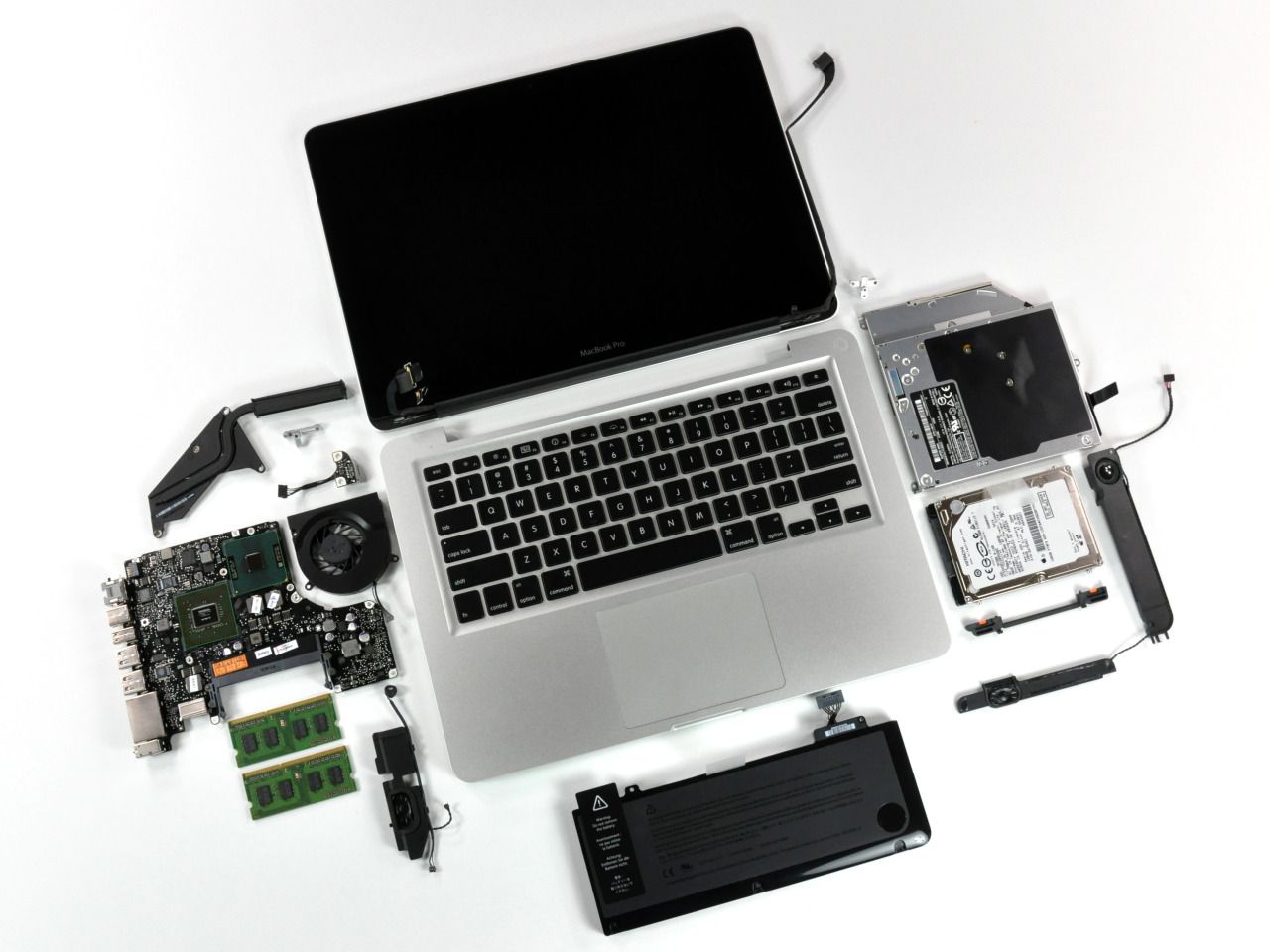
Your MacBook Pro is more than just a laptop it’s your reliable companion for work, creativity, and productivity. However, like any advanced device, it requires regular attention to stay in top condition. Over time, ignoring small issues or skipping routine upkeep can lead to reduced performance, overheating, or even hardware failure. Therefore, understanding the complete guide to MacBook Pro maintenance and care becomes essential for every Mac user.
In this comprehensive guide, we’ll not only explain why maintenance matters but also walk you through proven tips, professional techniques, and best practices. Moreover, by following these steps consistently, you can keep your MacBook Pro running smoothly, efficiently, and most importantly, extend its lifespan for years to come.
Why MacBook Pro Maintenance and Care Are Important
Before diving into the actual process, it’s important to understand why maintenance matters. Over time, dust accumulation, excessive background apps, and outdated software can all contribute to performance decline. Proper maintenance not only enhances performance but also extends the lifespan of your device.
Moreover, following a complete guide to MacBook Pro maintenance and care ensures that you prevent costly repairs down the line. With a few consistent habits, you can maintain your MacBook Pro’s speed, stability, and appearance without professional help though expert servicing once in a while is still beneficial.
Keep Your MacBook Pro Clean and Dust-Free
The first step in the complete guide to MacBook Pro maintenance and care is cleanliness. Dust and debris can easily get trapped between the keyboard keys, fan vents, and display edges, affecting performance and appearance.
a. Cleaning the Exterior
Start by powering off your MacBook Pro and unplugging all cables. Then, use a soft microfiber cloth to wipe the surface gently. Avoid harsh chemicals, as they can damage the finish. For stubborn spots, lightly dampen the cloth with a 70% isopropyl alcohol solution.
b. Cleaning the Keyboard
Keyboards collect oils and crumbs that can lead to sticky keys. Use compressed air to remove debris and wipe the keys with a disinfectant wipe.
c. Cleaning the Screen
The Retina display is delicate. Use a screen-safe cleaner and a microfiber cloth to remove fingerprints without scratching.
Keeping your device clean is an easy yet powerful step in mastering the complete guide to MacBook Pro maintenance and care.
Optimize Storage and System Performance
As time passes, files, cache, and temporary data can clog your Mac’s storage, slowing it down.
a. Check Storage Usage
Go to Apple Menu → System Settings → General → Storage. This will show which files and apps occupy the most space.
b. Delete Unnecessary Files
Remove old downloads, cache files, and large unused documents. Alternatively, move them to external drives or iCloud storage.
c. Manage Startup Apps
Navigate to System Settings → General → Login Items and disable unnecessary startup apps. Doing so helps your Mac boot faster.
Properly managing storage ensures smoother performance and is a crucial part of the complete guide to MacBook Pro maintenance and care.
Keep macOS and Apps Updated Regularly
Updates are not just about new features they also fix bugs, patch security vulnerabilities, and enhance system efficiency.
To check for updates, go to Apple Menu → System Settings → General → Software Update. Ensure automatic updates are enabled to keep everything current.
Similarly, open the App Store and update all installed applications. Outdated software can cause compatibility issues, especially after macOS upgrades.
Therefore, staying updated is a key element in the complete guide to MacBook Pro maintenance and care.
Maintain Battery Health
Battery care is one of the most critical aspects of MacBook Pro maintenance. Improper charging habits can drastically shorten battery lifespan.
a. Avoid Overcharging
Although modern Macs manage power efficiently, it’s best not to keep your MacBook plugged in constantly. Instead, unplug once it reaches around 80–90%.
b. Enable Optimized Charging
Go to System Settings → Battery → Battery Health and turn on Optimized Battery Charging. This helps slow down battery aging.
c. Avoid Extreme Temperatures
Don’t use or charge your Mac in direct sunlight or freezing environments. Temperature extremes can damage battery chemistry.
By following these steps, you’ll maintain battery longevity and strengthen your knowledge of the complete guide to MacBook Pro maintenance and care.
Manage Background Processes and Activity
Even with plenty of RAM, too many background tasks can cause lag.
Use Activity Monitor (found under Applications → Utilities) to view apps consuming excessive CPU or memory. Quit unnecessary apps that drain resources.
Regularly reviewing system performance ensures your Mac runs efficiently and aligns perfectly with the complete guide to MacBook Pro maintenance and care.
Protect Your MacBook Pro from Malware and Security Threats
While macOS is known for its strong security, no system is immune. Cyber threats continue to evolve, making proactive protection vital.
a. Use Built-in Security Features
Enable FileVault to encrypt data and activate the Firewall under System Settings → Network → Firewall.
b. Avoid Untrusted Sources
Always download apps from the Mac App Store or verified developers.
c. Regular Security Scans
Consider using reputable antivirus software to perform occasional scans.
Adding security layers is a smart move and a major component of the complete guide to MacBook Pro maintenance and care.
Handle Your MacBook with Care
Proper handling extends beyond cleaning and software updates. Physical care plays an equally vital role in preserving your device.
- Always carry your MacBook in a padded sleeve or backpack.
- Avoid pressing the lid too tightly or placing heavy items on top.
- Keep liquids far away from your device.
Accidents can happen anytime, but mindful handling greatly minimizes risks. Such physical precautions are essential in a complete guide to MacBook Pro maintenance and care.
Reset SMC and NVRAM Periodically
If your Mac is running erratically fans spinning loudly, battery indicators showing false readings, or the system not recognizing connected devices resetting the System Management Controller (SMC) and NVRAM can help.
To reset the SMC (on Intel-based Macs):
- Shut down your Mac.
- Press Shift + Control + Option + Power simultaneously for 10 seconds.
- Release the keys, then power on normally.
To reset NVRAM:
- Restart your Mac.
- Hold Option + Command + P + R for 20 seconds.
These resets can restore system stability and are crucial troubleshooting steps covered in the complete guide to MacBook Pro maintenance and care.
Regularly Backup Your Data
Unexpected crashes or hardware failures can happen anytime, so regular backups are a must.
Use Time Machine, Apple’s built-in backup utility, to automatically back up your files. Connect an external hard drive and enable Time Machine under System Settings → General → Time Machine.
Alternatively, consider cloud backups using iCloud, Google Drive, or Dropbox for added security.
Consistent backups guarantee data safety and form an integral part of the complete guide to MacBook Pro maintenance and care.
Schedule Professional Maintenance
Even with regular home care, professional inspection ensures your device remains in its best shape. Internal dust cleaning, thermal paste replacement, and hardware diagnostics require expert handling.
For reliable service, Milaaj provides comprehensive MacBook Pro maintenance solutions from battery replacement and display repair to software optimization. Their skilled technicians use advanced diagnostic tools to ensure your MacBook Pro stays healthy and high-performing.
Professional servicing at least once a year is the finishing touch to the complete guide to MacBook Pro maintenance and care.
Extend MacBook Pro Longevity with Smart Usage Habits
Beyond cleaning and updates, daily habits can significantly impact your MacBook’s performance and lifespan.
- Avoid keeping multiple browser tabs open for long hours.
- Unplug unnecessary USB devices.
- Shut down or restart your Mac periodically to clear memory caches.
- Use a cooling pad during intensive tasks to reduce heat.
Practicing smart habits reinforces every tip covered in this complete guide to MacBook Pro maintenance and care.
When to Consider a MacBook Pro Replacement
Sometimes, even the best care can’t prevent natural wear. If your MacBook is over seven years old, showing persistent lag, battery issues, or display failures, it might be time to upgrade. However, with consistent upkeep as described in this complete guide to MacBook Pro maintenance and care, you can maximize its lifespan before considering a replacement.
Keep Your MacBook Pro Performing Like New
In summary, maintaining your MacBook Pro doesn’t have to be complicated. By following this complete guide to MacBook Pro maintenance and care, you’ll ensure your device stays fast, reliable, and visually pristine. From cleaning and updates to backups and security checks, each small effort adds years to your Mac’s life.
And when professional care is needed, you can always trust Milaaj Mobiles and Laptop Repair Al Barsha to provide expert servicing, ensuring your MacBook performs at its best day after day.
Other Services:
- Need other laptop repairs? Check out Milaaj’s laptop repair services in Dubai.
- Overheating issues? Explore MacBook repair in Dubai for similar cooling solutions.
- Looking to upgrade? Learn about selling your used laptop in Dubai.
- Data loss concerns? Visit Milaaj’s data recovery services.
- For Apple users, check Apple trade-in options in Dubai.
📍 Visit Any Milaaj Branch in Dubai
🔹 Bur Dubai
Milaaj Mobile and Laptop Repair Dubai
📞 055 258 8477
🔗 Google Maps
🔹 Al Barsha
Milaaj Mobiles and Laptop Repair Al Barsha
📞 052 596 2846
🔗 Google Maps
🔹 Reef Mall (Salah Al Din)
Milaaj Service Center Reef Mall
📞 052 3405 814
📍 1st Floor, Shop 16, Deira
🔗 Google Maps
🔹 Al Nuaimiya
Milaaj Mobiles and Laptops Ajman
📞 055 788 9654
🔗 Google Maps
Shop Locations: Al Barsha | Bur Dubai | Reef Mall, Salah Al Din | Al Nuaimiya, Ajman
Email: support@milaaj.com
Operating Hours: Monday – Sunday




Leave a Reply