

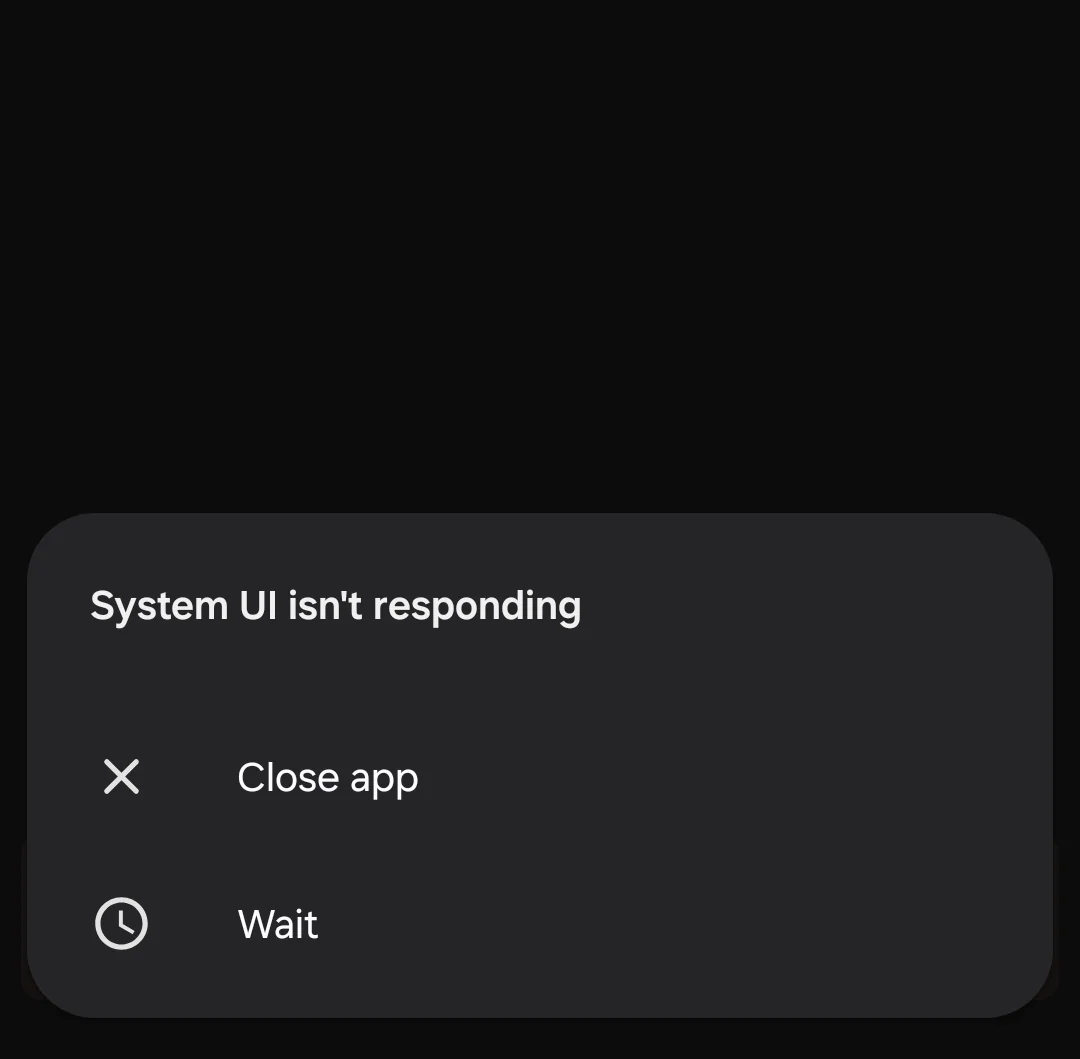
It’s 2026, and Android 16 has brought us some of the most exciting mobile features yet from the new “Privacy Display” to enhanced AI multitasking. However, as with any major software leap, technical hiccups are bound to happen. One of the most frustrating errors you might encounter is the dreaded “System UI not responding” pop-up. This error effectively freezes your navigation bar, status icons, and lock screen, bringing your productivity to a grinding halt.
If your device is lagging or crashing, don’t panic. Actually, this is often a software conflict rather than a hardware failure. In this comprehensive guide, we will walk you through the most effective ways to fix the System UI on Android 16 so you can get back to enjoying your flagship phone.
What Causes the ‘System UI Not Responding’ Error?
Before we dive into the fixes, it’s helpful to understand what is happening under the hood. The “System UI” is the process that handles everything you see that isn’t a specific app like your notifications, the quick settings panel, and the home screen layout.
Specifically, on Android 16, this error is frequently triggered by:
- Insufficient Resources: Your RAM or internal storage is too full to handle background tasks.
- Corrupted Cache: Outdated temporary files from a previous Android version (like Android 15) are clashing with the new OS.
- App Incompatibility: A third-party app or a custom widget hasn’t been updated to support the Android 16 API yet.
- Update Glitches: Minor bugs in the initial Android 16 rollout or Beta versions.
Top Fixes for Android 16 System UI Issues for System UI not responding on Android 16
1. The Classic Restart (Force Reboot)
It sounds simple, but a fresh start is often the best cure for a frozen UI. Indeed, a reboot clears out the system RAM and stops any rogue processes that might be hanging.
- How to do it: Press and hold the Power Button and Volume Up simultaneously for 10 seconds until the screen goes black and the manufacturer logo appears.
2. Clear the System UI Cache for System UI not responding on Android 16
If the error persists, the problem might be a corrupted cache file. In contrast to clearing app data, clearing the system cache won’t delete your personal files.
- Go to Settings > Apps.
- Tap “See all apps” (you may need to tap the three dots and select Show System Apps).
- Find System UI in the list.
- Tap Storage & Cache, then select Clear Cache.
- Restart your device.
3. Update Google Play Services for System UI not responding on Android 16
Moreover, Google Play Services acts as the backbone for many Android features. If this app is outdated, it can cause the System UI to hang.
- Specifically, go to Settings > Security & Privacy > Updates and check for both a Google Play System Update and an Android Security Update.
4. Enter Safe Mode to Isolate Faulty Apps
If the “System UI not responding” message only appears after you’ve installed a specific app or widget, you should test your phone in Safe Mode. As a result, third-party apps will be disabled, allowing you to see if the core OS is stable.
- How to enter Safe Mode: Hold the Power button, then long-press the “Power Off” icon on the screen until the “Reboot to Safe Mode” prompt appears. If the phone works perfectly here, a third-party app is your culprit.
Milaaj Mobile and Laptop Repair Al Barsha: Your Android Experts for System UI not responding on Android 16
Even though software fixes solve most UI problems, sometimes the “System UI” is crashing because of an underlying hardware issue, such as a failing battery or a damaged display digitizer. In the bustling heart of Dubai, Milaaj mobile and laptop repair Al Barsha is your trusted destination for professional Android diagnostics.
Why should you choose Milaaj?
- Speed Repairing: We know you need your phone for work and life. Most software reflashing and hardware repairs are completed within the same day.
- Low Price: We offer premium service at a fraction of the cost of official brand centers, perfect for students and professionals in Al Barsha.
- Convenience: Located in the Iridium Building, we are easy to reach and offer pickup/delivery across Dubai.
- Part Quality: We use only certified, high-grade parts to ensure that your Android 16 experience remains fluid and responsive.
Whether it’s a persistent software bug or a physical repair, the team at Milaaj ensures your tech is as smart as the day you bought it.
Advanced Troubleshooting: Wiping the Cache Partition for System UI not responding on Android 16
If you are still seeing the error, you may need to clear the System Cache Partition via Recovery Mode.
Note: This is a more advanced step, but it is highly effective after a major OS update like Android 16.
- Turn off your phone.
- Press and hold Power + Volume Down (this varies by model) to enter the Bootloader/Recovery menu.
- Use the volume keys to navigate to Wipe Cache Partition and press Power to select it.
- Once finished, select Reboot System Now.
FAQ: System UI not responding on Android 16
1. Will I lose my data if I fix the System UI?
Actually, most fixes like clearing the cache or restarting do not affect your data. However, if you have to perform a “Factory Reset” as a last resort, you will lose your files, so always keep a backup on Google Drive.
2. Can a faulty SD card cause System UI crashes?
Indeed, a corrupted SD card can cause the system to hang while it tries to read files. Therefore, try removing your SD card to see if the “System UI not responding” error disappears.
3. Why did this start happening after the Android 16 update?
Specifically, major updates change how the system interacts with apps. If an app you use frequently hasn’t been optimized for Android 16, it can “lock up” the system interface while trying to run.
4. Is my battery causing the system to freeze?
Sometimes, yes. If your battery is old and cannot provide consistent voltage, the processor may throttle or lag, leading to UI timeouts. In that case, visit Milaaj for a quick battery health check.
5. How much storage space should I keep free?
Currently, for Android 16 to run smoothly, you should keep at least 10-15% of your internal storage free. If your storage is 99% full, the System UI will almost certainly stop responding.
Final Thoughts: System UI not responding on Android 16
Dealing with a “System UI not responding” error is undeniably annoying, but it is rarely a reason to get a new phone. In conclusion, by following these steps from clearing the cache to identifying rogue apps in Safe Mode you can resolve the majority of Android 16 glitches. And remember, if the problem seems deeper than a simple setting change, the experts at Milaaj are always ready to help you get back to a lag-free experience.
Other Services:
- Need other iPhone repairs? Check out Milaaj’s iPhone repair services in Dubai.
- Looking to upgrade? Learn about selling your used iPhone in Dubai.
- Data loss concerns? Visit Milaaj’s data recovery services.
- For Apple users, check Apple trade-in options in Dubai.
📍 Visit Any Milaaj Branch in Dubai
🔹 Bur Dubai
Milaaj Mobile and Laptop Repair Dubai
📞 055 258 8477
🔗 Google Maps
🔹 Al Barsha
Milaaj Mobiles and Laptop Repair Al Barsha
📞 052 596 2846
🔗 Google Maps
🔹 Al Barsha 3
Milaaj Mobiles and Gaming Store
📞 052 3405 814
🔗 Google Maps
🔹 Al Nuaimiya
Milaaj Mobiles and Laptops Ajman
📞 055 788 9654
🔗 Google Maps
Shop Locations: Al Barsha | Bur Dubai | Reef Mall, Salah Al Din | Al Nuaimiya, Ajman
Email: support@milaaj.com
Operating Hours: Monday – Sunday

Leave a Reply