

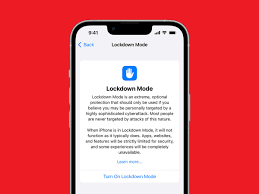
In our increasingly digital world, learning how to enable Lockdown Mode on iOS to protect your data has become essential for anyone who values privacy and security. Whether you’re a high-profile professional, a journalist, or simply someone concerned about personal information, Apple’s Lockdown Mode offers an extreme level of protection against advanced cyber threats and targeted attacks.
If you’re worried about the safety of your digital life, enabling Lockdown Mode is one of the most proactive steps you can take. In this guide, we’ll explain exactly what Lockdown Mode does, who should use it, and how you can enable it on your iPhone or iPad in just a few simple taps so you can stay secure with confidence.
What is Lockdown Mode on iOS? for enable Lockdown Mode on iOS
Lockdown Mode is an advanced security feature available on iOS 16 and later (including the latest iOS 19). When activated, it drastically reduces the “attack surface” of your iPhone by limiting certain functionalities that hackers often exploit.
Specifically, Lockdown Mode enforces the following restrictions:
- Messages: Most message attachment types are blocked, and link previews are disabled.
- Web Browsing: Certain complex web technologies, like just-in-time (JIT) JavaScript compilation, are blocked unless you exclude a trusted site.
- Apple Services: Incoming invitations and service requests, such as FaceTime calls from people you haven’t previously contacted, are blocked.
- Wired Connections: When your iPhone is locked, it will not connect to any accessories or computers via a cable.
How to Enable Lockdown Mode on iOS: Step-by-Step
Actually, enabling this feature is quite straightforward. Follow these steps to lock down your data immediately:
- Open Settings: Navigate to your home screen and tap the gear icon.
- Go to Privacy & Security: Scroll down until you find the Privacy & Security menu.
- Find Lockdown Mode: Scroll all the way to the bottom under the “Security” section and tap on Lockdown Mode.
- Turn On: Tap Turn On Lockdown Mode.
- Confirm and Restart: Review the information about the restrictions, then tap Turn On & Restart. Your device will reboot to apply the changes.
Milaaj Mobile and Laptop Repair Al Barsha: Your Partner in Tech Safety
Even with the best software security, hardware vulnerabilities or physical damage can compromise your device. If your iPhone has a cracked screen, a failing battery, or software glitches that make it feel “unstable,” you need a professional touch. Milaaj mobile and laptop repair Al Barsha is the leading service center in Dubai for all your Apple repair needs.
We understand that your device is your life. That’s why we offer:
- Low Price: We provide high-quality repairs at a fraction of the cost of official service centers.
- Speed Repairing: Most iPhone repairs, including screen and battery replacements, are finished in under 60 minutes.
- Convenience: Located centrally in Al Barsha (near Hessa Street), we offer easy access and even pickup/delivery services.
- Part Quality: We use only premium-grade, certified parts to ensure your device’s security sensors (like FaceID) remain perfectly functional.
Whether you need a security audit or a physical fix, Milaaj is here to keep your tech running smoothly and securely.
Who Should Use Lockdown Mode? enable Lockdown Mode on iOS
Lockdown Mode is not intended for the average user. Because it limits so many daily features, it can make your phone feel less “smart.” Apple specifically designed this for users who might be targeted by mercenary spyware or state-sponsored attacks.
However, if you are traveling to a high-risk area, handling sensitive corporate data, or simply want the highest level of peace of mind during a specific period, you can enable it temporarily. Once the threat has passed, you can turn it off just as easily as you turned it on.
FAQ: enable Lockdown Mode on iOS
1. Does Lockdown Mode delete my data?
Actually, no. Lockdown Mode does not delete your photos, messages, or apps. It simply limits how those apps interact with the outside world to prevent malicious entry.
2. Can I still make calls and send texts?
Indeed, you can. Basic calling and texting remain functional. However, you might notice that you cannot receive certain attachments in iMessage or that web pages load slightly differently.
3. Will Lockdown Mode protect me from physical theft?
Not directly. Lockdown Mode is designed for remote cyberattacks. To protect against physical theft, you should use features like Stolen Device Protection and a strong passcode.
4. Why is my Wi-Fi disconnecting after enabling it?
Lockdown Mode blocks connections to non-secure Wi-Fi networks and excludes some legacy network protocols to keep your connection “clean.”
5. Can I enable it on my Mac and iPad too?
Specifically, yes. Lockdown Mode is available across the entire Apple ecosystem, including iPadOS and macOS. For total protection, Apple recommends enabling it on all your synced devices.
Final Thoughts: enable Lockdown Mode on iOS
In a world where data is the new currency, being proactive about your security is essential. Learning how to enable Lockdown Mode on iOS to protect your data gives you an “emergency brake” for your digital privacy. While it may feel restrictive, the peace of mind it offers during times of high risk is invaluable.
And remember, if your hardware isn’t performing at its peak or you need a professional to look at your device’s security, the team at Milaaj is always ready to assist.
Other Services:
- Need other iPhone repairs? Check out Milaaj’s iPhone repair services in Dubai.
- Looking to upgrade? Learn about selling your used iPhone in Dubai.
- Data loss concerns? Visit Milaaj’s data recovery services.
- For Apple users, check Apple trade-in options in Dubai.
📍 Visit Any Milaaj Branch in Dubai
🔹 Bur Dubai
Milaaj Mobile and Laptop Repair Dubai
📞 055 258 8477
🔗 Google Maps
🔹 Al Barsha
Milaaj Mobiles and Laptop Repair Al Barsha
📞 052 596 2846
🔗 Google Maps
🔹 Al Barsha 3
Milaaj Mobiles and Gaming Store
📞 052 3405 814
🔗 Google Maps
🔹 Al Nuaimiya
Milaaj Mobiles and Laptops Ajman
📞 055 788 9654
🔗 Google Maps
Shop Locations: Al Barsha | Bur Dubai | Reef Mall, Salah Al Din | Al Nuaimiya, Ajman
Email: support@milaaj.com
Operating Hours: Monday – Sunday

Leave a Reply