

Keeping your device clean is essential for performance and longevity. If you’re wondering how to clean your MacBook Air safely without damaging them, you’re already on the right path. Over time, dust, fingerprints, food particles, and grime can build up on your MacBook Air’s screen, keyboard, ports, and internal vents. As a result, this buildup can affect performance, cause overheating, and even lead to long-term hardware issues.
Although Apple designs MacBook Air models with premium materials, improper cleaning methods can easily cause scratches, liquid damage, or display problems. Therefore, learning how to clean your MacBook Air safely without damaging them is crucial for protecting your investment. Fortunately, with the right tools and techniques, cleaning your MacBook Air at home is both safe and effective.
In this comprehensive guide, we will explain step by step how to clean your MacBook Air safely without damaging them, highlight common mistakes to avoid, and show when professional cleaning becomes the best option.
Why It’s Important to Clean Your MacBook Air Regularly
First of all, regular cleaning is not just about appearance it directly impacts performance. Dust accumulation inside vents restricts airflow, which can cause overheating. Consequently, your MacBook Air may slow down, throttle performance, or shut down unexpectedly.
Moreover, bacteria and oils build up on keyboards and trackpads over time. Therefore, cleaning your MacBook Air improves hygiene while maintaining smooth functionality. Most importantly, knowing how to clean your MacBook Air safely without damaging them ensures you avoid costly repairs.
Before You Start: Essential Safety Steps
Before cleaning, preparation is critical. Otherwise, even simple cleaning can result in accidental damage.
Steps to Follow Before Cleaning
- First, shut down your MacBook Air completely
- Then, unplug the charger and accessories
- Allow the device to cool down
- Place it on a flat, clean surface
By doing this, you reduce the risk of electrical damage and scratches.
Tools You Need to Clean Your MacBook Air Safely
To clean your MacBook Air properly, you must use the right tools. Using household cleaners may seem convenient; however, they can permanently damage your device.
Safe Cleaning Tools
- Microfiber cloth (lint-free)
- Compressed air
- Soft-bristled brush
- 70% isopropyl alcohol (small amount)
- Cotton swabs
Using these tools ensures you clean effectively while protecting sensitive components.
How to Clean Your MacBook Air Screen Safely Without Damaging Them
The screen is one of the most delicate parts of your MacBook Air. Therefore, it requires extra care.
Step-by-Step Screen Cleaning
- First, gently wipe the screen with a dry microfiber cloth
- If smudges remain, slightly dampen the cloth with distilled water
- Wipe gently in one direction
- Dry immediately with a clean microfiber cloth
Never spray liquid directly onto the screen, as moisture can seep inside and cause internal damage.
By following these steps, you learn how to clean your MacBook Air safely without damaging them, especially the display.
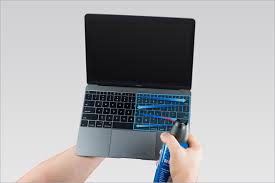
How to Clean the MacBook Air Keyboard Without Damage
The keyboard often collects crumbs, dust, and oils. Over time, this affects typing accuracy.
Safe Keyboard Cleaning Method
- Hold the MacBook Air at a slight angle
- Use compressed air in short bursts
- Gently brush between keys
- Lightly wipe keys with a microfiber cloth
As a result, your keyboard remains clean without dislodging internal components.
How to Clean the Trackpad and Palm Rest Properly
The trackpad and palm rest collect oils from daily use. Therefore, cleaning them improves responsiveness and appearance.
Trackpad Cleaning Steps
- Dampen a microfiber cloth slightly with isopropyl alcohol
- Gently wipe the surface
- Allow it to air dry
This method ensures accuracy and smooth touch response.
Cleaning MacBook Air Ports and Vents Safely
Dust inside ports and vents restrict airflow and connectivity. However, improper cleaning can push debris deeper inside.
Safe Port Cleaning Tips
- Use compressed air gently
- Avoid inserting metal objects
- Do not use liquids near ports
By doing so, you prevent accidental short circuits.
Common Cleaning Mistakes That Damage MacBook Air
Even with good intentions, many users accidentally harm their devices.
Avoid These Mistakes
- Using glass cleaners or bleach
- Spraying liquids directly
- Using paper towels
- Overusing alcohol
- Ignoring internal dust buildup
Knowing what not to do is just as important as knowing how to clean your MacBook Air safely without damaging them.
How Often Should You Clean Your MacBook Air?
Frequency depends on usage. However, consistency is key.
Recommended Cleaning Schedule
- Screen & keyboard: weekly
- Full external cleaning: monthly
- Internal professional cleaning: every 6–12 months
Regular care prevents long-term damage.
When Home Cleaning Is Not Enough
Sometimes, surface cleaning is not sufficient. For instance, if your MacBook Air overheats, runs loudly, or slows down, internal dust buildup may be the cause. In such cases, professional cleaning becomes necessary.
Professional MacBook Air Cleaning at Milaaj
If you want expert-level care, Milaaj provides professional MacBook Air cleaning and maintenance services using industry-grade tools.
Why Choose Milaaj?
Low-Cost Pricing
Milaaj offers budget-friendly cleaning and repair services without compromising quality.
Fast Service
Most professional cleaning services are completed quickly, saving you time and inconvenience.
Convenience
Easy access, flexible service options, and expert handling make the process hassle-free.
High-Quality Parts & Tools
Certified technicians use safe cleaning solutions, anti-static tools, and premium replacement parts if required.
Expert Technicians
Their team understands how to clean your MacBook Air safely without damaging them, including internal fan and heat sink cleaning.
As a result, your MacBook Air performs better, stays cooler, and lasts longer.
Benefits of Professional Cleaning vs DIY
| DIY Cleaning | Professional Cleaning |
|---|---|
| Surface-level only | Deep internal cleaning |
| Risk of mistakes | Zero-risk procedures |
| Limited tools | Advanced equipment |
| Short-term results | Long-term performance |
Therefore, combining safe home cleaning with professional service ensures optimal device health.
Preventive Tips to Keep Your MacBook Air Clean Longer
- Use a keyboard cover
- Wash hands before use
- Avoid eating near your MacBook
- Store in a sleeve or case
- Clean regularly
By following these habits, you reduce dust buildup significantly.
FAQs
1. How often should I clean my MacBook Air?
Ideally, clean the screen and keyboard weekly, perform a full external clean monthly, and schedule professional internal cleaning every 6–12 months.
2. Can I use alcohol to clean my MacBook Air?
Yes, but only 70% isopropyl alcohol and in very small amounts applied to a microfiber cloth not directly on the device.
3. Is it safe to use compressed air on a MacBook Air?
Yes, when used gently and at an angle. Avoid holding the nozzle too close to prevent internal damage.
4. What should I never use to clean a MacBook Air?
Avoid glass cleaners, bleach, paper towels, abrasive cloths, and spraying liquids directly onto the device.
5. When should I get professional MacBook Air cleaning?
If your MacBook overheats, slows down, or has noisy fans, professional internal cleaning is recommended.
Final Thoughts
In conclusion, learning how to clean your MacBook Air safely without damaging them is essential for maintaining performance, appearance, and longevity. While regular home cleaning handles surface dirt, professional internal cleaning ensures optimal cooling and reliability.
Most importantly, avoiding harmful cleaning methods and seeking expert care when needed prevents costly repairs. With proper maintenance and support from trusted professionals like Milaaj Mobiles and Laptop Repair Al Barsha, your MacBook Air can stay clean, fast, and reliable for years to come.
Other Services:
- Need other Mac Book repairs? Check out Milaaj’s MacBook repair services in Dubai.
- Overheating issues? Explore MacBook repair in Dubai for similar cooling solutions.
- Looking to upgrade? Learn about selling your used laptop in Dubai.
- Data loss concerns? Visit Milaaj’s data recovery services.
- For Apple users, check Apple trade-in options in Dubai.
📍 Visit Any Milaaj Branch in Dubai
🔹 Bur Dubai
Milaaj Mobile and Laptop Repair Dubai
📞 055 258 8477
🔗 Google Maps
🔹 Al Barsha
Milaaj Mobiles and Laptop Repair Al Barsha
📞 052 596 2846
🔗 Google Maps
🔹 Al Barsha 3
Milaaj Mobiles and Gaming Store
📞 052 3405 814
🔗 Google Maps
🔹 Al Nuaimiya
Milaaj Mobiles and Laptops Ajman
📞 055 788 9654
🔗 Google Maps
Shop Locations: Al Barsha | Bur Dubai | Reef Mall, Salah Al Din | Al Nuaimiya, Ajman
Email: support@milaaj.com
Operating Hours: Monday – Sunday



Leave a Reply