

Quick Answer
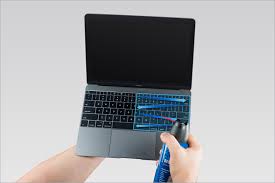
Shut the MacBook Air down, unplug it and wipe it with a soft, lint-free cloth lightly dampened with water. For stubborn smudges, use a 70% isopropyl alcohol wipe on hard surfaces. Never spray liquid on the Mac, keep moisture out of openings and avoid bleach, aerosols and abrasives.
Key Takeaways
- Shut down and unplug first.
- Dampen the cloth, never the Mac.
- Use microfibre, not paper towels.
- A soft brush beats compressed air for keys and openings.
- M-series Airs have no fan or vents, so there’s no internal dust routine to worry about.
What Is the Safest Way to Clean a MacBook Air?
Shut the MacBook Air down, unplug it and wipe it with a soft, lint-free cloth lightly dampened with water. For stubborn smudges, use a 70% isopropyl alcohol wipe on the hard surfaces. Never spray liquid on the Mac, keep moisture out of openings and avoid bleach, aerosols and abrasives.
What Do You Need?
| Item | Why |
|---|---|
| Two clean microfibre cloths | One lightly damp, one dry for buffing. Keep one just for the screen. |
| Water (distilled if you have it) | The safest first cleaner |
| 70% isopropyl alcohol wipes (or 75% ethyl alcohol wipes) | For stubborn grease and sticky spots on hard surfaces |
| Soft, dry brush | For keys, grilles and edges (a clean makeup brush works) |
| Wooden or plastic toothpick | For lint in ports |
| A torch | To see what you’re doing |
What Should You Never Use?
- Window or glass cleaners
- Bleach or hydrogen peroxide
- Ammonia, acetone and household cleaners
- Aerosol sprays, including compressed air cans, near the keyboard, ports and speaker grilles
- Paper towels, kitchen roll or rough cloths, which can scratch
- Abrasive pads or powders
- Hairdryers or vacuums, which add heat and static
- Metal tools in ports
Before You Start: 5 Safety Steps
- Shut the Mac down. Don’t just close the lid, because some keys can wake it.
- Unplug the charger and every accessory.
- Let it cool, especially if it’s been in the sun or charging.
- Work on a clean, flat surface with good light.
- Keep liquids away from the Mac, including your own drink.
How Do You Clean the Screen?
- Start dry. Gently wipe with a clean, dry microfibre cloth to lift dust, so you don’t grind it into the screen.
- Dampen a second cloth with a little water. It should be damp, not wet.
- Wipe in one direction, from one edge to the other, with light pressure.
- Buff dry with the dry cloth to avoid streaks.
- For stubborn smudges, use a 70% isopropyl alcohol wipe or a cloth lightly moistened with it, and wipe gently. Don’t scrub.
Never spray the screen, and don’t press hard on the centre of the lid. The coating on the glass is thin, so use as little liquid as possible. If you see cracks or stains behind the glass, stop cleaning and read our guide to liquid damage under a MacBook screen.
How Do You Clean the Keyboard?
- Keep the Mac shut down.
- Tilt it slightly and brush between the keys with a soft, dry brush, working from the middle outwards.
- Wipe the tops of the keys with a microfibre cloth lightly dampened with water, or a 70% isopropyl alcohol wipe for greasy keys.
- Don’t pry off keys. The clips are fragile.
- Never pour or spray liquid onto or between the keys.
We’d skip compressed air here. Apple’s current guidance for Mac laptops says to avoid aerosol sprays, and forced air can push crumbs further in. If a key sticks or stops working after cleaning, see our guide to a MacBook keyboard not working.
How Do You Clean the Trackpad and Palm Rests?
The trackpad and palm rests collect the most oil.
- Shut the Mac down, so clicks and gestures can’t do anything.
- Wipe with a lightly damp microfibre cloth, or a 70% isopropyl alcohol wipe.
- Dry with a clean cloth.
- Let it sit for a minute before opening the lid.
If the trackpad stops clicking after a spill or cleaning, power off and read our guide to a MacBook trackpad not working after liquid damage.
How Do You Clean the Ports Safely?
Lint from pockets and bags builds up in the MagSafe and USB-C ports and can cause loose or intermittent charging.
- Shut down and unplug.
- Shine a torch into the port.
- Lift out lint gently with a wooden or plastic toothpick, without scraping the contacts.
- Wipe the connector on your cable with a dry cloth.
- Never use metal, and don’t spray anything into the port.
If charging is still unreliable afterwards, see our MacBook Pro charging port guide, because the same checks apply to the Air.
What About Speaker Grilles, the Camera and the Case?
- Speaker grilles and microphone holes: brush gently with a soft, dry brush. Don’t blow into them, and don’t push anything in.
- Camera: wipe the lens area with a dry microfibre cloth.
- Aluminium case, lid and base: a lightly damp microfibre cloth does the job. Pay attention to the hinge area and the rubber feet.
- Sticky residue: try a 70% isopropyl alcohol wipe on the aluminium, and keep it away from the screen edges and openings.
Does a MacBook Air Need Internal Cleaning?
It depends on your model:
| MacBook Air | Internal cleaning? |
|---|---|
| M1, M2, M3, M4 and M5 | No fan and no vents. There’s no routine internal dust cleaning to do. |
| Intel (2020 and earlier) | Has a fan, and dust can build up over time. A technician can clean it, usually about once a year. |
If your fanless Air feels hot or slow, dust isn’t the cause. Heat usually comes from workload, a hot room or the battery. See our guide to MacBook Air M3 overheating prevention.
If you own an Intel Air with fan noise, our MacBook fan repair service can inspect it, and for general care, MacBook maintenance in Dubai covers checks and cleaning.
What About Disinfecting Your MacBook?
If you want to disinfect, Apple’s guidance allows a 70% isopropyl alcohol wipe, a 75% ethyl alcohol wipe or a Clorox Disinfecting Wipe on the hard, nonporous surfaces, such as the case, keyboard and display. Wring the wipe out so it’s not dripping, avoid openings, and never use products containing bleach or hydrogen peroxide. Don’t soak anything.
What Dubai Conditions Should You Watch For?
- Fine dust and sand settle on the lid and in ports, so wipe the Mac down more often after outdoor use
- Sunscreen, sweat and hand sanitiser leave greasy marks on keys and palm rests
- Humidity makes sticky residue harder to remove, so don’t leave spills to dry
- Cleaning a hot Mac can leave streaks and risks liquid evaporating oddly, so let it cool first
- Food and drinks near the Mac are the main cause of liquid damage, so keep them apart
How Often Should You Clean?
| Task | How often |
|---|---|
| Quick dry wipe of screen and keys | Weekly |
| Damp wipe of the whole exterior | Monthly |
| Port check for lint | Every few months, or if charging gets flaky |
| Internal cleaning | Fanless Air: not needed. Intel Air: about once a year. |
What Should You Do If Liquid Gets In?
Stop cleaning, shut the Mac down, unplug it and don’t switch it back on to test. Keep it in a dry, ventilated place, and get it inspected quickly. If your files matter, read our guide to recovering data from a water-damaged MacBook before doing anything else.
How Can You Keep It Clean Longer?
- Wash and dry your hands before using it
- Keep food and drinks away
- Use a padded sleeve and don’t carry it loose in a bag
- Avoid keyboard covers that trap grit (and take them off to clean underneath)
- Wipe it down after outdoor use
- Keep it out of heat and direct sun
- Don’t leave it on soft surfaces where lint and dust collect
FAQ: Cleaning a MacBook Air
Can I use isopropyl alcohol to clean my MacBook Air?
Yes, 70% isopropyl alcohol wipes can be used gently on hard, nonporous surfaces like the case and keyboard. Don’t soak anything, and keep it out of openings.
Is it safe to use compressed air on a MacBook Air?
We’d avoid it. Apple’s guidance says not to use aerosol sprays on Mac laptops, and forced air can push debris deeper. A soft brush is safer.
How do I clean a MacBook Air screen without streaks?
Start with a dry microfibre cloth, then a lightly damp one, wiping in one direction. Buff dry with a clean cloth.
Does a MacBook Air have fans to clean?
Not the M1, M2, M3, M4 or M5 models. They’re fanless. Only older Intel Airs have a fan.
Can I use disinfectant wipes on my MacBook?
Apple allows certain alcohol and Clorox disinfecting wipes on hard surfaces. Avoid bleach and hydrogen peroxide, and keep moisture out of openings.
A Clean MacBook, Without the Risk
Cleaning a MacBook Air safely comes down to a few habits: shut down first, dampen the cloth instead of the Mac, use microfibre and a soft brush, and keep liquid out of every opening. Do that regularly, and your Air will look and feel new for years.
If something gets damaged during cleaning, or your Mac has a problem that cleaning can’t fix, message us on WhatsApp with your model and what’s happening, or visit Milaaj to find your nearest branch, and we’ll tell you the next step.
Other Services:
- Need other Mac Book repairs? Check out Milaaj’s MacBook repair services in Dubai.
- Overheating issues? Explore MacBook repair in Dubai for similar cooling solutions.
- Looking to upgrade? Learn about selling your used laptop in Dubai.
- Data loss concerns? Visit Milaaj’s data recovery services.
- For Apple users, check Apple trade-in options in Dubai.
📍 Visit Any Milaaj Branch in Dubai
🔹 Bur Dubai
Milaaj Mobile and Laptop Repair Dubai
📞 055 258 8477
🔗 Google Maps
🔹 Al Barsha
Milaaj Mobiles and Laptop Repair Al Barsha
📞 052 596 2846
🔗 Google Maps
🔹 Al Barsha 3
Milaaj Mobiles and Gaming Store
📞 052 3405 814
🔗 Google Maps
🔹 Al Nuaimiya
Milaaj Mobiles and Laptops Ajman
📞 055 788 9654
🔗 Google Maps
Shop Locations: Al Barsha | Bur Dubai | Reef Mall, Salah Al Din | Al Nuaimiya, Ajman
Email: support@milaaj.com
Operating Hours: Monday – Sunday

Leave a Reply