

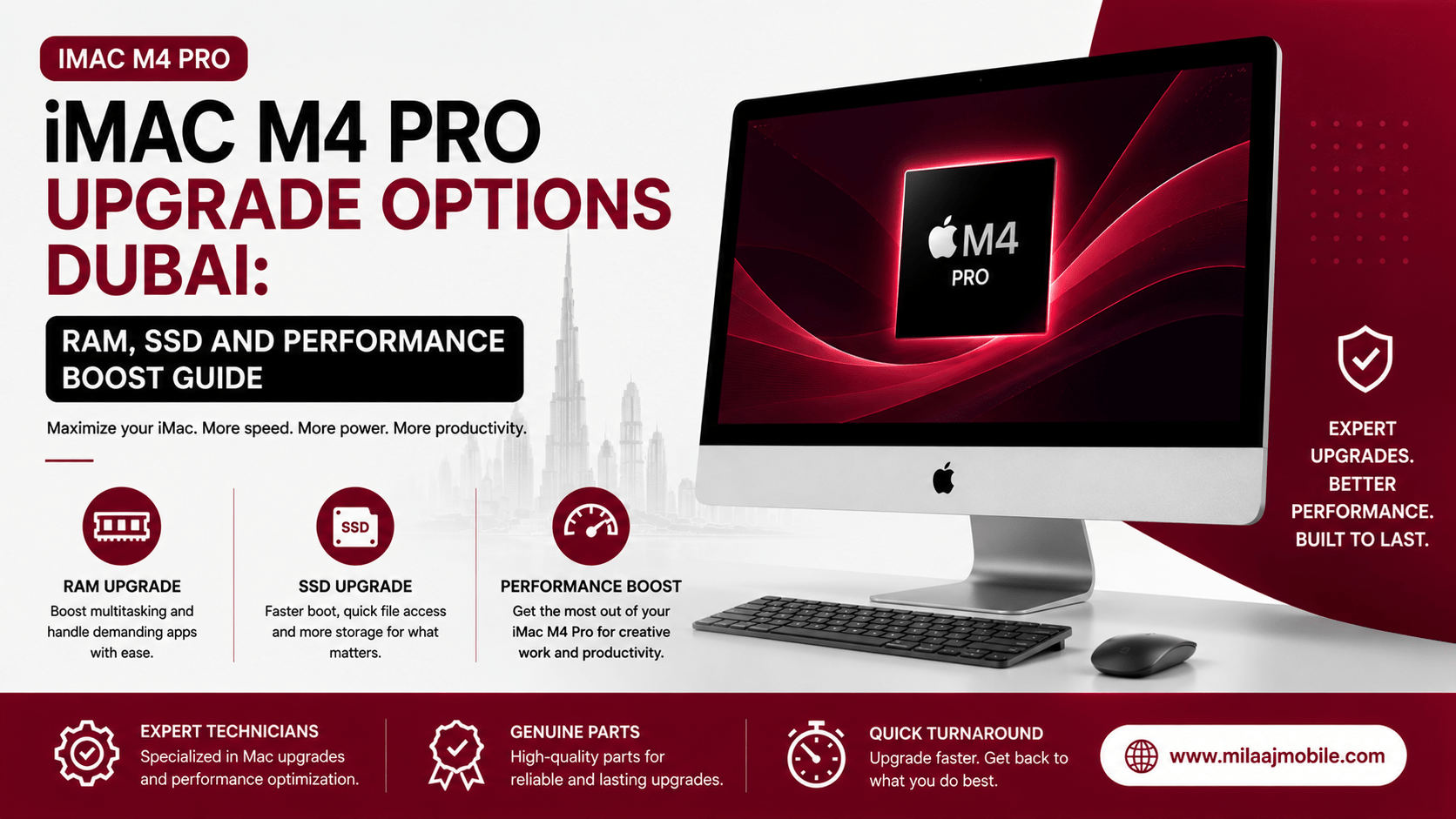
When you unbox a sleek 24-inch iMac in your Dubai Studio City workplace or Jumeirah home office, its ultra-thin design and stunning 4.5K Retina display immediately stand out. However, as your creative workload grows especially with multi-stream 4K video editing, 3D rendering, or local AI applications you may start noticing memory pressure warnings, slower performance, or limited storage. Therefore, understanding the best iMac M4 Pro upgrade options Dubai users can consider is essential for improving performance and extending the desktop’s useful lifespan.
Apple’s M4 architecture delivers excellent efficiency and processing power, but its System-on-Chip (SoC) design means unified memory and internal storage are integrated into the device rather than being traditional user-replaceable components. As a result, upgrading RAM or replacing the internal SSD is not as straightforward as upgrading a conventional desktop PC. Instead, users can focus on high-speed external NVMe SSD solutions, optimized storage management, macOS performance tuning, and professional hardware diagnostics to get more from their iMac without compromising its reliability.
Moreover, choosing the right iMac M4 Pro upgrade options Dubai service can help you identify performance bottlenecks before investing in additional hardware. A professional technician can assess storage usage, memory pressure, thermal performance, ports, and overall system health, while recommending suitable external SSD configurations and workflow improvements. With the right combination of storage expansion, macOS optimization, and expert maintenance, your iMac can remain fast and reliable for demanding creative, business, and AI workloads.
Understanding Apple M4 Architecture: The Hard Limits
Before planning a hardware upgrade, it helps to understand how Apple builds its modern all-in-one desktop computers.
Unified Memory vs. Traditional RAM
In older Intel-based desktops, users could unclip the rear hatch to insert extra RAM sticks into empty SO-DIMM slots. Modern M4 chips integrate unified memory directly onto the processor substrate. This design delivers 120 GB/s of memory bandwidth, allowing the CPU, GPU, and Neural Engine to access the same data pool instantly. However, because these chips are factory-soldered, physical RAM capacity cannot be expanded post-purchase.
On-Board NAND Flash Storage
Similarly, internal SSD chips are surface-mounted directly onto the logic board alongside the Apple Secure Enclave processor. Replacing these internal chips requires complex micro-soldering and custom controller programming. Consequently, external high-speed expansion represents the most reliable, safe, and cost-effective upgrade strategy for increasing storage space.
Step 1: Solving the Storage Bottleneck with High-Speed External NVMe Drives
When internal storage fills to capacity, system performance degrades quickly because macOS relies on free disk space to write virtual swap memory.
  EXPANSION PATH A: Thunderbolt 4 External NVMe Enclosure
  [High Speed]  --> Delivers up to 2,800 - 3,200 MB/s read/write speeds.
  [Best For]    --> 4K/8K video editing, scratch disks, and media libraries.

  EXPANSION PATH B: Portable USB 3.2 Gen 2 SSD
  [Budget Choice]--> Delivers up to 1,050 MB/s transfer speeds.
  [Best For]    --> Automated Time Machine backups and general file archives.
Building a Thunderbolt 4 Drive Array
By connecting an M.2 NVMe PCIe 4.0 SSD inside a rugged Thunderbolt 4 enclosure, you can achieve read and write speeds exceeding 3,000 MB/s.
- Choose the Right Drive: Select a high-end M.2 NVMe SSD (such as a Samsung 990 Pro or WD_BLACK SN850X).
- Select a Dedicated Enclosure: Pair the drive with an aluminum Thunderbolt 4 (40 Gbps) enclosure featuring active thermal pads.
- Configure APFS Formatting: Open Disk Utility, format the new drive as APFS (Apple File System), and set up your photo libraries, Final Cut Pro caches, or Logic Pro sound banks on the external volume.
Booting macOS from an External High-Speed SSD
If your internal 256GB drive is severely bottlenecked, you can install a fresh copy of macOS directly onto your external Thunderbolt 4 drive and set it as your primary boot volume in Settings > General > Startup Disk. This setup gives you massive storage capacity without requiring logic board modifications.
Step 2: Optimizing Unified Memory and Clearing Swap Pressure
If you frequently run heavy applications like Photoshop, DaVinci Resolve, or local AI models on a 16GB or 24GB machine, active RAM optimization keeps your system running smoothly.
Managing Memory Pressure
Open Activity Monitor and click the Memory tab. Look at the Memory Pressure graph at the bottom of the window:
- Green: Your system is handling active workloads efficiently.
- Yellow: macOS is actively compressing memory pages to fit running tasks.
- Red: Your unified memory is fully saturated, forcing the system to read and write temporary swap files to internal flash storage, which slows down performance.
To relieve memory pressure, close heavy background browser tabs, disable unnecessary login items, and allocate dedicated scratch disks to fast external storage.
Technical Comparison: Upgrading Methods for Desktop Macs
| Expansion Approach | Transfer Speed | Installation Safety | Risk Level | Ideal Use Case |
| Thunderbolt 4 NVMe Expansion | 2,800 – 3,200 MB/s | Plug-and-Play (DIY) | Zero Risk | Active video editing & media storage |
| USB 3.2 Gen 2 Portable SSD | 1,000 – 1,050 MB/s | Plug-and-Play (DIY) | Zero Risk | Document archiving & backups |
| Internal Logic Board Micro-Soldering | Native (3,000+ MB/s) | Specialized Workshop Only | High Risk | Emergency repair after internal failure |
| Professional Thermal Maintenance | Restores Sustained Speeds | Technical Service Center | Low Risk | Eliminating heat throttling after 2+ years |
Step 3: Sustaining Peak Speeds with Thermal Maintenance
While Apple Silicon chips generate minimal heat compared to older processors, dust buildup inside the slim display chassis can degrade cooling performance over time.
  THERMAL DEGRADATION TIMELINE (DUBAI CLIMATE)
  [0 - 12 Months] --> Peak factory cooling; fans operate silently.
  [12 - 24 Months]--> Ambient dust settles inside intake vents & blower blades.
  [24+ Months]    --> Dust buildup limits heat dissipation; thermal throttling occurs.
In warm climates like Dubai, fine dust and airborne particles accumulate on fan impellers and internal heat sinks. When internal temperatures rise during heavy rendering sessions, thermal management systems automatically throttle processor clock speeds to prevent overheating.
Having a certified technician open the display assembly, clear out internal dust traps, and reapply high-grade thermal paste restores proper heat dissipation, allowing your desktop to maintain maximum performance during long workloads.
Why Choose Milaaj Mobile and Laptop Repair Al Barsha?
When optimizing high-end Apple hardware, partnering with a skilled local service center ensures your device receives proper technical care. For professional hardware upgrades, thermal servicing, and data migration, Milaaj mobile and laptop repair Al Barsha delivers specialized solutions tailored to your workflow and budget.
Low Price Guarantee with Transparent Quotes
We believe in straightforward, cost-effective service pricing. Our technicians inspect your desktop thoroughly to recommend practical storage expansion strategies or thermal maintenance options before performing any work, saving you money.
Express Speed Repairing
We know your computer is central to your daily work, business operations, and creative projects. With our express speed repairing workflow, thermal dust servicing, internal cleaning, and external boot drive configurations are completed rapidly often on the exact same day.
Unmatched Convenience Across Dubai
Located conveniently in Al Barsha near Mall of the Emirates, our repair workshop is easily accessible. If you cannot visit us in person, our free pickup and delivery service collects your desktop directly from your home or office anywhere in Dubai and returns it fully serviced.
Top Part Quality & Component Sourcing
From industrial display sealing adhesives to original thermal interface materials, we use premium components to ensure your all-in-one desktop remains structurally sound, quiet, and cool under heavy workloads. Every service comes backed by warranty coverage for ultimate peace of mind.
Essential Accessories to Maximize Desktop Productivity
Pairing your desktop setup with the right peripheral gear ensures smooth daily performance:
- Thunderbolt 4 Docking Station: Expand your connection ports by adding extra USB-A, DisplayPort, SD Express card slots, and 2.5G Ethernet connections through a single rear port.
- Uninterruptible Power Supply (UPS): Protect your internal components and active project files against sudden power fluctuations or outages.
- Ergonomic Aluminum VESA Stand: Elevate your display to eye level to reduce neck strain during long creative sessions.
- External Backup Storage Drive: Set up automatic macOS Time Machine backups to an external drive so your work stays protected against accidental file loss.
Frequently Asked Questions (FAQs)
Can I upgrade the internal RAM on an M4 desktop after purchase?
No. Unified memory is integrated directly onto the Apple Silicon chip substrate at the factory. It cannot be physically removed or upgraded later. Memory optimization must be handled via software settings and virtual swap buffers.
Is running macOS from an external Thunderbolt 4 SSD as fast as the internal drive?
Yes. Modern Thunderbolt 4 drives achieve transfer speeds over 3,000 MB/s, which closely matches internal drive performance for daily tasks, video editing, and software loading.
Why is my desktop running slower after two years of daily use?
Dust accumulation inside internal fan vents and thermal sinks restricts airflow. As heat builds up under heavy workloads, the system automatically lowers processor speeds to prevent thermal damage. A professional internal cleaning resolves this issue.
Will opening my all-in-one desktop to clean internal fans damage the screen?
Opening modern Apple desktops requires specialized prying tools to slice through delicate perimeter display adhesive seals without cracking the glass. This service should always be performed by experienced technicians.
Final Thoughts: Unlocking Long-Term Desktop Performance
Exploring iMac M4 Pro upgrade options Dubai: RAM, SSD and performance boost guide solutions helps you get the most value out of your Apple setup without buying a brand-new computer. By building high-speed external Thunderbolt 4 storage arrays, managing unified memory pressure, and scheduling periodic thermal cleaning, you can keep your machine running fast, quiet, and reliable for years to come.
If your desktop is running out of storage space or running hot under heavy workloads, contact a trusted technician today to upgrade your system performance!
Other Services:
- Need other AirPods repairs? Check out Milaaj’s pc repair services in Dubai.
- Looking to upgrade? Learn about selling your used device in Dubai.
- For Apple users, check Apple trade-in options in Dubai.
📍 Visit Any Milaaj Branch in Dubai
🔹 Bur Dubai
Milaaj Mobile and Laptop Repair Dubai
📞 055 258 8477
🔗 Google Maps
🔹 Al Barsha
Milaaj Mobiles and Laptop Repair Al Barsha
📞 052 596 2846
🔗 Google Maps
🔹 Al Barsha 3
Milaaj Mobiles and Gaming Store
📞 052 3405 814
🔗 Google Maps
🔹 Al Nuaimiya
Milaaj Mobiles and Laptops Ajman
📞 055 788 9654
🔗 Google Maps
Shop Locations: Al Barsha | Bur Dubai | Reef Mall, Salah Al Din | Al Nuaimiya, Ajman
Email: support@milaaj.com
Operating Hours: Monday – Sunday
Leave a Reply