

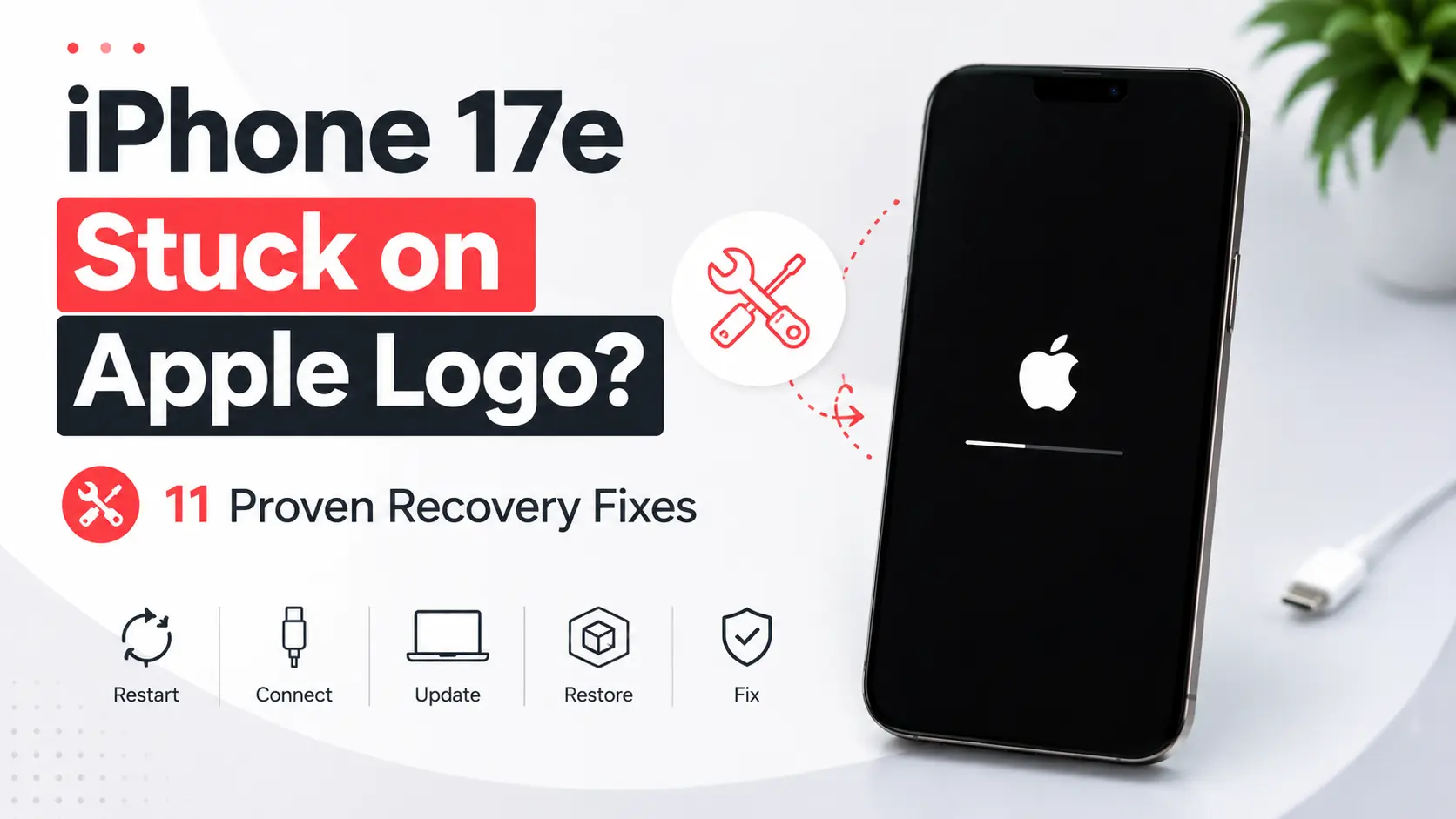
If your iPhone 17e is stuck on the Apple logo, the problem is usually caused by an interrupted iOS update, corrupted system files, failed data transfer, or a startup error rather than permanent hardware damage. Begin by waiting if the phone recently updated, then perform a force restart. If it still won’t boot, Recovery Mode can often reinstall iOS without erasing your data. When software recovery fails, the battery, internal storage, or logic board may require professional diagnosis.
Quick Answer
An iPhone 17e stuck on the Apple logo is most commonly caused by software corruption, interrupted updates, or startup failures. Wait up to 30 minutes if the phone recently installed an update, perform a force restart, and then use Recovery Mode to reinstall iOS if necessary. If the device still won’t boot, the problem may involve the battery, NAND storage, or logic board.
Key Takeaways
- Most Apple logo startup issues are software-related and can often be fixed without replacing hardware.
- Interrupted iOS updates and failed restores are among the most common causes.
- Recovery Mode is Apple’s recommended recovery method before attempting a full restore.
- DFU Mode should only be used if Recovery Mode cannot resolve the issue.
- Persistent startup failures after software recovery often indicate a hardware problem.
Why Is My iPhone 17e Stuck on the Apple Logo?
During startup, your iPhone briefly displays the Apple logo while iOS loads essential system files. If the logo remains on the screen for several minutes or repeatedly appears before disappearing again, the startup process has been interrupted.
Fortunately, this doesn’t always mean your iPhone has suffered permanent damage. In many cases, software corruption, interrupted updates, or failed restores prevent iOS from loading correctly, and these issues can often be resolved using Apple’s recovery tools.
Common causes include:
- Interrupted iOS updates
- Failed device-to-device transfers
- Corrupted system files
- Failed backup restoration
- Insufficient storage during updates
- Incomplete app migration
- Unexpected shutdown during startup
- Battery instability
- Internal NAND storage problems
- Logic board damage
- Liquid damage
Understanding what happened immediately before the issue started can help determine the most appropriate recovery method.
If you’ve noticed additional issues besides startup failures, our guide to common iPhone 17e problems and fixes explains the most frequently reported issues and practical solutions in one place.
Common Signs of Apple Logo Startup Problems
Startup failures don’t always look the same. Some devices remain frozen on the Apple logo, while others repeatedly restart without reaching the Lock Screen.
Common symptoms include:
- The Apple logo remains on the screen for several minutes.
- The device never reaches the Lock Screen.
- The Apple logo repeatedly appears and disappears.
- The screen briefly turns black before showing the Apple logo again.
- The iPhone vibrates but never finishes booting.
- Finder or Apple Devices detects the phone only in Recovery Mode.
If your iPhone shows any of these symptoms repeatedly, continue with the troubleshooting steps below.
Troubleshooting at a Glance
| Symptom | Likely Cause | First Fix |
| Apple logo after an update | Background setup still running | Wait up to 30 minutes |
| Apple logo never disappears | Startup failure | Force restart |
| Boot loop | Software corruption | Recovery Mode |
| Update failed | Corrupted iOS | Update or Restore through Recovery Mode |
| Recovery Mode fails | Severe software corruption | DFU Mode |
| Startup still fails | Hardware issue | Professional diagnosis |
1. Wait if Your iPhone Recently Updated
If your iPhone became stuck immediately after installing an iOS update, avoid interrupting the startup process too quickly.
Large updates often perform background tasks before the device becomes fully usable, including:
- File system verification
- Security validation
- App optimization
- Spotlight indexing
- Photo library processing
- iCloud synchronization
- Apple Intelligence setup on supported devices
Depending on the amount of data stored on your iPhone, these processes may take longer than expected.
If the Apple logo remains on the screen for more than 30 minutes without any progress, move on to the next troubleshooting step.
2. Force Restart Your iPhone 17e
A force restart is the quickest way to recover from temporary startup glitches.
Unlike a factory reset, this process doesn’t erase your personal data. Instead, it refreshes iOS and can resolve temporary software problems that prevent the startup process from completing.
How to Force Restart
- Quickly press and release Volume Up.
- Quickly press and release Volume Down.
- Press and hold the Side button.
- Continue holding until the Apple logo appears again.
If your iPhone successfully reaches the Lock Screen afterward, continue using it normally and monitor whether the problem returns.
3. Charge Your iPhone Before Continuing
An unstable or deeply discharged battery can interrupt the startup process, particularly if the device powered off unexpectedly before becoming stuck on the Apple logo.
Before attempting more advanced recovery methods:
- Connect your iPhone to a reliable USB-C charger.
- Charge it for at least 30 minutes.
- Use a certified charging cable and power adapter whenever possible.
- Avoid wireless charging until the device is working normally again.
If the battery was completely depleted, allowing it to charge may be enough for the startup process to finish successfully.
4. Disconnect External Accessories
Although uncommon, connected accessories can occasionally interfere with the startup process.
Disconnect any connected devices, including:
- USB-C hubs
- External storage devices
- CarPlay adapters
- MagSafe accessories
- Power banks
- External displays
After disconnecting everything, perform another force restart before continuing with software recovery.
5. Consider Whether Storage Was Nearly Full
Low storage is an overlooked cause of failed iOS updates and startup issues.
During software installation, iOS temporarily requires additional storage for:
- Installation files
- System verification
- Temporary cache
- App optimization
- Background processing
If your iPhone had very little available storage before the update, the installation may not have completed correctly.
Although you can’t free storage while the device is stuck on the Apple logo, remembering whether storage was nearly full helps explain why the issue occurred. In many cases, Recovery Mode can successfully repair storage-related startup failures.
6. Use Recovery Mode
If force restarting doesn’t resolve the problem, Apple’s recommended next step is Recovery Mode.
Recovery Mode allows your Mac or Windows PC to reinstall iOS while attempting to preserve your personal data.
How to Enter Recovery Mode
- Connect your iPhone to your computer.
- Open Finder on macOS or Apple Devices (or iTunes on older Windows systems).
- Quickly press Volume Up.
- Quickly press Volume Down.
- Press and hold the Side button.
- Continue holding until the Recovery Mode screen appears.
Your computer will detect the iPhone and present two options:
- Update
- Restore
Always choose Update first.
This reinstalls iOS without erasing your personal files whenever possible. The download and installation process may take several minutes depending on your internet connection.
7. What If Recovery Mode Doesn’t Work?
Occasionally, Recovery Mode cannot complete successfully.
This may happen if:
- System files are severely corrupted.
- The update failed multiple times.
- Internal storage cannot be accessed correctly.
- A hardware fault prevents iOS from loading.
If Finder or Apple Devices reports that the update couldn’t be completed, you may need to restore the device completely or proceed to more advanced recovery methods.
8. Use DFU Mode as a Last Resort
If Recovery Mode cannot repair your iPhone, Device Firmware Update (DFU) mode is the most advanced software recovery option available.
Unlike Recovery Mode, DFU mode bypasses the current operating system and allows your computer to reinstall both the firmware and iOS from scratch. This can resolve severe software corruption that prevents the device from starting normally.
However, there are a few important things to know:
- A DFU restore erases all data on your iPhone.
- You’ll need a recent iCloud or computer backup to restore your personal files afterward.
- Entering DFU mode requires precise timing and is intended for advanced troubleshooting.
Because of its complexity, DFU mode is generally recommended only after Recovery Mode has failed or if you’re instructed to use it by Apple Support or a qualified technician.
If you don’t have a recent backup and your iPhone still won’t start after Recovery Mode or DFU restoration, recovering your personal files may require specialized tools. Learn more about iPhone data recovery in Dubai before attempting any repair that could erase your data.
9. Could a Recent iOS Update Cause This?
Yes, but not always for the reason many people assume.
After a major iOS update, your iPhone performs several background tasks before it becomes fully responsive. If the installation is interrupted by low storage, a weak battery, an unexpected shutdown, or a failed download, the startup process may fail and leave the device stuck on the Apple logo.
Software-related startup problems are more likely if the issue began:
- Immediately after installing an iOS update
- During a device-to-device transfer
- While restoring from an iCloud or computer backup
- Shortly after resetting the iPhone
- Following a failed beta installation
If the software installation completed successfully but the phone still cannot boot, Recovery Mode or a clean iOS installation often resolves the issue.
10. When the Apple Logo Indicates a Hardware Problem
If software recovery methods don’t work, the underlying cause may be a hardware fault rather than corrupted software.
Potential hardware-related causes include:
- Battery failure
- Damaged charging circuit
- NAND storage failure
- Logic board damage
- Power Management IC (PMIC) faults
- Liquid damage
- Damage caused by accidental drops
Hardware problems usually become more noticeable over time. You may have experienced random restarts, freezing, charging issues, or overheating before your iPhone eventually became stuck on the Apple logo.
If your device was repeatedly rebooting before it stopped starting altogether, our guide on iPhone 17e keeps restarting randomly explains the warning signs that often appear before a startup failure.
If the problem is hardware-related, reinstalling iOS alone is unlikely to resolve it.
How Professional Technicians Diagnose Apple Logo Issues
A startup failure isn’t always caused by the displaying Apple logo itself. The challenge is identifying why iOS can’t complete the boot process.
Professional technicians typically perform:
| Diagnostic Test | Purpose |
| Startup diagnostics | Identifies where the boot process fails |
| Battery health testing | Checks voltage stability during startup |
| Charging circuit analysis | Detects power-related faults |
| NAND storage testing | Verifies internal storage health |
| Logic board diagnostics | Identifies damaged components or circuits |
| Power consumption analysis | Detects abnormal current draw |
| Moisture inspection | Checks for liquid damage |
| Software integrity testing | Rules out firmware corruption |
These tests help identify the exact cause before any repair is recommended, reducing the risk of replacing parts unnecessarily.
If software recovery isn’t enough, our iPhone repair services in Dubai can help determine whether the issue is software-related or requires hardware repair.
How to Prevent Apple Logo Startup Problems
While startup failures can’t always be avoided, a few simple habits can significantly reduce the risk.
To help keep your iPhone running reliably:
- Maintain at least 10–15 GB of free storage.
- Install iOS updates only when your battery is sufficiently charged.
- Use a stable Wi-Fi connection for software updates.
- Avoid interrupting updates or data transfers.
- Create regular iCloud or computer backups.
- Use certified charging accessories.
- Keep your iPhone updated with the latest stable version of iOS.
These practices help ensure smoother updates and reduce the likelihood of startup-related issues.
Frequently Asked Questions
Why is my iPhone 17e stuck on the Apple logo?
The most common causes include interrupted iOS updates, corrupted system files, failed backups or data transfers, insufficient storage during an update, battery instability, or hardware faults involving the storage chip or logic board.
Will a force restart erase my data?
No. A force restart simply refreshes the operating system and doesn’t delete your photos, apps, messages, or other personal data. It’s always the first troubleshooting step recommended for startup issues.
What’s the difference between Recovery Mode and DFU Mode?
Recovery Mode reinstalls iOS while attempting to preserve your data whenever possible. DFU Mode performs a deeper firmware restoration that erases the device and is typically used only if Recovery Mode cannot resolve the problem.
Can a bad battery cause my iPhone to get stuck on the Apple logo?
Yes. A failing battery may not provide stable power during startup, preventing iOS from completing the boot process. In some cases, replacing the battery resolves repeated startup failures.
Should I restore my iPhone immediately?
Not necessarily. Apple recommends trying a force restart first, followed by Recovery Mode using the Update option, which attempts to reinstall iOS without erasing your data. A full restore should generally be considered only if the update fails.
When should I seek professional repair?
Professional diagnosis is recommended if your iPhone remains stuck on the Apple logo after Recovery Mode, repeatedly enters a boot loop, can’t be detected correctly by your computer, or shows signs of liquid or physical damage.
Final Thoughts
An iPhone 17e stuck on the Apple logo doesn’t always mean the device has suffered permanent damage. In many cases, interrupted software updates, corrupted system files, or startup errors can be resolved with a force restart or Recovery Mode.
However, if your iPhone still won’t boot after completing Apple’s recommended recovery steps, the problem may involve the battery, internal storage, power management system, or logic board. Identifying the underlying cause early can help prevent further damage and avoid unnecessary repairs.
If you need expert assistance, Milaaj provides professional diagnostics and repairs for startup failures, battery issues, motherboard faults, and other iPhone problems across Dubai. And if repairing your device isn’t the most practical option, you can also sell your iphone in Dubai through our buyback service and receive a competitive quote for your iPhone, even if it has startup issues.



Leave a Reply