

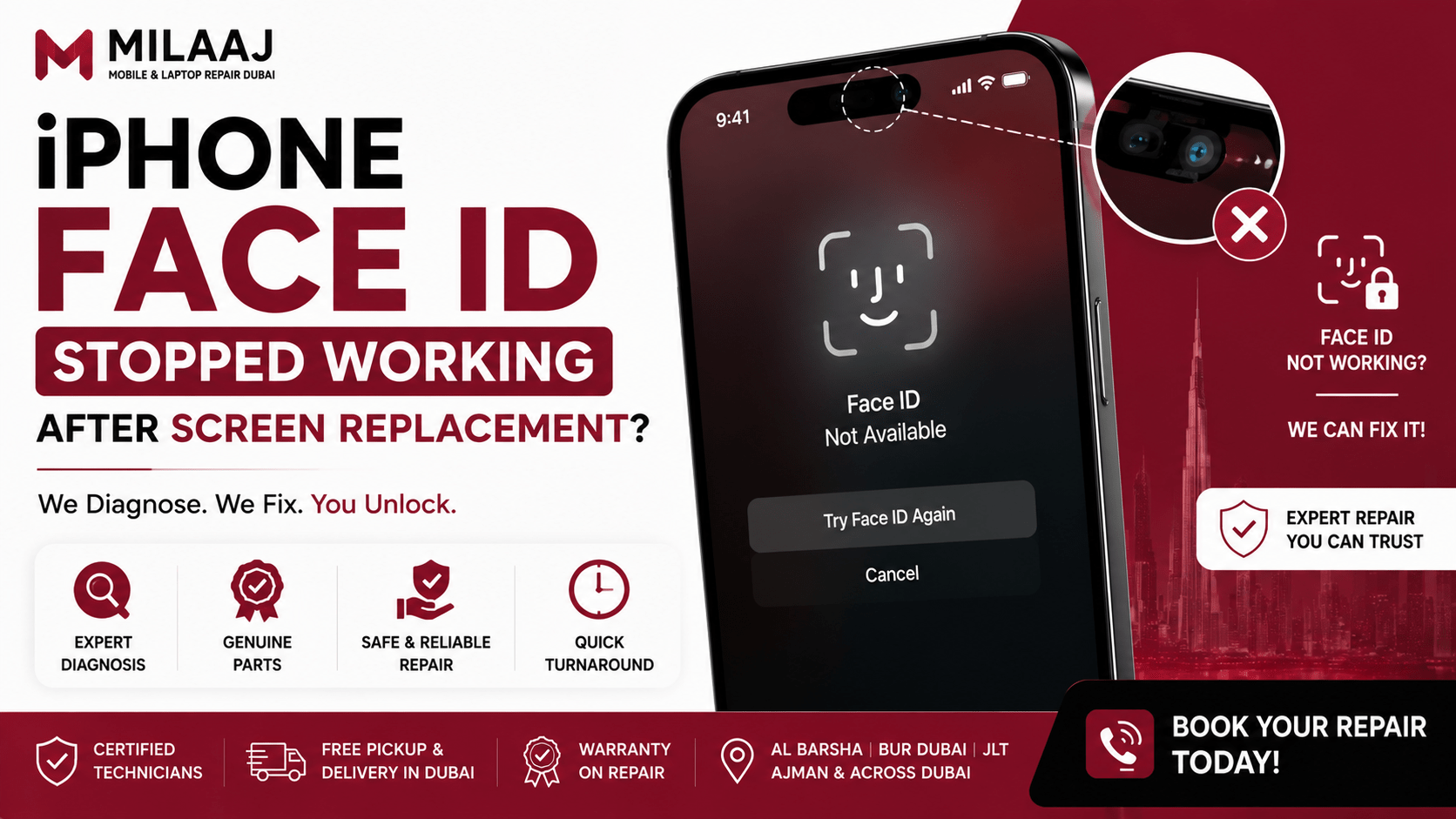
Have you recently dropped your iPhone on a hard floor in Dubai? Then, you replaced the cracked screen, only to discover that Face ID no longer works. If so, you’re not alone. Many iPhone users experience this problem after a screen replacement.
Instead of unlocking your phone instantly, you may see a passcode request or the message “Face ID Is Not Available.” As a result, everyday tasks such as unlocking your device or authorizing Apple Pay become frustrating.
Fortunately, this issue is common after low-quality or improperly performed screen repairs. However, it does not always mean your Face ID system is permanently damaged. In many cases, the problem can be diagnosed and, depending on the cause, repaired by experienced technicians.
In this guide, you’ll learn why iPhone Face ID stopped working after screen replacement, what you can safely try at home, and when professional repair is the best option. We’ll also explain how Apple’s TrueDepth camera system works, why proper calibration matters, and where to find reliable Face ID repair services in Dubai.
Why Face ID Frequently Breaks During Screen Swaps
To understand why Face ID no longer works, it’s important to know how Apple’s facial recognition system operates. Unlike a standard selfie camera, Face ID relies on the advanced TrueDepth camera system. Together, these components create a secure 3D map of your face.
During a screen replacement, technicians must carefully handle several delicate parts. However, even a small mistake can affect Face ID. Therefore, identifying the cause is the first step toward fixing the problem.
Torn or Damaged Flex Cables
The flex cables connect the front speaker, microphone, ambient light sensor, and other components to the logic board. Because these cables are extremely thin, they can be damaged during screen removal. As a result, Face ID may stop working after the repair.
Apple’s Parts Pairing System
Apple securely pairs the TrueDepth camera with the iPhone’s logic board at the factory. Therefore, the original sensors must be transferred to the new display during the repair. If an inexperienced technician installs a pre-assembled screen without moving these original components, Face ID will be disabled for security reasons.
Sensor Misalignment
The dot projector creates thousands of invisible infrared points to map your face. However, it must be perfectly aligned to work correctly. Even a slight misalignment during installation can prevent Face ID from recognizing your face. Consequently, authentication will fail.
Dust or Adhesive on the Sensors
A clean workspace is essential during every repair. If dust, lint, or adhesive covers the infrared camera or dot projector, the sensors cannot function properly. As a result, Face ID may stop working or become unreliable after the screen replacement.
Why Professional Repairs Matter
Face ID is one of the most advanced security systems in a smartphone. Therefore, repairing an iPhone requires precision, specialized tools, and experienced technicians. Ultimately, choosing a qualified repair professional reduces the risk of damaging sensitive components and helps preserve full Face ID functionality.
Step-by-Step DIY Troubleshooting Methods
Before assuming that your internal hardware is permanently ruined, you should try a few non-invasive software steps. These simple actions can resolve temporary software conflicts that sometimes occur when a new hardware screen initializes.
1.Force Restart Your iPhone:Takes 1 Minute.
A basic reboot can clear frozen system cache files that prevent the TrueDepth sensors from launching. Quickly press and release Volume Up, press and release Volume Down, and then hold down the Power button until you see the Apple logo appear on your screen.
2.Inspect and Clean the Notch Area:Takes 2 Minutes.
Take a soft microfiber cloth and gently wipe the glass notch at the top of your screen. If you recently applied a thick third-party tempered glass screen protector, remove it temporarily to ensure it is not blocking the infrared light sensors.
3.Reset and Re-register Your Face Profile:Takes 3 Minutes.
Go to Settings, scroll down to Face ID & Passcode, and enter your passcode. If the option is clickable, tap Reset Face ID. Once cleared, try to set up a brand-new profile in a well-lit room to see if the system can scan your face.
4.Check for iOS Software Updates:Takes 5 Minutes.
Sometimes Apple releases software patches that address screen compatibility bugs. Navigate to Settings > General > Software Update. If an update is available, download and install it, then check if your Face ID menu resets itself.
Understanding the “Face ID Is Not Available” Error Message
If you complete the steps above and still see a grayed-out menu or a persistent “Face ID is not available” pop-up, you are dealing with a physical hardware mismatch or a broken internal connection.
+------------------------------------+---------------------------------------+
| Symptom / Warning Message          | Most Likely Cause                     |
+------------------------------------+---------------------------------------+
| "Face ID is not available"         | Torn proximity sensor flex or loose   |
| or option is completely grayed out | connection on the motherboard.|
+------------------------------------+---------------------------------------+
| Face ID starts to scan but stops,  | Micro-misalignment of the dot         |
| telling you to move phone up/down  | projector or cheap glass distortion.|
+------------------------------------+---------------------------------------+
| Face ID worked for one day after   | The screen adhesive softened, causing |
| repair, then suddenly stopped      | a loose connector to pop out. |
+------------------------------------+---------------------------------------+
When these symptoms appear, continuing with software resets or factory restores will not help you. Trying to fix internal micro-circuits at home without professional microscopes and grounding straps is highly risky and can permanently disable your biometrics forever.
Professional Mobile Restoration at Milaaj Al Barsha
If your DIY troubleshooting does not restore your facial recognition, you need to hand your device to experienced hands. This is where Milaaj mobile and laptop repair Al Barsha comes to the rescue with precise diagnostics and reliable fixes for all iPhone models.
Speed Repairing and Ultimate Convenience
We know how difficult it is to get through your busy day without a fully functional phone. That is why our modern walk-in lab in Al Barsha is engineered for maximum convenience and speed. Our technicians can run full hardware diagnostic checks on your TrueDepth system and complete most complex sensor alignments or flex cable repairs while you wait.
Superb Quality of Replacement Parts
Many cheap repair shops in Dubai use low-grade aftermarket displays that have imperfectly cut glass notches. These poorly cut windows block or distort the invisible infrared lasers used by Face ID. At Milaaj, we only use premium-grade replacement displays that feature flawless sensor windows. This ensures your biometric sensors align perfectly and operate exactly like they did the day you unboxed your phone.
Unbeatable Low Price and Honest Service
We believe that high-quality, professional repairs do not have to come with a massive, overinflated price tag. We source our components directly to keep our rates highly competitive and budget-friendly for Dubai residents. You will receive an upfront, completely transparent quote before our technicians touch your phone, ensuring there are no hidden surprises on your final bill.
Frequently Asked Questions (FAQ)
Can Face ID be fixed if the original technician threw away my old screen?
If the original screen was discarded without transferring the original ambient light sensor and proximity assembly, restoring Face ID is highly complex. However, professional technicians with specialized calibration software can reprogram and pair new compatible components to your motherboard to restore functionality.
Is Face ID permanently lost if the front camera flex cable is torn?
Not necessarily. A highly skilled technician who specializes in micro-soldering can repair broken traces on a torn flex cable under a high-powered microscope. This delicate procedure preserves your original serialized chip and fully restores your biometrics.
Will a factory data reset fix my Face ID after a physical screen swap?
No. If the issue is caused by a pinched cable, a misaligned camera bracket, or a disconnected plug inside the frame, wiping your phone’s software will not resolve the physical disconnect.
Why does my screen’s True Tone feature also disappear with Face ID?
True Tone and Face ID rely on the same front sensor assembly located at the top of your display. If the display is replaced without transferring the chip data from your old screen to the new one using a specialized screen programmer, iOS will disable both True Tone and Face ID.
Does a broken Face ID sensor affect the quality of my normal front selfies?
Usually, no. Your normal front-facing camera is a separate hardware component from the infrared camera and the dot projector. While your standard selfies might still look perfectly clear, portrait-mode photos and facial unlocking will remain completely disabled.
If you want to visually understand how delicate these internal components are before taking your device to a shop, check out this guide on How the iPhone TrueDepth Camera Array and Face ID Assembly Work to see the intricate internal layout under a technician’s microscope.


Leave a Reply