

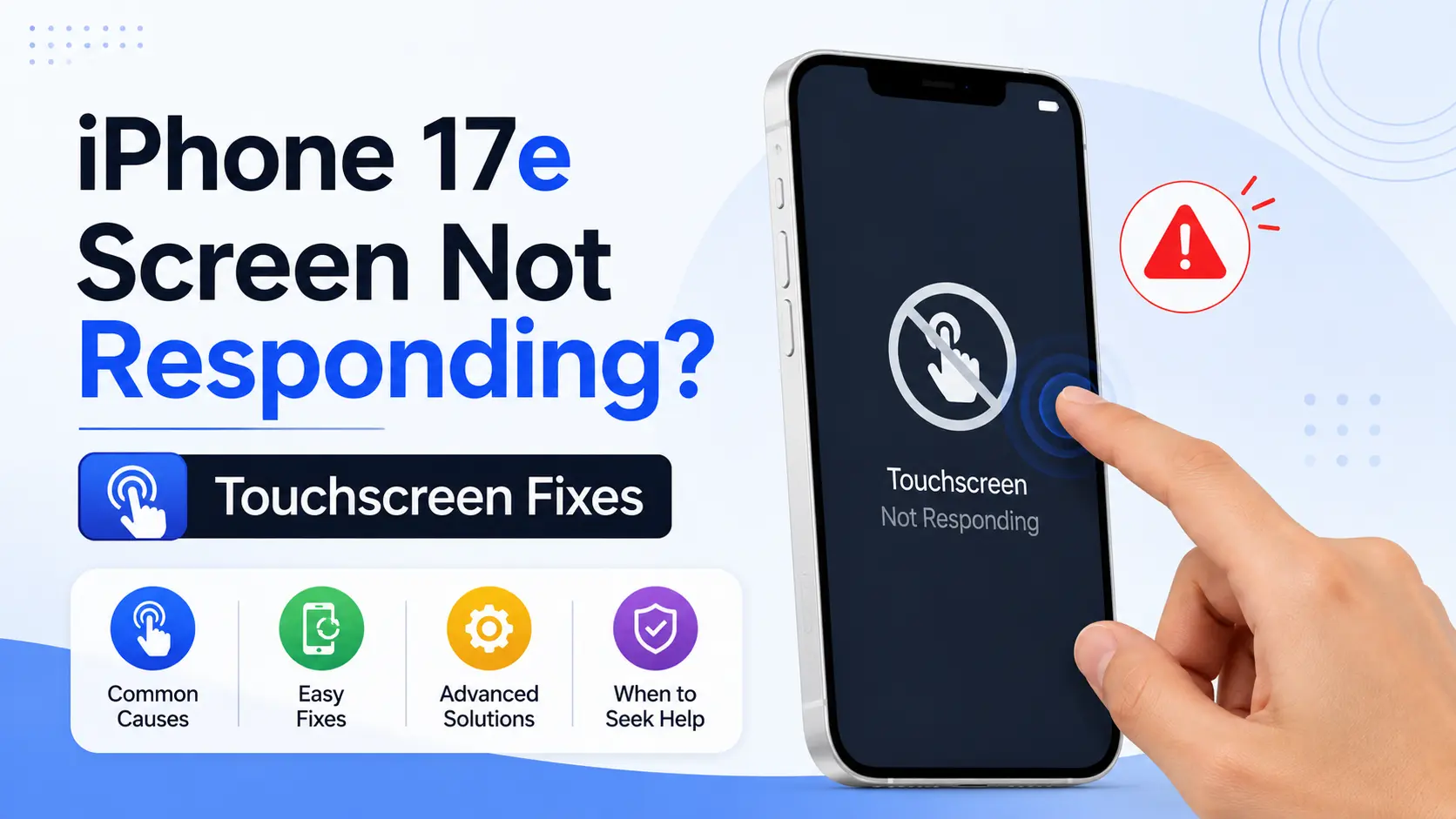
If your iPhone 17e screen is not responding, don’t assume the display is permanently damaged. In many cases, the problem is caused by temporary software glitches, overheating, accessory interference, or background system activity after an iOS update. Simple steps like force restarting the device, removing accessories, updating iOS, or freeing storage often restore normal touch responsiveness. If the touchscreen still fails after troubleshooting, the display or internal hardware should be professionally inspected.
Quick Answer
An unresponsive iPhone 17e touchscreen is most commonly caused by software glitches, overheating, faulty accessories, storage shortages, or physical display damage. Start by force restarting your iPhone, cleaning the display, removing the screen protector and case, disconnecting chargers, installing the latest iOS update, and checking available storage. If the problem persists, the display assembly or internal components may require repair.
Key Takeaways
- Most iPhone 17e touchscreen issues are software-related and can often be resolved without replacing the display.
- A force restart is usually the fastest first troubleshooting step.
- Damaged screen protectors, incompatible chargers, and overheating can all interfere with touch input.
- Keeping iOS updated and maintaining sufficient free storage improves overall responsiveness.
- Persistent ghost touch, dead touch zones, or touch failure after a drop usually indicates hardware damage.
Why Is My iPhone 17e Screen Not Responding?
A touchscreen relies on multiple components working together, including the OLED display, touch digitizer, iOS, and internal hardware. If any part of that system stops communicating properly, taps and gestures may become delayed, inaccurate, or stop working entirely.
Fortunately, many touchscreen problems aren’t caused by a faulty display. Temporary software bugs, intensive background processing after updates, or incompatible accessories can produce symptoms that closely resemble hardware failure.
The most common causes include:
- Temporary iOS software glitches
- Background optimization after major iOS updates
- Nearly full storage
- Device overheating
- Damaged or poorly fitted screen protectors
- Faulty USB-C or MagSafe charging accessories
- Moisture or liquid exposure
- Physical impact after a drop
- Loose display connectors
- Internal logic board faults
Identifying the likely cause first helps avoid unnecessary repairs and makes troubleshooting far more effective.
If you’ve noticed additional issues beyond the touchscreen, such as charging, connectivity, or software problems, our guide to common iPhone 17e problems and fixes explains the most frequent issues users encounter and how to resolve them.
Common Signs of iPhone 17e Touchscreen Problems
Touchscreen issues don’t always appear the same way. Some develop gradually, while others occur suddenly after an update, accidental drop, or exposure to moisture.
Common symptoms include:
- The screen ignores taps completely.
- Swiping becomes difficult or impossible.
- Only part of the display responds.
- Apps require multiple taps to open.
- The keyboard skips letters while typing.
- The display freezes even though the phone remains powered on.
- Random ghost touches occur without touching the screen.
- Touch response becomes noticeably slower during use.
If several of these symptoms appear together, work through the troubleshooting steps below before assuming the display needs replacement.
Troubleshooting at a Glance
| Problem | Most Likely Cause | First Fix to Try |
| Screen completely frozen | Temporary software crash | Force restart |
| Touch works intermittently | Background processes or overheating | Restart and allow the phone to cool |
| Ghost touch | Display or digitizer issue | Remove accessories and restart |
| Only part of the screen responds | Physical display damage | Inspect for cracks and seek diagnosis |
| Touch fails while charging | Faulty charger or cable | Disconnect accessories and retest |
| Slow touch response | Low storage or system load | Free storage and update iOS |
1. Force Restart Your iPhone 17e
A force restart is the quickest way to recover from temporary software crashes that can make the touchscreen appear completely unresponsive.
Unlike a standard restart, this process refreshes iOS without deleting apps, photos, or personal data.
How to Force Restart
- Press and quickly release the Volume Up button.
- Press and quickly release the Volume Down button.
- Press and hold the Side button.
- Release it when the Apple logo appears.
After your iPhone restarts, check whether touch responsiveness has returned before moving on to additional troubleshooting.
2. Clean the Display Properly
Modern iPhone displays use capacitive touch technology, which detects the electrical conductivity of your fingers. Dirt, sunscreen, oil, moisture, or residue can interfere with this process and reduce touch accuracy.
Use:
- A clean microfiber cloth
- A dry lint-free cloth
- A screen-safe cleaner applied to the cloth if needed
Avoid spraying liquid directly onto the display, and never use abrasive cleaning products.
It’s also worth making sure your hands are clean and dry, especially after using lotion or being outdoors in humid conditions.
3. Remove the Screen Protector and Case
Accessories can sometimes be the source of touchscreen problems.
A cracked, poorly aligned, or low-quality screen protector may reduce sensitivity, while rigid cases can place pressure on the display after a minor impact.
Temporarily remove:
- Screen protector
- Protective case
- Magnetic wallet attachment
- Thick bumper case
If the touchscreen immediately becomes responsive, replacing the accessory is usually all that’s required.
4. Disconnect Charging Accessories
Many users don’t realize charging equipment can affect touchscreen performance.
Damaged USB-C cables, poorly shielded chargers, faulty adapters, or incompatible MagSafe accessories may introduce electrical interference that causes inconsistent touch input.
Disconnect all connected accessories, including:
- USB-C charging cable
- MagSafe charger
- Wall adapter
- USB hub
- Power bank
Test the touchscreen again before reconnecting anything.
If the issue only occurs while charging, switch to certified charging accessories and inspect the charging port for debris or damage.
5. Let the iPhone Cool Down
Excessive heat can temporarily affect overall device performance.
When the iPhone reaches high internal temperatures, iOS automatically reduces performance to protect sensitive components. While this safety mechanism doesn’t usually stop touch input completely, it can make the device feel sluggish or less responsive.
Your iPhone may overheat during:
- Graphics-intensive gaming
- 4K video recording
- Extended FaceTime or video calls
- Wireless charging
- Initial device setup
- Major iOS updates
- Prolonged use in direct sunlight
If your phone feels unusually warm, remove it from direct heat and allow it to cool naturally.
Avoid placing it in a refrigerator or using ice packs, as sudden temperature changes can cause condensation inside the device.
If your device becomes hot frequently or overheating keeps returning, our detailed guide on iPhone 17e overheating causes and fixes explains why it happens, how to reduce heat safely, and when it may indicate a hardware problem.
6. Install the Latest iOS Update
Apple regularly releases iOS updates that improve stability, security, and bug fixes, including issues affecting touch responsiveness.
After a major software update, your iPhone may also spend several hours completing background tasks such as:
- Spotlight indexing
- Photo analysis
- iCloud synchronization
- App optimization
- Apple Intelligence setup on supported devices
During this period, the phone may feel slower than usual. In most cases, performance returns to normal once these processes finish.
To check for updates:
Settings → General → Software Update
Before installing an update, back up your device using iCloud or a computer to protect your data.
7. Free Up Storage Space
Storage isn’t just for photos and apps. iOS also relies on free space for temporary files, memory management, and system processes.
When storage becomes critically low, you may notice:
- Delayed touch response
- Keyboard lag
- Apps freezing
- Slow multitasking
- General performance issues
To check available storage:
Settings → General → iPhone Storage
If your storage is nearly full:
- Delete unused apps.
- Remove large videos.
- Clear downloaded files.
- Offload apps you rarely use.
- Move photos and videos to iCloud if available.
Keeping around 10–15 GB of free storage helps iOS manage background tasks more efficiently and maintain smoother overall performance.
8. Is Your iPhone 17e Experiencing Ghost Touch?
Ghost touch is when your iPhone responds to taps, swipes, or gestures even though you’re not touching the screen. It can be frustrating because apps may open on their own, the keyboard may type random characters, or menus may be selected without any input.
Although software bugs can occasionally trigger ghost touch, persistent or recurring ghost touch is more commonly linked to hardware issues affecting the display or touch digitizer.
Common symptoms include:
- Apps opening without input
- Random typing on the keyboard
- The display scrolling by itself
- Camera launching unexpectedly
- Menu items being selected automatically
- Touch issues that occur only while charging
Possible causes include:
- Software glitches after an iOS update
- Display damage following a drop
- Moisture affecting the touch digitizer
- Loose internal display connectors
- Low-quality aftermarket replacement screens
- Logic board faults
If ghost touch continues after restarting your iPhone, removing accessories, and installing the latest version of iOS, professional diagnostics are recommended.
9. Reset All Settings
If the touchscreen issue is caused by corrupted system settings rather than hardware damage, resetting all settings can help restore normal operation.
This process does not erase your personal files, photos, apps, or messages. Instead, it restores system preferences such as Wi-Fi settings, keyboard settings, privacy permissions, and network configurations.
To reset all settings:
Settings → General → Transfer or Reset iPhone → Reset → Reset All Settings
After the restart, test the touchscreen before changing any settings or reinstalling accessories.
10. Can Apple Intelligence Affect Touch Responsiveness?
The iPhone 17e supports Apple Intelligence on compatible software versions. During the initial setup or after a major iOS update, the device may perform extensive background tasks such as:
- Photo and video analysis
- Spotlight indexing
- App optimization
- iCloud synchronization
- On-device AI model preparation
These processes temporarily increase CPU and storage activity, which can make the phone feel slower than usual.
However, Apple Intelligence should not cause the touchscreen to stop responding completely. If your display remains frozen, develops dead touch zones, or shows ghost touch long after setup is complete, another software or hardware issue is more likely.
If your iPhone was recently updated, leave it connected to Wi-Fi and a charger overnight so background processing can finish.
11. Could Water or Moisture Be Causing the Problem?
Although the iPhone 17e is designed with water resistance, it isn’t waterproof. Water resistance also decreases over time due to normal wear, accidental drops, or previous repairs.
Moisture inside the display assembly or around internal connectors can interfere with the touch digitizer and produce symptoms such as:
- Delayed touch response
- Ghost touch
- Screen flickering
- Touch working only in certain areas
- Charging issues alongside touchscreen problems
If your iPhone has been exposed to water:
- Disconnect it from any charger immediately.
- Wipe the exterior with a dry microfiber cloth.
- Leave the device in a cool, dry, well-ventilated location.
- Allow it to dry naturally before charging again.
Avoid using hair dryers, ovens, direct sunlight, or uncooked rice. These methods can either damage the device or do little to remove moisture trapped inside.
If the touchscreen still doesn’t respond after drying, internal inspection is the safest next step.
12. When Does the Screen Need Replacement?
Not every touchscreen issue can be solved with software troubleshooting.
If the touch digitizer or OLED display has been physically damaged, replacing the display assembly is often the only reliable solution.
Signs that usually indicate display replacement include:
- Cracked or shattered front glass
- Black spots or ink-like patches
- Green, white, or pink display lines
- Persistent screen flickering
- Dead touch zones
- Complete touch failure after a drop
- Display separating from the frame
Because the iPhone 17e uses an integrated OLED display and touch digitizer, failures affecting the touch layer generally require replacement of the complete display assembly rather than a separate digitizer repair.
When Should You Seek Professional Repair?
Many touchscreen problems can be resolved at home, but some symptoms point to underlying hardware faults that require specialist equipment to diagnose.
Professional repair is recommended if:
- A force restart doesn’t restore touch functionality.
- The screen remains completely unresponsive.
- Ghost touch continues after troubleshooting.
- The display flickers constantly.
- The phone was recently dropped.
- Water damage is suspected.
- Only specific areas of the display respond.
- The problem returns repeatedly after software updates.
Ignoring these symptoms can allow minor issues to worsen, potentially affecting the display connector, battery, or logic board over time.
How Professional Technicians Diagnose Touchscreen Problems
An accurate diagnosis helps identify whether the issue lies with the software, display assembly, or internal hardware before any repair begins.
Professional technicians typically perform:
| Diagnostic Test | Purpose |
| Touch digitizer testing | Confirms whether the touch layer is functioning correctly |
| OLED display inspection | Detects cracks, pressure damage, and display defects |
| Display connector inspection | Identifies loose or damaged internal connections |
| Moisture inspection | Checks for signs of liquid intrusion |
| Logic board diagnostics | Detects faults affecting display communication |
| Software integrity testing | Rules out firmware or operating system issues |
| Charging system evaluation | Identifies accessory-related interference |
This systematic approach helps avoid unnecessary repairs and ensures only the faulty component is replaced.
If your iPhone requires expert attention, our iPhone repair specialists diagnose both software and hardware touchscreen issues using professional diagnostic equipment. Learn more about our iPhone repair services in Dubai, where we repair display, battery, charging, and motherboard problems using high-quality replacement parts.
Frequently Asked Questions
Why is my iPhone 17e screen not responding?
The most common causes are temporary software glitches, overheating, damaged screen protectors, faulty charging accessories, low available storage, moisture exposure, or physical display damage. A force restart and basic troubleshooting often resolve software-related issues.
Can an iOS update cause touchscreen problems?
Occasionally, yes. After a major iOS update, your iPhone performs background indexing, app optimization, and system maintenance. During this period, the device may feel less responsive. Persistent touchscreen problems after updating usually indicate another software issue or hardware fault.
What causes ghost touch on the iPhone 17e?
Ghost touch is commonly caused by display damage, moisture, loose display connectors, or faulty replacement screens. Although software bugs can contribute, recurring ghost touch usually requires professional inspection.
Will resetting my iPhone fix touchscreen issues?
Resetting all settings can resolve problems caused by corrupted system configurations without deleting your personal data. However, it won’t repair a physically damaged display or faulty touch digitizer.
How do I know if my screen needs replacing?
Your display likely needs replacement if it has dead touch zones, cracks, persistent flickering, coloured lines, black spots, or remains completely unresponsive after software troubleshooting.
Can a screen protector stop my touchscreen from working?
Yes. A damaged, poorly installed, or low-quality screen protector can reduce touch sensitivity or interfere with gestures. Removing it temporarily is an easy way to rule out accessory-related issues.
Final Thoughts
An iPhone 17e screen that’s not responding doesn’t automatically mean the display has failed. In many cases, the issue is caused by temporary software glitches, background processing after an iOS update, overheating, storage limitations, or incompatible accessories. Working through the troubleshooting steps in this guide can often restore normal touch responsiveness without the need for repairs.
If the touchscreen remains unresponsive, develops ghost touch, or stops working after a drop or liquid exposure, professional diagnosis becomes the safest option. Identifying the underlying cause early can prevent additional damage and reduce repair costs.
If you need expert assistance, Milaaj offers comprehensive diagnostics and repairs for touchscreen, display, battery, charging, and motherboard issues across Dubai.If repairing your device isn’t the best option, you can also sell your iphone in Dubai through our buyback service and receive a competitive quote.
📍 Visit Any Milaaj Branch in Dubai
🔹 Bur Dubai
Milaaj Mobile and Laptop Repair Dubai
📞 055 258 8477
🔗 Google Maps
🔹 Al Barsha
Milaaj Mobiles and Laptop Repair Al Barsha
📞 052 596 2846
🔗 Google Maps
🔹 Al Barsha 3
Milaaj Mobiles , Laptops and Watches Repair Service
📞 052 3405 814
🔗 Google Maps
🔹 Al Nuaimiya
Milaaj Mobiles and Laptops Ajman
📞 055 788 9654
🔗 Google Maps
Email: support@milaaj.com
Operating Hours: Monday Sunday

Leave a Reply